Manual Upload
Use Manual Upload for signed documents, approved snapshots, exports, and files without a supported live provider. You can upload individual files, folders, or a top-level ZIP archive. Siesta AI creates processed copies and does not remain linked to the files on the user's computer.
Manual Upload stores the uploaded originals; unlike supported remote connectors, it does not expose an optional Store source files switch. The distinction between originals, extracted text, and retrieval chunks is documented in Store Source Files.
Before You Start
- Put files with the same audience and purpose in one collection.
- Remove secrets, private keys, credential exports, and material outside the collection audience.
- Resolve obsolete or contradictory versions before upload.
- Use a synchronized connector instead when the source changes regularly.
- Use ZIP only as a transport container. Siesta AI extracts supported entries from the archive; it does not index the ZIP itself as one searchable document.
Configure the Source
- Open Data, select a collection, and choose Add data source → Manual Upload.
- Enter a durable Name, for example
Support policies — 2026 Q3. - Use Description for owner, version, scope, and replacement policy.
- Add at least one file, folder, or top-level ZIP archive under Upload files.
- Review processing options only when you have a retrieval test.
- Confirm, wait for processing, then inspect representative files and chunks.
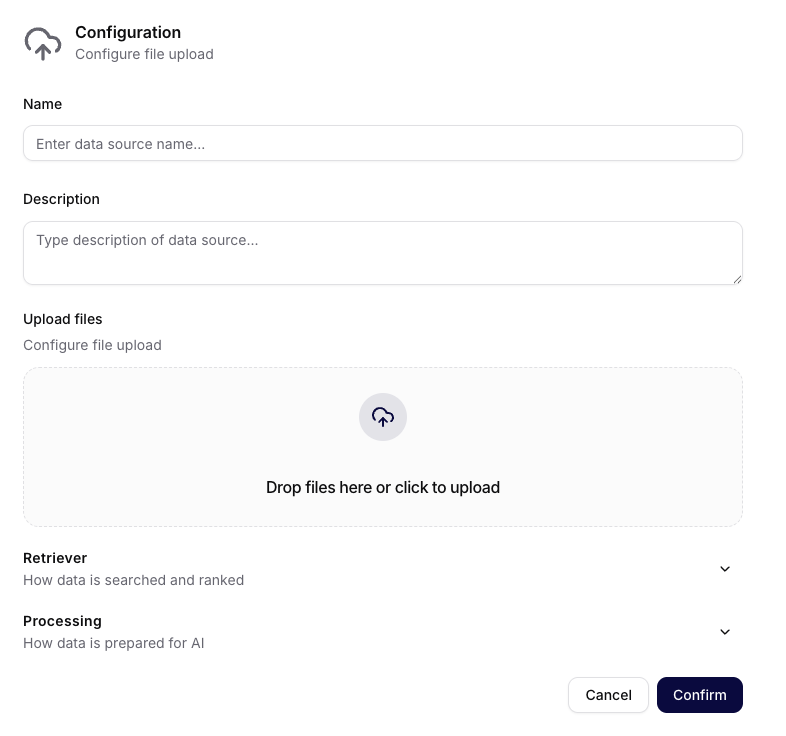
Manual Upload keeps the files and the searchable-content settings in one configuration form.
| Field | What to enter |
|---|---|
| Name | A recognizable snapshot or release name |
| Description | Owner, approval date, scope, and expected replacement |
| Upload files | One or more local files, folders, or top-level ZIP archives; at least one importable file is required |
| Retriever | Keep the defaults unless a measured retrieval test justifies changing query rewrite, ranking, or result count |
| Processing | Expand to review extraction and file-processing options; change them only against representative documents |
Processing can expose file classes and JSON metadata or feature settings. The current UI supports JSON, Text, PDF, Word, Excel, PowerPoint, Markdown, and Other file classes. File extension support does not guarantee good extraction: scanned PDFs, embedded spreadsheets, and image-heavy presentations must be checked after processing. For scanned, table-heavy, or figure-heavy PDFs, review Advanced PDF Content Extraction before enabling the switch.
Uploading ZIP Archives
A .zip file is expanded during source creation. Importable entries become individual Data files and safe relative folder paths are preserved. Archives inside an archive are not expanded.
The following limits apply across one Manual Upload request:
- Each selected file, including each top-level ZIP, can be at most 200 MB (
200,000,000bytes). - At most 1,000 files can be selected directly, and up to 1,000 ZIP entries can be considered across all uploaded archives.
- Each extracted entry can be at most 200 MB uncompressed, with at most 500 MB uncompressed across all uploaded ZIP archives.
- An entry's compression ratio cannot exceed 100:1 and its path can contain at most 512 characters.
Siesta AI skips nested ZIP files, empty files, unsafe paths, malformed or unreadable entries, and entries that exceed these limits. The source can still be created when at least one file is imported; the Web App then shows a warning with the number of skipped archive entries. If nothing can be imported, source creation fails.
The ZIP limits are separate from the user's cumulative Data Upload Limits. For the complete format table and technical limit reference, see Choose a Data Source.
User Guidance
Use Manual Upload when you deliberately control change. Include the version in the source name and ask the owner what to do with the previous source when a replacement arrives. Two conflicting versions are a common cause of inconsistent answers.
Admin Guidance
Define Data Upload Limits, collection access, retention, and who may delete or replace a source. A successful upload does not make the content safe to share. Review both the upstream document classification and the collection audience.
Verification
Open Files and confirm expected names, relative paths, Indexed and Readable state, and extracted text. After a ZIP upload, compare the imported files with the archive and investigate any skipped-entry warning. Test one fact that exists, one that is absent, and one that would expose a stale version.