Data
Data collections turn files and records from external systems into reusable, searchable knowledge for Siesta AI agents. This section explains every Data source currently available in the dev application and what belongs in each field.
The Data Model
- A connection stores authentication for an external system.
- A data collection is the access-controlled business container.
- A data source defines exactly what to import through a connection.
- Documents and chunks are the processed content that retrieval can search.
- An agent retrieves from one or more assigned collections.
Credentials belong in Connections. Folder IDs, paths, blob selectors, project or space keys, and URLs belong in the Data-source form.
Start Here
| Goal | Guide |
|---|---|
| Compare all sources and decide where content belongs | Choose a Data Source |
| Upload a controlled file snapshot | Manual Upload |
| Set the default or user-specific Data upload allowance | Data Upload Limits |
| Synchronize Google folders or Shared Drives | Google Drive |
| Synchronize OneDrive or SharePoint folders | Microsoft 365 |
| Read blobs or Azure file shares | Azure Storage |
| Automate a governed local or on-premises document feed | Automated File Ingestion with Azure File Share |
| Import Jira projects or Confluence spaces | Atlassian |
| Scrape one page or crawl a bounded website | Firecrawl |
| Configure processing, retrieval, sync, and diagnose failures | Processing, Sync, and Troubleshooting |
When To Use Data
Use a collection when several users or agents should reuse the same approved source material, content should synchronize, processing and logs must be inspectable, or the knowledge needs a private, team, or organization access boundary.
For a single temporary file, a chat attachment can be simpler. For durable knowledge, use a collection.
Create a Collection
Open Data and select Create collection.
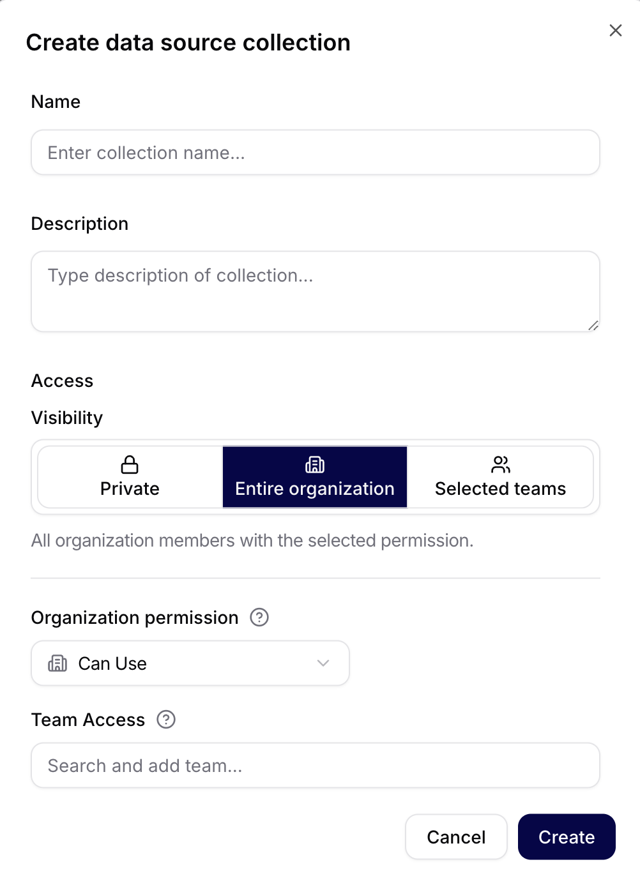
- Name: use a durable business name such as
Customer Support — Approved Knowledge. - Description: record content scope, owner, exclusions, and intended agents.
- Visibility: choose one of three access scopes:
- Private: only you and people you explicitly grant access to can use the collection.
- Entire organization: all organization members receive the permission selected under Organization permission.
- Selected teams: only members of the teams added under Team Access receive access.
The collection is the access boundary. Do not mix confidential HR documents and public product documentation merely because both are stored in Google Drive.
Add A Data Source
Open a collection and select Add data source. Manual Upload is independent of Connections. Every integration-backed source first needs a compatible entry under Connections.
All connected-source forms share:
- Name identifying this specific import,
- optional Description with owner, scope, and exclusions,
- Connection ID selecting stored authentication,
- Sync frequency: On Demand, Daily, Weekly, or Monthly.
If Connection ID is empty, create or request access to the correct connection and return to the collection. Never paste a secret into this selector.
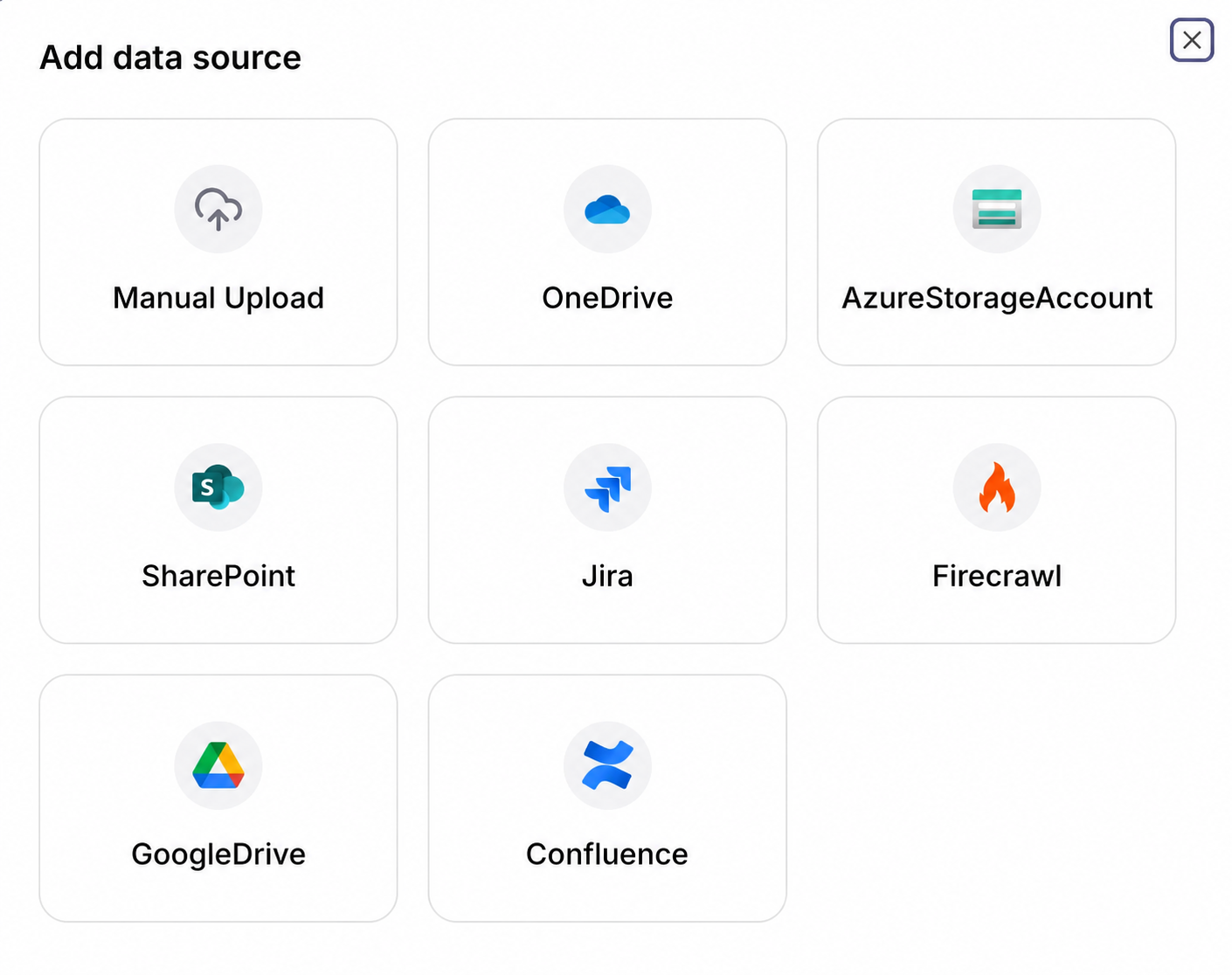
After clicking the desired data source, you configure it.
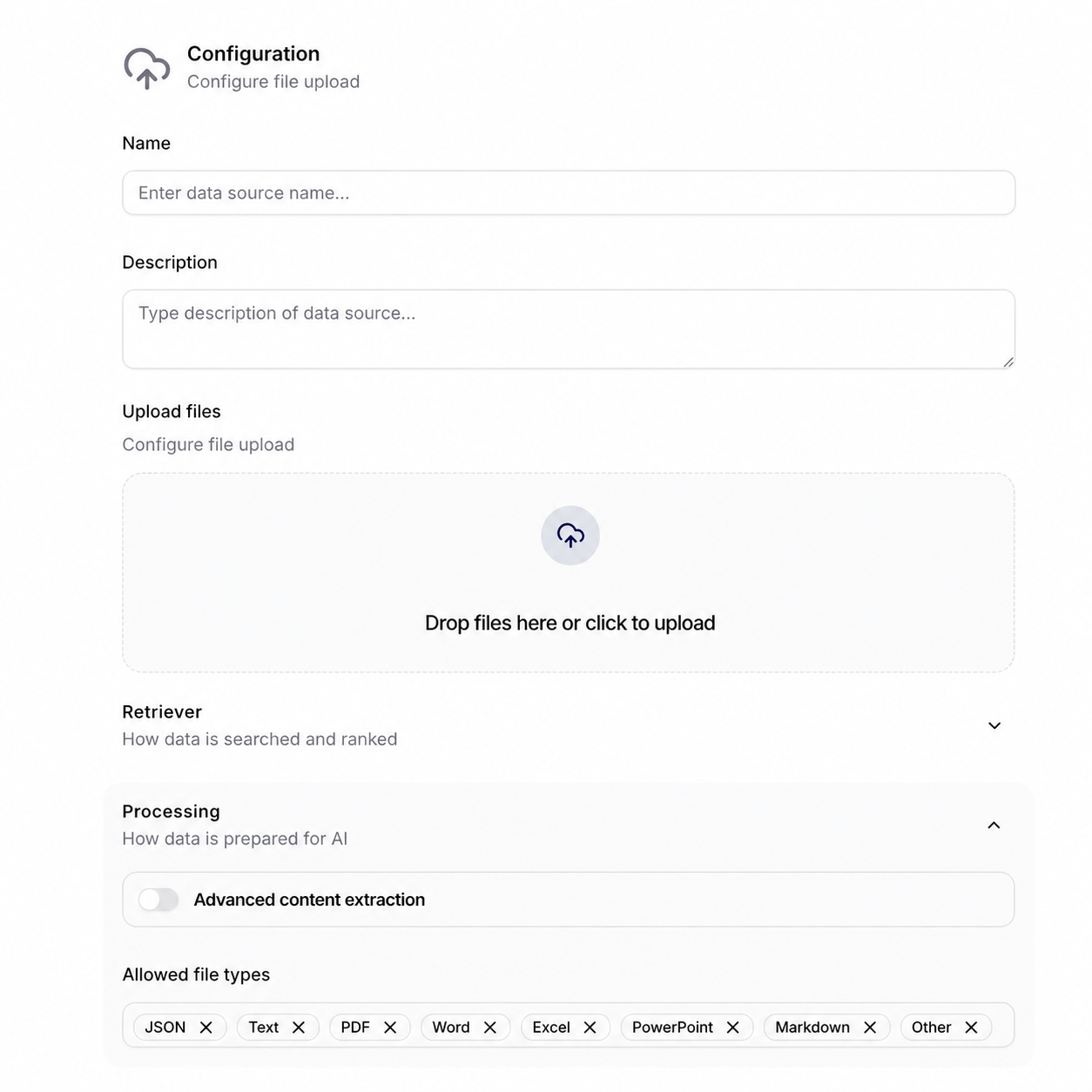
Enabling Advanced content extraction increases cost. It uses Azure Document Intelligence, billed per page. Enable it only for scanned, table-heavy, or figure-heavy PDFs, and review the technical extraction path and analyzed-page allowance before applying it to a large source.
Store Source Files
Store source files controls whether Siesta AI keeps a copy of each original remote file in addition to the representations required for retrieval. Configure it when you create the source; it is not the same as uploading a file to a chat or publishing an artifact.
| Source | Creation behavior |
|---|---|
| Manual Upload | Original uploaded files are stored. The creation request always enables source-file storage and does not show an optional switch. |
| Google Drive | Optional Store source files switch under Processing; off by default. |
| OneDrive | Optional switch under Processing; off by default. |
| SharePoint | Optional switch under Processing; off by default. |
| Azure File Share | Optional switch under Processing; off by default. |
| Azure Storage Account | Optional switch under Processing; off by default. |
These three representations serve different purposes:
- the original source file preserves the downloaded binary object when storage is enabled;
- extracted text and processing metadata make the document readable and record what the parser produced;
- chunks and the retrieval index are the searchable units used to retrieve relevant context for an agent.
Turning the option off for a remote source does not mean that the source is ignored. Siesta AI can still discover, parse, chunk, embed, and index supported content. It means that a separate retained copy of the remote original is not requested. Turning it on therefore adds storage for the original binaries on top of the processed retrieval representation; estimate the impact from the size and change rate of the selected folders, libraries, shares, or blobs.
After creation, the source Overview shows Source files stored when a non-manual source was created with the option enabled. The badge reports the stored configuration; use Files, document status, and Logs to prove that individual documents were successfully processed.
If creation fails after the preliminary data-source record is made, the service schedules deletion of the corresponding RAG source and rolls back the preliminary record. This is creation-failure cleanup, not a published retention schedule. Do not infer how long successful originals are retained, or when remote deletions remove stored copies, unless your organization's deployed policy states it separately.
Choose the option deliberately:
- enable it when workflows need the original binary, an exact downloadable source copy is operationally required, or reprocessing must not depend only on the remote provider remaining available;
- leave it off when retrieval is the only requirement and duplicating a large remote corpus would create unnecessary storage, governance, or residency exposure.
Because the setting is part of source creation rather than the editable Configuration tab, confirm it before creating a large source. If a different policy is required later, validate the migration or replacement procedure in the deployed environment before changing production ingestion.
Inspect Before Agents Use It
Check source status, representative files, Indexed and Readable state, extracted chunks, and Logs. A successful run proves that processing completed; it does not prove that every expected document is present, useful, current, or safe for the collection audience.
For an organization-wide inventory view, open Analytics > Data. It can expose an unexpectedly small collection, missing source type, dominant source, or unusual file mix. Treat RAG Data Ingested Over Time by User as the current indexed footprint grouped by first discovery date and source creator—not as a count of sync runs or reprocessed bytes. Return to the collection, document status, and Logs for the processing-level explanation.