Artifacts
Artifacts is the catalog of published files available to you from conversations and workspaces. Use it to find a report, spreadsheet, image, or other output without reopening each conversation. Files uploaded as chat attachments are inputs; they are not automatically published artifacts.
Browse artifacts
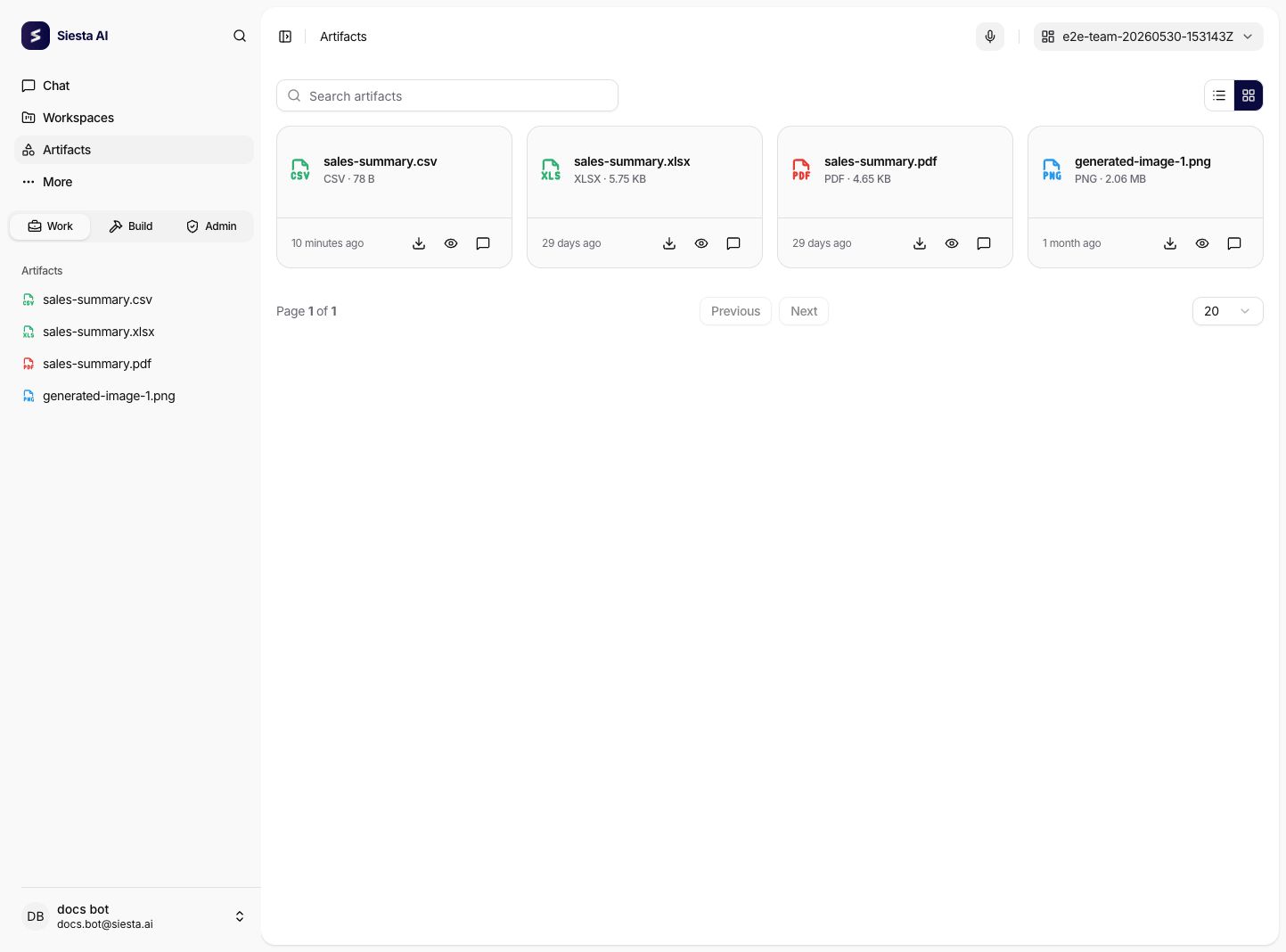
Open Work → Artifacts. Search by file name with Search artifacts, and switch between Cards and Table. Use the page controls to browse more results.
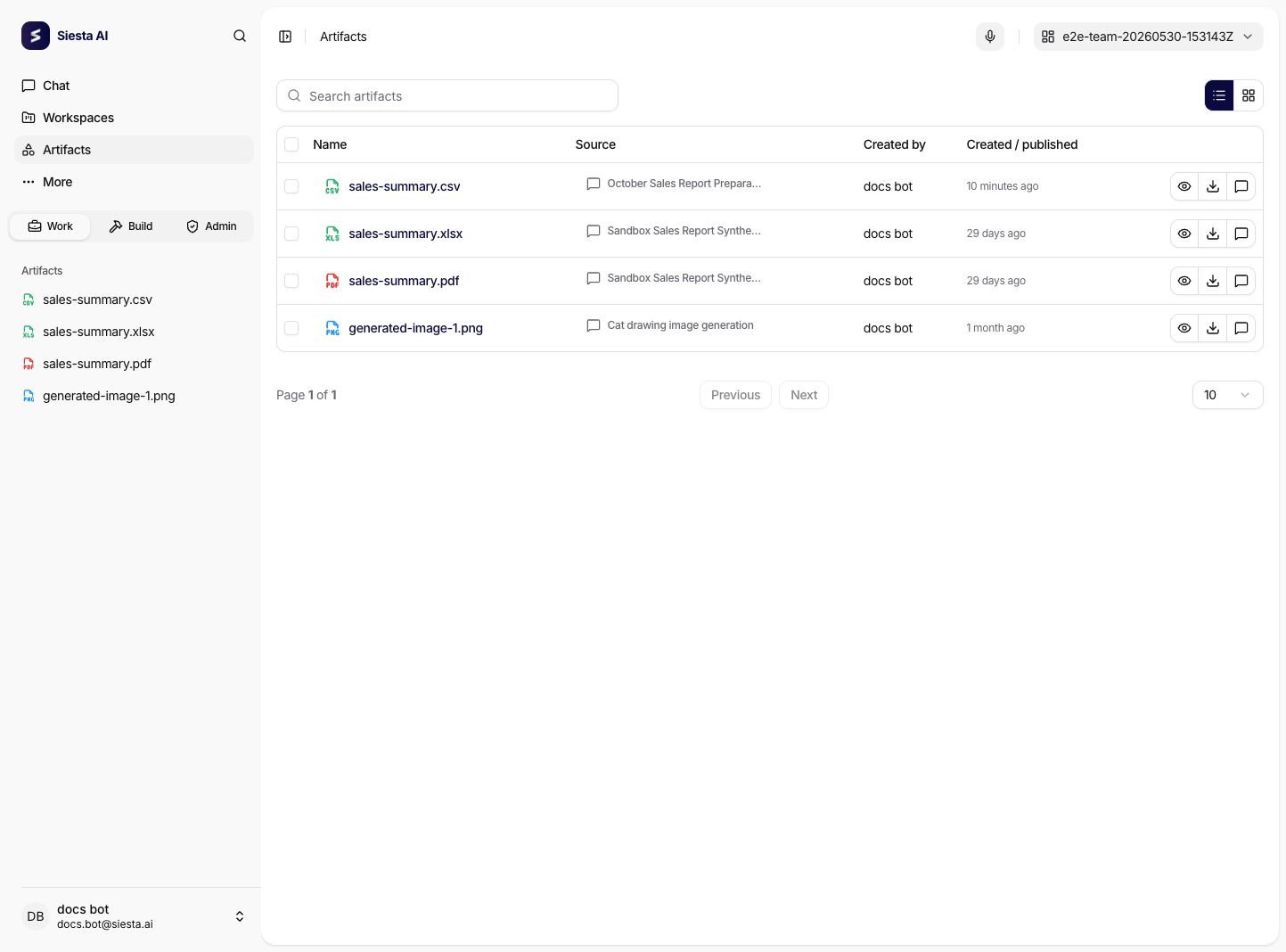
Cards show the file name, type, size, and creation or publication time. The table adds Source and Created by, with a Created / published column for the date. Select a file name or its preview action to open the file.
For another view of the same catalog, select the Table icon in the upper-right corner. The files are then shown as rows with their sources, creators, and dates.
Preview a file
The file viewer opens a supported preview and offers a download action for the original. Use Back to artifacts to return to the catalog. PDF previews provide page navigation and zoom controls.
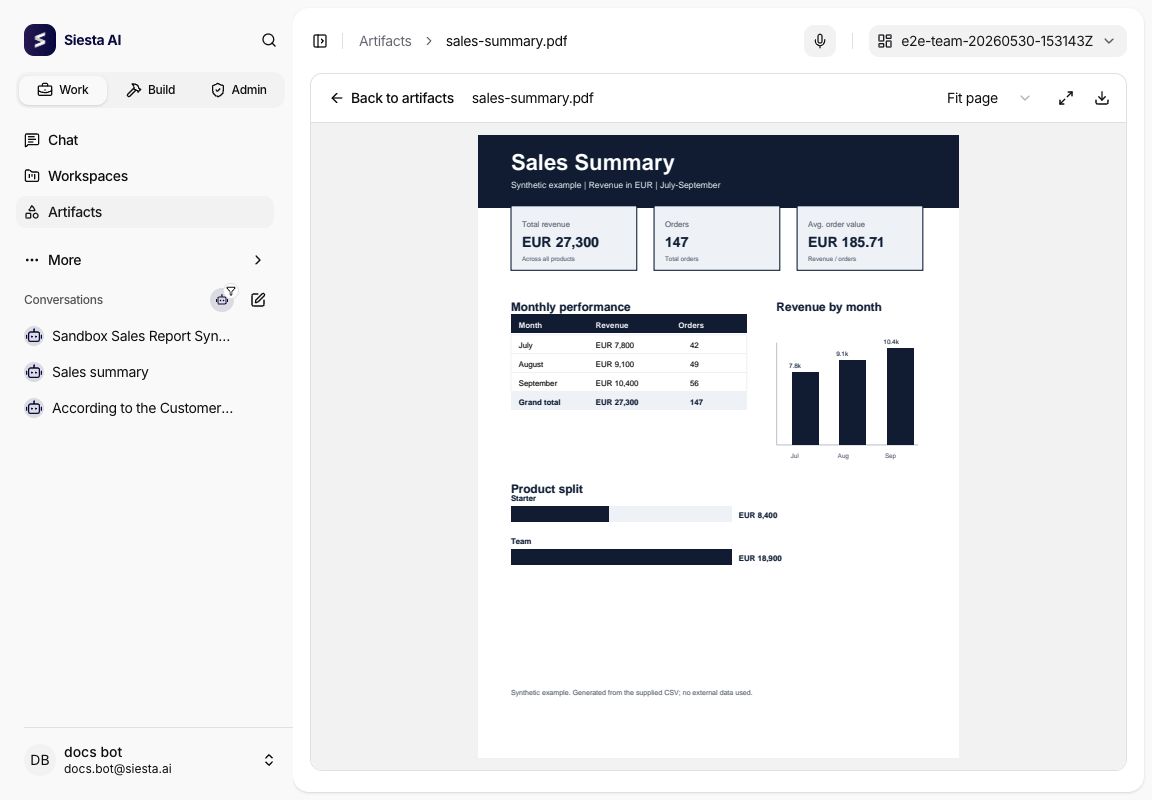
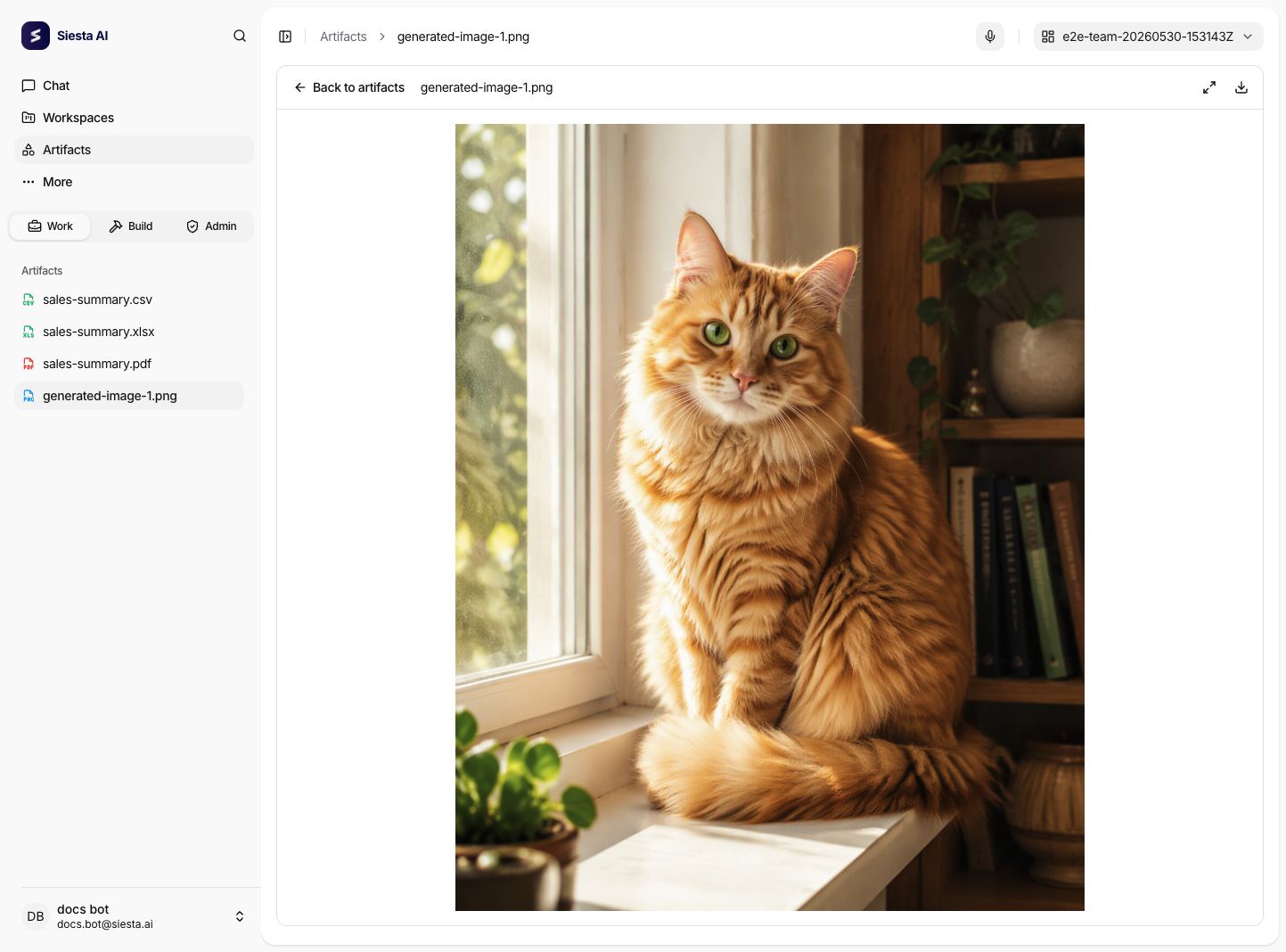
Preview is read-only. Supported formats include PDF, Word, Excel, PowerPoint, CSV, text, code, and raster images (PNG, JPEG, WebP, GIF, and AVIF). SVG is shown as source. Image previews have a source-size limit and unsupported or oversized files remain downloadable. Complex formatting can be simplified, and a file can exceed its preview limit while remaining available to download. See File preview formats for format-specific behavior and limitations.
Outputs from workspace chat
New assistant outputs and successful tool-output artifacts in a signed-in workspace conversation are automatically added to its workspace when you have workspace edit permission and write access. If attachment fails, the file remains in the conversation with a warning. Check access before retrying publication.
User attachments are inputs; files only on the sandbox disk are working state. Neither is automatically a published artifact. A sandbox output must first be published with publishFiles. Reattaching the same artifact reuses its workspace assignment; publishing a modified file creates a new output rather than replacing the old download. See workspace publication.
Open the source
Use the Open source action on a card or table row to see the file in its workspace or open its source conversation detail. In Table view, you can also select the source name. This helps you find the surrounding work or the request that produced the file.
Download files
Use a file's Download action to save it. To download several files, select their checkboxes and choose Download in the selection bar. The table's Select this page checkbox selects only the visible page. Changing the search or page clears the selection.
Multiple downloads are sent to your browser as individual files, not a ZIP archive. Allow multiple downloads if your browser asks. If some files fail, use Retry failed downloads; check your browser's downloads to confirm which files were saved.
Add or remove workspace files
To manage files, open a workspace's Artifacts tab. Select Upload files, or Select files when the workspace is empty; you can also drag files into the upload area. Multiple files can be uploaded, with a maximum of 200 MB per file. If an upload fails or is cancelled, refresh the list before repeating it because some files may already have been published.
Removing a file from a workspace removes that workspace assignment. A file used in another workspace or conversation remains available there. Review the confirmation before removing it. For the full workspace workflow, see Workspace artifacts.
Access and missing files
The catalog requires an organization sign-in. Workspace files require workspace viewing permission and access to the source workspace. Conversation files require conversation viewing permission; the catalog includes your conversations and those available through elevated access. A shared-conversation link alone does not add its files to the catalog. Opening or copying an artifact link does not grant access to its source.
Uploading workspace files requires workspace edit permission and write access. Removing them requires workspace delete permission and write access. Ask an administrator or workspace owner if the required action is unavailable.
If the catalog is empty, clear the search and check your source access. Use Try again after a loading error. If a previously available file is now unavailable, refresh the page and check whether the source or your access has changed.