Siesta AI Browser Extension
The Siesta AI Browser Extension keeps your agents beside the page you are working on. It opens in the side panel of Google Chrome and Microsoft Edge, so the page stays visible while you chat, attach its content, or let an agent act on it.
Install the Extension
Install Siesta AI from the Chrome Web Store or Microsoft Edge Add-ons. Chrome or Edge version 116 or later is required. Pin the icon to the toolbar, then open the panel with the icon or Ctrl+Shift+Y (Command+Shift+Y on macOS).
Sign In
Select Sign in to Siesta and complete the normal Siesta AI sign-in in the tab that opens. The extension never sees your password.
Organizations with a private deployment select Connect to organization and import the configuration file downloaded from their Siesta AI web app, then sign in with Microsoft. Administrators find the required Entra settings in the app registration guide.
Choose an Agent
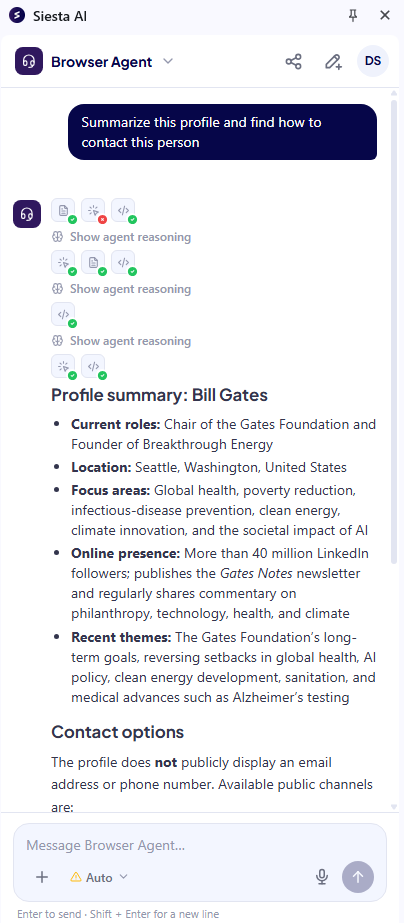
The panel selects your last-used agent, then your account default, a favorite, or the first available agent alphabetically. Select the agent name in the header, or press Ctrl+K, to switch. Favorites are marked with a star.
Only agents enabled for the Browser Extension in Agents > Interfaces appear. An administrator can also assign an agent to specific websites, in which case the panel switches to that agent automatically when you open it there.
Chat
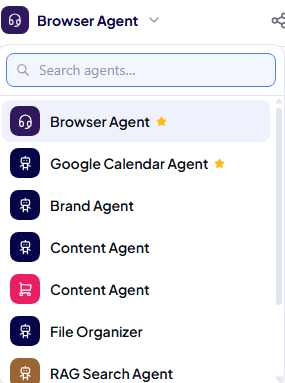
Type a message and press Enter. Starter prompts configured on the agent appear in an empty chat. While the agent works you can expand its reasoning, follow the tools it calls, and select Stop. Hover a reply to copy or rate it.
Every browser tab keeps its own conversation, so you can work with different agents in different tabs. The tab group label shows when an agent is working, and a notification appears when a reply finishes while the panel is hidden. New chat clears the current tab's conversation.
Attach Context and Files
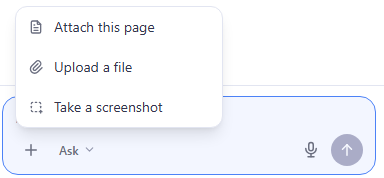
Select + beside the composer to attach the current page, upload files, or take a screenshot of the tab. You can also drag files onto the panel or paste an image. Files can be up to 20 MB each.
Right-click a page, a text selection, or an image and choose Attach … to Siesta to send it to the panel without copying. Page text and selections are limited to 20,000 characters and include the page title and URL; they are sent as an attachment. Failed uploads can be removed and retried.
Browser settings pages, the new tab page, and extension stores do not allow page capture or screenshots.
Browser Control
Browser control lets the agent see and act on the current tab: read the page, take screenshots, click, type, scroll, and navigate. Choose a mode from the selector next to the composer:
- Off keeps the agent away from the page.
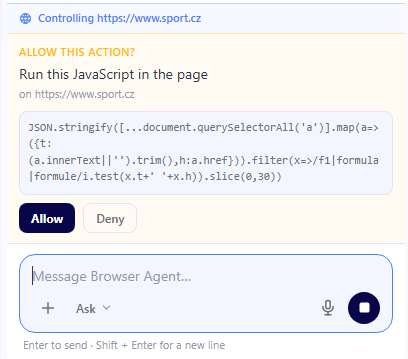
- Ask confirms every action that changes something before it runs. This is the default.
- Auto runs all actions without asking.
In Ask mode, reading the page and taking screenshots do not show a confirmation because they do not change the page. Clicking, typing, and navigation can require confirmation according to the action the agent proposes.
A bar above the composer shows which site the agent is controlling. Select Stop to end a run at any time. Auto mode is never remembered between sessions.
In Auto mode the agent can act on any open page with your access. Use Ask mode on unfamiliar sites and switch browser control off when you do not need it.
Share a Conversation
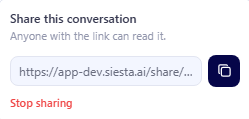
Select Share conversation in the header to create a public link. Anyone with the link can read the conversation. Stop sharing revokes it.
Voice
Select the microphone in the composer to dictate a message using the browser's speech recognition. Edit the text, then send.
When the selected agent is a realtime voice agent, the panel switches to a voice call. Select Start voice chat, allow microphone access, and talk. You can mute, interrupt the agent by speaking, and follow the transcript.
Language and Appearance
Open the user menu from your initials in the header to change the interface language. Eleven languages are available, and the choice also sets the dictation language. The panel follows the browser's light or dark theme.
Keyboard Shortcuts
| Shortcut | Action |
|---|---|
Ctrl+Shift+Y / Command+Shift+Y | Open or close the side panel |
Ctrl+K / Command+K | Switch agent |
/ | Focus the composer |
Enter / Shift+Enter | Send / new line |
Esc | Close open menus |
Privacy
The extension reads a page only when you attach it or when browser control is on. Browser-control page reads and screenshots can run without an approval prompt, including in Ask mode; Ask mode confirms actions that change something. Attached content, screenshots, and files are uploaded to Siesta AI. Follow your organization's rules before attaching confidential content, and do not attach secrets or personal data unless the use case is approved.