Graphs
Graphs store connected, traceable knowledge as entities and relationships. Use a Graph when the connections between facts matter—for example, when an agent must understand that a person works for a company, a decision belongs to a project, or an event depends on another event.
A Graph has three distinct layers:
| Layer | What it contains | Where you manage it |
|---|---|---|
| Catalog | The Graph name, description, extraction guidance, access policy, statistics, and lifecycle. | Graphs in the main navigation. |
| Knowledge | Nodes, relationships, properties, and available evidence. | Explorer and Galaxy View inside a Graph. |
| Agent assignment | Which Agents can read the Graph and whether they may write to it. | The Agent's Configuration tab. |
Creating a Graph does not automatically assign it to an Agent. Likewise, assigning a Graph does not grant broader access than the current user and Agent are allowed to use.
Graph catalog and lifecycle
Open Graphs from the main navigation to see the Graphs available to you. The catalog can be searched and filtered by access scope or assigned Agent. Each row shows the Graph, its scope, assigned Agents, last update, and available actions.
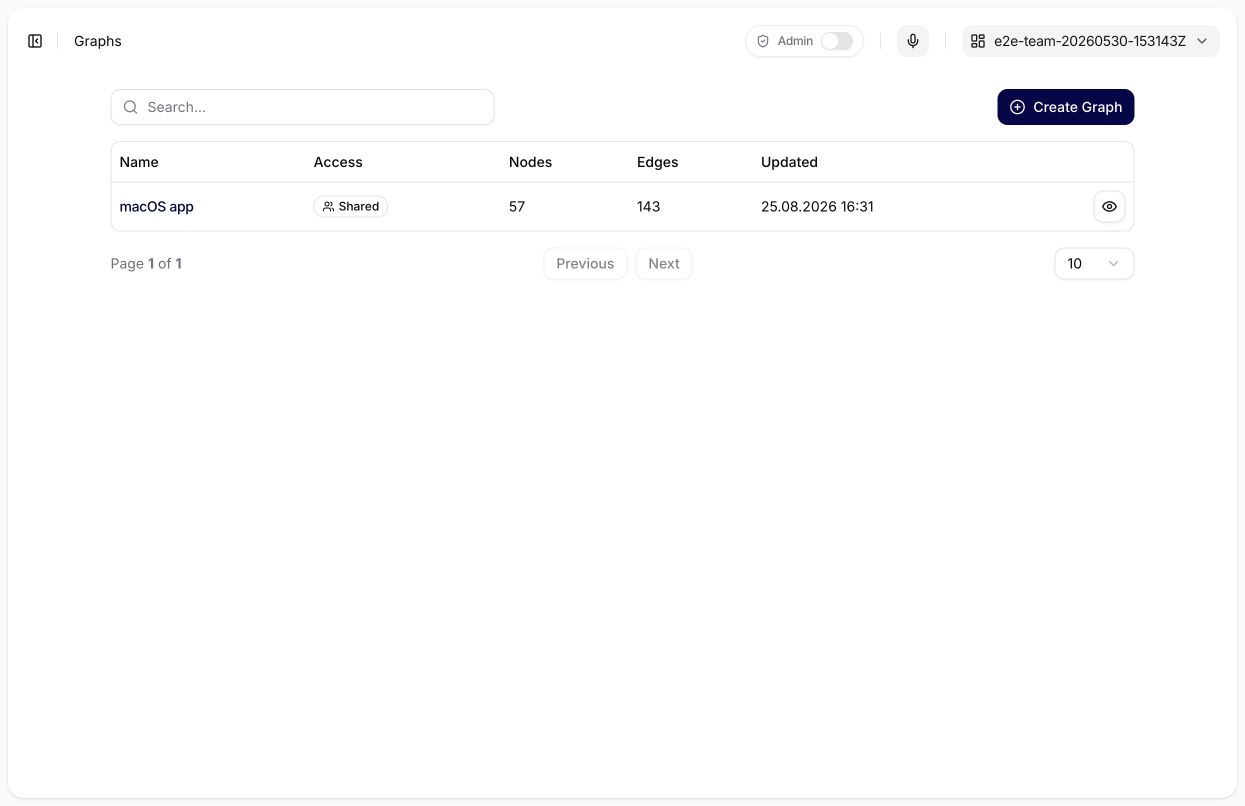
The catalog is the lifecycle view: it shows access, size, and update information without replacing inspection of the Graph's actual knowledge.
Create a Graph
Select Create Graph, then provide:
- Name: a short label that distinguishes the Graph in the catalog and Agent configuration.
- Description: the purpose and expected subject area.
- Extraction guidance: instructions about the entities, facts, properties, and relationships that an Agent should store. Guidance configures extraction; it is not source evidence and does not by itself authorize a write.
- Access: the resource access policy. Keep a Graph private while designing it, then grant team or organization access only when its content and intended users have been reviewed.
After creation, open the Graph to review its Overview, Explorer, Galaxy View, and Settings.
Overview and health
Overview shows the Graph's general information, extraction guidance, access state, registration date, and current node and relationship counts. Use these statistics as a quick health signal, not as proof that extraction is complete or correct.
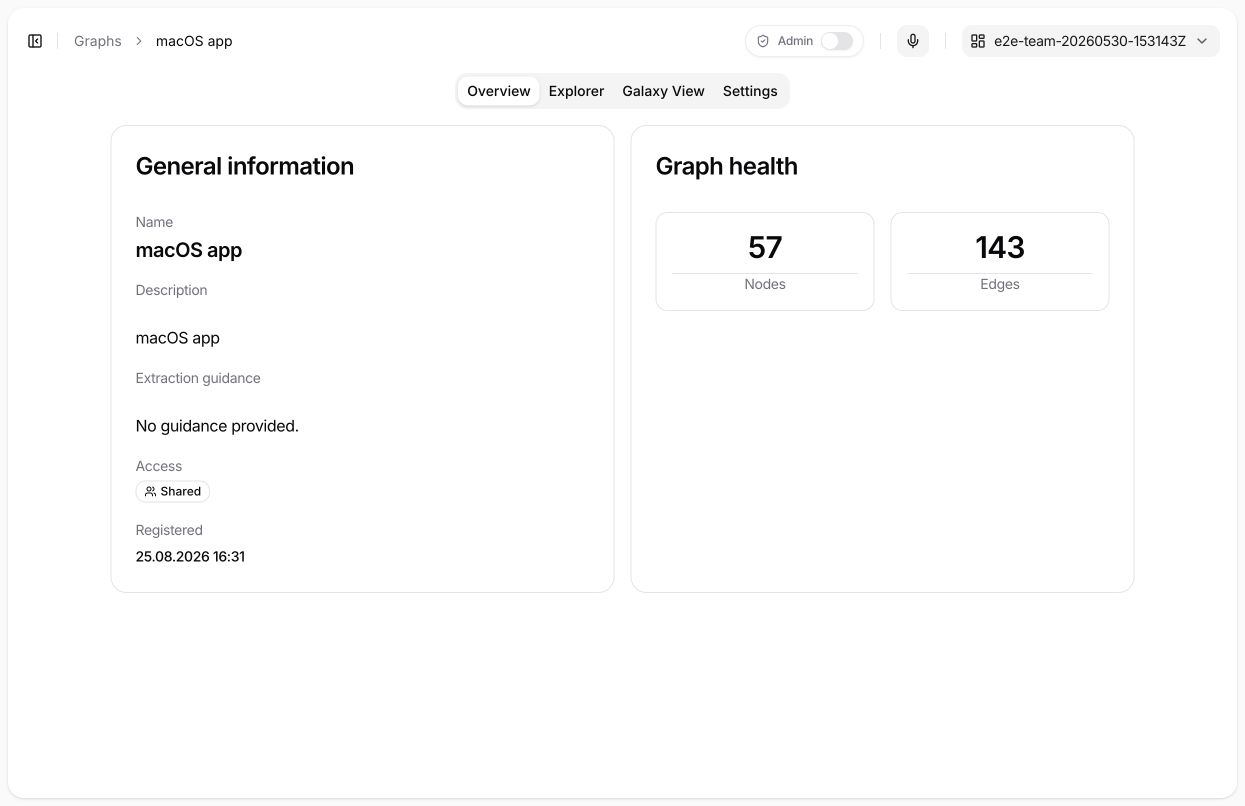
In this example, the Graph contains 57 nodes and 143 relationships. The counts confirm the current stored size; they do not measure correctness or coverage.
If you have read-only access, you can inspect the Graph but cannot save settings or change its knowledge. The actions available in the UI depend on both your Graph permissions and the Graph's access policy.
Settings and deletion
Use Settings to update the name, description, extraction guidance, and access policy within your permissions. Changing sharing requires write access. Graphs.ManageAccess allows sharing with your own teams; organization-wide sharing or sharing with other teams requires Users.ShareWithOrganization.
Deleting a Graph is destructive. After confirmation, the Graph becomes unavailable immediately and its knowledge is purged in the background. Before deletion:
- Check which Agents use the Graph.
- Confirm that the Graph is not the only retained source of required knowledge.
- Record or export any information that must be preserved through an approved process.
- Remove or replace affected Agent assignments.
Graph Explorer
Use Explorer to find an entity and inspect its local context. The initial canvas can contain only part of a large Graph, so an empty or incomplete-looking view does not necessarily mean the Graph has no other knowledge.
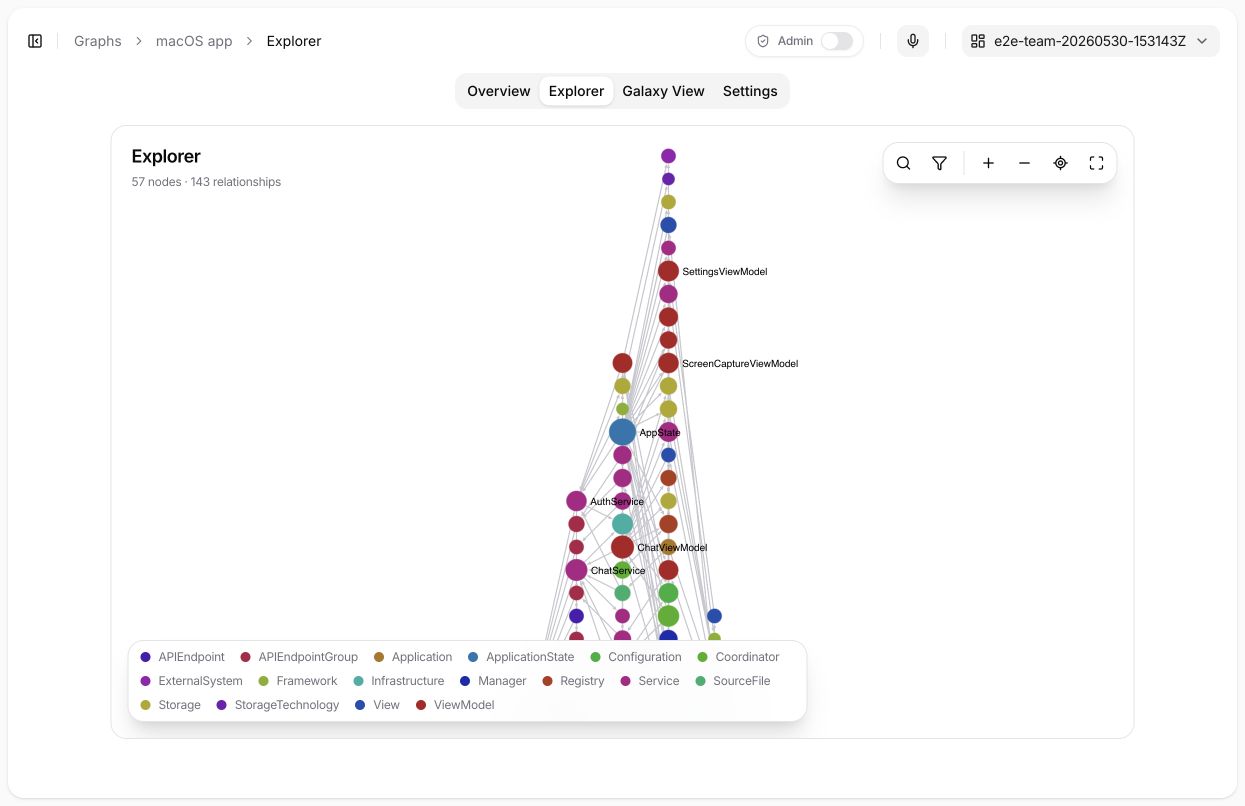
Explorer presents a precise 2D working view. The toolbar provides search, filters, zoom, fit, and fullscreen controls, while the legend explains the node-type colors in the loaded view.
Search and filter
Search by a node's name, alias, or exact identifier. Advanced filters can narrow results by node type, creation or update range, and sort order. If the observed schema is truncated, some node types may not appear in the filter even though matching nodes still exist.
The following views are intentionally different:
- A search result is a paged list of matching nodes; it is not a complete Graph export.
- A loaded Graph view is the portion currently rendered on the canvas and may be partial.
- An expanded neighborhood adds a page of direct incoming, outgoing, or bidirectional relationships around the selected node.
Follow Load more or the available continuation control when you need the next page. Do not treat the first page as the complete set of relationships.
Inspect nodes and relationships
Select a node to open its inspector and review its type, display name, properties, stable identifier, version, and available evidence. Expand its relationships to add its one-hop neighborhood to the current view.
Select a relationship to inspect its direction, type, endpoints, properties, version, and available evidence. Relationship direction is significant: outgoing, incoming, and both-direction traversal can return different results.
Evidence is provenance attached to a node or relationship. A source link can require separate authorization; Graph access does not grant access to the external source itself.
Galaxy View
Galaxy View renders the loaded Graph knowledge as an interactive 3D scene. It is useful for discovering clusters and visually prominent connections; use Explorer when you need precise search and paged neighborhood retrieval.
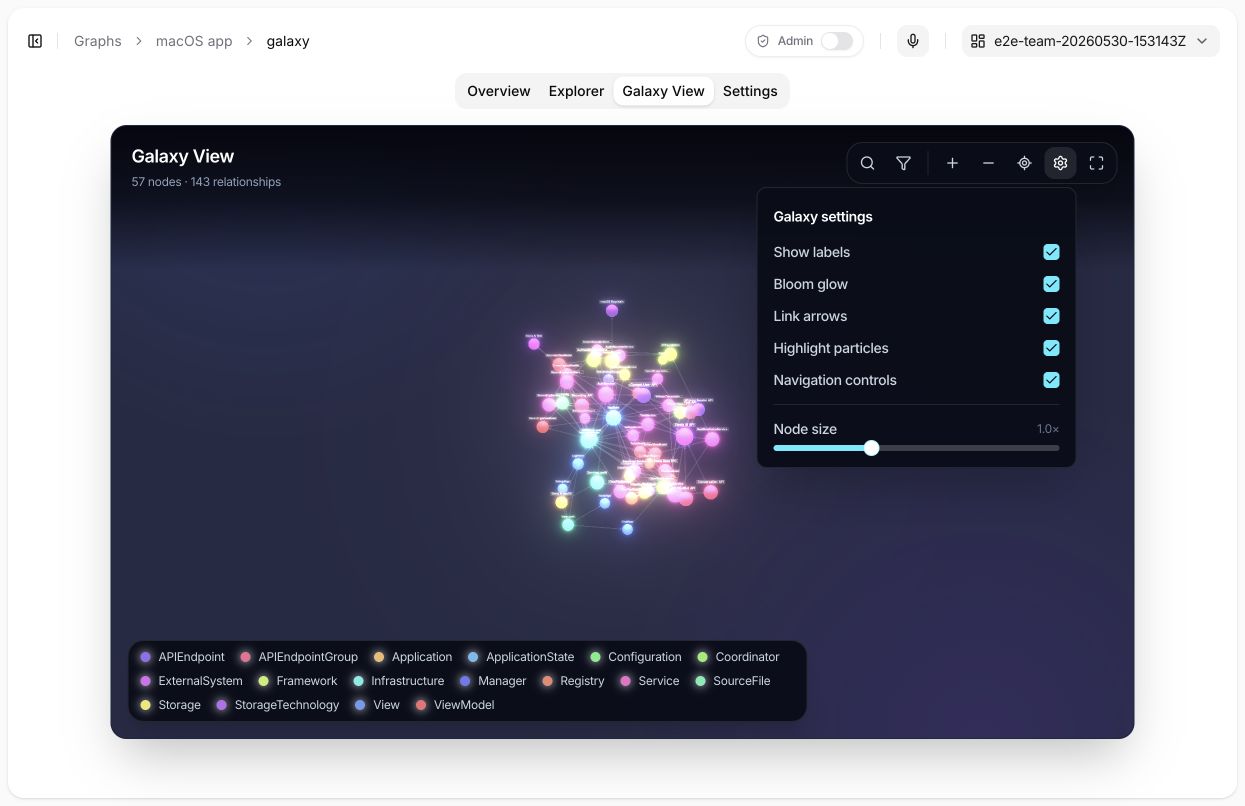
The settings panel controls presentation only. Labels, bloom, relationship arrows, highlight particles, navigation controls, and node size change how the loaded Graph is rendered; they do not change stored knowledge.
Use the canvas controls to:
- zoom in or out, fit the Graph to the viewport, and enter or leave fullscreen;
- select a node or relationship and inspect it in the side panel;
- show or hide node and relationship types and compare visible counts with totals;
- change node size and label visibility;
- toggle relationship arrows, highlight particles, and bloom glow.
Filters change what is visible, not what is stored. A hidden type or partially loaded Graph can make the scene appear sparse without deleting knowledge. If Graph display is limited appears, the canvas contains only a limited set of nodes or relationships. Compare visible counts with totals and use Explorer to search or load a focused neighborhood.
Galaxy View requires WebGL. If the browser cannot provide WebGL, use Explorer instead. For a large Graph, search for a relevant entity in Explorer and load a focused neighborhood before using visual exploration rather than assuming that every node should be rendered at once.
Use Graphs with Agents
Open an Agent's Configuration tab and find Graph assignments. You can assign multiple Graphs, but the same Graph can be selected only once.
Start with read-only Graph access:
- Assign only the Graphs needed for the Agent's purpose.
- Leave Allow writing to Graphs disabled.
- Test retrieval with users who have the intended access.
- Enable writing only after extraction guidance, access scope, and review ownership are defined.
With read access, the Agent can list its effective Graph assignments, search nodes, read the observed schema, retrieve a node or relationship, and load a neighborhood or focused subgraph. With writing enabled and effective write permission, it can also create, replace, or delete nodes and relationships.
The write switch is not an access bypass. A write succeeds only when the Graph is assigned, Graph writing is enabled for the Agent, and the current access policy permits the operation. Public Agents cannot use Graph assignments.
See Agent configuration for the configuration checklist.
API and MCP
Developers can work with Graphs through the REST API and the Siesta MCP server. Read operations cover the catalog, schema, nodes, relationships, neighborhoods, and focused subgraphs. Write operations require explicit Graph edit access and current entity versions where optimistic concurrency applies.
Use the generated REST API reference for exact endpoint and schema contracts. See MCP Graph tools for tool names, paging rules, output detail levels, and safe write guidance.