SharePoint Data Sources
Use a SharePoint Data source to synchronize documents from team sites and document libraries into a Siesta AI collection. The stored SharePoint connection supplies authentication; the Data source identifies the site, library, folders, and update schedule. Siesta AI discovers the files and processes supported content so agents assigned to the collection can search it.
For files owned by a Microsoft user, use OneDrive Data Sources.
Prepare the Connection
- Create or obtain access to a SharePoint connection.
- Confirm that the connected Microsoft account can read the intended site, document library, and folder. Signing in successfully does not grant access to every site.
- Choose the destination collection and its audience. Use a maintained account for shared production knowledge and record who owns its authorization.
If you have a private instance of Siesta AI, configure the deployment's Microsoft Entra app registration and the additional Microsoft Graph permissions for SharePoint, then grant admin consent. Follow API Permissions and Admin Consent in Developers → Private Deployment before creating the connection. The connected account must also have access to the selected site and library.
For a system SharePoint connection, verify its own Application ID and Tenant ID before adding the source. These connection fields supply the Data source's client and tenant identifiers; missing values do not fall back to the generic Microsoft OAuth provider. See system connection setup. The existing account, Graph consent, and site/library access requirements still apply.
Configure the Source
Open the intended collection, add a Data source, and select SharePoint.
| Field | What to enter |
|---|---|
| Name | Purpose and site/library, for example HR SharePoint — Policies |
| Description | Business owner, site, library, folder scope, and exclusions |
| Connection ID | The stored SharePoint connection |
| Sync frequency | On Demand, Daily, Weekly, or Monthly |
| Folder paths | Paths identifying the site, library, and optional folder; see the examples below |
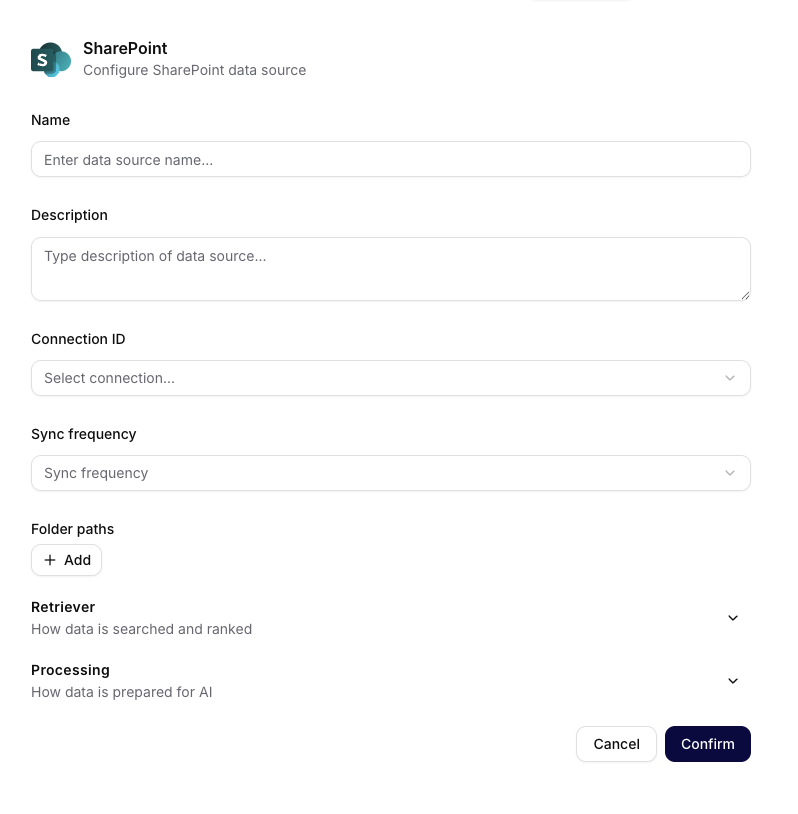
The captured SharePoint form exposes both Retriever and Processing. Controls can differ with the deployed version.
Folder inputs
Prefer a full folder URL that identifies the tenant, site, library, and folder:
https://example.sharepoint.com/sites/HR/Shared%20Documents/Policies
https://example.sharepoint.com/teams/Operations/Shared%20Documents/Runbooks
Replace the example host, site, library, and folder with your actual values. Library names can differ between tenants and languages. A library-relative value such as Shared Documents/Policies is insufficient because it omits the site.
The connector also parses server-relative paths such as /sites/HR/Shared Documents/Policies and library-view URLs containing Forms/AllItems.aspx?id=…. For a view URL, the id parameter must identify the intended library or folder. Use a full URL when you need to make the tenant host explicit, and verify the discovered files before widening the scope.
Do not use a Windows drive letter, a local filesystem path, or a client secret. Prefer durable account access to the site/library over an expiring sharing link.
Processing
Review the processing profile and available controls before saving. Use Discovery mode to review discovered files, estimates, and approval before indexing where available in your deployment. Change retrieval settings only after testing representative questions.
Store source files is optional and off by default. It controls retention of the original remote binaries; it does not determine whether supported content is parsed and indexed. See Store Source Files.
Verify the First Sync
- Start with one small folder in the intended site/library and save the source.
- Inspect Overview → Updates. If the update is Waiting for confirmation, review the discovered folders, file names, and estimates before approving it.
- In Files, confirm that documents came from the intended site and library. Check their processing states and inspect representative extracted content.
- Test a question with an agent assigned to the collection and compare its answer and sources with the original SharePoint documents.
- Change one test document and run another update, or wait for the configured schedule, to verify how changes arrive in your deployment.
Collection access must match the intended audience. A successful import through a connected account is not evidence that Microsoft permissions are enforced separately for every reader of the collection.
Troubleshooting
| Symptom | Check first |
|---|---|
The SharePoint system connection requires an application ID and tenant ID. | Ask the administrator maintaining the system SharePoint connection to fill both identifiers from the intended Entra app registration, then retry source creation. |
| No files are found | Tenant host, /sites/ or /teams/ path, library name, folder, and the connected account's access |
| Microsoft requests admin approval | Private-instance app permissions and consent |
| Connection works but a site is inaccessible | The connected account's site/library permissions and the configured Graph permissions |
| Wrong documents are discovered | The full folder URL, the id parameter of a view URL, and the selected connection |
| Files are discovered but not searchable | Update approval, supported file types, file states, and processing limits |
Inspect Overview → Updates, file details, and source Logs where available. Follow Processing, Sync, and Troubleshooting before changing retrieval settings. Validate path handling and update behavior on the deployed version before expanding to production libraries.