Siesta AI Mobile App
The Siesta AI Mobile App brings your agents and conversations to iOS and Android. Use it to ask questions, continue work away from your desk, attach a file, or capture an audio recording for upload to Siesta AI.
The mobile app uses the same account, agents, and server-side conversation history as the Siesta AI web app. It is a focused mobile work surface rather than an administration or configuration interface.
Download the App
| Platform | Download |
|---|---|
| iOS | Download from the App Store |
| Android | Download from Google Play |
Sign in with an existing Siesta AI account. The app supports:
- email and password;
- Google sign-in;
- Microsoft sign-in.
Google and Microsoft sign-in open the provider's authorization flow and return you to the app after authentication. If the session expires or the server rejects it, the app clears the session and asks you to sign in again.
Administrators preparing Microsoft sign-in can use the iOS and Android Entra app-registration parameters. The mobile app itself does not provide tenant configuration controls.
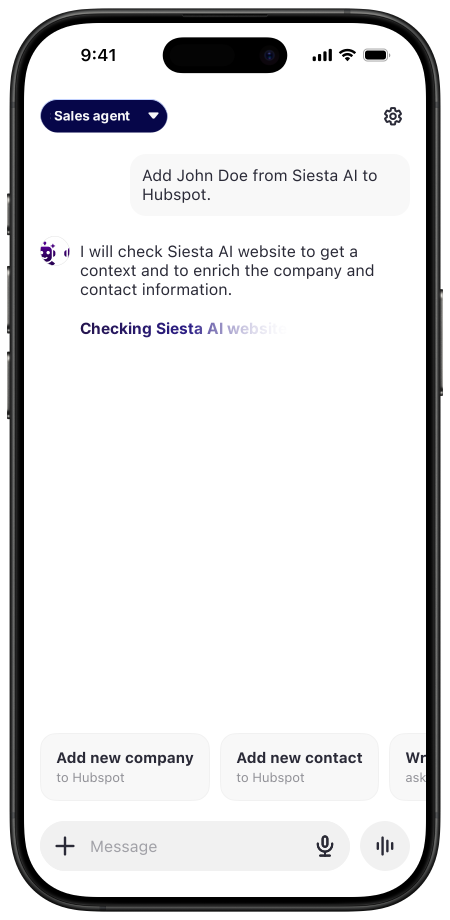
Navigate the Mobile Workspace
Open the navigation drawer to access the main mobile workflows:
- New Chat opens an empty conversation and loads the agents available to your account.
- New Recording opens the standalone audio recorder.
- Recent conversations lets you return to server-side conversation history. More conversations load as you move through the list.
- Profile shows your name, email, and profile image or initials, and provides the log-out action.
The current conversation is highlighted in the drawer. Selecting another conversation loads its messages and associated agent.
Start a Chat and Choose an Agent
On a new chat, the app loads the agents available to your account. Select the agent name before sending the first message if you want to use a different agent. After the conversation starts, the agent remains associated with that conversation.
You can also select an agent first and create a conversation directly from the agent list. Public agents are shown first, followed by the remaining agents alphabetically.
Administrators configure an agent's Mobile App eligibility in Agents > Interfaces. This setting is one availability gate: the organization must also enable the Mobile App, and the signed-in user must have access to the agent. It does not change the agent's Access policy.
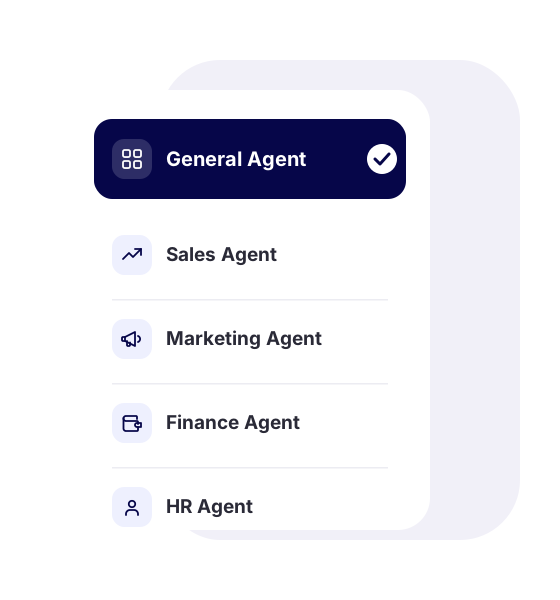
Chat and Continue Conversations
The chat surface supports:
- starting a new conversation or reopening an existing one;
- progressively streamed assistant responses;
- Markdown formatting for headings, lists, links, tables, and code;
- visible response and reasoning progress while the agent is working;
- automatic conversation titles returned by Siesta AI;
- recovery of the completed server response if a live stream is interrupted.
Messages and conversation history are loaded from Siesta AI. When a response finishes, the recent-conversations list refreshes so the latest title and activity are available in the drawer.
Attach Files
After a conversation has been created, select the attachment button to choose a file from the device. The app uploads the file to that conversation and displays it above the composer as a removable pending attachment.
You can remove an attachment before sending. When you send the next message, its pending attachments are submitted with the prompt. If sending fails, the app restores them so you can try again.
An empty new chat does not yet have a server-side conversation. Send the first message, or create a conversation by selecting an agent, before attaching a file.
Dictation Availability
The current mobile release does not expose Siesta AI voice dictation in the Chat composer; the microphone control is hidden. This does not affect the separate New Recording workflow described below. Use typing, your device keyboard's own dictation when permitted, or a supported desktop Wisp workflow for short dictated text.
Capture and Upload an Audio Recording
The standalone recorder is intended for longer notes, meetings, calls, or ideas that should enter the Siesta AI recordings workflow.
- Open New Recording and select the red record button.
- Pause when you want to review the elapsed time and captured waveform.
- Resume recording, discard it, or submit it for upload.
- Follow the upload percentage. You can cancel the upload and return to the paused recording if needed.
Paused and resumed segments are combined before upload. The app sends the audio, its duration, and a generated recording name to Siesta AI. Continue in Recordings to review the uploaded item and the outputs made available by your configured recording workflow.
Recording can continue while the app is in the background. Android shows a foreground recording notification while the microphone is active; iOS uses the operating system's background-audio capability.
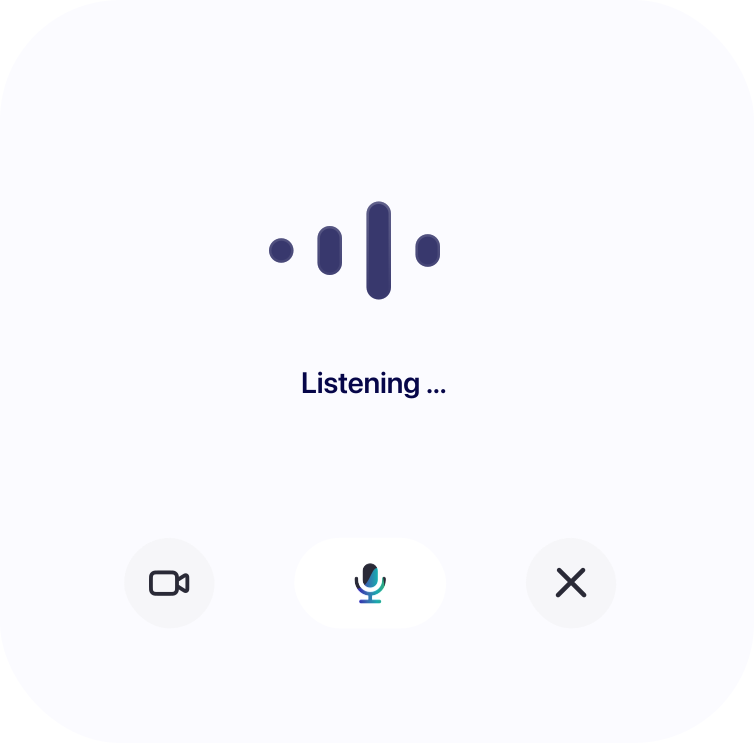
Permissions and Local Data
The mobile app requests only the device capabilities needed for the action you start:
- microphone access for standalone recordings;
- file-picker access when you choose an attachment;
- network access for sign-in, agents, conversations, uploads, and streamed responses.
The authentication token is kept in the operating system's secure storage. Chat history is fetched from Siesta AI rather than maintained as a persistent local conversation database. Standalone recordings use temporary local audio files while recording and uploading; those files are removed after a successful upload or when the recording is discarded.
Follow your organization's data-handling rules before attaching files or recording meetings and calls. Obtain any consent required for recording other people.
Mobile App or Another Siesta AI Surface?
| Surface | Use it for |
|---|---|
| Mobile App | Agent chat, existing conversations, file attachments, and audio capture while away from your desk |
| Desktop App | Desktop-native capture, global shortcuts, screen recording, tasks, and local workflows |
| Browser Extension | Agent chat and page context beside the active browser tab |
| Siesta AI web app | Agent configuration, administration, data, connections, workflows, analytics, and organization settings |
An agent's tools, knowledge, permissions, and behavior are configured on the server. The mobile app uses that configuration; it does not replace the web app's setup and governance surfaces.