Discovery Mode
Discovery identifies files in a Data source and estimates their processing requirements before they are processed and indexed. With manual approval enabled, each update waits for a decision based on its file list, estimates, and exclusions.
Discovery is part of the source's update cycle. Finding a file or estimating its content does not make it available to agents; that requires successful processing and indexing.
Automatic and Manual Processing
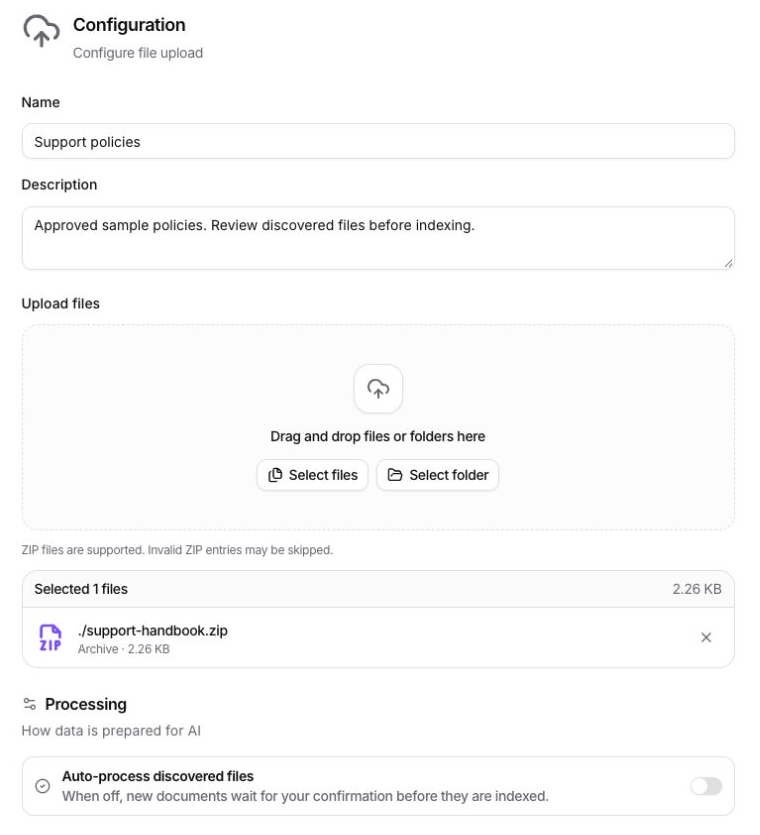
Auto-process discovered files controls whether an update requires approval. The option is available when creating a Data source and is off by default in the Web App.
| Setting | Behavior |
|---|---|
| Off | Discovery and estimation run first. The update waits for manual approval before processing. |
| On | Discovery and estimation still run. Eligible files proceed to processing automatically. |
This setting only determines whether files are processed automatically or wait for approval. It does not change the selected processing profile or how often the source updates.
Sources created through the API use automatic processing by default. Setting AutoConfirmed=false means a user must approve each update before processing begins.
Processing Profiles
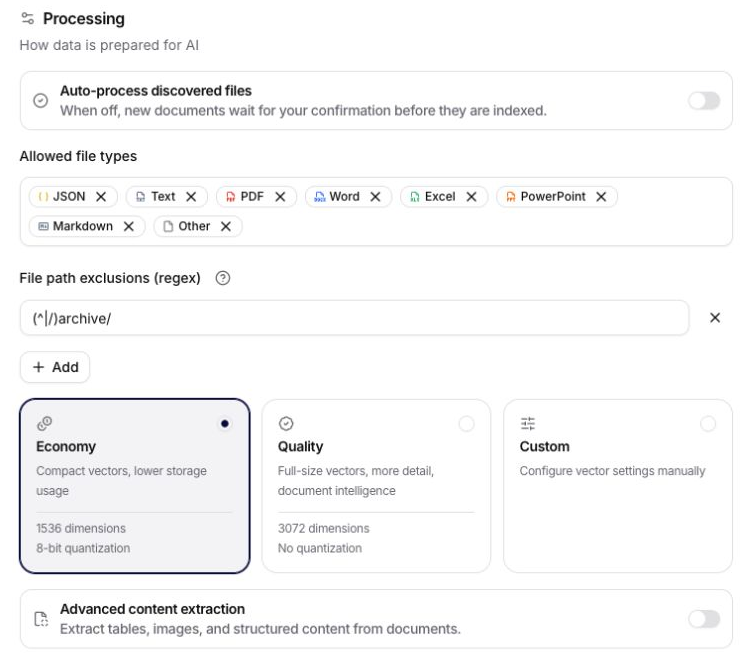
The processing profile determines vector storage settings and, for supported file sources, advanced PDF extraction. Quality is selected by default in the creation form.
| Profile | Vector dimensions | Quantization | Advanced PDF extraction |
|---|---|---|---|
| Economy | 1536 | Int8 | Off |
| Quality | 3072 | None | On |
| Custom | Configured value | Configured value | Configured value |
Advanced PDF extraction is available for Manual Upload, Google Drive, OneDrive, SharePoint, Azure Storage Account, and Azure File Share. Other sources do not expose that switch. The profile does not change approval requirements or collection permissions. Details are covered in Processing profiles.
The screenshot shows Economy selected and automatic processing disabled.
Updates and States
The source detail contains Overview, Configuration, and Files. Overview → Updates lists individual update runs, their state, and available actions. View details opens the selected update's summary.
| Phase or state | Meaning |
|---|---|
| Discovery and estimation | The source finds eligible files and estimates their content. Counts and estimates can still change. |
| Waiting for confirmation | Discovery has reached the review stage. The update requires approval before processing. |
| Pending after approval | Processing runs asynchronously. Approval alone is not evidence of completed indexing. |
| Completed processing | The update records its outcome. Individual file states show which files were indexed, skipped, or failed. |
| Rejected update | The waiting run does not proceed to processing. A later discovery can find those files again. |

Update Summary and Estimates
Update summary describes the selected run: file counts and sizes, estimated embedding tokens, estimated analyzed pages, estimated cost, and skipped data where available. The file-type distribution supports Size, Tokens, and File count views.
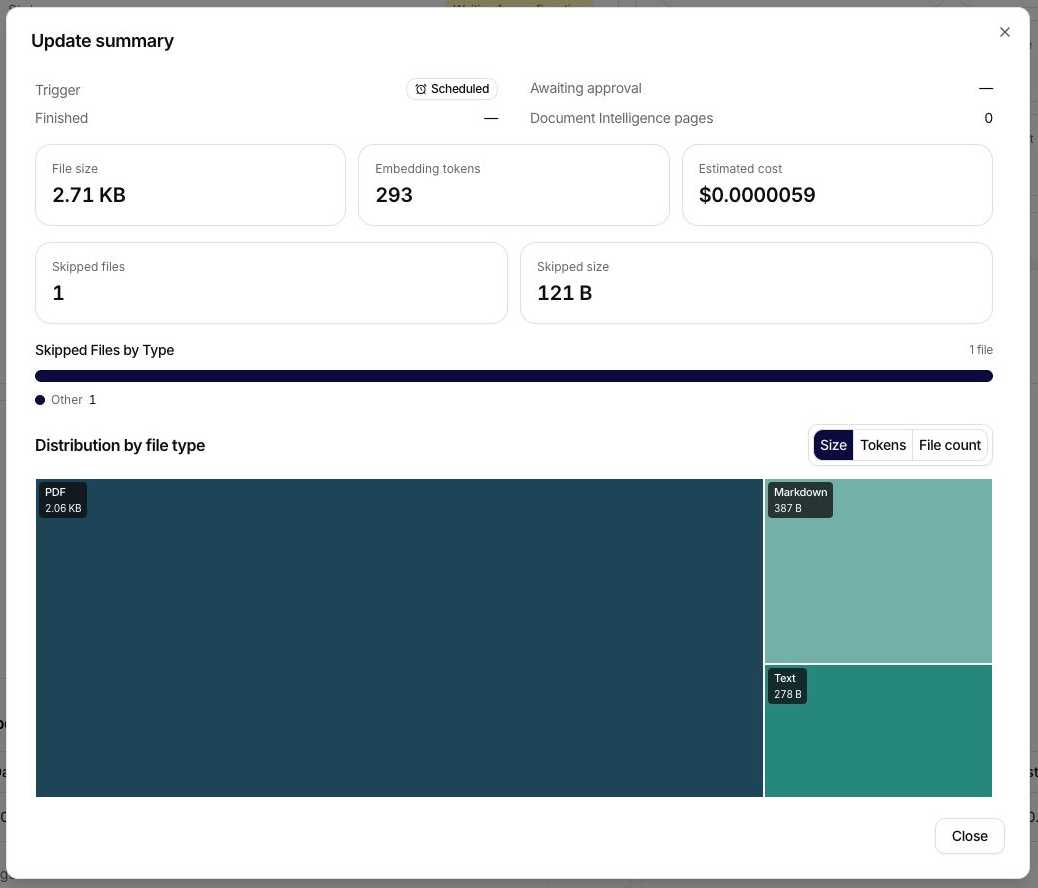
Estimates may be incomplete while Discovery is running or when a value is unavailable. A missing value does not mean zero usage or zero cost. Discovery may read or download files to estimate their content. PDF page estimates use local inspection; paid advanced PDF extraction runs during processing after manual or automatic approval.
The metrics describe different resources:
| Metric | Meaning |
|---|---|
| File size | Size of the source content, separate from its vector representation. |
| Estimated embedding tokens and cost | Expected processing usage, not final billed usage. |
| Estimated index size | Expected vector storage, separate from stored originals. |
| Stored originals | Source files retained for preview or download, where supported and enabled. |
| Analyzed pages | Pages analyzed by advanced PDF extraction; their allowance is independent of storage. |
Upload limits and the source owner's effective storage and analyzed-page allowances are documented in Data Upload Limits.
Approval and Rejection
Approve and Reject apply to one selected update in Overview → Updates. Both actions require permission to edit the collection.
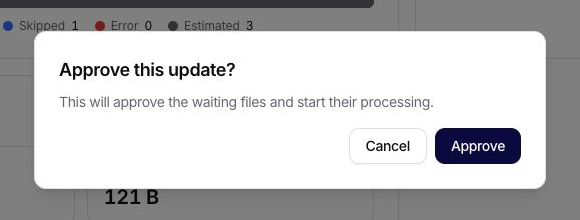
Approve opens a confirmation dialog and starts asynchronous processing after confirmation. It does not guarantee that every file will be indexed. File filters, unreadable content, or insufficient storage or analyzed-page allowance can still cause files to be skipped or fail.
Reject is available only while an update is waiting for confirmation. It prevents that run from proceeding; it cannot cancel already approved processing. Rejection does not permanently exclude files: a later discovery can find them again, even if their content has not changed. Files deleted by the user remain excluded from reingestion.
File Exclusions and Skipped Data
File path exclusions (regex) lets you skip files based on their names or folders, without listing each file separately. A regex (regular expression) is a text pattern. When a file's path matches the pattern, the file is skipped before estimation and processing.
Each pattern is checked against the full source path, including folders separated by /. A match anywhere in that path is enough. For example, the plain text archive also matches old-archive/report.pdf or notes/archive-plan.md. Use a more specific pattern to exclude only a folder named archive.
How to read (^|/)archive/:
^means the start of the path.|means “or”; the parentheses group the alternatives.(^|/)means “at the start of the path or immediately after a/”.archive/is the exact folder name followed by its separator. It also covers files in that folder's subfolders.
This pattern matches archive/legacy-policy.md and team/archive/2025/report.pdf, but not old-archive/report.pdf or archive-plan.md.
| Pattern | Files to skip |
|---|---|
(^|/)archive/ | Files in a folder named archive, wherever it appears in the path |
\.tmp$ | Files ending in .tmp |
\.(png|jpg|jpeg)$ | Files with any of these three image extensions |
(^|/)draft\.docx$ | A file named exactly draft.docx, in any folder |
In these examples, \. means a literal dot and $ means the end of the path. Use \.tmp$ for a file extension; the wildcard form *.tmp does not work as a regex. Matching is case-sensitive: \.tmp$ does not match REPORT.TMP. Add (?i) at the beginning, as in (?i)\.tmp$, to match either case.
Add one pattern per row. A file is skipped if any pattern matches. An empty list excludes nothing; an invalid expression cannot be saved.
Exclusions can be set during source creation or changed in Configuration. Changes apply to future runs; editing an exclusion does not delete already indexed content. Removing an exclusion allows an unchanged file previously skipped by that expression to be discovered again. Additional examples are listed under File path exclusions.
Skipped Data in the summary describes the discovery snapshot. Files contains the individual rows and their skip reasons. Additional files can be skipped during processing, so the final file states can differ from the discovery summary. A skipped file is not necessarily a processing error.
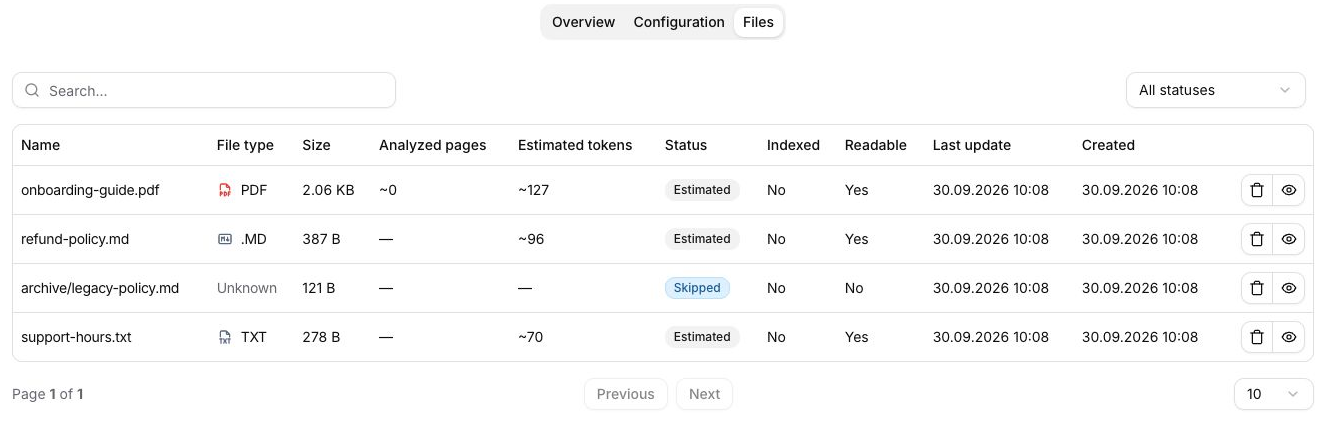
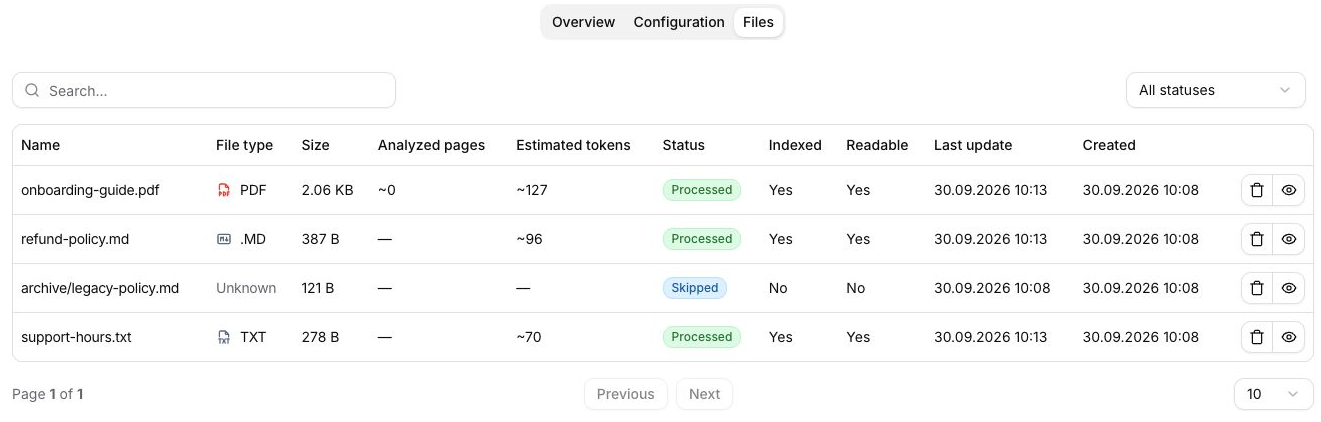
Files and Indexed Content
The Files tab lists discovered documents, their processing states, and the Indexed and Readable values. These describe the result for each document; a completed update does not imply that every discovered file is indexed and readable.
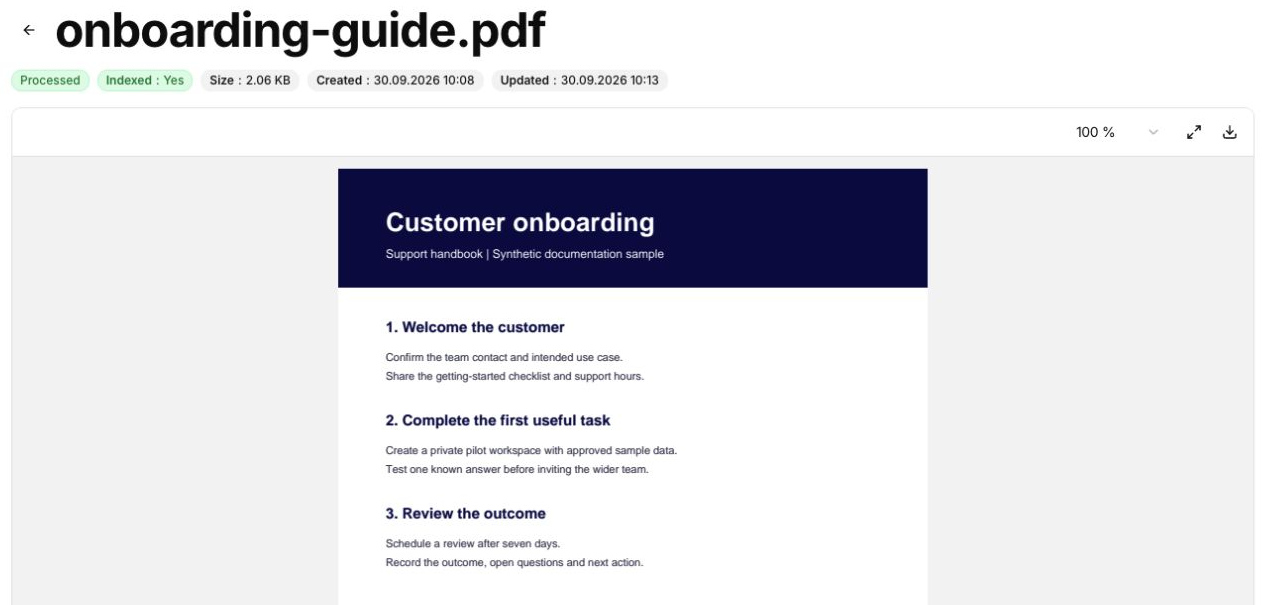
Show opens a document's details, including extracted chunks and an original-file preview when available. Preview and download of the original require a stored source file. Extracted content and the original preview represent different views of the document.
Processing Limits and Failures
Waiting for confirmation is a review state, not an error. Discovery and processing failures are recorded in Overview → Updates and in the affected files. User storage limit exceeded and User analyzed pages limit exceeded refer to separate allowances of the source owner.
Source scope, schedules, extraction settings, and failure causes are covered in Processing, Sync, and Troubleshooting. The Sources and Files user guide covers adding content and using it with an agent.