Recordings
The Recordings module serves to record, store, manage, and automatically transcribe audio content in the Siesta AI application. Each recording is processed by AI upon insertion, and a text transcript is created, which can be further used in agents, workflows, or analytics.
The section includes:
- Overview of all recordings in a table
- Recording detail with a player and transcript
- Dialog for adding a new recording
Overview of Recordings
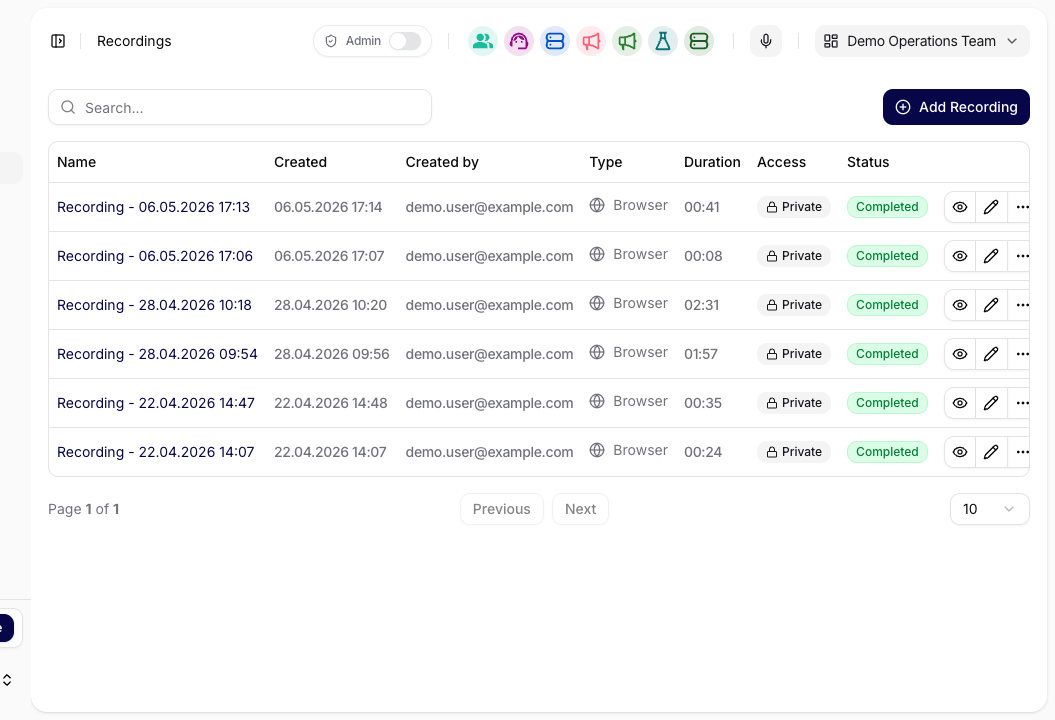
The main screen displays a list of recordings in a table with the following columns:
- Title – The title of the recording entered by the user
- Created – Date and time of creation
- Type – Type of recording (e.g., mobile app, call)
- Media type – The technical file/media type detected for the uploaded or recorded file
- Duration – Total length of the audio recording
- Status – Current processing status:
- Queued – waiting for processing
- Processing – transcription in progress
- Completed – transcription is finished
- Actions – Additional operations (e.g., detail, delete)
Recordings can be searched using the search field. The Add Recording button is used to insert a new recording.
Adding a New Recording
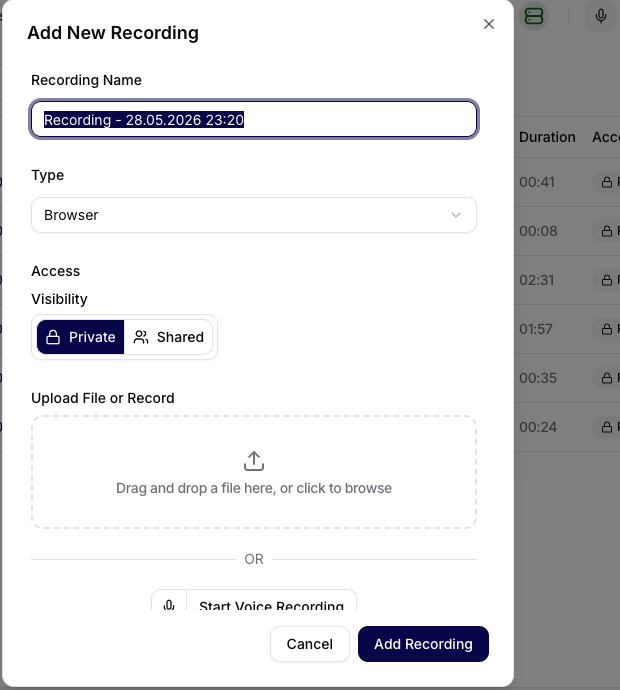
After clicking on Add Recording, a dialog opens with the following fields:
Fields
- Recording Title – Required field for entering the title.
- Type – Dropdown list to specify the type of recording (e.g., Call).
- Media type – derived from the uploaded file or browser recording format and shown later in list/detail views.
- Upload File or Record – Options:
- Upload File – Dragging a file or clicking to select from the computer
- Start Voice Recording – Recording sound directly from the microphone
Actions
- Cancel – Closes the dialog without saving
- Add Recording – Saves the recording and starts processing
Recording Detail
Each recording has its own detail page at /internal/recordings/[id].
The detail page includes:
- Player
- Playback controls (Play / Pause)
- Playback progress slider
- Volume control
- Display of duration and current position
- Metadata
- Title
- Created (date and time)
- Duration
- Type
- Media type
- Status
- Transcript – Text transcript of the audio recording generated by AI. Once processing is complete, the transcript is displayed on the right side of the screen.

Processing States
Each recording goes through the following steps:
- Uploaded – file has been received
- Queued – waiting for processing
- Processing – transcription in progress
- Completed – transcription is finished and available
- Failed – transcription or processing did not complete successfully
If a recording remains queued or processing for longer than expected, refresh the detail page and check whether the source file is valid audio. If the status is failed, upload the file again or use a shorter test recording to confirm whether the issue is file-specific.
Transcript
The transcript appears after processing is complete. Use the Copy action in the Transcript card to place the full transcript on the clipboard. The transcript shown on the recording detail is read-only, so make any corrections only after pasting it into Chat or an approved editor.
Use the transcript to:
- review what was said in the recording,
- copy relevant notes into a task, memory page, or workflow input,
- verify whether names, dates, and technical terms were transcribed correctly,
- decide whether the recording should be shared or used as source material.
For long recordings, scan the transcript first, then replay the audio only around the section that needs verification.
Sharing
If recording sharing is enabled by organization security settings, the recording detail can expose sharing controls. Use sharing when someone outside the immediate workspace needs to review the recording or transcript.
Before sharing:
- confirm that the recording does not contain sensitive information,
- check whether public recording sharing is allowed in Organization Security,
- use the share link only for the intended audience,
- revoke or avoid sharing when the recording includes confidential content.
Typical Uses
The Recordings section is suitable for:
- Recording meetings
- Capturing interactions from mobile applications
- Transcribing calls or interviews
- Creating data for AI agents and workflows
- Archiving voice notes
- Distinguishing between the business recording type and the underlying uploaded media type during troubleshooting