OneDrive Data Sources
Use a OneDrive Data source to synchronize files owned by or shared with a Microsoft user into a Siesta AI collection. The stored OneDrive connection supplies authentication; the Data source selects the folders and update schedule. Siesta AI discovers the files and processes supported content so agents assigned to the collection can search it.
For documents owned by a team site or document library, use SharePoint Data Sources.
Prepare the Connection
- Create or obtain access to a OneDrive connection.
- Confirm that the connected Microsoft account can open each intended folder. Access through your own account is not sufficient if the connection uses someone else.
- Choose the destination collection and its audience. Keep personal or confidential files separate from broadly shared knowledge.
If you have a private instance of Siesta AI, an administrator must configure the deployment's Microsoft Entra app registration, the Microsoft Graph permissions required for OneDrive, and admin consent before connecting the source. Follow API Permissions and Admin Consent in Developers → Private Deployment. A successful Microsoft sign-in alone does not establish access to OneDrive files.
Configure the Source
Open the intended collection, add a Data source, and select OneDrive.
| Field | What to enter |
|---|---|
| Name | Purpose and owning drive, for example Operations OneDrive — Reports |
| Description | Owner, folder scope, and exclusions |
| Connection ID | The stored OneDrive connection |
| Sync frequency | On Demand, Daily, Weekly, or Monthly |
| Folder paths | One or more folders accessible to the connected account; see the examples below |
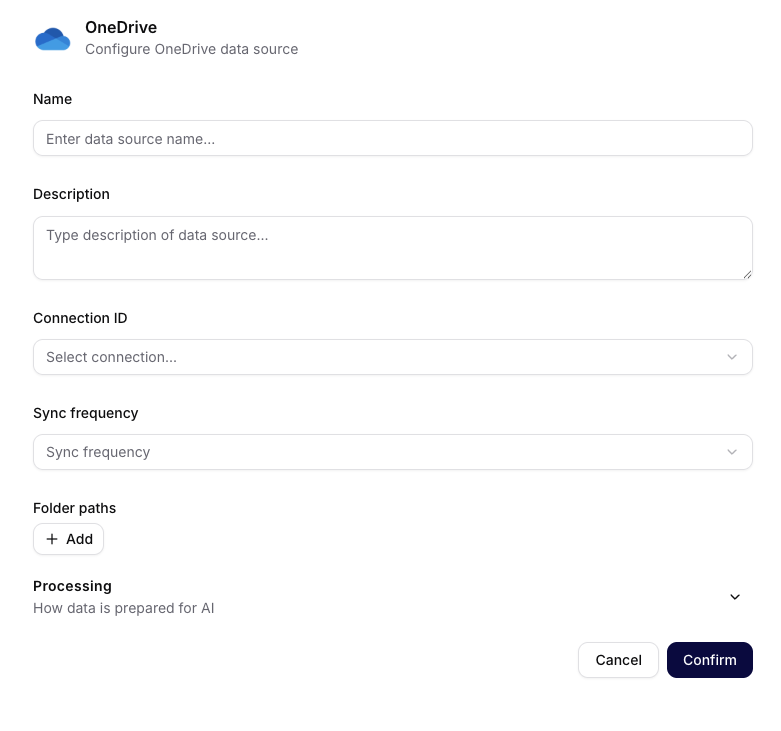
The captured OneDrive form exposes Processing without the separate Retriever section shown in the SharePoint form. Controls can differ with the deployed version.
Folder inputs
For the connected user's drive, enter a path relative to its root:
Documents/Customer Onboarding
Reports/Approved
Use the actual folder hierarchy; Documents is only appropriate when it is a folder inside that drive. Do not enter a local Windows path such as C:\Reports.
The connector also supports resolving Microsoft folder sharing URLs. Copy the link to the intended folder, confirm that the connected account can open it, and pilot it before adding a large source. A browser URL for an individual document or an unrelated Microsoft page does not define the intended folder scope. For team-owned SharePoint libraries, prefer the dedicated SharePoint guide.
Never put OAuth tokens, passwords, or client secrets into Folder paths. A sharing link can itself grant access; keep real links out of public examples and screenshots.
Processing
Review the processing profile and available controls before saving. Use Discovery mode to review discovered files, estimates, and approval before indexing where available in your deployment.
Store source files is optional and off by default. It controls whether Siesta AI retains the original remote binaries in addition to extracted content and searchable chunks. Turning it off does not stop supported content from being parsed and indexed. See Store Source Files.
Verify the First Sync
- Start with a small folder containing representative supported files and save the source.
- Inspect the source's update in Overview → Updates. If it is Waiting for confirmation, review the discovered scope and estimates before approving it.
- In Files, confirm the expected document names and their processing states. Inspect representative extracted content; a successful update alone does not prove the correct files were indexed.
- Test a question with an agent assigned to the collection and compare its answer and sources with the original documents.
- Change one test document and run another update, or wait for the configured schedule, to verify how changes arrive in your deployment.
Troubleshooting
| Symptom | Check first |
|---|---|
| No files are found | Selected connection, folder path or sharing URL, and the connected account's access |
| Microsoft requests admin approval | Private-instance app permissions and consent |
| Synchronization stops after an account or sharing change | Connection authorization, account lifecycle, and whether the folder is still shared with that account |
| Files are discovered but not searchable | Update approval, supported file types, file states, and processing limits |
| Answers use unexpected content | Folder scope, collection assignment, and the returned source documents |
Inspect Overview → Updates, file details, and source Logs where available. Follow Processing, Sync, and Troubleshooting before changing retrieval settings. Validate behavior on the deployed version before expanding to production folders.