Library
The Library in Siesta AI contains reusable agent templates. They allow you to save an agent's configuration (model, behavior, connected tools) and quickly create new instances from it.
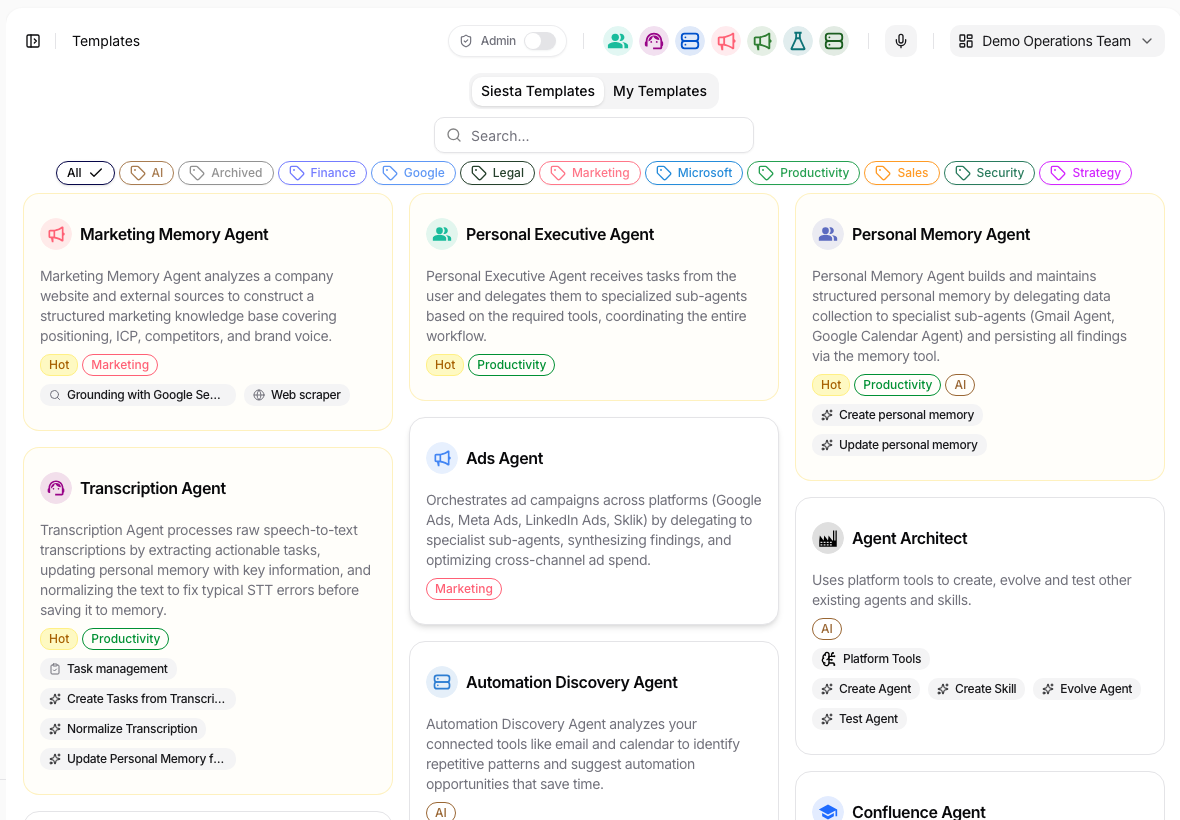
The Library enables users to choose from prepared templates that serve as a starting point for creating new AI agents. Templates contain preset parameters, logic, data access, and integrations, simplifying the repeated deployment of frequently used configurations.
Templates address three things:
- Standardization of work
- Sharing know-how (community vs. private)
- Rapid deployment of new agents
- Controlled organization-wide reuse
Basic Concept
A template is not a running agent. It is a blueprint that only defines how an agent should be created.
From one template, you can create:
- 1 agent
- 10 agents
- 100 agents
Saving an Agent as a Template
Action: Save As Template
A template is created from an existing agent configuration.
Procedure:
- The user clicks on Save As Template in the agent settings.
- A modal window opens where the user fills in:
- Name - template name
- Description - purpose description
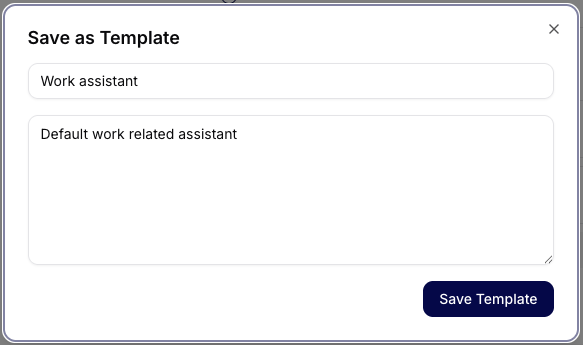
- Confirming will save the template.
- The saved template appears in the Library with the current template cards, categories, search, and tabs.
What gets saved:
- Name and description
- Model (e.g., gpt-5)
- Behavior parameters (temperature, penalties, max length)
- Shared Tools (e.g., Jira, GoogleSearch, HubSpot)
- Private Tools (if any)
The template does not save runtime state or conversation history.
Shared Tools vs. Private Tools
Shared Tools
- Tools available at the workspace or organization level
- Automatically connected when creating an agent after being saved in a template
Private Tools
- Tools specific to a user or project
- The template remembers their reference, but the user must have permissions
- If permissions are missing, agent creation will fail
Creating an Agent from a Template
Action: Create agent
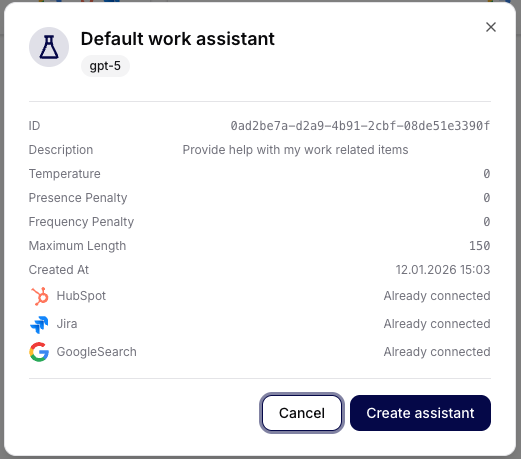
After selecting a template, a detailed overview of the configuration is displayed:
- Template ID
- Name and description
- Used model
- Behavior settings
- List of connected tools + status (Already connected)
Template visibility and agent-creation permission are separate. In a private deployment, a User may be able to open and review a template while the Create Agent action remains hidden. Only an Owner or Administrator can create the agent in that deployment. Ask an administrator to instantiate the template and assign the resulting agent through its access policy; do not use a direct creation URL as a workaround. See Who Can Create Agents.
Library
Tabs
Community Templates
- Publicly available templates
- Created by the team or community
- Read-only (cannot be edited)
- Suitable as best practices or starting points
Organization Templates
- Shared within the current organization
- Intended as approved internal starting points for repeated use
- Governed by template access policy instead of being globally public
- Suitable for onboarding, internal standards, and team-specific operating patterns
My Templates
- Templates created by the user
- Can be deleted, edited, and reused
Access Policy and Governance
Templates can now use an access policy similar to other governed workspace objects.
- Use private access when a draft template is not ready for broader reuse.
- Use organization access when the template should be available to other users in the workspace.
- Limit write access to owners or designated maintainers when the template defines a standard operating pattern.
Users who can read a template can use it as a starting point for a new agent. Users who can write a template can update its configuration and access policy for the intended audience.
Visualization of Templates
Each template is displayed as a card containing:
- Name
- Short description
- Icons of connected tools
The card allows for a quick visual check of what the template contains before use.
Typical Use Cases
- Work agent: one template -> dozens of internal agents with the same behavior
- Onboarding: new team member = quick creation of an agent without manual configuration
- Best practice enforcement: template as the only allowed entry point
- Organization standard: one approved internal template -> many teams start from the same governed baseline
- Community sharing: verified configurations without sharing sensitive data
Summary
The Library in Siesta AI is a controlled way to scale agents. Its templates allow for sharing know-how, maintaining standards, and speeding up work without compromising security.