Connections
Connections represent the central place where all integrations of the Siesta AI platform with external services are managed, whether they are action tools, knowledge libraries, or the AI models themselves. Thanks to this section, administrators have an immediate overview of what resources are available and can add, modify, or remove them with just a few clicks. By integrating a new service, it immediately appears throughout the system and can be assigned directly when creating or modifying an agent.
The Connections section is used to work with external systems. Connections allow Siesta AI to link with third-party tools (APIs, SaaS platforms, internal systems) so that agents and workflows can read data, write changes, or trigger actions.
How It Works
- Management: In the Connections section, you activate a specific connection, set access (OAuth / API key), and assign it to agents or workflows.
- Usage: Connection actions are called from prompts, tools, or automations (e.g., send an email, retrieve data from CRM).
- Security: Access tokens are stored in encrypted form, and all operations are fully audited.
Released connections can cover several practical families at once:
- business SaaS tools such as Jira, Confluence, Slack, HubSpot, and Gmail,
- Microsoft and Google document/data access such as OneDrive, SharePoint, Drive, Word, and Excel,
- repository and engineering tooling such as GitHub and Azure DevOps,
- model and infrastructure connections such as OpenAI and Azure AI Foundry.
Overview of the Connections Section
- A search field at the top for quick filtering of connections.
- A table with columns: Name, Type, Created, Access + actions on the right (menu ...).
- A Add Integration button to create a new connection.
- Examples of available connections: Jira, Confluence, Azure DevOps, GitHub, OneDrive, SharePoint, Clockify, OpenAI, Azure AI Foundry, Office 365 Word, Office 365 Excel, and Outlook Calendar.
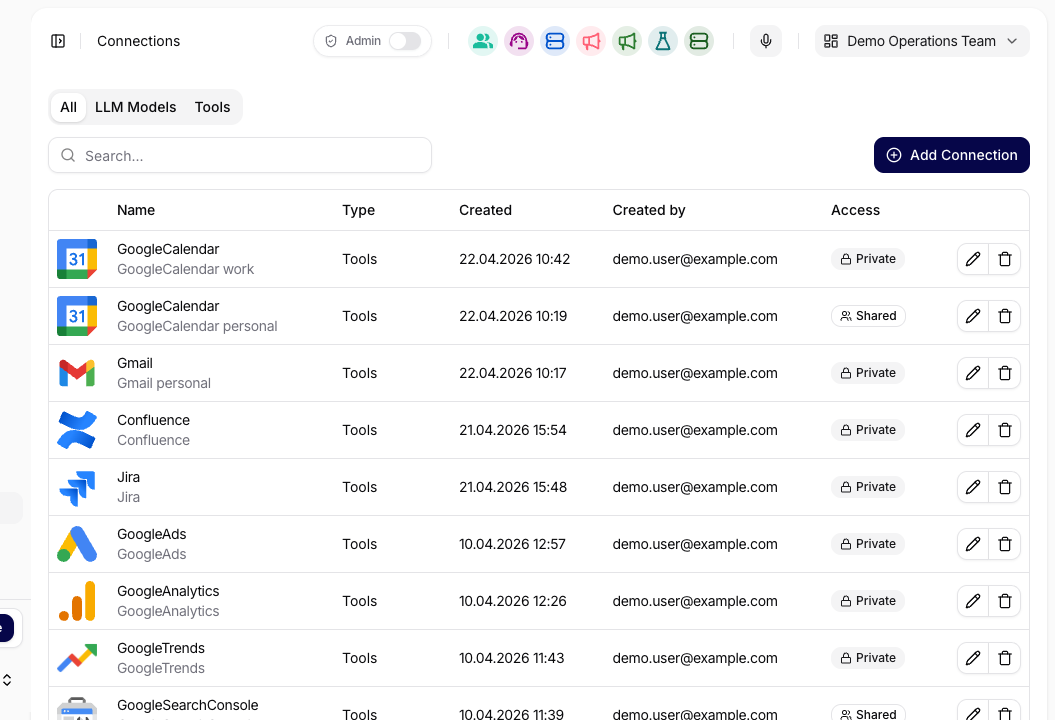

In the detail of individual connections, permission scopes and allowed functions can be set. Administrators specify which actions are available, whether they require confirmation, and what access the connection has (shared or private).
Connection Governance
Connection governance defines which integration types and functions are available across the organization. It is managed as part of organization security and affects agents, workflows, and tool execution behavior.
Governance has two levels:
- Connection type policy controls whether a whole connection type is enabled or disabled for the organization.
- Function override controls individual functions inside a connection type when the connection supports function-level governance.
Function access modes are:
- Disabled - agents and workflows cannot use the function.
- Enabled - the function can run when the agent or workflow has access to the connection.
- EnabledWithConfirmation - the function is available, but execution must be approved before it continues.
Use stricter governance for data-modifying functions, such as sending emails, creating tickets, updating CRM records, writing files, or triggering external workflows. Read-only functions can often be enabled with lower risk, but they should still follow the principle of least privilege.
Connection access still matters:
- Private connections are available only to their owner unless explicitly assigned where supported.
- Shared connections can be reused by multiple users, agents, or workflows according to access rules.
Governance and access work together. A user may have access to a connection, but a disabled function remains unavailable. A function set to confirmation can be proposed by an agent, but it appears in Tool Executions as waiting for approval before it runs.
Check Connection Health and Reauthorize
Connection health and functional tool verification answer different questions. The backend health probe checks whether a stored OAuth refresh credential can still obtain an access token. It reports one of these states:
| Health result | Meaning | Next action |
|---|---|---|
Healthy | The stored refresh credential can currently obtain an access token. | Continue with a safe read test; this result does not prove that every tool, endpoint, or scope works. |
NeedsReauthentication | The refresh credential could not be redeemed. It may be expired, revoked, or invalid for the provider. | Ask the connection owner to repeat OAuth consent, then retest the tools. |
NotSupported | The connection is not OAuth-based, has no stored OAuth credential, or its provider does not support the refresh-token health test. | Validate the endpoint and credential through the connection's normal test flow. Do not interpret this as healthy or unhealthy. |
The current application does not expose one generic Health check button for every connection. Use the connection detail's available test or reauthorization controls and the status shown by the calling workflow or administrator tooling. An external MCP connection with an existing OAuth grant exposes Authorize again on save in its authentication section. After selection, the label changes to Authorization will be renewed on save; saving opens a fresh consent request.
Only the connection owner can complete reauthorization because the refresh credential is bound to that owner's provider identity. Other users who can see a Shared connection can inspect its behavior but cannot replace its credential. Reauthorizing a Shared connection changes the credential used by every authorized consumer; reauthorizing a Private connection affects only its owner.
Diagnose before reauthorizing
| Symptom | What to inspect | Corrective action |
|---|---|---|
| Endpoint changed or cannot be reached | Server URL, provider status, MCP discovery response, DNS and TLS | Correct the URL or provider configuration. Reauthorization does not repair an unreachable endpoint. |
| Credential expired or was revoked | NeedsReauthentication, provider security log, revoked grants | Have the owner select Authorize again on save, save the connection, and complete consent again. |
| Authentication succeeds but a function is forbidden | Granted scopes, provider role, resource ACL, connection function access | Grant only the missing approved scope or permission, then reauthorize if the provider requires new consent. |
| Timeout, DNS, firewall, proxy, or provider outage | Network path, egress policy, provider availability and retry guidance | Restore connectivity or wait according to provider guidance. Do not rotate a valid credential as the first response. |
| One function fails after a healthy check | Function schema, arguments, target object permission, provider validation | Test a safe read function, reload the available function list, and troubleshoot that function separately. |
After reauthorization, reload or rediscover the available functions, run a harmless read request, and compare the result with the target system. For write-capable connections, run a bounded confirmed write only when necessary and verify the created or changed object. Successful consent or a Healthy result is not complete tool acceptance.
Token Limits
Some AI/model connections include Token limits. Open the connection detail and choose the token limits view to define daily and weekly token budgets for that connection. Values are whole millions of tokens (M); an empty field means that no explicit threshold is configured for that period and scope.
The page separates four configuration surfaces:
- Default limits contains connection-wide User, Team, and Organization defaults plus Model defaults that apply only when a named model is used.
- User limits and Team limits contain subject-specific overrides for all models on the connection.
- Model limits contains model-specific User or Team overrides. Filter the table by model, scope, and subject when several policies exist.
- Analytics > Limits shows the configured defaults and the effective utilization by scope, model, user, or team.
How effective limits are evaluated
For each model request, Siesta AI evaluates the all-model connection scope first. If the selected model has its own policy, it then evaluates a separate model-specific scope. The request must remain below every configured threshold that applies; a model policy does not replace or bypass the broader connection guardrail.
Within either scope, the effective thresholds are resolved as follows:
- An active User or Team override replaces that scope's complete daily/weekly default pair. A blank value in the override stays unlimited for that period; it does not inherit the corresponding default field.
- A missing or Disabled override falls back to the applicable User or Team defaults. In this table, Disabled disables the override record; it does not block the user or team from using the connection.
- Organization thresholds come directly from the applicable connection or model defaults.
- User, every eligible Team, and Organization thresholds are enforcement boundaries. Reaching any configured daily or weekly threshold stops the model request with a controlled token-limit error.
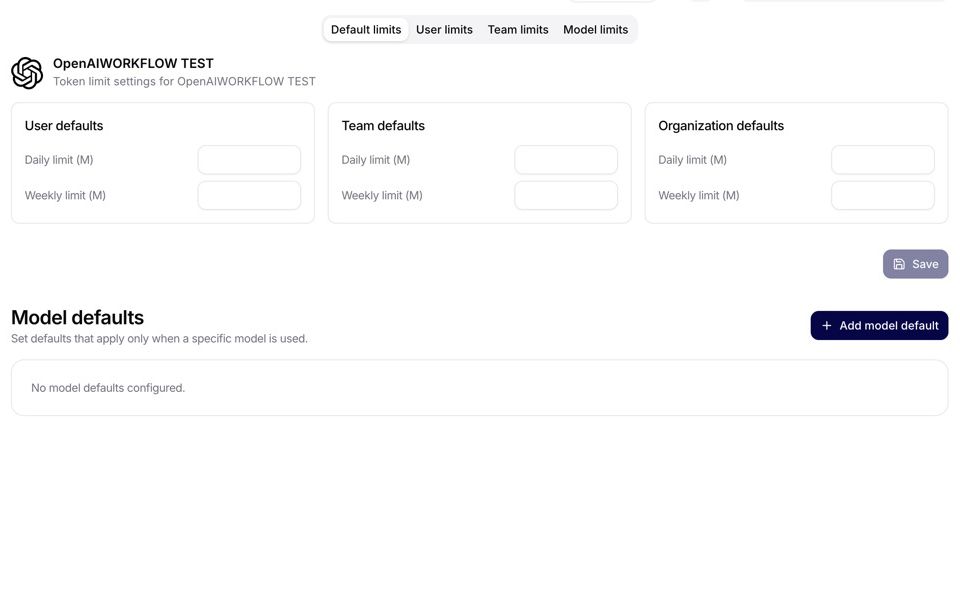
For example, suppose a connection has a 20M daily User default, gpt-5 has a 5M daily User model default, and one pilot user has an active 8M gpt-5 override. A gpt-5 request from that user must satisfy both the 20M all-model user budget and the 8M model-specific budget. A Team policy and the Organization policy are checked independently as well. Disabling the user's model override would restore the 5M model default; it would not disable model access.
Use token limits when:
- one shared model connection is available to many users,
- a team runs high-volume research or automation,
- a pilot workflow should have a predictable budget,
- admins need to prevent accidental overuse without removing access.
When a configured budget is reached, the conversation stops the model request with a clear daily or weekly token-limit message instead of reporting a generic provider failure. The limit is a usage guardrail, not a billing forecast; review actual consumption in Analytics before changing it.
Token limits are preventive guardrails. Use Analytics Cost charts to understand historical input, output, reasoning, model, and agent token trends, then adjust organization, user, or team limits to match the expected operating budget.
For Azure AI Foundry model router deployments, configure Siesta AI limits on the model connection that points to the router deployment. Treat the router as one shared budget boundary in Siesta AI, then use Azure Monitor and Azure Cost Management when you need to inspect the distribution across underlying models. See Azure AI Foundry Model Router.
Adding a New Connection
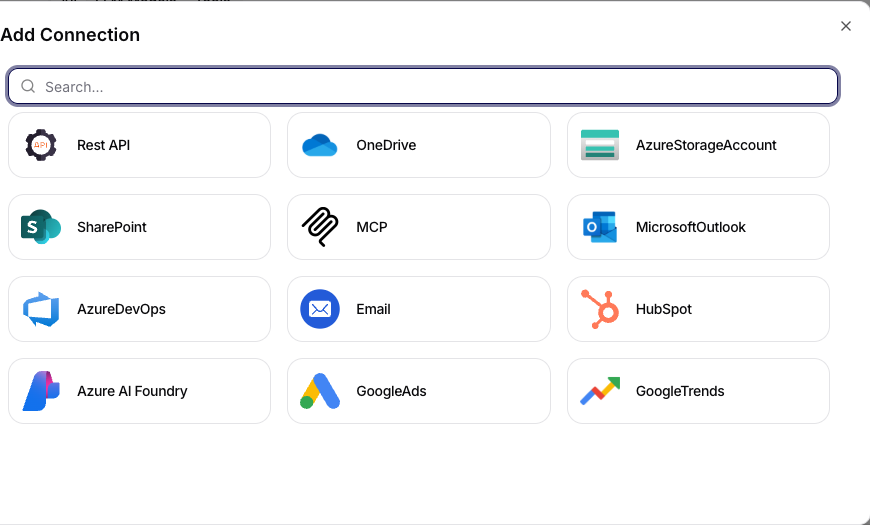
After clicking on Add Connection, a dialog opens with a search field and a list of available connections (e.g., Gmail, Google Calendar, Google Drive, Slack App, OpenAI).
Depending on the selected type of connection, the user is redirected to the provider's page, where they must allow Siesta AI access to the service.
After successful confirmation, the user is prompted to name their new connection. After entering the name and confirming, the new connection is added.
Available connection types depend on the released tool surface and tenant configuration. In current dev releases, the catalog can include both classic business tools and operational helpers such as GitHub and Azure DevOps repository automation, Clockify work tracking, document and spreadsheet generation, calendar access, analytics, and website-performance integrations.
Related Guides
- Admins: Configure Shared and Private Connections
- Admins: Set Up Tools, APIs, and MCP Access
- Users: Use Connections Safely