Azure Storage Data Sources
Use Azure Storage Account for blobs and Azure File Share for named SMB-style shares. They may use the same storage account, but they are different Data sources and selectors.
Both creation forms expose an optional Store source files switch under Processing, off by default. Enable it only when the original blob or file-share binary must be retained in addition to extracted text and indexed chunks. See Store Source Files for the canonical behavior and storage trade-off.
Prepare the Connection
An admin first creates an Azure Storage Account connection. The credential or connection string belongs in Connections. Never paste DefaultEndpointsProtocol=..., an account key, or SAS secret into the Data-source selector.
Prefer a read-only, container/share-scoped credential where the released connection design supports it. Record the owner and rotation process without copying the secret into descriptions or tickets.
Azure Storage Account (Blobs)
Use it for application exports, generated documents, archive feeds, and repositories published to Blob Storage.
| Field | What to enter |
|---|---|
| Name | Feed and purpose, for example Production exports — Approved PDFs |
| Description | Owner, account/container context, selector convention, exclusions |
| Connection ID | Stored Azure Storage connection |
| Sync frequency | On Demand, Daily, Weekly, or Monthly |
| Blobs | One or more blob names, paths, or selectors expected by the configured source |
At least one Blob value is required. The current form validates presence, not whether the selector matches readable data. Always inspect resulting files and logs.
Azure File Share
Use it for lift-and-shift repositories or operational content whose source of truth is an Azure file share.
| Field | What to enter |
|---|---|
| Name | Share and purpose, for example Operations share — Runbooks |
| Description | Owner, share scope, exclusions, and retention |
| Connection ID | Stored Azure Storage connection with access to the share |
| Sync frequency | On Demand, Daily, Weekly, or Monthly |
| File Shares | One or more exact Azure file-share names |
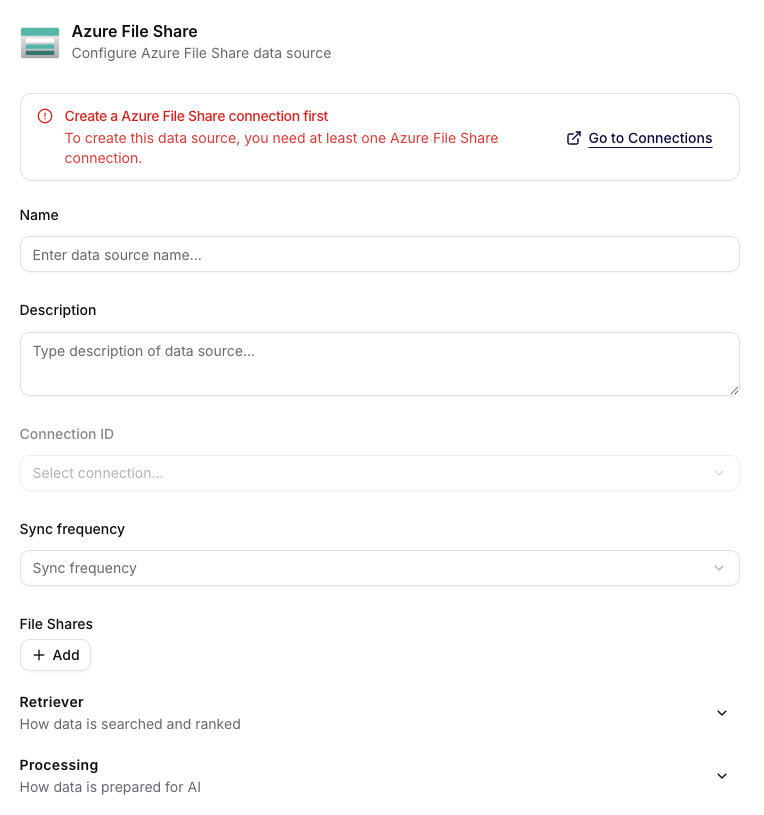
Create a compatible Azure File Share connection first. Until one exists, Connection ID remains unavailable and the form links to Connections.
Enter a share name such as operations-documents. Do not enter /Volumes/Docs, Z:\\Docs, a blob container URL, or a file path. At least one non-empty share name is required.
The values describe different layers:
| Value | Example | Purpose |
|---|---|---|
| File Share name | operations-documents | Value entered in the Siesta AI File Shares field |
| UNC path | \\\\storageaccount.file.core.windows.net\\operations-documents | Network path used when a Windows host connects to Azure Files |
| Mapped drive | Z:\\ | Local alias available only on the server where the share is mounted |
Siesta AI needs the share name, not the UNC path or mapped drive. A synchronization service may use Z:\\ locally while publishing files, but that path has no meaning to the Siesta AI source.
Metadata and automated feeds
The current Azure File Share form can pass JSON Metadata Definitions to the ingestion service. Use this field only with a documented and tested JSON contract. Confirm during a pilot how the deployed ingestion service discovers metadata, matches it to files or chunks, and handles invalid or missing entries.
Use Processing, Sync, and Troubleshooting for the shared Retriever and Processing settings.
For an end-to-end pattern that copies an approved local repository into Azure Files, publishes a JSON manifest, and validates agent answers, see Automated File Ingestion with Azure File Share.
Which One Should You Use?
Use the object that already owns updates: blobs for pipeline/object delivery, File Share for an SMB-style share. Do not choose File Share merely because the storage account also exposes one.
Admin Verification
After key rotation, run a controlled synchronization and verify representative documents. Split sources when account/container/share ownership, audience, retention, or schedule differs. A successful status without expected files is not an acceptance test.