Chat
The Chat section is used for conversations with AI agents that are created and configured in the Agents section of the platform. Users can start new conversations, browse the history of previous chats, use prompt suggestions, upload supporting files, and provide feedback on responses.
Chat Input and File Uploads
The chat input supports both written instructions and attached context. Users can type a message, upload files from the attachment button, or drag and drop files directly into the chat area. This is useful when the agent should work with a document, spreadsheet, image, exported report, screenshot, or another file that is not already available through Data, Memory, or a connected system.
When attaching files, describe what the agent should do with them. For example, ask the agent to summarize a PDF, compare two documents, extract action items from meeting notes, read a screenshot, or analyze a spreadsheet. Clear instructions help the agent focus on the right parts of the uploaded content.
If the selected agent has Sandbox enabled, it can stage an attached file in an isolated workspace, transform it, and explicitly publish a finished file back to the conversation. Availability depends on the deployed environment and the agent configuration. See Sandbox file workflow and verify sensitive or business-critical output before using it externally.
Planning and To-dos
Agents with Agent harness settings can expose a reviewable workflow for complex requests:
- The agent proposes a plan before starting the planned work.
- Review the scope and approve it, or ask the agent to revise it.
- After approval, the agent can create conversation-scoped To-do items and update them as work progresses.
- Open the progress chip or To-dos panel to see completed items, the current item, and remaining work.
- The final response should summarize the result and identify anything that remains incomplete.
These concepts have different lifecycles:
| Item | Purpose | Lifecycle |
|---|---|---|
| Plan | Proposes how the agent will approach the current request. | Conversation content reviewed before the planned work begins. |
| Harness To-do | Tracks an internal step of the agent's work. | Progress state associated with the conversation, not an organizational work record. |
| Base task | Records durable work for a team or project. | A separate Siesta Base object created only when the user explicitly requests task creation. |
Background agents can appear as additional work in the harness panel when the agent configuration and runtime support delegation. Do not assume that every request will be delegated or run in parallel.
Sandbox file workflow
When the selected agent has Sandbox enabled, it can stage a named chat attachment into its isolated workspace, transform it, and explicitly publish a finished file back to the conversation. For example, attach sales.csv and ask the agent to clean it and publish cleaned-sales.csv. A workspace file is not a downloadable artifact until the agent publishes it.
Sandbox status and tool detail show whether a command completed, failed, timed out, or reported that the workspace was reset. An approval control is shown only when the deployed tool configuration requires that call to be confirmed. See the Sandbox tool reference for the workspace and file lifecycle.
Documents Used in an Answer
When an agent searches an assigned Data collection, the internal chat can show the retrieved source documents below the assistant answer. These document references help you verify where retrieved context came from; they are not a claim that every sentence in the answer is supported by every displayed document.
Each reference badge shows a file-type icon when the extension is recognized, otherwise the data-source image when one is available, and finally a generic file icon as a fallback. The visible label is the file name; hover over a truncated label to see the stored document path.
Up to five references appear directly. If an answer has more than five, the first four remain visible and the fifth position becomes More documents +N. Open that badge to page through the remaining references, see the current position, and choose Open document.
Opening a badge or the overflow card opens the document detail in a new tab under its Data collection and source. A reference contains the document ID, document name, data-source ID, collection ID, and optional source image; it does not contain the document contents or grant new access. The destination applies the current user's Data permissions. If the collection or source is no longer accessible, the document was removed, or an identifier is stale, the destination can show an access or not-found state. Ask the collection owner to verify access instead of treating the badge as a bypass.
The search action detail also lists every referenced document under the tool result with its icon, file name, full-path tooltip, and open-in-new-tab action. Use this list when the answer badges are collapsed or when reviewing exactly what one search action returned.
References are carried through all supported conversation paths:
- streaming chat accepts document-reference metadata while the search action completes;
- realtime tool events carry the same metadata into the conversation;
- saved messages persist the references so they can be reconstructed when the conversation is reopened.
Document links are enabled only in authenticated internal chat and internal conversation review. Shared or public conversation views hide these internal Data links; sharing a conversation must not expose a collection document to a viewer who lacks Data access.
Do not confuse the four file surfaces:
| Surface | Meaning |
|---|---|
| Document reference badge | A structured pointer to a Data collection document used by a search action. |
| Markdown link | Ordinary answer text controlled by the rendered content; it has no Data-reference metadata by itself. |
| User attachment | Input uploaded with a user message for that conversation. |
| Artifact | A generated or published output attached to an assistant/tool message for opening or download. |
For retrieval and processing diagnostics, continue with Processing, Sync, and Troubleshooting. For administrative review, see Conversations.
Starting a New Conversation
A new chat is automatically opened when the Chat tab is opened. Alternatively, if the user has an existing chat open, there is a New Chat button in the top right corner.
At the start of a conversation, the chat shows the selected agent, the message composer, available input actions, and any prompt suggestions prepared for the user. Prompt suggestions work as reusable starting points: the user can click one instead of writing the first instruction from scratch, then adjust the text before sending it.
The composer supports typed instructions, file attachments, drag-and-drop uploads, voice input, agent selection, and message sending. This gives the user one place to ask a question, provide context, upload supporting material, and choose the agent that should handle the request.
When realtime voice is available for the selected agent, users can start from an already open conversation or directly from the empty-state composer before the first text message is sent.
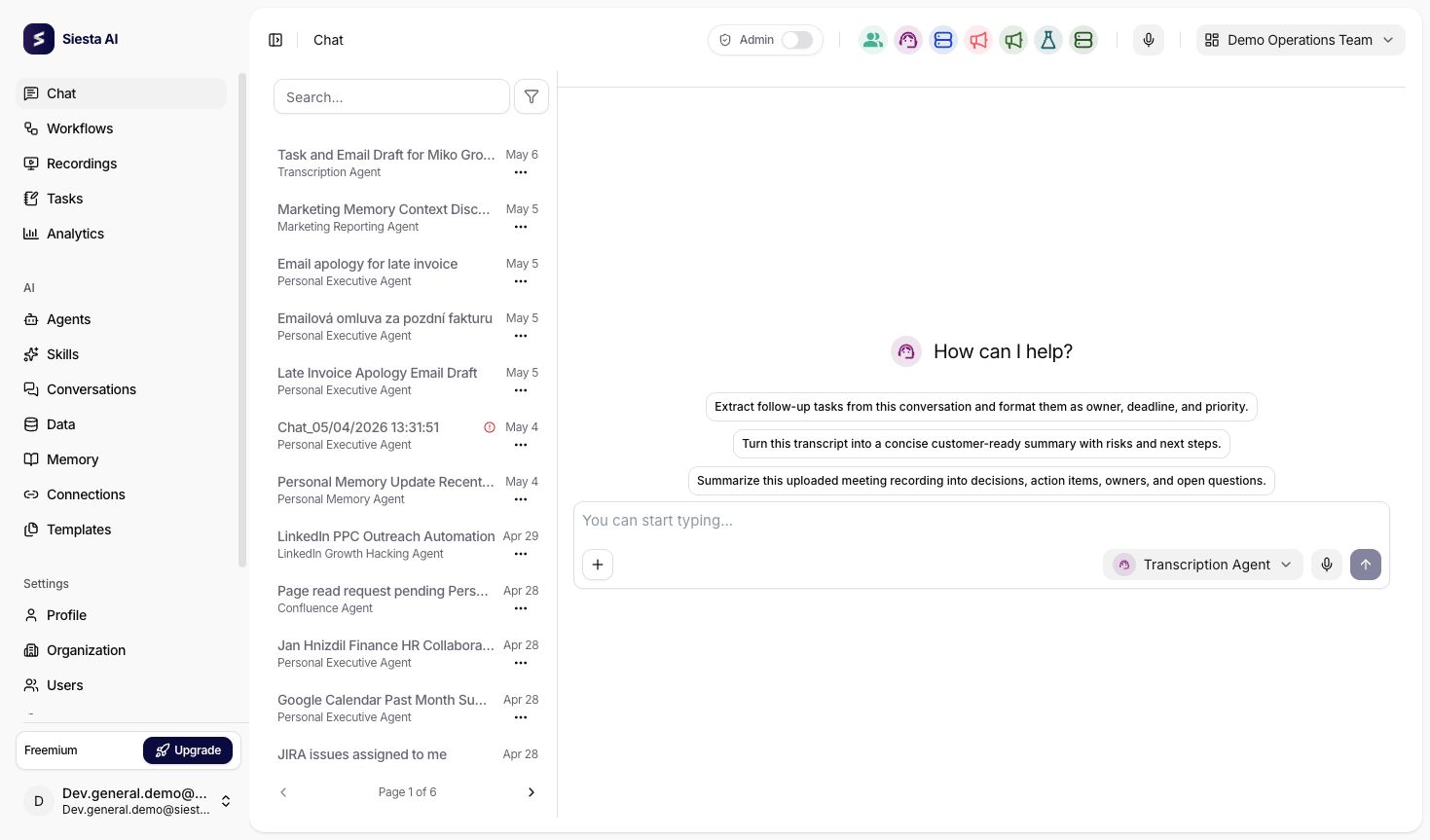
By sending the first message, the chat is initialized, and the newly created chat appears on the right in the conversation list, where it can be renamed.
Generate Images in Chat
Chat can show a generated image directly in the agent response when the selected agent has Image generation enabled.
- Start a New Chat and choose an image-enabled agent.
- Describe the subject and add any important style, layout, color, aspect-ratio, or text requirements.
- Send the request and wait for the image to appear in the response.
- Select the image to preview it, or use Download to save the generated PNG.
- If the result needs work, reply with one clear change instead of repeating the whole request.
Generate an image of a friendly orange cat sitting beside a window in warm morning light. Use a square composition and do not add text or logos.
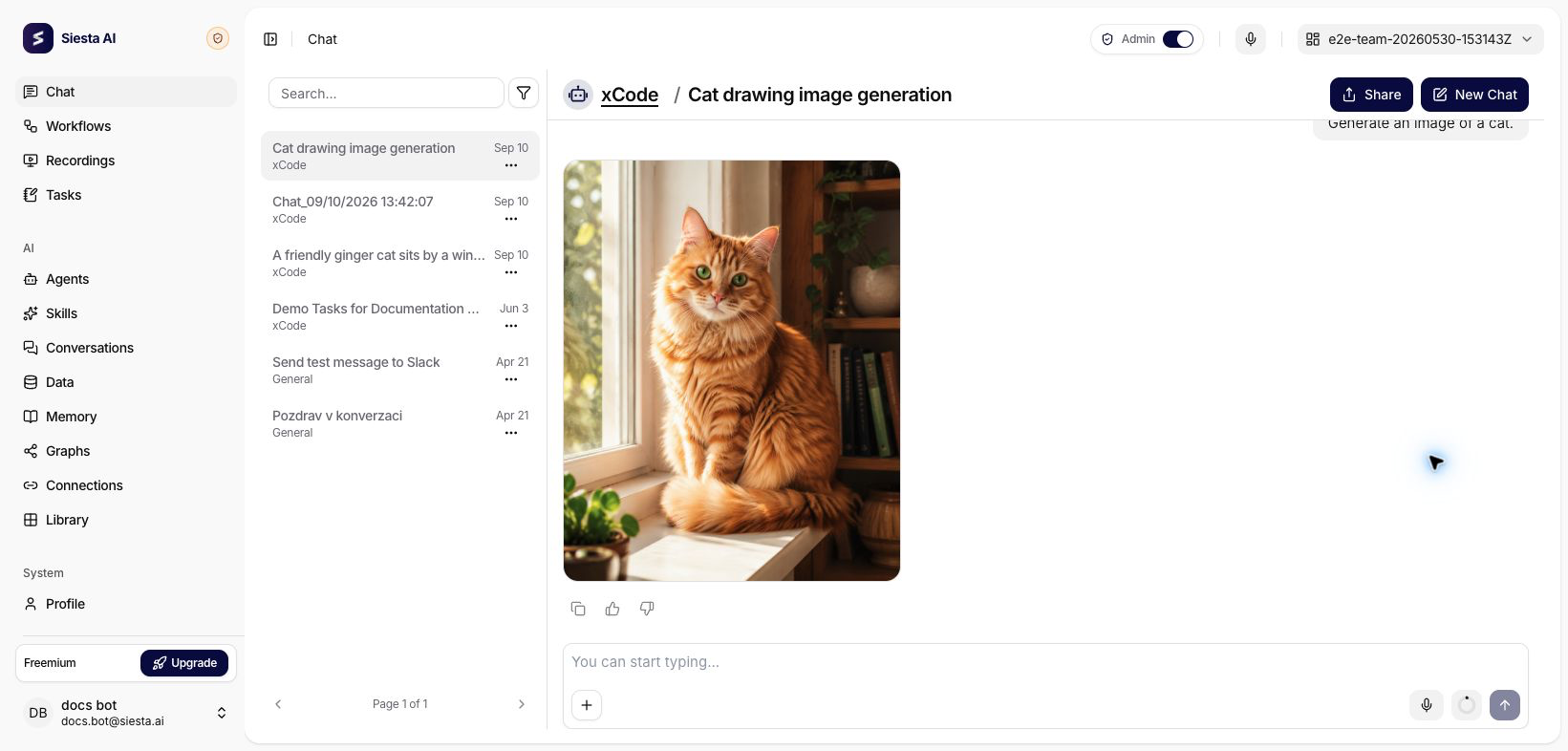
If the agent says that it cannot create an image, confirm that you selected the intended agent and start a new chat after its configuration was saved. An agent editor can follow Enable Image Generation. Organization safety rules can still block a request even when the tool is enabled, so simplify or revise a blocked prompt instead of trying to bypass the restriction.
Chat Interface
The main screen is divided into two parts:
- on the left, the history of all conversations is displayed (including the title, the agent used, and the date),
- on the right, the actual communication with the selected agent takes place.
The user types their queries into the input field at the bottom of the screen and sends them by pressing the Send button. There is also an option to activate voice input, attach files, or drag and drop files into the conversation.
The agent responds in real-time, with each message being stored within the given conversation.
Public chat, widget embedding, authenticated widget mode, privacy links, and public realtime access are configured on the agent itself. See Agents > Interfaces for those settings.
Navigate a Long Conversation
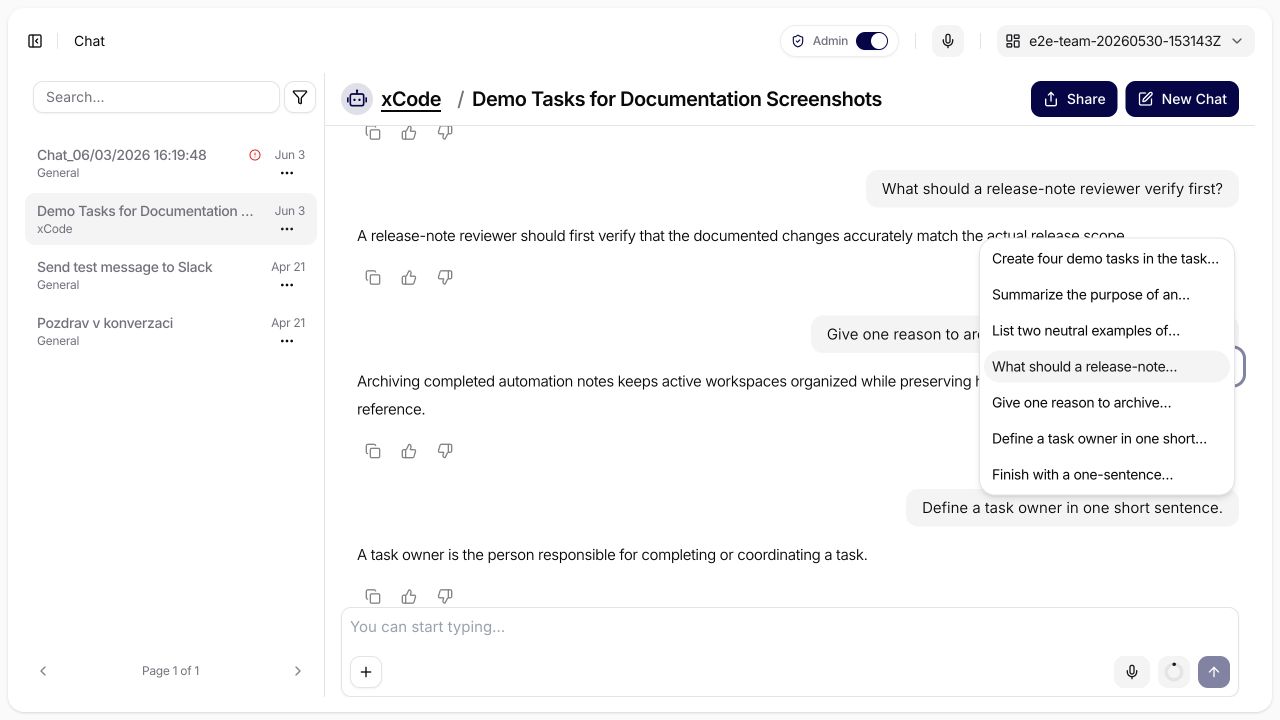
When a conversation contains at least five user turns, internal chat shows a compact transcript outline beside the message stream. The trigger contains up to six markers sampled across the conversation, so a long thread stays compact instead of adding one permanent marker for every turn. The active marker follows the user turn nearest the current scroll position.
Open the outline to see every user turn. Each item uses the trimmed message text as its label. If a turn has no text, the outline uses its attachment file names; if neither is available, it uses an untitled-turn fallback. Assistant responses are not separate outline items.
Select an item to scroll its user message smoothly to the start of the conversation viewport. The selected location is highlighted with aria-current. The trigger and list items are buttons, so keyboard users can reach them with Tab and activate them with Enter or Space. Navigation scrolls and highlights the destination; it does not move keyboard focus into the message content.
The outline is derived from the current message list. It appears when a streamed conversation reaches its fifth user turn and updates as later turns arrive.
| Conversation surface | Transcript outline |
|---|---|
| Authenticated internal chat | Available from five user turns |
| Full shared-conversation page | Available from five user turns |
| Share-dialog preview | Hidden |
| Public chat widget | Hidden |
| Authenticated embedded widget | Hidden |
Filtering and Managing Conversations
- The left panel allows for quick browsing of the history, including titles and the date of the last activity.
- By clicking on … next to a conversation, you can quickly rename or delete the chat.
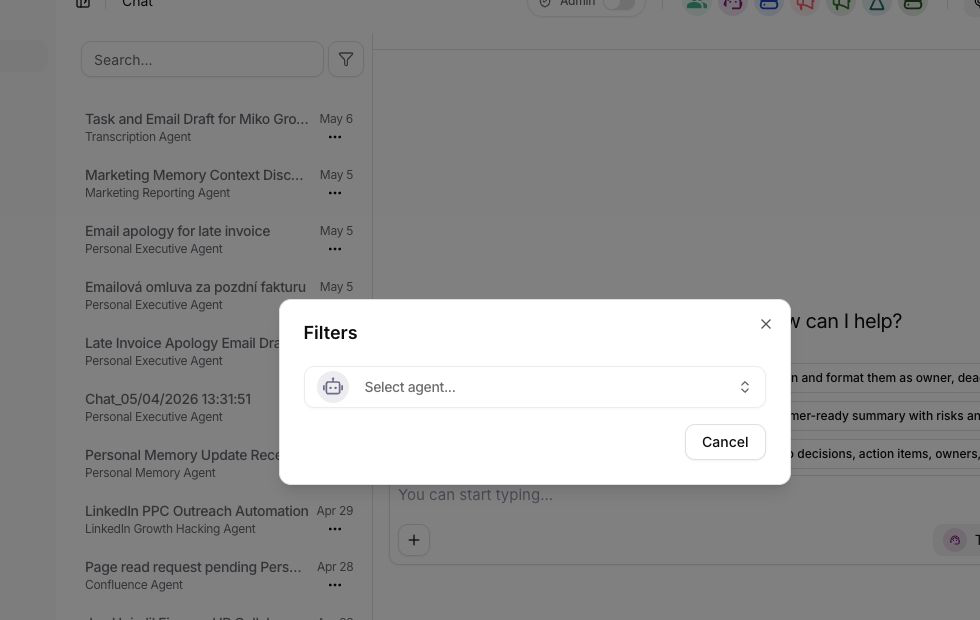
- Filters (icon in the top panel of the list) allow filtering conversations by a specific agent. The filter for the selected agent can be removed by clicking on the trash icon and confirming the change with the Send button.
Submitting a Query
- The input field supports text, attachments, and voice dictation (microphone).
- Submitting a query: arrow or keyboard shortcut Enter / Cmd + Enter (depending on settings).
 The microphone status (active/disabled) is visible right next to the agent selection. When recording, an icon is activated, and the status is displayed in the input field.
Realtime and Voice Conversations
Siesta AI supports realtime conversation flows for interactive voice-style experiences. A realtime session is always connected to a specific conversation, so messages, transcripts, tool activity, feedback, and audit context remain tied to the same conversation history as standard chat.
Realtime can be used in two contexts:
- Internal chat: authenticated users start a realtime session from an existing or newly created conversation.
- Public chat: public or embedded chat can use realtime only when public chat and realtime public access are enabled for the organization and agent.
The realtime flow has two steps:
- The client creates a
realtime-sessionfor the conversation. - The client connects to the returned WebSocket path and streams audio/events for that session.
In the UI, realtime controls can expose:
- a voice start action directly in the composer,
- a stop action that lets the user end the active realtime turn without leaving the conversation,
- persona or voice selection controls,
- audio activity indicators,
- approval waiting state when a tool call must be confirmed before the session can continue.
Session behavior is controlled by platform limits. The current backend defaults include a short session token lifetime, an idle timeout of 60 seconds, a maximum session duration of 1,800 seconds, up to 2 concurrent sessions per user, and up to 100 concurrent sessions per organization. The supported input and output audio format is pcm16, and the default supported voice is alloy.
If the session expires, becomes idle, exceeds the maximum duration, or violates origin/security checks, the client should create a new session before reconnecting. Realtime sessions remain tied to the same conversation, so transcripts, tool events, and persisted messages stay in the conversation history instead of being stored separately.
For public chat and widgets, administrators should review public chat settings, allowed origins, content safety, prompt shield settings, and privacy disclosures before enabling realtime for customer-facing use.
Feedback on Responses
Under each agent response, it is possible to copy the response or click on the thumbs up or down icon, allowing the user to provide quick feedback on the agent's response.
After submitting a rating, a Send feedback window will also appear, where a specific comment on the agent's response can be added. This feedback is automatically sent to the admin interface upon submission.
This mechanism allows administrators to monitor the quality of responses, analyze strengths and weaknesses in the underlying data, and subsequently optimize agent settings.
Sharing a Conversation
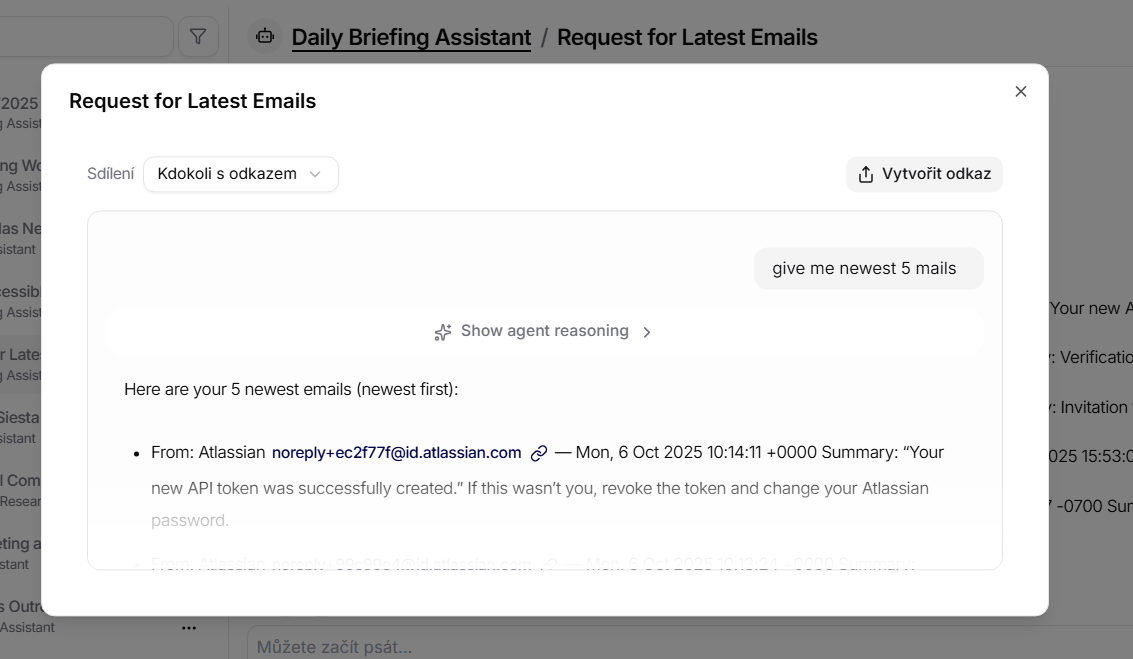
The chat can be shared via a link. In the conversation detail, click on Share and choose who can open the link. The preview shows the content of the shared chat, including the latest messages and the prompt that initiated the conversation.
If the shared conversation contains generated artifacts or realtime messages, verify the preview before sending the link so the recipient sees the intended final state.
HTML and Rich Content Preview
Some agent or tool outputs can contain HTML-like content. Current dev chat behavior is safer than a plain raw render:
- the chat can show a preview-oriented rendering path for supported content,
- code-style fallback is still used when the content should not be rendered directly,
- users should still verify the preview before sharing or copying output into an external system.