Workspaces
A Workspace brings together the agents, conversations, tasks, and published artifacts for a project or recurring process. It extends the earlier Task workspace concept with a workspace chat, a default agent, and sharing settings.
Find a workspace
Select Workspaces near the top of the sidebar. Search by name, browse the workspace cards, and use the page controls when more results are available. The catalog has three tabs:
| Tab | Included workspaces |
|---|---|
| Active | All non-archived workspaces, including those marked as templates. |
| Templates | Non-archived workspaces with Template enabled. |
| Archived | Archived workspaces, including archived templates. |
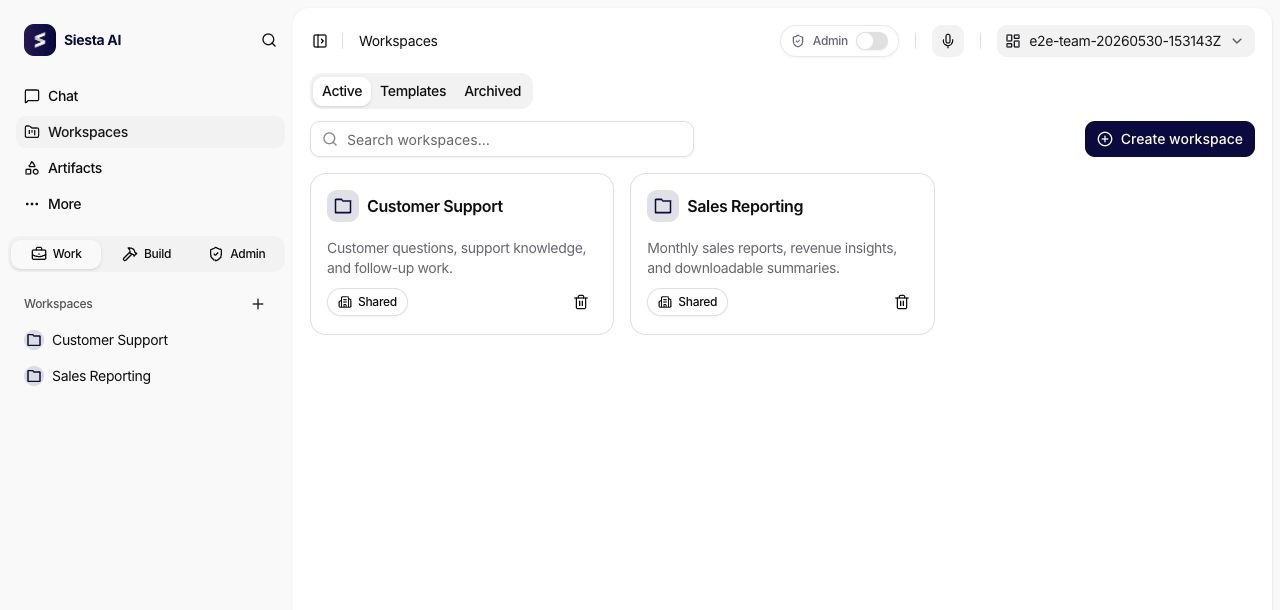
The sidebar lists non-archived workspaces. Open a workspace from its card or New Chat action to enter its chat. Expand a workspace to browse accessible workspace conversations; selecting the currently open workspace in the sidebar can toggle this list. Assigning an agent to a workspace does not move all its earlier conversations into that workspace.
Create a workspace
Select Create workspace in the catalog, or + beside the sidebar's Workspaces heading.
- Enter a Name and Description for the workspace.
- Choose an Icon and Icon color.
- Review Access, when available. The create dialog shows the access editor directly.
- Select Create workspace. The workspace and its default agent are created together, and the workspace chat opens.
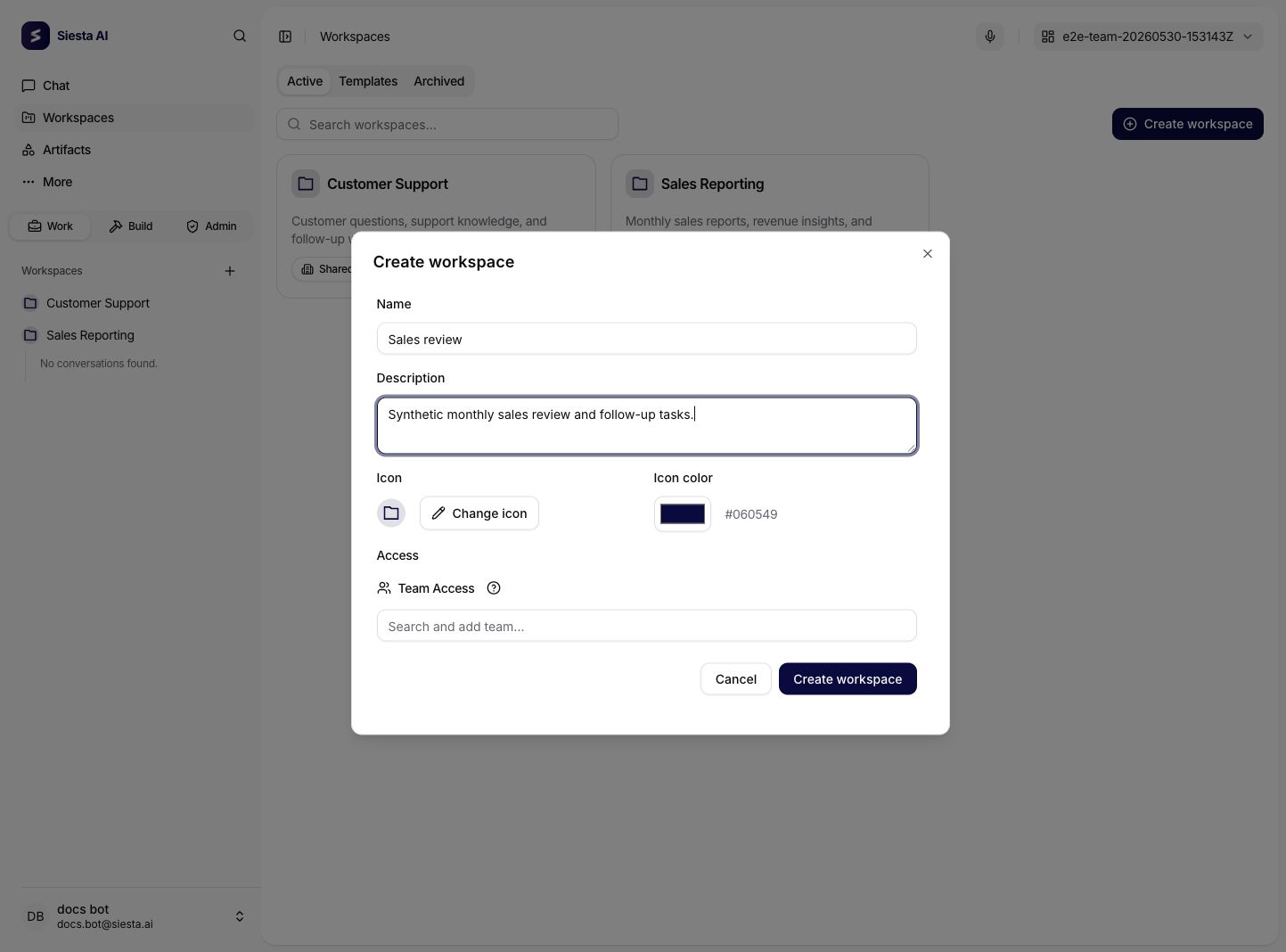
The name can contain up to 200 characters and the description up to 2,000. Siesta AI chooses the system workspace-agent template and the organization's Default LLM connection; you do not select either in this dialog. If no explicit organization default is configured, the service tries an available system-default model connection in that organization.
Creation requires workspace and agent creation permissions, template viewing permission, and access to a compatible model connection and the template's required capabilities. If creation fails, ask an administrator to check the organization default connection, connection access, model compatibility, and availability of the system template. After an interrupted request, refresh the catalog before trying again.
Work inside a workspace
Opening a workspace starts in Chat, with its default agent preferred in the composer. On desktop, the right-hand Workspace details panel can be collapsed to icons. On smaller screens, open Workspace details to show the panel in a drawer.
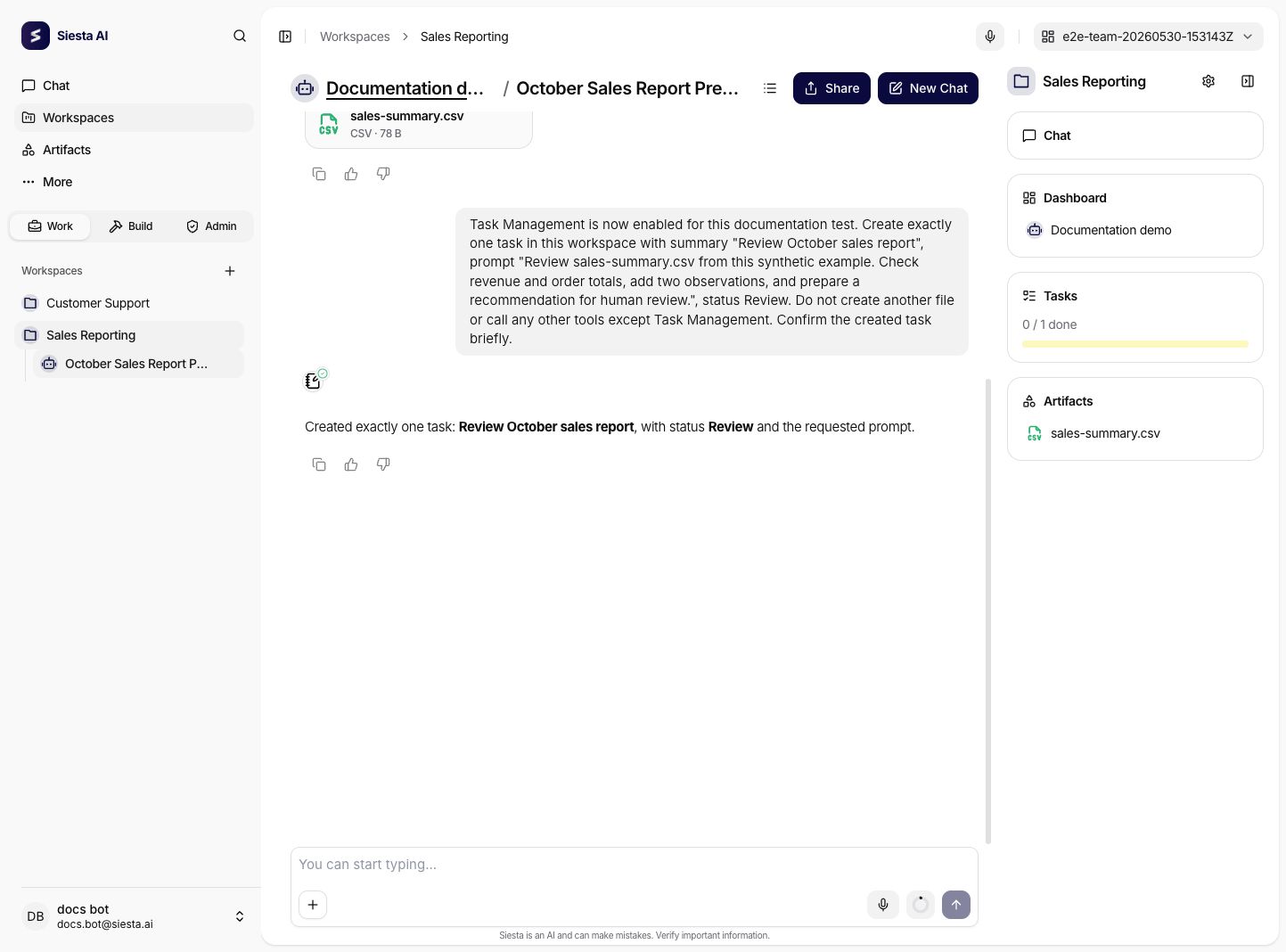
| Destination | What you can do |
|---|---|
| Chat | Start or continue a conversation in this workspace. |
| Dashboard | Open the Overview page with accessible agents and conversation totals. |
| Tasks | Open the Kanban board. The panel shows completed/total tasks and progress across statuses. See Tasks. |
| Artifacts | Open workspace files. The panel previews recent files and offers Show more when additional files exist. The destination remains available when empty. |
| Settings | Edit metadata, sharing, and the Template/Archived flags. |
The detail pages also provide Overview, Tasks, Artifacts, and Settings tabs according to your permissions.
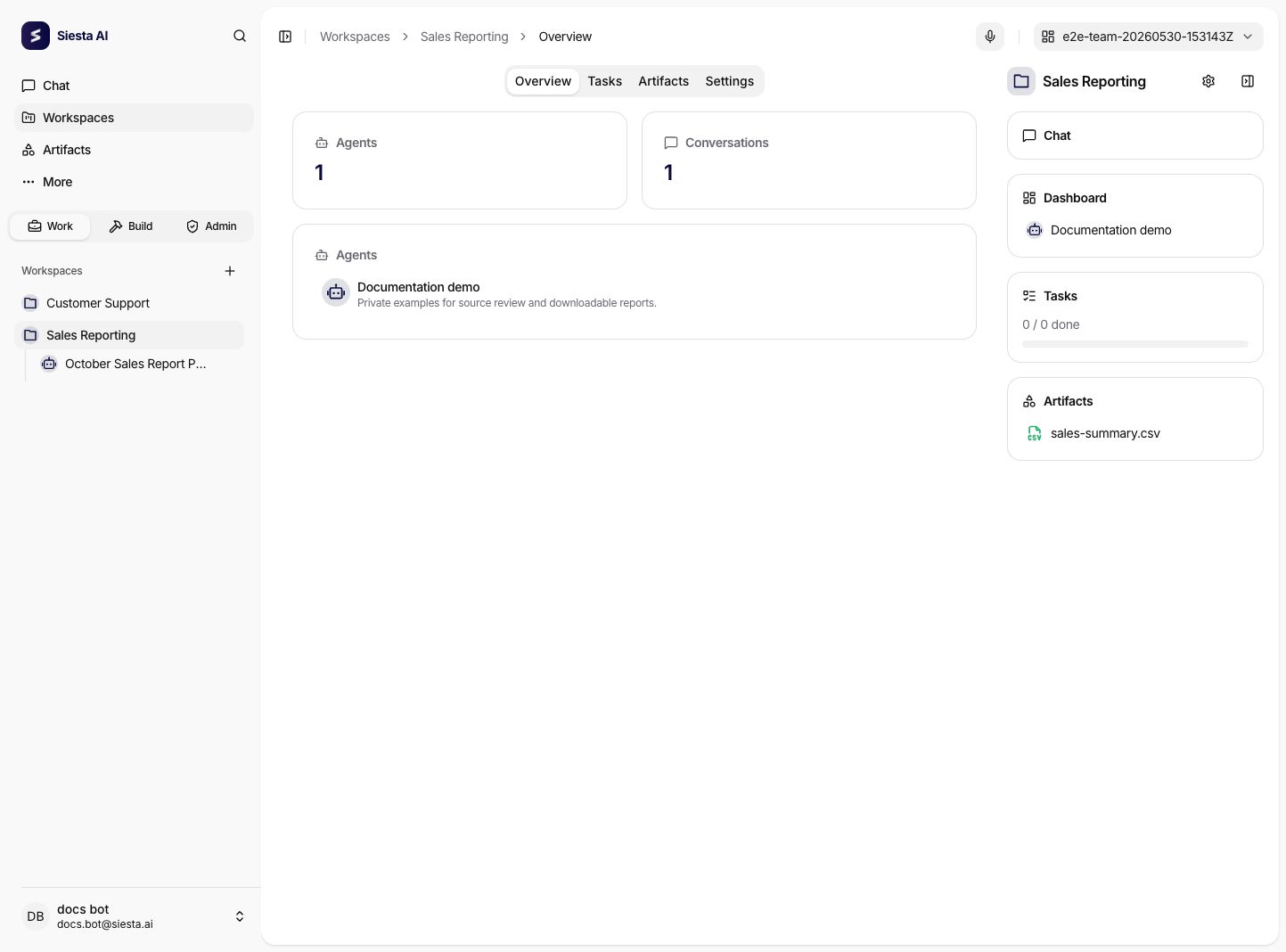
A conversation started in workspace chat stores its workspace explicitly. Use that entry point when its tasks and outputs should belong to this workspace. Agents, conversations, and connections keep their own access rules: sharing the workspace does not expose every conversation or grant access to every agent. Insufficient permissions means information is unavailable to you, rather than that the workspace is empty.
Workspace artifacts
The Artifacts tab contains a workspace's published outputs and lets you manage its files. For uploads, automatic output attachment, and permissions, see Workspace Artifacts.
Settings and the default agent
Use Settings to update workspace details, access, and the Template and Archived flags. For the settings and automatically created default agent, see Workspace Settings.
Access and sharing
Workspace permissions and its sharing policy apply together:
- Can Use lets you work with the workspace within your role's permissions.
- Can Edit grants write access, required together with the relevant edit, run, or delete permission to change content or execute tasks.
- Managing team or organization sharing requires the corresponding access-management permissions.
Changing a conversation's agent assignment does not move its stored workspace scope. If an agent no longer belongs to that workspace, start a suitable workspace conversation instead of relying on the old binding. See Roles and permissions.
Delete a workspace
Use the delete action on a workspace card and review the confirmation. Deletion removes its tasks and disconnects its assigned agents; the agents themselves remain available under their own access rules. Files become unavailable through this workspace, while files still used elsewhere are kept. Download required files and review dependencies before confirming.