Data Upload Limits
Data Upload Limits lets administrators control two independent per-user allowances across Data sources in the organization: uploaded data in megabytes (MB), and pages analyzed by Advanced content extraction. Neither value is a maximum size for one file, a collection-access setting, or a model context limit.
Open Upload Limits
- Open Data.
- Turn on Admin mode.
- Select Upload limits next to Create collection.

The button and page require permission to manage users. If Upload limits is not visible after you enable Admin mode, ask an organization administrator to review your role.
Set the Default Limit
Default upload limit and Default analyzed pages limit are the organization-wide fallbacks for users who do not have custom values.
- Enter the upload allowance in MB.
- Enter the analyzed-page allowance, or leave it blank for Unlimited.
- Select the main Save button on the right.
The MB field is required. Both fields accept non-negative whole numbers only; negative numbers and decimals cannot be saved. A blank analyzed-page field is valid and is stored as unlimited. The Save button becomes available after either value changes and both values are valid.
Changing the default does not overwrite existing user-specific limits.
Set a User-Specific Limit
The table lists users and lets you replace the default with an individual value:
- Use Search to find the user's email address.
- Enter a non-negative whole number in the user's Upload limit field.
- Enter an Analyzed pages limit, or leave it blank for Unlimited.
- Select the disk Save button at the end of the same row.
Each row is saved separately. A custom value remains active for that user even when the organization default changes later.
Saving a row creates a custom limit, even when the value matches the current default. There is currently no action on this page that returns a custom limit to automatic default inheritance, so save user-specific values deliberately.
The current page shows both limits together. The values shown in screenshots illustrate the controls; they are not recommended or factory defaults.
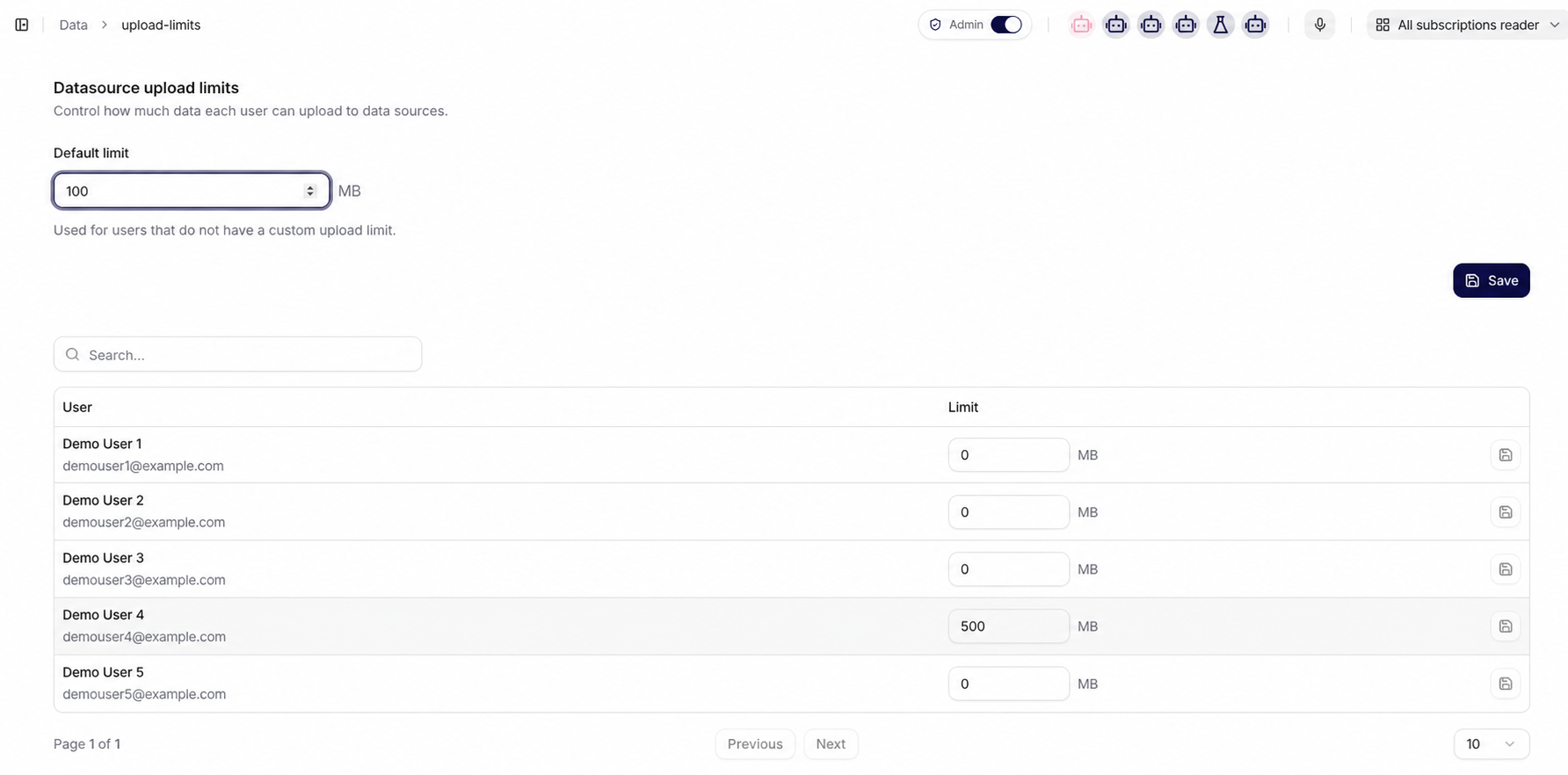
An upload limit controls Data-source upload allowance. It does not decide which collections a user can see, use, or edit. Configure collection visibility and team access separately through Data governance.
How the Limit Is Enforced
The allowance is the combined amount of data uploaded for the user across their Data sources. When a new document would exceed the applicable limit, that document is skipped with the reason User storage limit exceeded. Content that has already been uploaded and processed remains available.
Saving 0 as the default or a user-specific limit prevents new documents with a positive size from being ingested. Use 0 only when you intend to stop further uploads.
Review the limits periodically alongside data-storage utilization. Raise them when approved ingestion work requires more capacity, and reduce obsolete exceptions when responsibilities change.
Analyzed-Page Allowance
The analyzed-page allowance applies only when Advanced content extraction processes a PDF. It is separate from the MB allowance: sufficient storage does not grant more analyzed pages, and an unlimited page allowance does not bypass the storage limit.
| Value | Effect |
|---|---|
| Blank in the app | Unlimited analyzed pages; the UI saves this as 0 |
0 | Unlimited analyzed pages |
| Positive whole number | Analysis may start while the user's current total is below this allowance |
The effective total is calculated across all Data sources owned by the user. The service checks the current total before it asks the connector to analyze the next PDF. It does not reserve the expected pages in advance, because the page count is known only after analysis. Consequently, one PDF may take the total above the configured allowance; subsequent PDFs are skipped with User analyzed pages limit exceeded.
The analyzed-page count is recorded as soon as Document Intelligence returns. It can therefore increase before a later file-type filter, content validation, or unchanged-document decision skips the document. An increased count is evidence that pages were analyzed, not evidence that a new document version was indexed.
For the extraction pipeline, supported sources, cost model, and validation procedure, see Advanced PDF Content Extraction.
Scheduled Source Discovery and Incremental Reingestion
Upload allowances are enforced storage controls. They are separate from a connected source's synchronization schedule and from the choice between direct context and retrieval-augmented generation (RAG).
For a connected source, Daily or Weekly specifies when a synchronization run starts. It does not request a full reingestion of every file. Each run enumerates the complete configured source scope so that the ingestion service can discover the current upstream file set and compare it with the previously recorded state. This enumeration is source discovery; parsing, chunking, embedding, and indexing a file are reprocessing.
| File state found during source discovery | Reprocessing decision | Processing work in this run |
|---|---|---|
| New file | Process | Read or download, parse or extract, chunk, embed, and index |
| Changed file | Process | Repeat the processing pipeline and replace the indexed representation |
Previously Failed file | Retry | Run the processing pipeline again; investigate if repeated runs continue to fail |
| Unchanged file with a successful previous result | Skip | Keep the existing indexed representation; do not parse, chunk, embed, or reindex it |
File marked IsUserDeleted | Skip | Preserve the user deletion; do not reingest or reindex the file |
Source discovery can still consume provider API calls, pagination, listing time, and metadata-comparison capacity because the whole configured scope is enumerated. That operational load must not be interpreted as a full reindex: only the files selected by the decision table enter the expensive processing pipeline. Manual Upload has no upstream source to enumerate or scheduled synchronization to run.
Use Overview and Logs to compare the discovered and processed counts for each run, and use Files to investigate items that remain Failed. See Processing, Sync, and Troubleshooting for schedule selection, inspection, and incident handling.
Technical Retrieval Path
File-count and token-count guidance for direct context and RAG is an operating heuristic, not an upload quota or an enforced product limit. Use the administrator decision table to select the initial approach, then validate it with representative questions.
For enterprise collections, use this retrieval path as the default technical design:
metadata filtering -> BM25 + vector search -> merge candidates -> reranker -> 10-30 chunks -> LLM
Metadata filtering narrows the authorized and relevant scope before retrieval. BM25 contributes exact lexical matches such as identifiers and product names, while vector search contributes semantic matches. Merge both candidate sets, rerank them against the user's question, and send the best 10–30 chunks to the model. The exact result count must be evaluated against answer quality, latency, and the deployed model's context window.
Chunk retrieval alone is often insufficient for comparison, synthesis, or reasoning across a corpus. In those cases, use retrieval to identify the relevant documents, then load the complete relevant documents when their combined size fits the model context. Do not load unrelated documents merely to fill the context window.
Troubleshooting
Upload Limits is not available
- Confirm that you are in Data with Admin mode enabled.
- Ask an organization administrator to verify that your role can manage users.
Save is disabled
- Enter a value different from the currently saved value.
- Use a required, non-negative whole number for MB and either a non-negative whole number or a blank value for analyzed pages.
- Use the main Save button for the default and the disk button in the user's row for an individual limit.
A user still cannot upload
- Check the user's individual value first.
- If the user has no custom value, review both default limits.
- Confirm that the correct Save action completed successfully.
- If the MB allowance is sufficient, check whether the failure is the analyzed-page allowance, collection access, or Manual Upload configuration.