Google Drive Data Source
Use Google Drive for live folders and Shared Drives that should refresh through the permissions of a connected Google account.
Prepare the Connection and Folder
- Create or obtain access to a Google Drive connection.
- Use a team-owned identity for shared production knowledge where possible.
- Confirm that the connected account—not only your personal account—can open every intended folder.
- Open the folder in Drive and copy only the ID after
/folders/.
For https://drive.google.com/drive/folders/1AbCDefGh, enter 1AbCDefGh, not the entire URL.
Configure the Source
| Field | What to enter | Why it matters |
|---|---|---|
| Name | Purpose and folder, for example Support Drive — Approved policies | Distinguishes this import in logs and agents |
| Description | Owner, scope, exclusions | Makes reviews and incident response faster |
| Connection ID | The stored Google Drive connection | Selects authentication; never paste a token |
| Sync frequency | On Demand, Daily, Weekly, or Monthly | Controls how quickly upstream changes arrive |
| Include subfolders | Enable only when the entire tree is in scope | Recursive access can import much more content |
| Include shared drives | Enable for Shared Drive content | Allows discovery beyond a user's personal drive |
| Folders | One or more folder IDs | Defines the imported scope; at least one is required |
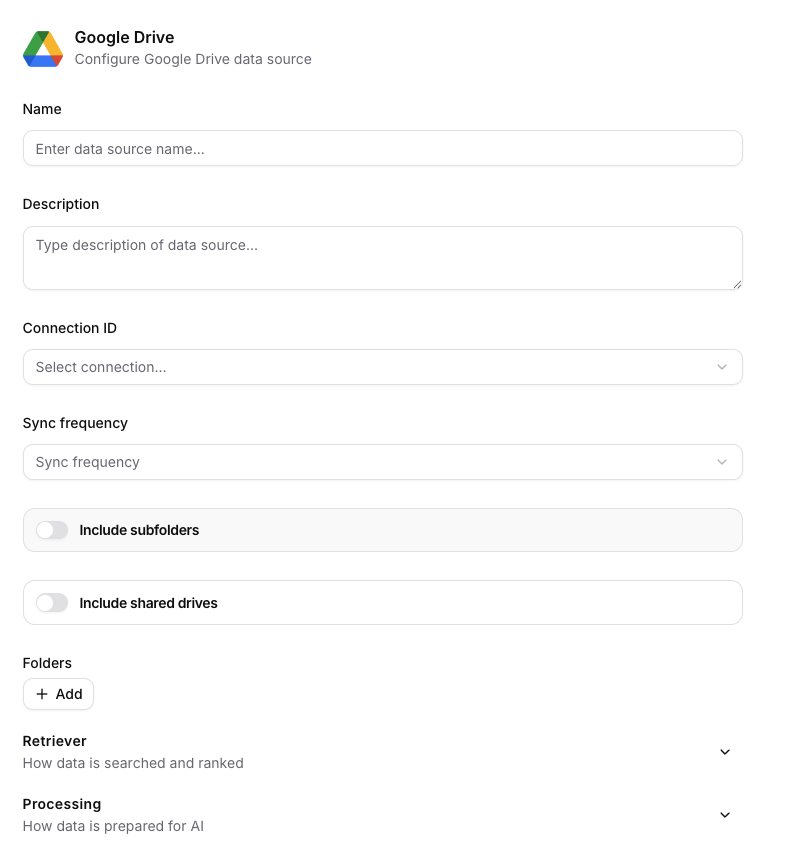
Google Drive uses folder IDs. The two switches deliberately widen discovery to subfolders or Shared Drives.
After creation, verify that shortcuts, duplicates, drafts, and archived versions did not widen the scope. A folder can process successfully while still containing the wrong documents.
Keep Retriever and Processing at their defaults until representative questions show a measurable need to change them. See Processing, Sync, and Troubleshooting.
When Google Drive Is the Right Choice
Choose it for Google-owned collaborative content that changes regularly. Choose Manual Upload for a signed snapshot, OneDrive for Microsoft user-owned files, or SharePoint for a governed Microsoft team library.
Under Processing, Store source files is optional and off by default. Enable it only when Siesta AI must retain the original Drive binaries in addition to extracted text and indexed chunks. See Store Source Files for the storage, badge, and cleanup behavior.
User Guidance
Name the collection in prompts and require source names in answers. If a file is missing, check the Folder ID, subfolder switch, Shared Drive switch, and the connected account's access before changing retrieval settings.
Admin Guidance
Prefer a dedicated identity for production sources, document token ownership, and test reauthorization. Removing a user's upstream access, OAuth consent, or employment can stop future synchronization. Shared Drive scope should be intentional and least-privileged.