Memory
The Memory section serves as a central knowledge base for your entire organization. It represents long-term memory where you can store strategic documents, processes, product knowledge, or specific know-how. You can then attach these documents to individual Agents, and they can actively use them when generating responses.
When enabled for an agent, Platform Tools can also help create and maintain Memory content. For example, an agent can gather approved public information from a website, combine it with internal instructions or a skill, and draft structured Memory pages about the company, products, strategy, terminology, or operating procedures. This turns one-time research into reusable knowledge that other agents can use later.
Use this capability deliberately: generated Memory should be reviewed by a responsible user before it becomes a trusted source for production agents.
Memory access now has two parts at the agent level:
- Memory read: the agent can use attached collections and pages as retrieval context.
- Memory write: the agent can create or update Memory content while it works.
This split lets teams attach trusted Memory for answers without automatically allowing the agent to change that Memory.
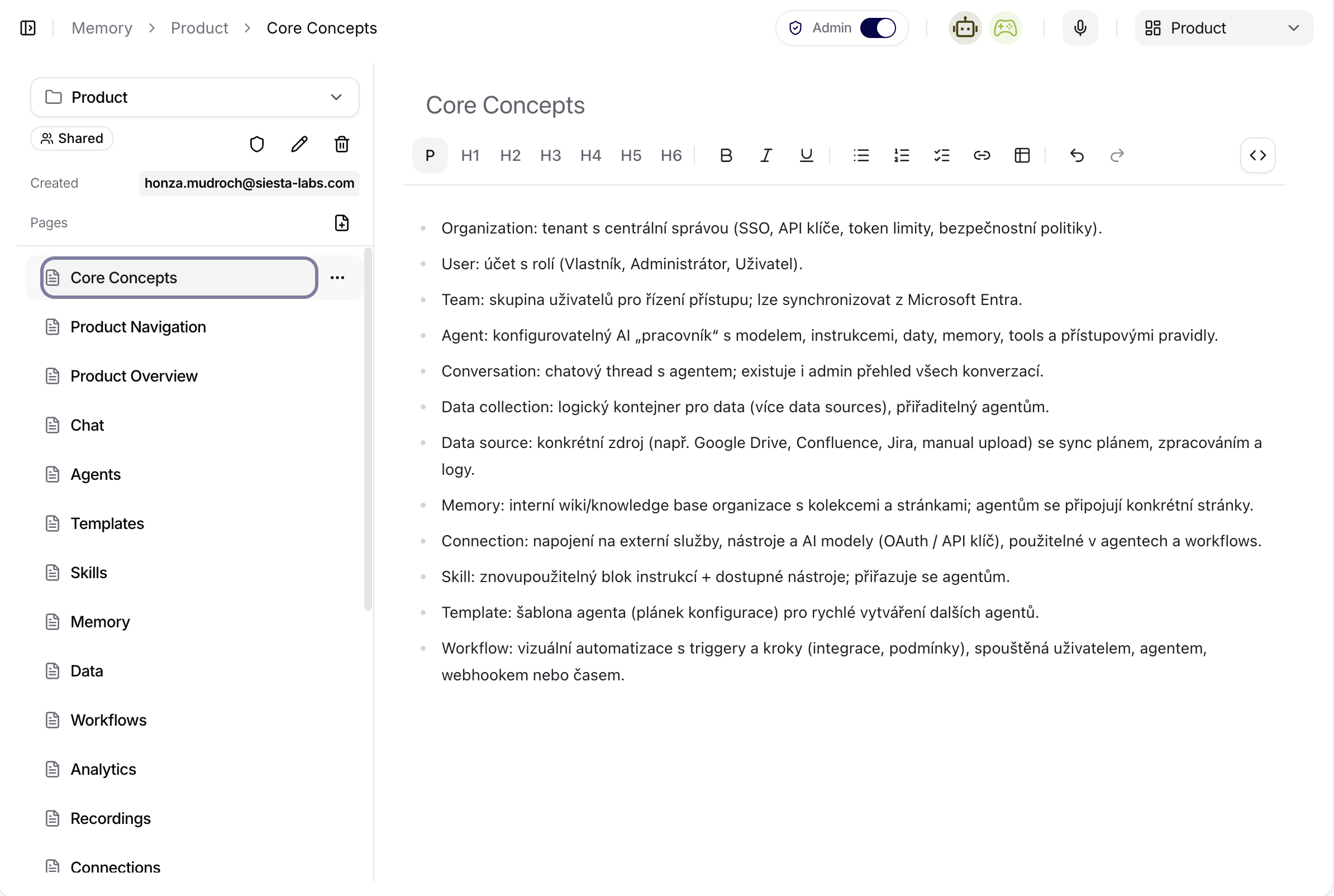
The screenshot shows the Product memory collection opened on the Core Concepts page. The left panel contains the collection selector, sharing status, collection actions, and the page tree. The main editor shows the selected page with formatting controls for headings, lists, links, tables, undo/redo, and code view. Use this view to maintain structured product knowledge that agents can retrieve later.
The current Memory UI keeps the collection sidebar visible while moving between a collection overview and a specific page. This makes it easier to stay oriented when editing larger collections with nested pages.
Collections and Structure
Knowledge in Memory is organized into Collections, which function as thematic folders. Collections allow you to logically separate data for different teams or projects (e.g., Marketing, Sales, HR).
You can find the collection menu in the top right corner in the dropdown. After clicking this menu, you will see all the collections you currently have access to and the button Create new collection. After selecting it, you will enter the name of the collection, and confirming it will create the collection.
- Creating a collection: Allows you to group related documents under one name.
- Sharing: Collections can be private or shared within a team or the entire organization.
- Management: Each collection has controls for setting permissions (shield icon), editing the name (pencil icon), and deleting the collection (trash icon).
Opening a collection takes you to /internal/memory/[collectionId]. This route represents the selected collection and shows its page tree. Use collection-level controls for permissions and collection management; use page-level controls for content changes.
The collection route is also the fallback view when no specific page is selected. From there, users can pick a page from the sidebar without losing the surrounding collection context.
Pages and Nesting
Within each collection, you can create individual Pages. The platform supports a hierarchical structure, meaning that pages can be nested within each other (creating subpages).
- Creating a new page: Using the page icon with a plus sign, located above the list of existing pages.
- Nesting: By hovering over an existing page, clicking on the three dots icon, and selecting the New subpage button, you can build complex wiki systems or structured manuals.
- Deleting a page: In the same menu as creating a subpage, there is also an option to delete the page.
Opening a page takes you to /internal/memory/[collectionId]/[pageId]. The URL identifies both the collection and the selected page, so a page always belongs to a specific collection.
Because the route includes both ids, links to Memory pages are more stable for direct navigation, reviews, and handoff between users working in the same collection.
Recommended structure:
- keep top-level pages broad and stable,
- use subpages for procedures, product notes, policies, or project-specific details,
- avoid mixing unrelated teams or topics in one collection,
- keep page names short enough to scan in the tree.
Content Editor
When selecting any page, a text editor opens on the right side of the screen, allowing users to format knowledge so that it is understandable and clear for agents and users.
- Changing the page title: After clicking on any page, you can edit its title by clicking on it above the text editor.
- Formatting: Support for headings (H1–H6), bold text, italics, underline, lists (bullets, numbering), and undo/redo options.
- Links and code: Ability to insert hyperlinks or code blocks for technical documentation.
- Saving: after editing content, wait until the editor has saved before navigating away.
Tip: For effective agent functioning, we recommend keeping pages in Memory clearly structured using headings and bullet points, which facilitates semantic searching of the data.
Use headings to create sections that agents can retrieve accurately. Prefer short factual paragraphs over long mixed notes.
Sidebar and Ownership Context
The sidebar is the main navigation surface for Memory work. It can show:
- the current collection,
- the collection owner,
- sharing status,
- page tree actions,
- collection-level actions such as rename, permissions, or delete.
Collection ownership matters when multiple teams maintain different knowledge areas. Before editing or sharing a collection broadly, verify that the displayed owner and sharing mode match the intended governance.
Linking with Agents
For practical use of the Memory section, it is necessary to link specific collections or pages with particular Agents.
- Contextual responses: If a specific collection or page from Memory is assigned to an agent, it will first search these sources for every query.
- Timeliness: Any changes made in the Memory section will immediately reflect for all agents using that source. Therefore, it is not necessary to reconfigure individual agents.
- Sourcing: An agent can draw facts from this data or use specific terminology from your company.
Example Use
- On the page, you can define, for example, Company contacts (see the image above), where you will structurally describe the company's employees, their positions, and contacts.
- Thanks to this knowledge, Agents to whom you attach this page will know the structure of your company and assist employees in contacting colleagues, thereby saving their time.
- In the case of a new employee joining, there is no need to rewrite the data for each Agent separately; it is enough to update the information only on the given page in the Memory section (the "Single Source of Truth" strategy).