 Azure Storage Account
The Azure Storage Account serves as a central data repository for blob objects, files, queues, and tables. Applications access this storage using a Connection String, which contains all the necessary authentication and configuration information in a single string.
This mechanism allows for quick integration without the need for manual management of individual connection parameters.
Procedure for Creating a Data Source in the Application
Creating a Data Source Collection
In the application administration:
- Open the Data Sources section.
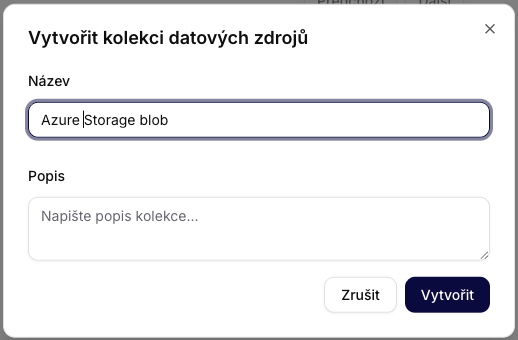
- Select Create Data Source Collection.
- Fill in:
- Name: for example, Azure Storage Blob.
- Description: optional (recommended for documenting the purpose).
Confirm by clicking Create.
Adding an Azure Storage Account
After creating the collection:
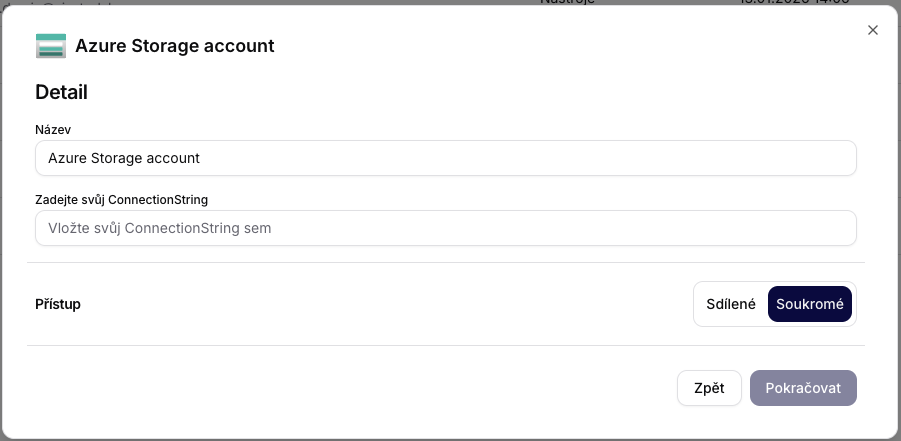
- Select the resource type Azure Storage account.
- Fill in:
- Name: any identifier (e.g., Production Storage).
- Connection String: to be inserted in the next step.
- Set access:
- Private – recommended for production environments.
- Shared – only if necessary.
Proceed by clicking Continue.
Obtaining the Connection String in the Azure Portal
You can obtain the Connection String directly from the Azure Portal from the Storage Account configuration.
Procedure:
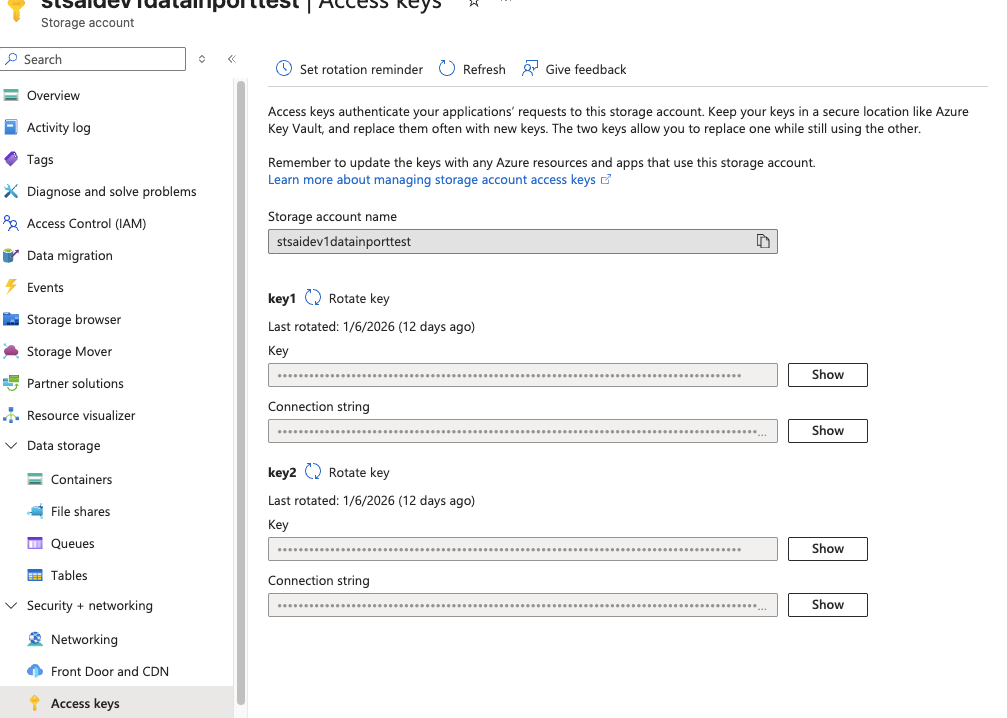
- Log in to the Azure Portal.
- Open the desired Storage Account.
- In the left menu, select Security + networking → Access keys.
- Two active key sets will be displayed:
key1key2
- In the Connection string field, click Show.
- Copy the entire string.
Then paste it into the Connection String field in the application.
What is a Connection String and How Does It Work
A Connection String is a composite authentication string that contains:
- The name of the Storage Account
- The access key
- The protocol type
- The endpoint configuration
Typical format:
DefaultEndpointsProtocol=https;
AccountName=storageaccountname;
AccountKey=BASE64KEY;
EndpointSuffix=core.windows.net
What it means:
| Element | Function |
|---|---|
| Protocol | Ensures encrypted communication (HTTPS) |
| AccountName | Identification of the Storage Account |
| AccountKey | Cryptographic access key |
| EndpointSuffix | Azure regional infrastructure |
The application uses this string to:
- authenticate access,
- identify the target account,
- obtain full permissions based on the type of key.
Separate the Uploader from the Siesta AI Reader
An automated Azure File Share pipeline normally has two independent identities:
| Access path | Purpose | Recommended access |
|---|---|---|
| Local synchronization service | Writes approved documents and metadata to Azure File Share | Identity-based SMB authentication, Storage File Data SMB Share Contributor, and matching file/directory ACLs |
| Siesta AI Connection | Reads the published share for ingestion | Read access required by the deployed Connection design |
Do not reuse a broad uploader credential merely because both paths access the same share. The synchronization identity needs write access; Siesta AI normally does not.
Identity-based SMB access combines share-level RBAC with file and directory ACLs. A user's RBAC assignment is effective only when the SMB session authenticates with that identity and the ACL also permits the operation. A mount made with a Storage Account key acts as the Storage Account identity, bypasses individual user authorization, and provides broad access. Use the account key only as a protected fallback and rotate it regularly.
See Azure Files share-level permissions and the Windows Azure Files mount guide.
Summary
The Azure Storage Account is a quick way to connect blobs, files, queues, and tables to Siesta AI. After obtaining the Connection String, simply add the data source to the collection and select the appropriate access.
For a complete on-premises synchronization and ingestion design, continue with Automated File Ingestion with Azure File Share.
Technical Notes
- Implementation: The connection exposes Azure Blob Storage operations.
- Authentication/scopes: uses an Azure Storage connection string, account key, SAS, or equivalent credential configured for the storage account. Container management requires account-level permissions; blob operations require access to the selected container.
- Functions: list containers, create containers, delete containers, get container properties, list blobs, upload blobs, download blobs, and delete blobs.
- Write behavior: creating containers, uploading blobs, and deleting containers or blobs are destructive or state-changing operations and should be confirmed before execution.