Interfaces
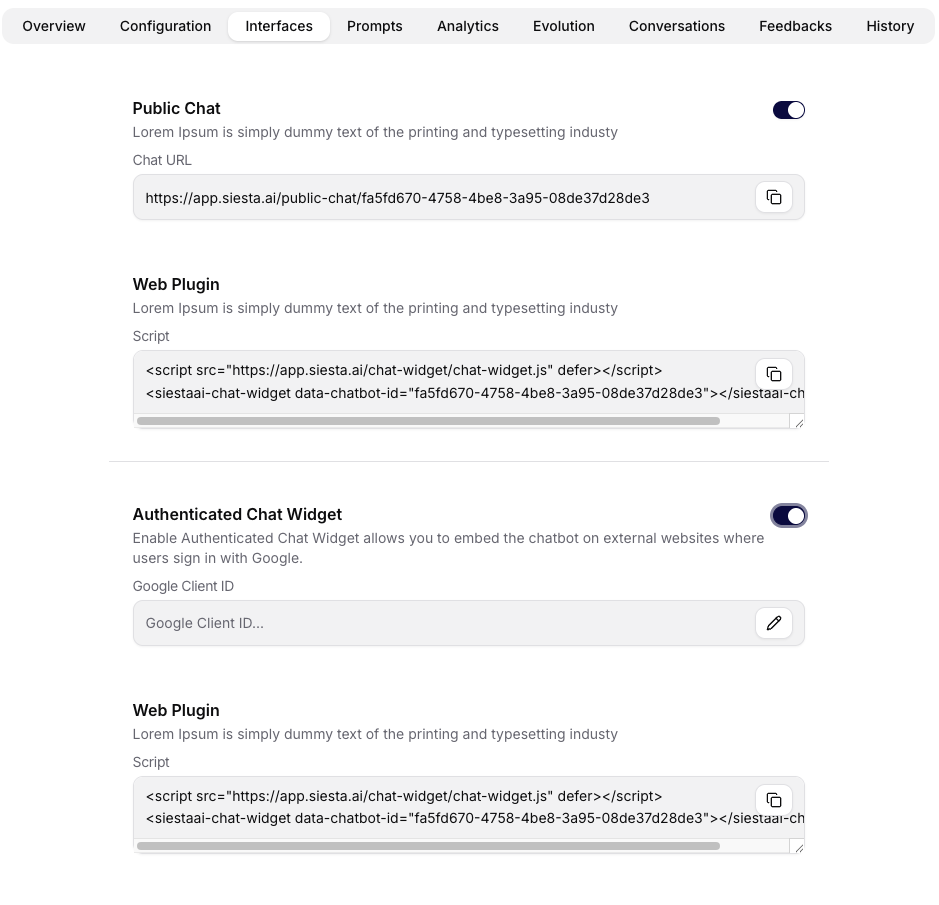
The Interfaces tab controls where users can access the agent outside the internal agent detail. It includes the agent ID, public chat controls, web plugin snippets, public chat settings, widget placement options, authenticated widget settings, and availability in the browser extension, Desktop App, and Mobile App.
Agent ID
The tab shows the agent ID in a read-only copyable field. Use this ID when configuring external integrations, embed snippets, or backend flows that need to reference a specific agent.
Mobile and Desktop App Visibility
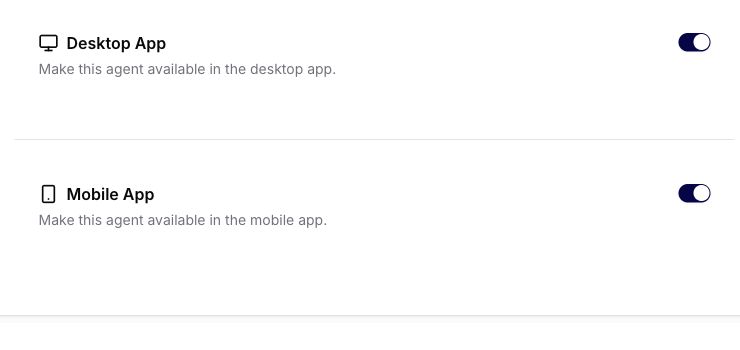
Use the Desktop App and Mobile App switches to make the agent eligible to appear in the corresponding application. For an existing agent, open Agents, select the agent, and open Interfaces. When creating an agent in the web application, the same choices are available in the Extensions section.
An agent is eligible for an application only when all of these conditions are met:
- the organization has enabled that application;
- the agent's corresponding switch is enabled;
- the signed-in user has access to use the agent.
Application visibility and the agent's Access policy are separate controls. Turning off Desktop App or Mobile App does not change the Access policy, delete the agent, remove existing conversations, or disable the agent on every other interface. It excludes the agent from lists that request agents for that specific application.
The application cards are shown only when the organization enables the corresponding interface. Changing them also requires permission to manage agent interfaces. If an organization-level setting is disabled later, it takes precedence over the saved agent setting.
Available application choices are selected by default when a new agent is created through the web form. Review them before saving; this is a web-form default, not an organization-wide access grant.
Public Chat
When public chat is enabled for the organization, the tab can expose a Public Chat card. Turning it on creates a copyable chat URL for the agent.
Public chat is still governed by organization-level security and the agent's own settings. If public chat is disabled globally, the agent cannot be made public from this tab.
Web Plugin
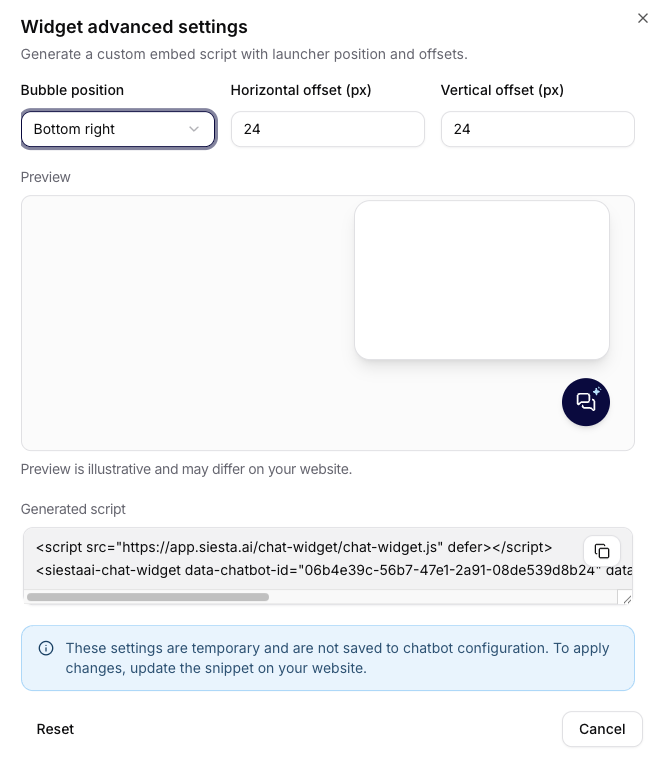
When public chat is enabled for the agent, the Web Plugin card provides the script used to embed the chat widget on an external website or portal. The UI includes copy controls and an advanced settings button for widget placement options.
The publicly accessible chat interface does not require registration or login unless authenticated widget mode is enabled. Visitors can communicate with the selected agent using the capabilities allowed by the agent and organization, including feedback, file uploads, reasoning visibility, realtime audio, and audit logging.
Advanced embed settings generate a customized script with launcher position and pixel offsets, for example bottom-right placement with horizontal and vertical spacing. The preview in advanced settings is illustrative; the final appearance can still depend on the website layout and CSS.
Advanced embed settings are temporary in the form. To apply them, update the generated snippet on the website where the widget is installed.
Use the developer Widget Playground to test widget behavior in real time before embedding it into a customer website or internal portal.

Public Chat Settings
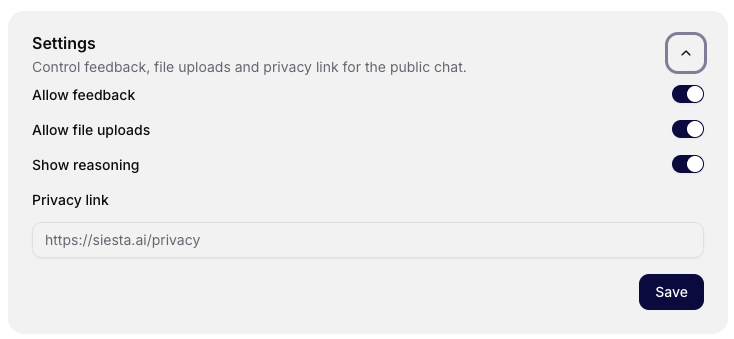
The Public Chat Settings panel controls what visitors can do in public chat:
- submit feedback,
- upload files,
- see reasoning when allowed,
- open the configured privacy link,
- use realtime when it is enabled for the organization and the agent.
Save public settings after changing them. Privacy links are normalized so plain domains can be stored as HTTPS URLs.
Public chat settings are saved to the agent configuration. If sensitive data is handled, use authenticated chat and review public access, privacy, retention, and prompt shield settings before publishing.
Authenticated Chat Widget
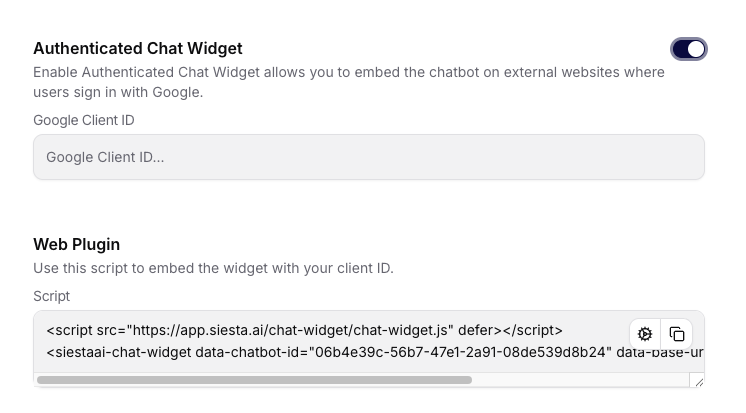
The authenticated widget mode lets the embedded chat require sign-in. The tab includes:
- an enable switch,
- a Google OAuth Client ID field,
- confirm and discard controls for the client ID,
- a generated script for the authenticated widget.
Use authenticated widget mode for customer portals, intranets, or any public surface where the agent should know the signed-in user or avoid anonymous access.