Siesta AI Chrome Extension
The Siesta AI Chrome Extension keeps your agents beside the page you are working on. It runs in the browser's native side panel, so the current tab remains visible while you chat, attach page context or files, review tool activity, or talk to a realtime voice agent.
What You Can Do
The current extension supports:
- text chat with accessible Siesta AI agents;
- realtime voice conversations for agents that support realtime;
- automatic selection of your last-used, account-default, or favorite agent;
- searchable agent switching without leaving the panel;
- editable starter prompts configured on the selected agent;
- streaming Markdown responses with copy, stream-stop, retry, and new-chat controls;
- visible tool-call status while an agent works;
- restoration of the most recently active conversation after the panel closes;
- page, text-selection, image, screenshot, and file attachments.
Use the extension for page-adjacent work such as research, document review, drafting, comparison, and follow-up questions. Use the main web app for administration, agent configuration, data and connection management, workflows, analytics, and organization-wide settings.
Open the Side Panel
Open Siesta AI in either of these ways:
- select the Siesta AI icon in the browser toolbar;
- press
Ctrl+Shift+Yon Windows/Linux orCommand+Shift+Yon macOS.
The shortcut can be changed in chrome://extensions/shortcuts or the equivalent Edge settings page.
The extension requires Chrome or Edge 116 or later because it uses the browser's native Side Panel API.
Sign In
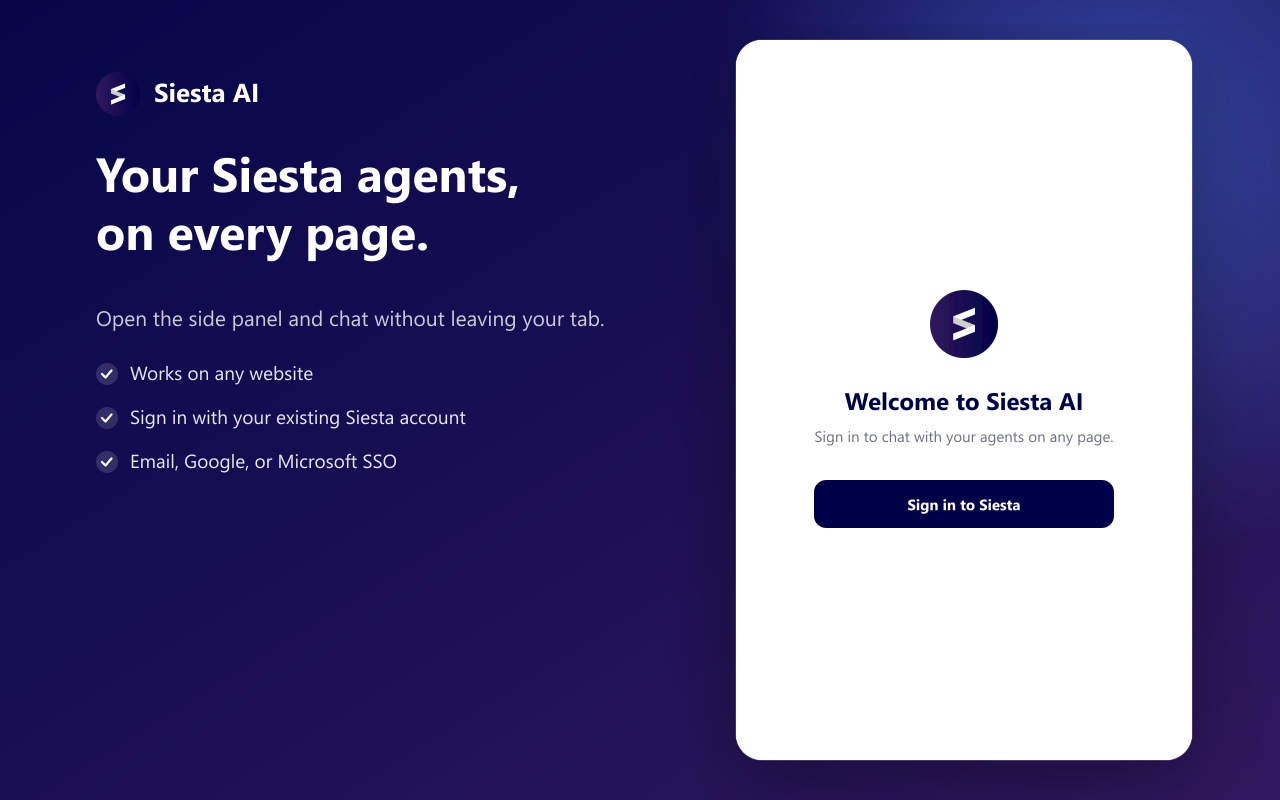
The extension uses the normal Siesta AI web sign-in:
- Select Sign in in the side panel.
- Complete email/password, Google, or Microsoft sign-in in the Siesta AI web app.
- Return to the panel after the authenticated session is detected.
The extension does not ask for or store your password. If the Siesta AI session expires or the API rejects it, the stored session token is cleared and the panel returns to the sign-in screen.
Choose an Agent
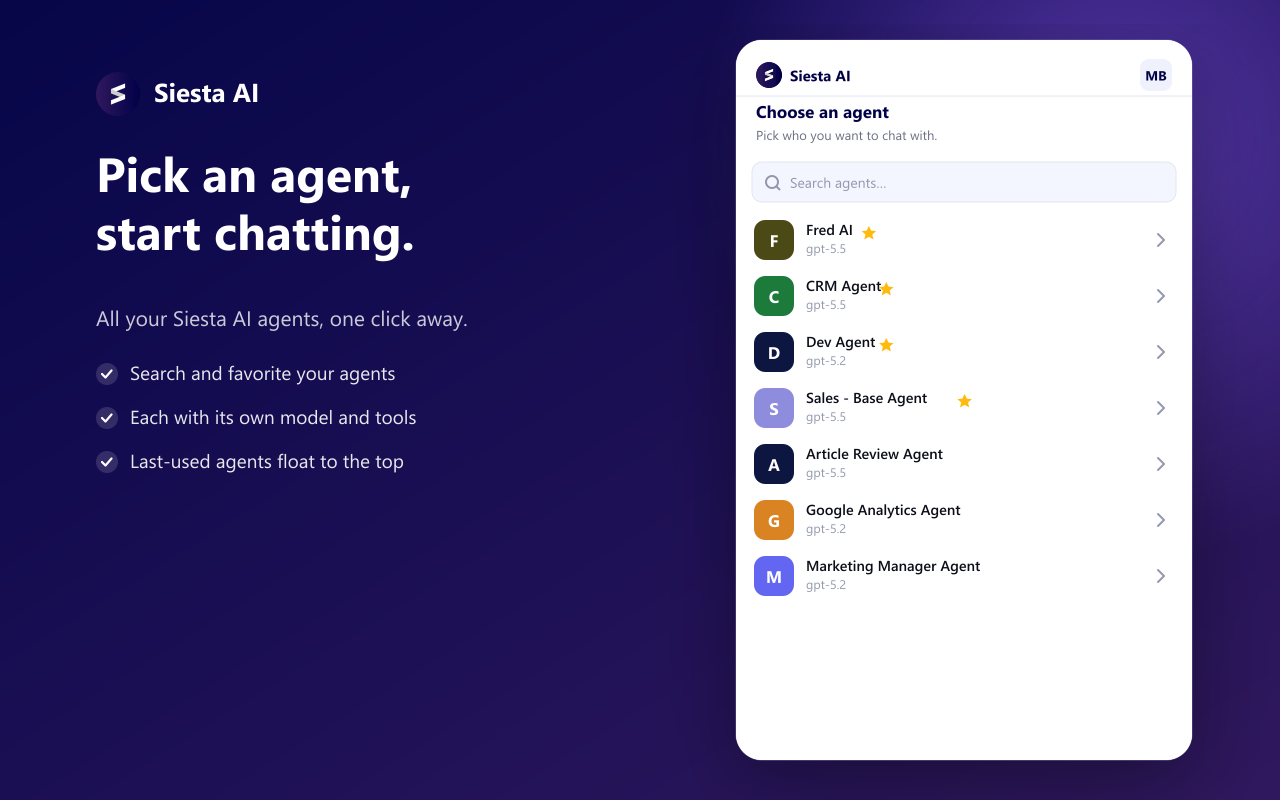
When the panel opens, it chooses an agent in this order:
- the agent you last selected in the extension;
- your account's default agent;
- a favorite agent;
- the first available agent alphabetically.
Select the active agent name or press Command+K / Ctrl+K to open the searchable agent switcher. Favorites are marked with a star.
If the selected agent has configured conversation prompts, they appear on the empty-chat screen. Selecting a prompt fills the composer so you can review or edit it before sending.
Chat and Continue Work
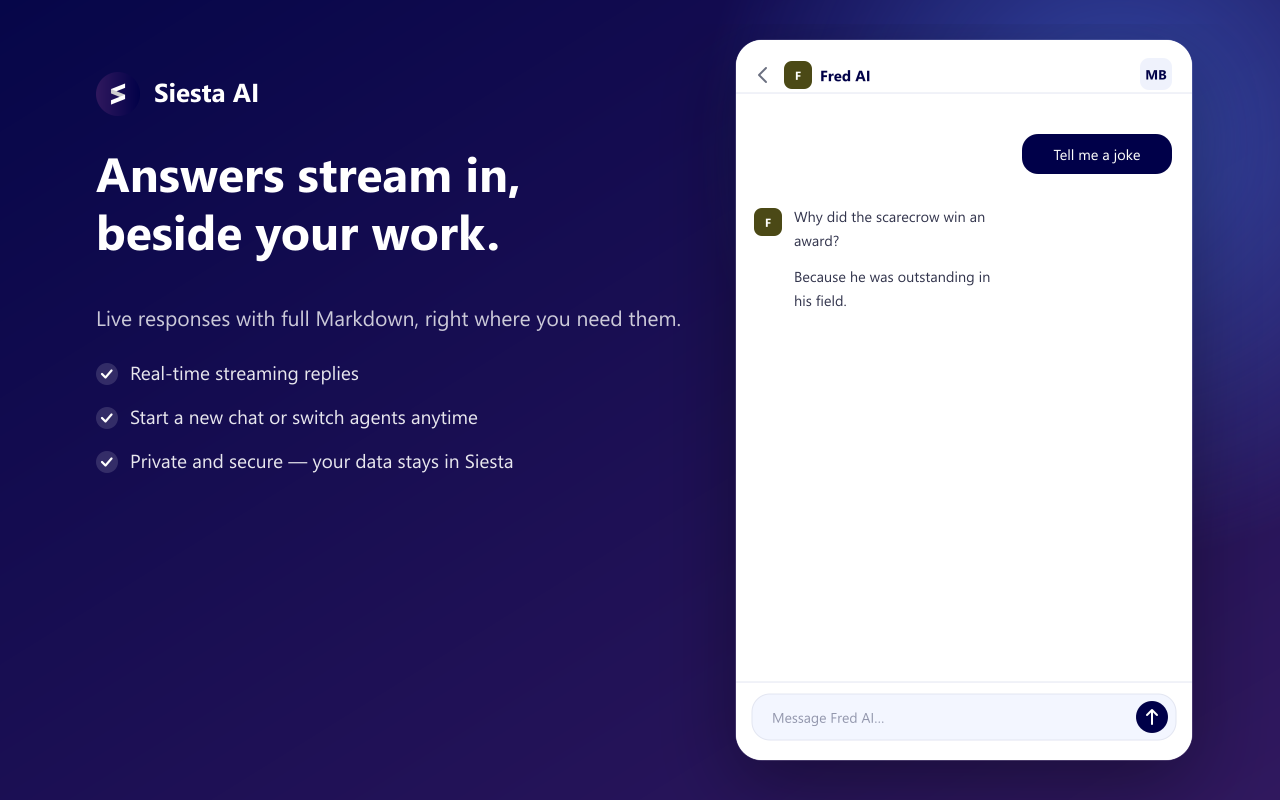
Text chat supports:
- live response streaming with a typewriter-style reveal;
- Markdown, tables, lists, code, and links that open in a normal browser tab;
- Stop to stop the current response stream;
- Copy on a finished response;
- Retry after a failed response;
- New chat to clear the current conversation;
- tool icons with success, failure, pending, or approval-pending status.
The extension remembers the most recently active conversation and restores it when the panel is reopened with the same agent. Message history is fetched again from Siesta AI; message contents are not copied into extension storage. The extension currently restores one most-recent conversation rather than providing a full conversation browser.
Attach Context and Files
Select + beside the composer to access these attachment options:
| Option | What happens |
|---|---|
| Attach this page | Reads the active page's main text, title, and URL and attaches them as page-context.txt. |
| Upload a file | Uploads one or more files to Siesta AI and adds them to the next message. |
| Take a screenshot | Captures the visible area of the active tab and attaches it as a PNG. |
You can also:
- drag files anywhere onto the side panel;
- paste an image from the clipboard into the composer;
- send an attachment without accompanying text;
- remove an attachment before sending.
Each manually attached file or image can be up to 20 MB. The send button waits until active uploads finish. Failed uploads remain visible as error chips so you can remove them and attach the file again.
Attach From the Page Menu
Right-click supported page content to use the extension without manually copying it:
- Attach this page to Siesta captures readable page text;
- Attach this text to Siesta captures the current selection;
- Attach image to Siesta downloads and uploads the selected image.
The side panel opens and shows the captured item as a removable attachment. Type the question you want to ask, or send the attachment by itself.
Page and selection text is limited to 20,000 characters before upload. The attachment includes the page title and URL so the agent can identify its source. Captured page content is sent as a file attachment rather than inserted invisibly into your prompt.
Browser-protected pages such as chrome:// pages, the Chrome Web Store, and some built-in PDF views may block text extraction. The extension shows a notice and leaves the normal composer available when that happens.
Talk to Realtime Voice Agents
When an agent supports realtime, the extension replaces the text composer with a voice-call view.
- Select Start voice chat.
- Allow microphone access when Chrome or Edge requests it.
- Speak naturally and follow the live transcript in the panel.
During a call you can:
- mute and unmute the microphone;
- hear the agent's audio response;
- interrupt the agent by speaking;
- review the live user and assistant transcript;
- end the call and start again.
A voice call never starts automatically because browser microphone access requires a user action. If the side panel cannot display the permission prompt, select Enable microphone… to grant access from a normal extension tab; the panel retries after permission is granted.
Keyboard Shortcuts
| Shortcut | Action |
|---|---|
Ctrl+Shift+Y / Command+Shift+Y | Open the side panel |
Ctrl+K / Command+K | Open or close the agent switcher |
/ | Focus the message composer |
Enter | Send |
Shift+Enter | Insert a new line |
Esc | Close the agent switcher, attachment menu, or user menu |
Privacy and Browser Permissions
The extension only extracts page text after an explicit action: Attach this page, Attach this text, or the corresponding right-click command. It does not install a persistent content reader across every website.
The browser may show permissions for:
- the side panel and local extension storage;
- context-menu commands;
- temporary access to the active tab and script execution for explicit page capture;
- access to webpages so Take a screenshot works even after the persistent side panel has moved between tabs;
- Siesta AI API and web-app access for chat and sign-in.
Attached page text, selections, screenshots, images, and files are uploaded to Siesta AI when you attach them. Confirm that the selected agent and your organization's policies permit the content before sending it. Avoid attaching secrets or sensitive personal data unless the use case and access controls are approved.
Chrome Extension, Web Plugin, or Desktop App?
| Surface | Use it for |
|---|---|
| Chrome Extension | Agent chat, page context, files, screenshots, and voice beside the active browser tab |
| Web Plugin | Embedding a configured Siesta AI agent into a website you develop |
| Desktop App | Native desktop access, local capture, recordings, and desktop-specific workflows |
| Siesta AI web app | Full platform usage, configuration, administration, workflows, data, and analytics |