Tasks
The Tasks section is used to review and manage tasks created from conversations or follow-up agentic processes. Users can browse tasks, filter them by status, open task details, and run them with a selected agent.
Tasks are organized by Task workspace. The workspace determines which set of tasks the user is working with and which default agent is used to process them.
Task Workspaces
A task workspace is the operating context for a group of tasks. It can represent a personal queue, team queue, process queue, or integration-specific queue.
A workspace can define:
- name,
- owner,
- default agent,
- auto-execution setting,
- access policy,
- audit and soft-delete history.
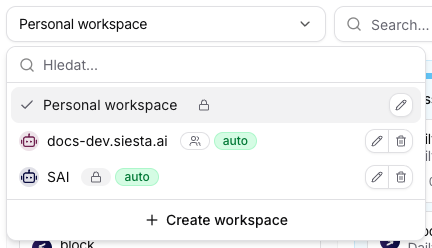
When a task does not explicitly choose an agent, the workspace default agent can be used as the expected processing agent. If auto-execution is enabled, the workspace can be used for more automated task intake patterns where tasks are intended to move into agent processing with less manual setup.
Use the edit action in the workspace menu to change the default agent, enable or disable auto-execution, and adjust workspace visibility.

Task Overview
At the top of the page you will find:
- workspace selection,
- search,
- source agent filter,
- status filter,
- Table / Kanban view switch.
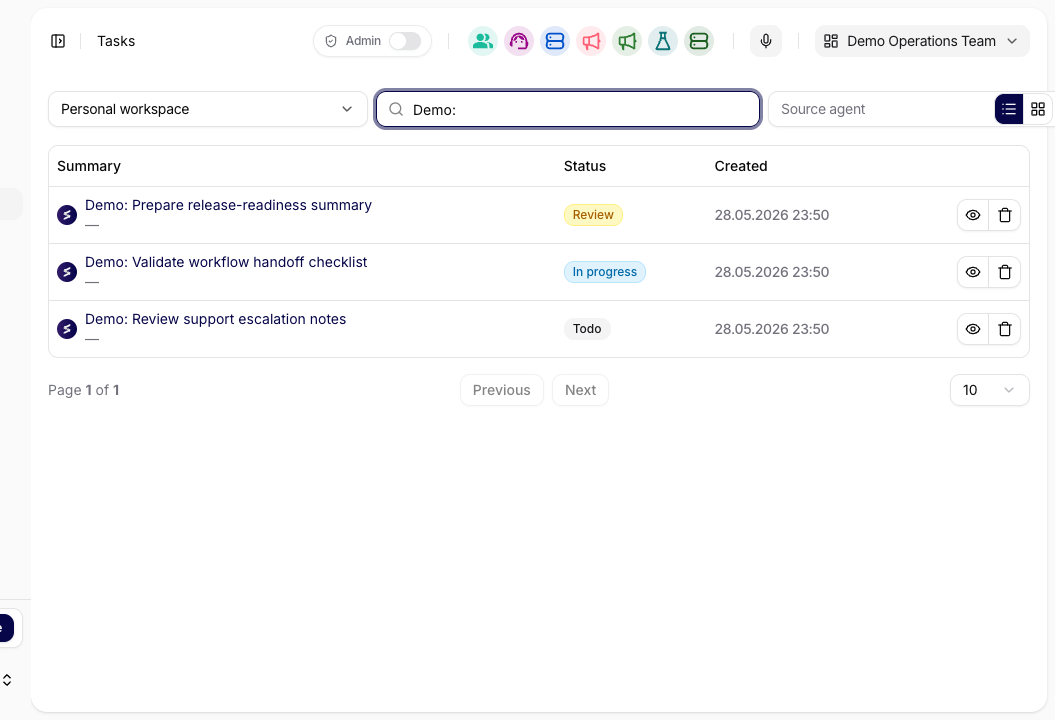
The table primarily shows:
- task summary,
- source agent,
- status,
- creation date,
- actions for opening the detail, related conversation, source conversation, or deleting the task.
Task Statuses
A task can be in one of these statuses:
- Todo - the task is waiting to be processed.
- In progress - the task is being worked on.
- Review - the output is waiting for review.
- Done - the task is complete.
In table view, set the status in the task detail. In kanban view, move tasks between columns to change their status.
Detail and Run
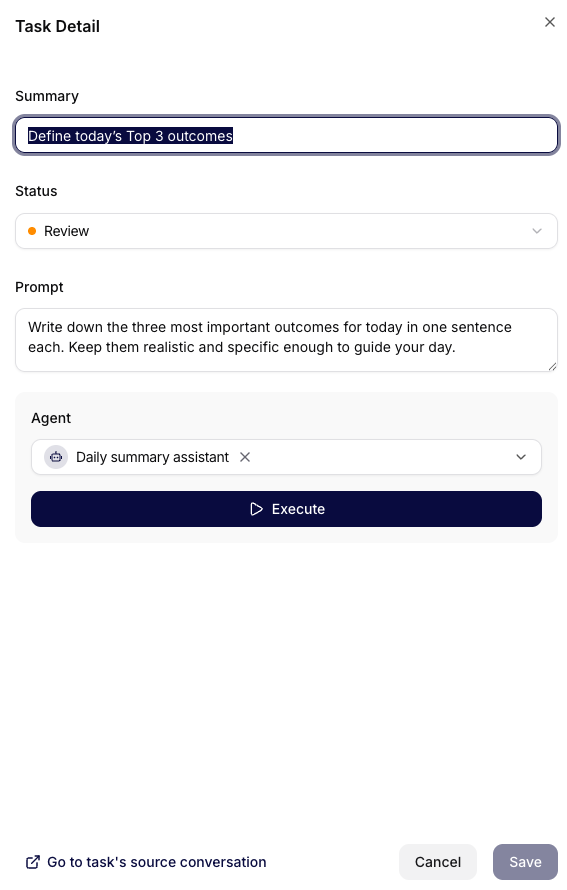
Click the task title to open the Task detail side panel. In the detail, you can edit:
- summary,
- status,
- prompt,
- the agent that should process the task.
The Run or Execute button sends the prompt to the selected agent. If the task already has a follow-up conversation, the detail offers a link to the latest task conversation. If the task was created from another conversation, you can also open the source conversation.
Current task flows are designed to keep the handoff between chat and task execution tight. When a task is created from chat, the detail should make it easy to jump back to the original conversation and forward to the latest task-run conversation without losing context.
Task Lifecycle
Tasks can be created manually, from a conversation, by an agentic process, or through the REST API. A task can keep references to:
- the workspace where it belongs,
- the assigned agent that should process it,
- the source agent that created or suggested it,
- the source conversation that contains the original context,
- the follow-up conversation created when the task is run.
This makes tasks useful for handoff: a user can identify work in chat, turn it into a task, run the task with an agent, and later inspect both the original context and the task-specific conversation.
Kanban View
Kanban view is intended for quickly working with task status. Cards can be filtered by search and source agent. Dragging a card between columns changes the task status.
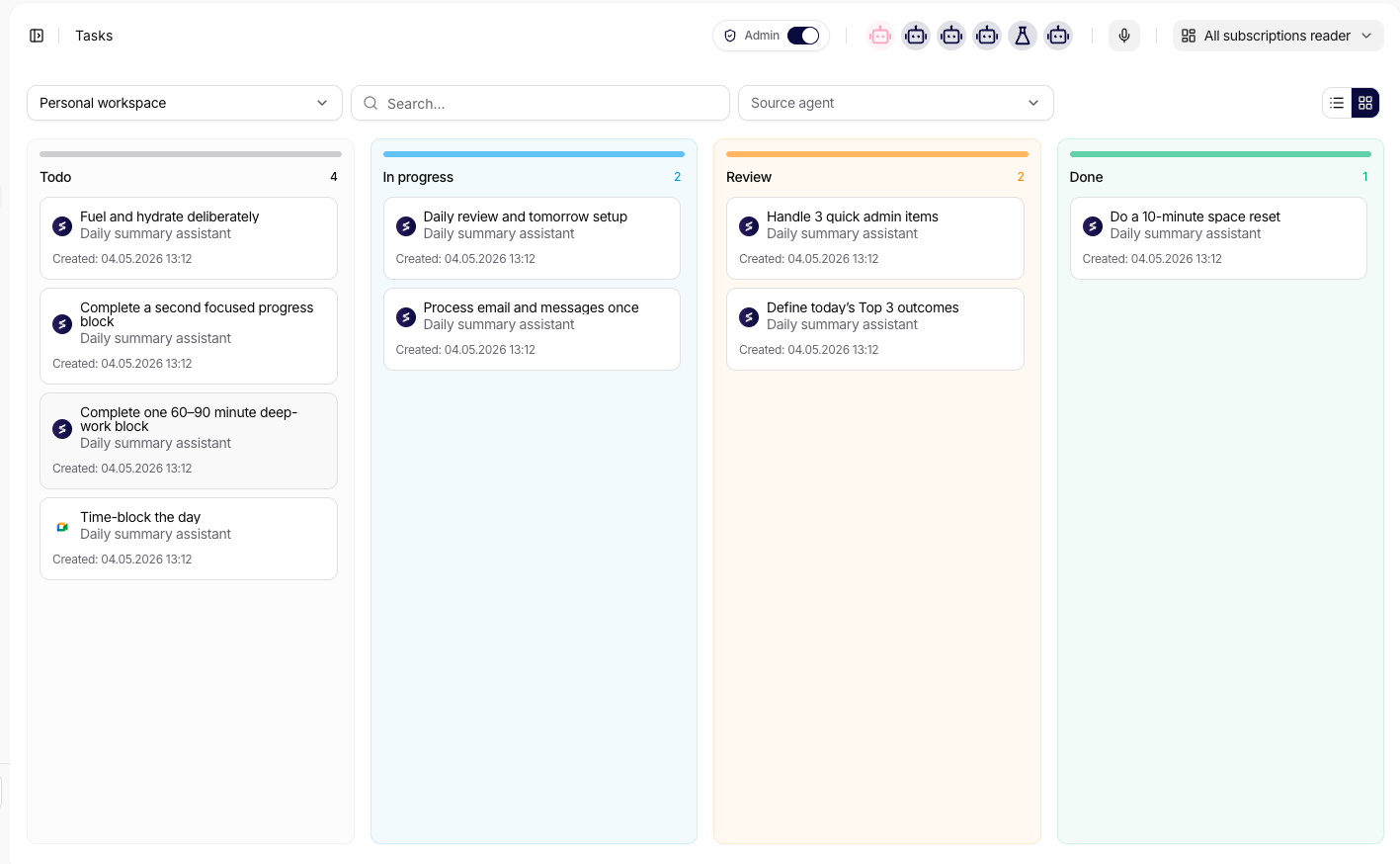
To remove a task, use the Delete action or drag the card into the delete zone if it is available in kanban view.
Both table and kanban views can contain enough records to require pagination or repeated filtering. If a task seems to disappear after a search or status change, first clear filters and return to the expected workspace before assuming the task was deleted.
Recommended Use
- Use workspaces to separate personal, team, or process tasks.
- Keep summaries short and prompts specific so the agent receives a clear assignment.
- Use Review for tasks that need human approval or additional input.
- For tasks created from chat, check the source conversation when the context is unclear.
- After running a task, open the latest task conversation to verify the actual agent output instead of relying only on task status.
- For integration-created tasks, confirm the target workspace and default agent before enabling high-volume intake.