Roles and Permissions
Use Users → Roles to define which product areas people can open and which actions they can perform. A user can have more than one role; their effective permissions are the combined permissions granted by all assigned roles.
Access to the Roles tab and its management actions requires the Assign roles permission. Hiding a page or action in the Web App does not replace backend authorization: the same effective permissions are enforced when protected operations are requested.
Role Overview
The Roles tab lists the role name, active members, and whether the role is built in. Use search to find a role, select its name to open the detail, or select Create role to add a custom role.
Select any screenshot to open it at full resolution.
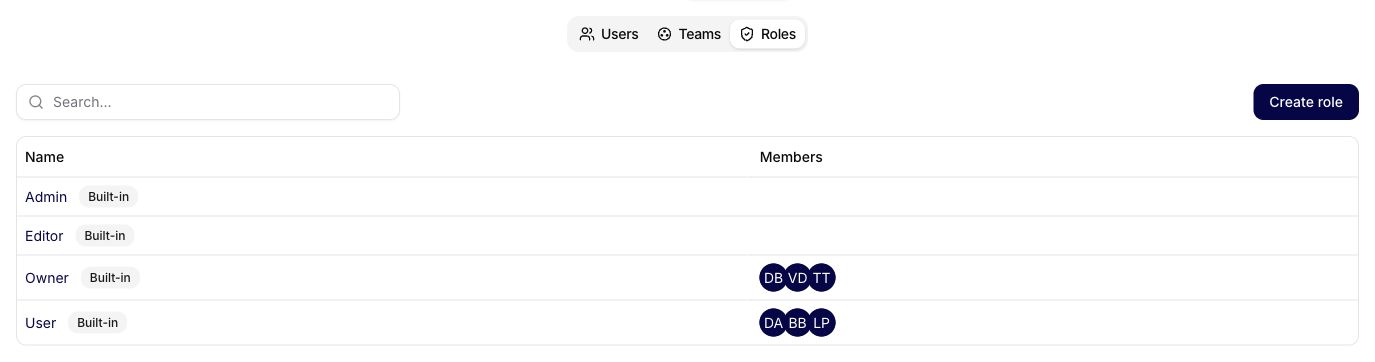
Siesta AI provides four built-in roles. Use this summary to choose a starting point, then review the exact permission selection in the role detail:
| Role | Good starting point for | Important boundaries |
|---|---|---|
| Owner | Organization ownership and highest-impact security decisions | Always has every permission, is read-only, and only another Owner can add or remove it. |
| Admin | User administration, organization configuration, reporting, and broad product management | Does not receive Assign roles, billing management, or Entra team synchronization by default. |
| Editor | People who build and maintain agents, workflows, Data, Memory, and other shared content | Does not receive user administration, organization settings, analytics, audit log, or API key management by default. |
| User | People who chat, run assigned work, and use resources shared with their teams | Receives standard use capabilities but not tenant-wide administration. |
Built-in role identities cannot be renamed or deleted. Custom roles belong to the organization and can be deleted when they are no longer needed.
Creating a Custom Role
- Open Users → Roles and select Create role.
- Enter a unique role Name. The built-in names Owner, Admin, Editor, and User are reserved.
- Select permissions from the grouped permission tree.
- Optionally select initial members.
- Select Create role.
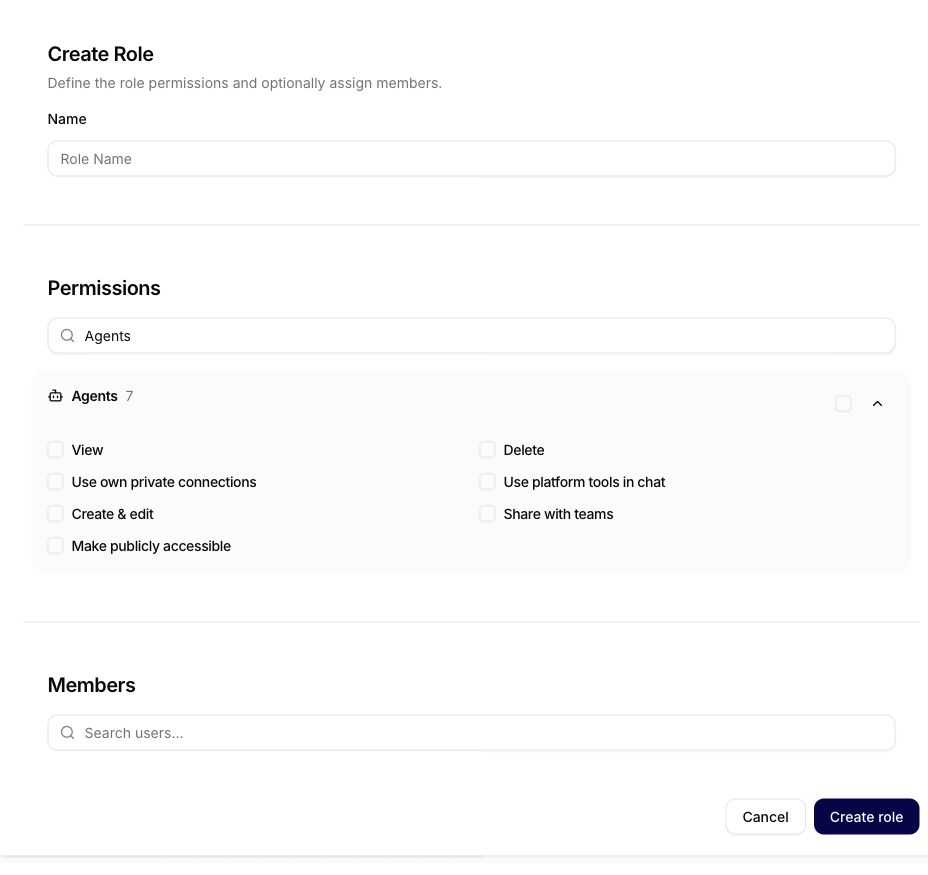
Permissions can depend on a parent permission. For example, an edit or delete action can require permission to view the same resource. Selecting a child permission automatically keeps its required parent selected; removing a parent also removes dependent permissions.
You cannot create or update a role with permissions you do not hold yourself. This prevents a role manager from granting a higher level of access than their own.
Editing Permissions
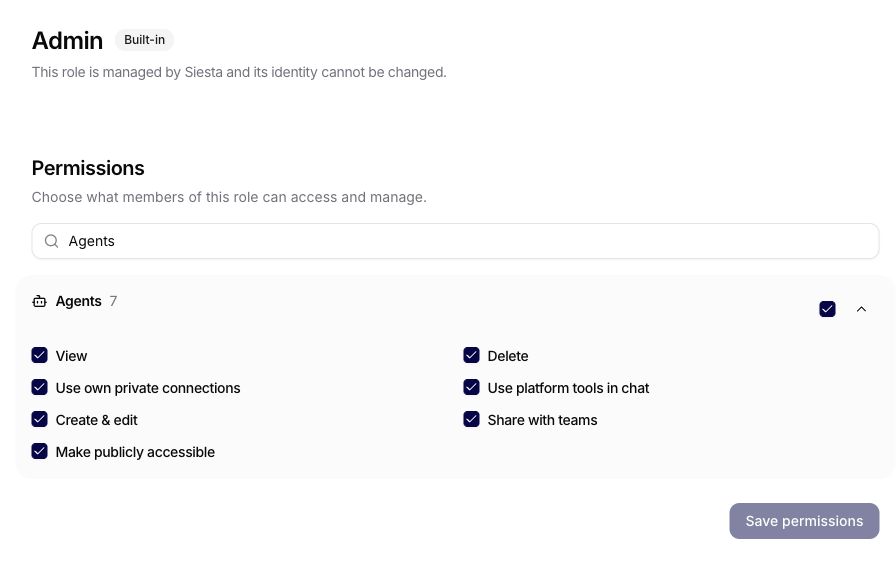
Open a role and expand a permission group to review its individual actions. The group checkbox selects or clears the permissions that you are allowed to grant, and search opens matching groups. Select Save permissions after making changes.
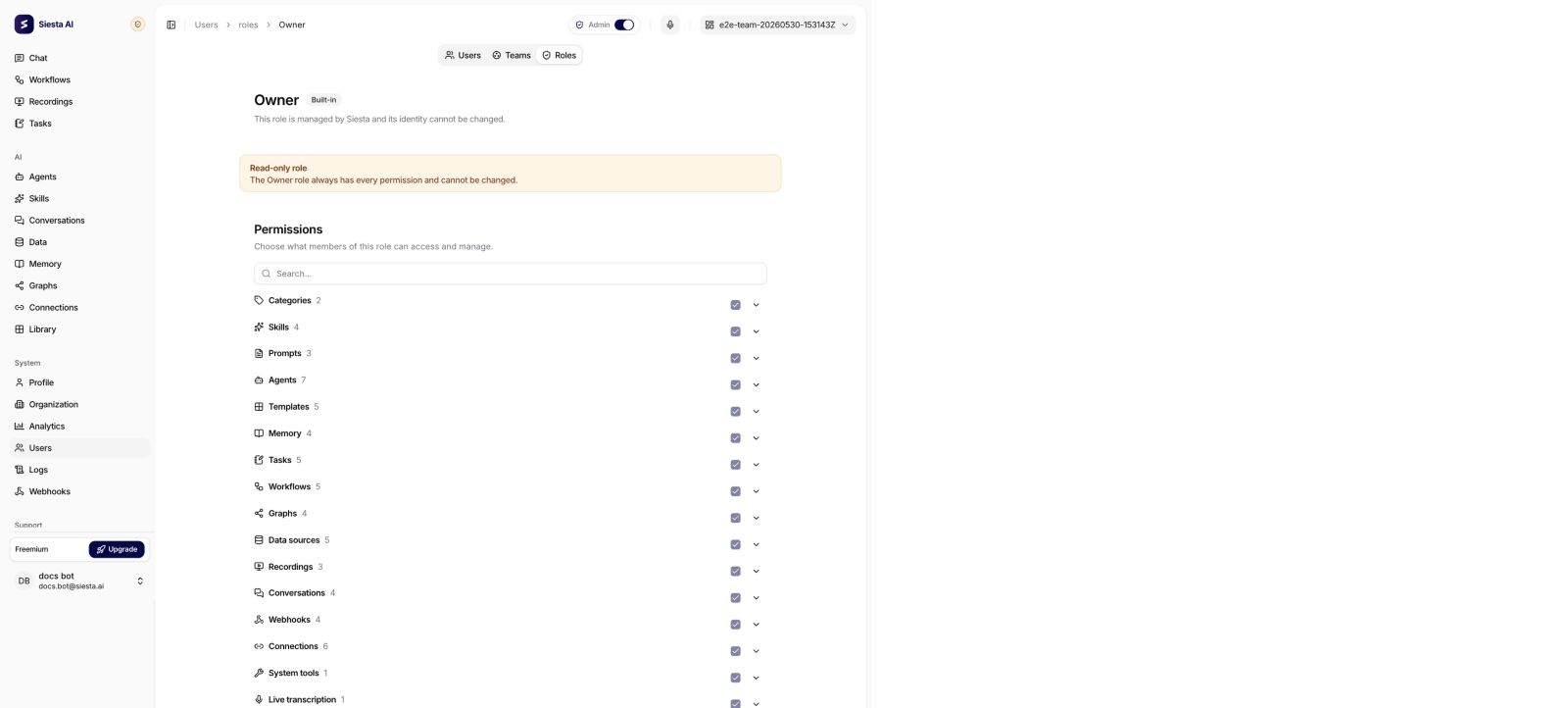
The Owner detail is intentionally different: every catalog permission is selected and editing is disabled because Owner access is resolved automatically.
Complete Permission Catalog
The tables below mirror the stable keys, display names, dependencies, and built-in defaults defined by the backend. Owner is not repeated in the Default roles column because Owner always resolves to every catalog permission. None means that no non-Owner built-in role receives the permission by default; an Owner can still grant it to an appropriate custom role.
Custom roles start without built-in defaults. The app sends their selected keys to the backend. For Admin, Editor, and User, changes are stored as deviations from the defaults below.
Content and agent configuration
| Area | Permission key | App label | Default roles | Requires |
|---|---|---|---|---|
| Categories | Categories.View | View | Admin, Editor, User | — |
| Categories | Categories.Manage | Manage | Admin, Editor | Categories.View |
| Skills | Skills.View | View | Admin, Editor, User | — |
| Skills | Skills.Delete | Delete | Admin, Editor | Skills.View |
| Skills | Skills.Edit | Create & edit | Admin, Editor | Skills.View |
| Skills | Skills.ManageAccess | Share with teams | Admin, Editor | Skills.Edit |
| Prompts | Prompts.View | View | Admin, Editor, User | — |
| Prompts | Prompts.Edit | Create & edit | Admin, Editor | Prompts.View |
| Prompts | Prompts.Delete | Delete | Admin, Editor | Prompts.View |
| Agents | Agents.View | View | Admin, Editor, User | — |
| Agents | Agents.Delete | Delete | Admin, Editor | Agents.View |
| Agents | Agents.UsePrivateConnections | Use own private connections | Admin, Editor, User | Agents.View |
| Agents | Agents.UsePlatformTools | Use platform tools in chat | Admin | Agents.View |
| Agents | Agents.Edit | Create & edit | Admin, Editor | Agents.View |
| Agents | Agents.ManageAccess | Share with teams | Admin, Editor | Agents.Edit |
| Agents | Agents.ManageInterface | Make publicly accessible | Admin | Agents.Edit |
| Templates | Templates.View | View | Admin, Editor, User | — |
| Templates | Templates.Delete | Delete | Admin, Editor | Templates.View |
| Templates | Templates.Edit | Create & edit | Admin, Editor | Templates.View |
| Templates | Templates.ManageAccess | Share with teams | Admin, Editor | Templates.Edit |
| Templates | Templates.Publish | Publish to the gallery | Admin | Templates.Edit |
| Memory | Memory.View | View | Admin, Editor, User | — |
| Memory | Memory.Delete | Delete | Admin, Editor | Memory.View |
| Memory | Memory.Edit | Create & edit | Admin, Editor | Memory.View |
| Memory | Memory.ManageAccess | Share with teams | Admin, Editor | Memory.Edit |
Work and knowledge
| Area | Permission key | App label | Default roles | Requires |
|---|---|---|---|---|
| Tasks | Tasks.View | View | Admin, Editor, User | — |
| Tasks | Tasks.Delete | Delete | Admin, Editor, User | Tasks.View |
| Tasks | Tasks.Run | Run | Admin, Editor, User | Tasks.View |
| Tasks | Tasks.Edit | Create & edit | Admin, Editor, User | Tasks.View |
| Tasks | Tasks.ManageAccess | Share with teams | Admin, Editor | Tasks.Edit |
| Workflows | Workflows.View | View | Admin, Editor, User | — |
| Workflows | Workflows.Delete | Delete | Admin, Editor | Workflows.View |
| Workflows | Workflows.Run | Run | Admin, Editor | Workflows.View |
| Workflows | Workflows.Edit | Create & edit | Admin, Editor | Workflows.View |
| Workflows | Workflows.ManageAccess | Share with teams | Admin, Editor | Workflows.Edit |
| Graphs | Graphs.View | View | Admin, Editor, User | — |
| Graphs | Graphs.Delete | Delete | Admin, Editor | Graphs.View |
| Graphs | Graphs.Edit | Create & edit | Admin, Editor | Graphs.View |
| Graphs | Graphs.ManageAccess | Share with teams | Admin, Editor | Graphs.Edit |
| Data sources | DataSources.View | View | Admin, Editor, User | — |
| Data sources | DataSources.Delete | Delete | Admin, Editor | DataSources.View |
| Data sources | DataSources.ManageLimits | Manage upload limits | Admin | DataSources.View |
| Data sources | DataSources.Edit | Create & edit | Admin, Editor | DataSources.View |
| Data sources | DataSources.ManageAccess | Share with teams | Admin, Editor | DataSources.Edit |
Conversations, applications, and integrations
| Area | Permission key | App label | Default roles | Requires |
|---|---|---|---|---|
| Recordings | Recordings.Manage | Full access | Admin, Editor, User | — |
| Recordings | Recordings.Share | Share via public link | Admin, Editor, User | Recordings.Manage |
| Recordings | Recordings.ManageAccess | Share with teams | Admin, Editor | Recordings.Manage |
| Conversations | Conversations.View | View | Admin, Editor, User | — |
| Conversations | Conversations.Delete | Delete | Admin, Editor | Conversations.View |
| Conversations | Conversations.Chat | Chat | Admin, Editor, User | Conversations.View |
| Conversations | Conversations.Share | Share via public link | Admin, Editor | Conversations.Chat |
| Webhooks | Webhooks.View | View own | Admin, Editor | — |
| Webhooks | Webhooks.Edit | Create & edit own | Admin, Editor | Webhooks.View |
| Webhooks | Webhooks.Delete | Delete own | Admin, Editor | Webhooks.View |
| Webhooks | Webhooks.ManageAll | Manage everyone's | Admin | Webhooks.View |
| Connections | Connections.View | View | Admin, Editor, User | — |
| Connections | Connections.Delete | Delete | Admin, Editor, User | Connections.View |
| Connections | Connections.ManageLimits | Manage token limits | Admin | Connections.View |
| Connections | Connections.ManageSystemDefault | Manage the shared default connection | Admin, Editor | Connections.View |
| Connections | Connections.Edit | Create & edit | Admin, Editor, User | Connections.View |
| Connections | Connections.ManageAccess | Share with teams | Admin, Editor | Connections.Edit |
| System tools | SystemTools.View | View | Admin, Editor | — |
| Live transcription | LiveTranscription.Use | Use | Admin, Editor, User | — |
Organization administration and reporting
| Area | Permission key | App label | Default roles | Requires |
|---|---|---|---|---|
| API keys | ApiKeys.View | View | Admin | — |
| API keys | ApiKeys.Manage | Create & delete | Admin | ApiKeys.View |
| Content | Content.Import | Import | Admin | — |
| Billing | Billing.Manage | Manage | None | — |
| Teams | Teams.View | View | Admin, Editor, User | — |
| Teams | Teams.Delete | Delete | Admin | Teams.View |
| Teams | Teams.Edit | Create & edit | Admin | Teams.View |
| Teams | Teams.ManageEntraSync | Manage Entra group sync | None | Teams.Edit |
| Users | Users.View | View | Admin | — |
| Users | Users.Edit | Create & edit | Admin | Users.View |
| Users | Users.Delete | Delete | Admin | Users.View |
| Users | Users.Invite | Invite people | Admin | Users.View |
| Users | Users.ManageRoles | Assign roles | None | Users.View |
| Organization | Organization.AdminMode | Use admin mode (see all data) | Admin | — |
| Organization | Organization.View | View | Admin, Editor, User | — |
| Organization | Organization.ManageSettings | Manage settings | Admin | Organization.View |
| Organization | Organization.ManageSecurity | Manage security | Admin | Organization.View |
| Reporting | Reporting.Dashboard | Team dashboard | Admin, Editor, User | — |
| Reporting | Reporting.Feedback | Feedback | Admin, Editor | — |
| Reporting | Reporting.Analytics | Organization analytics | Admin | — |
| Reporting | Reporting.AuditLog | Audit log | Admin | — |
| Reporting | Reporting.ToolExecutions | Tool executions | Admin | — |
The catalog shown in the app is authoritative for the current organization and deployed version. A route can require more than one permission—for example, Chat requires both Conversations.Chat and Agents.View. Resource access policies, organization feature switches, private-connection ownership, and provider permissions remain separate gates.
System Navigation and Permissions
The documentation sidebar follows the current application System group: Profile, Organization, Analytics, Users, Logs, and Webhooks. The application hides or redirects protected entries according to effective permissions:
| System entry | Permission boundary |
|---|---|
| Profile | Account, Apps & Extensions, and profile Security are available without a catalog permission after sign-in. |
| Organization | The entry is available when at least one Organization child page is available. General uses Organization.View; API Keys uses ApiKeys.View; Settings uses Organization.ManageSettings; Security uses Organization.ManageSecurity. |
| Analytics | Reporting.Analytics |
| Users | The entry can lead to the first available tab: Users uses Users.View, Teams uses Teams.View, and Roles uses Users.ManageRoles. |
| Logs | The entry is available when Audit Log (Reporting.AuditLog) or Tool Executions (Reporting.ToolExecutions) is available. |
| Webhooks | Webhooks.View |
Assigning Members and Multiple Roles
Assign members in either place:
- Open a role, select its members, and choose Save members.
- Open the action menu for a user in Users, choose the role assignment action, and select one or more roles.

Permissions from multiple roles are additive: if any assigned role grants a permission, the user receives it. Removing a permission from one role does not remove the same permission when another assigned role still grants it.
Only an Owner can add or remove the Owner role. Other role managers can assign only roles whose complete permission set they hold themselves.
Editing and Deleting Safely
- The Owner role is read-only and always grants every permission.
- A role that contains permissions stronger than your own is shown read-only to you.
- Built-in roles cannot be deleted. Deleting a custom role removes its member assignments; a role assigned to a pending invitation must first be removed from that invitation.
- Permission and membership changes affect every user assigned to the role. Verify sensitive changes with a test account before broad rollout.
Recommendations
- Create roles for durable job responsibilities, not individual people.
- Prefer the smallest set of permissions needed for the work.
- Separate ordinary resource use from high-impact actions such as role assignment, public interfaces, organization settings, billing, and security.
- Review users with multiple roles because their effective access is the union of those roles.