Download the Siesta AI Desktop App. Choose the version for your computer, install it, open it, and sign in. If you already have the app, open it and continue.
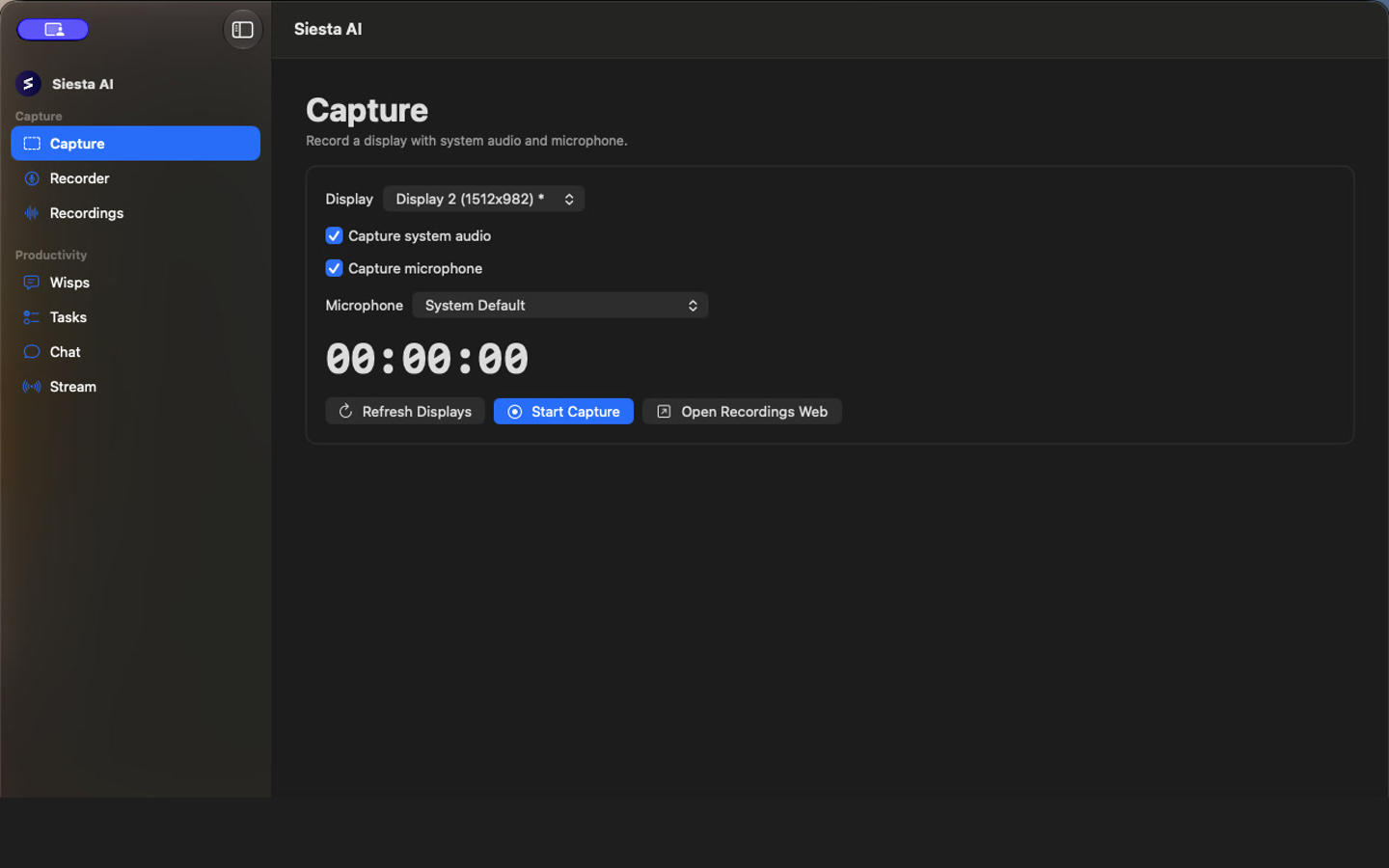
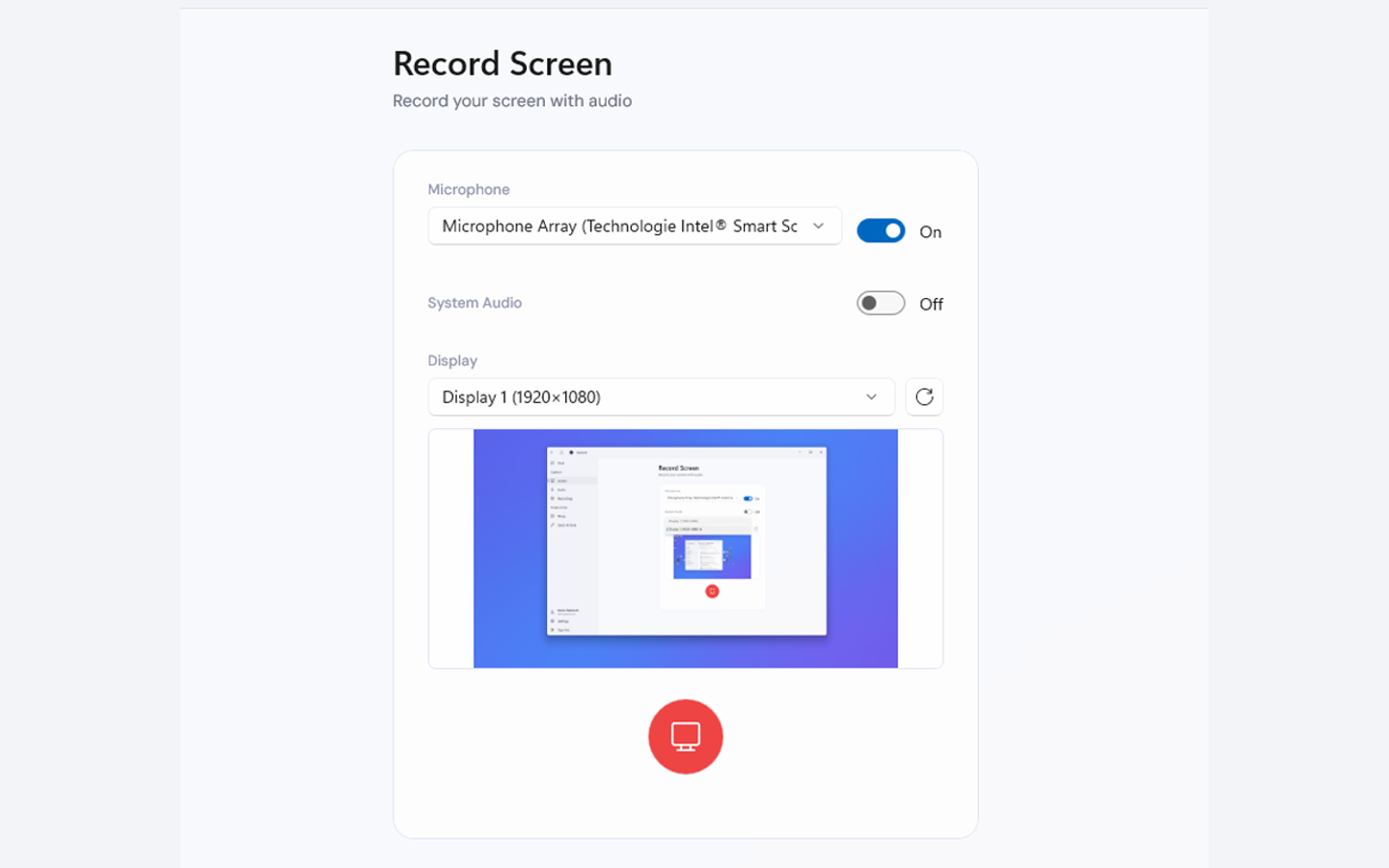
Select Screen on Windows or Capture on macOS. Choose the display, then turn Microphone and System Audio on or off.
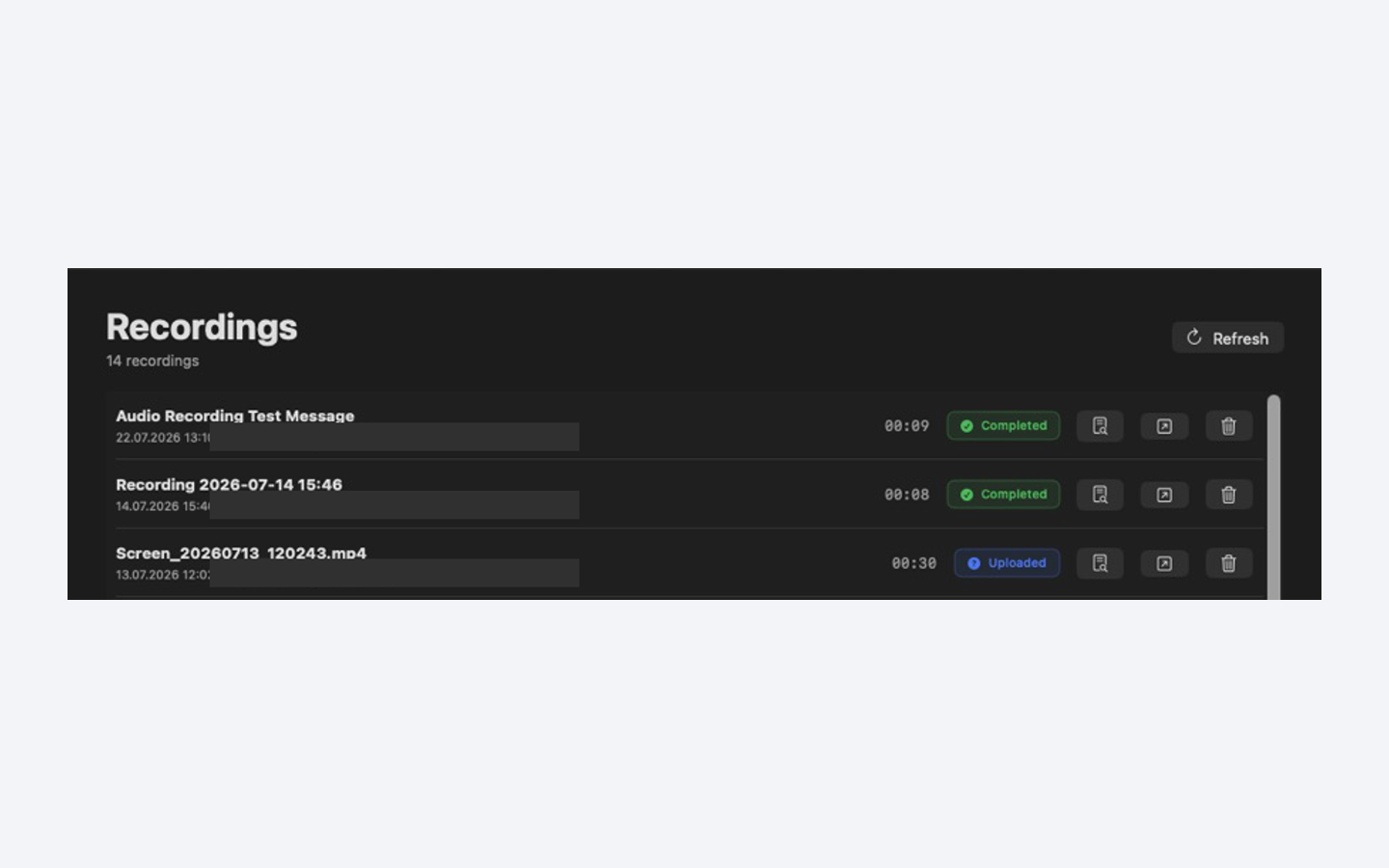
Click the red Stop button on Windows or Stop and Upload on macOS. Wait for Uploaded or Completed, then use Open Recording or Open Recordings Web and open the new item.
The correct display should be visible, the requested audio should be present, and no sensitive window or notification should appear. Confirm that the recording starts and ends where expected.
If no display appears, grant screen-recording access and restart the Desktop App. If the video has no sound, repeat the recording after checking Microphone and System Audio before you start. Next, learn how to find approved company information in Search Your Data.