Use Connections Safely
Connected work
Let agents use tools without losing control.
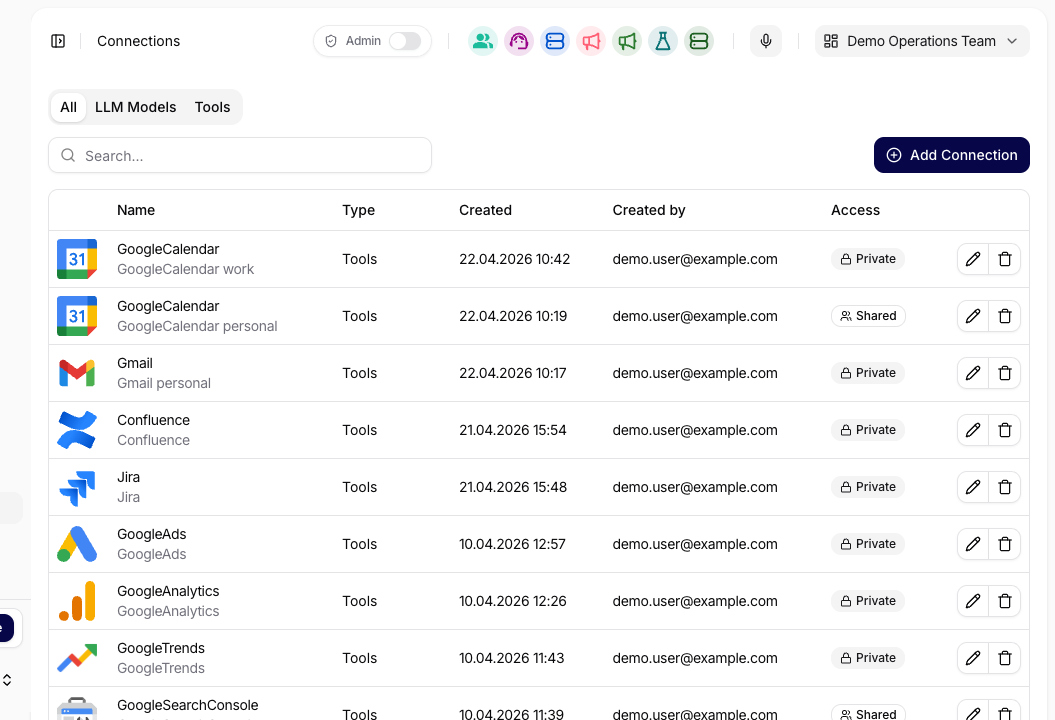
Connections let agents work with email, calendars, storage, CRM, issue trackers, REST APIs, MCP servers, and internal tools. A successful call can read, create, update, or send real data, so treat each connection as both capability and permission.

For the connection catalog, authentication fields, sharing model, and function policies, see Connections and Tools in the Product Specification.
How Connections Work
Account
A connection points to credentials or OAuth for a provider. The agent can only do what that connected account is allowed to do in the external system.
Access policy
Connections can be personal, shared with a team, or controlled by organization policy. If you cannot use one, the agent may not have access to that connection.
Function rules
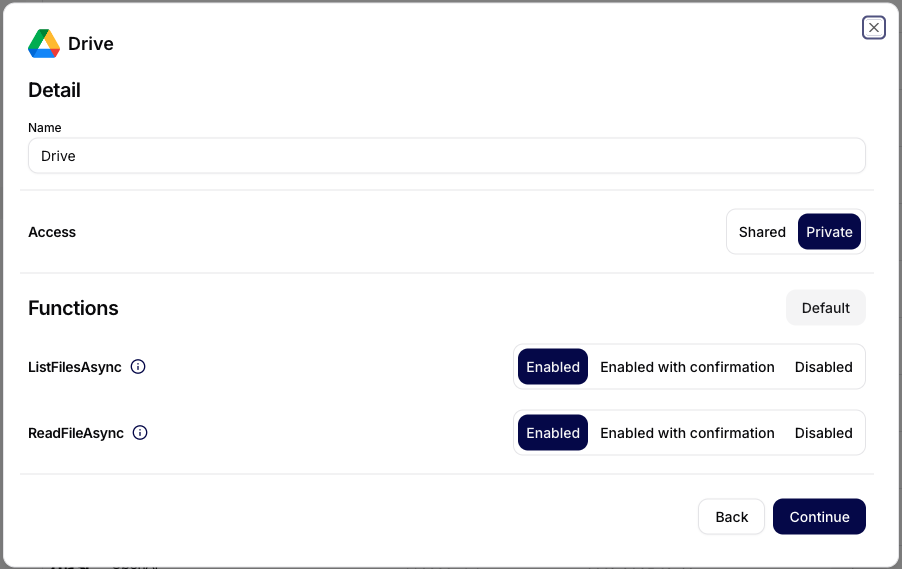
Each function can be enabled, disabled, or enabled with confirmation. Read-only functions usually run directly; data-changing functions should be reviewed first.
Execution trace
Tool Executions keep the function name, arguments, status, result, and approval state. Use Tool Executions or conversation history when you need to audit what happened.
Personal And Shared Connections
Use a personal connection when the work should happen as you: Gmail, calendar scheduling, Drive files, Slack messages, or anything tied to your account permissions.
Use a shared connection when a team or organization owns the integration: a support Jira project, a CRM workspace, a shared mailbox, a company REST API, or a production MCP server. Shared connections are better for repeatable agents and workflows because they do not depend on one user's private account staying connected.
If a request fails, ask the agent which connection it tried to use. Then check whether you are in the right organization, whether the agent has that connection attached, and whether an admin forced a stricter function rule.
Common User Use Cases
Ask the agent to find open times, draft the calendar event, show attendees and description, then create it only after you approve the payload.
Turn a chat result into a ticket, lead note, or customer record. Include source context, owner, priority, due date, and acceptance criteria before writing.
Let the agent read Drive, OneDrive, SharePoint, Confluence, Gmail, or Slack content to answer a question without uploading the same files again.
Use REST or MCP connections for product actions such as checking subscription state, fetching customer data, creating an internal task, or triggering a workflow.
Use a shared connection for recurring work where the agent should produce the same structured result every time, such as weekly reporting or ticket triage.
Open the tool execution record, inspect the arguments, approval state, result, and error. That usually shows whether the issue is access, payload, or provider state.
Before A Write Action
Ask the agent to show the exact payload before it changes another system:
Prepare the Google Calendar event, but show me title, attendees, time,
description, conference settings, and timezone before creating it.
Draft the Jira issue first. Include project, issue type, summary, description,
priority, assignee, labels, linked customer, and acceptance criteria. Do not
create it until I approve.
Use this pattern for emails, calendar events, Jira issues, CRM notes, file updates, workflow actions, REST calls, or any tool call that changes another system. If the function is configured as EnabledWithConfirmation, Siesta AI should pause with a pending approval before the write is executed.
What To Check
Success after the provider accepts the call.Common Problems
| Symptom | Likely cause | Next step |
|---|---|---|
| Tool is missing | The agent does not have that tool or connection attached | Use the correct agent or ask an admin to add the connection. |
| Authorization failed | OAuth token expired, API key changed, or the external account lost permission | Reconnect the account or ask the owner of the shared connection to refresh it. |
| Approval required | The function changes data and is configured with confirmation | Inspect the arguments, approve if correct, or reject and ask the agent to revise. |
| Access denied | The connected account cannot reach the external workspace, folder, project, or record | Switch to the right connection or request access in the external system. |
| Function disabled | Organization governance forced the function to Disabled | Ask an admin whether that provider action is allowed for your team. |
| Wrong workspace | You are in the wrong Siesta AI organization, team, or external tenant | Switch context before retrying. |
| Provider rejected the payload | Required fields, IDs, enum values, or formatting do not match the external system | Ask the agent to show the exact payload and repair the invalid fields. |
After The Tool Executes
Check the final result where the work happened, not only in chat. For a calendar event, open the calendar. For Jira or CRM, open the created record. For a REST or MCP action, check the returned object ID or status. If anything looks wrong, use the details in Tool Executions to see the original arguments and ask the agent to correct or revert the action where possible.
For a failed personal or shared integration, follow Troubleshoot Common Problems. Admins can use Configure Shared and Private Connections when the issue affects a team-owned credential or policy.