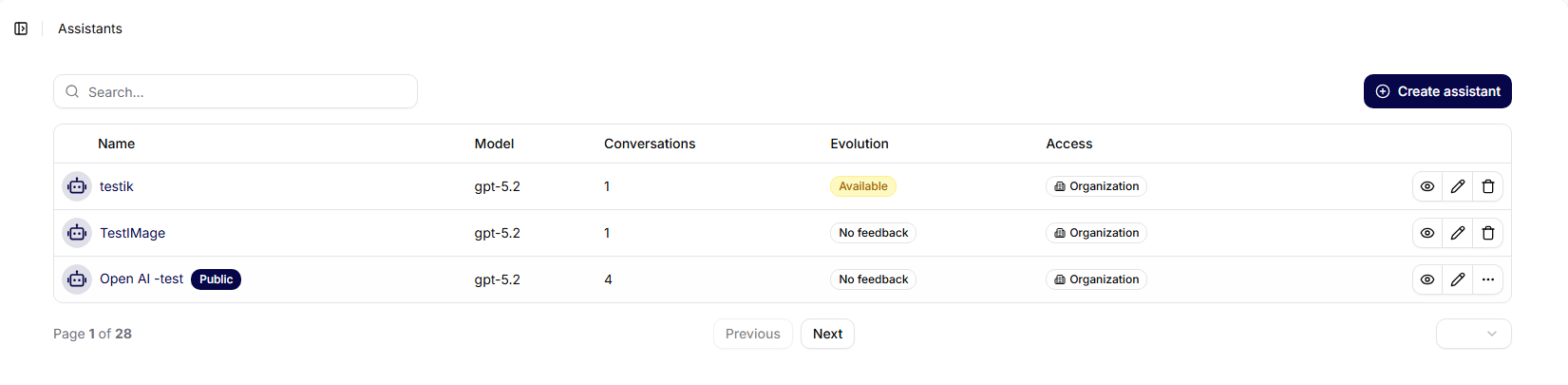
Agents
Each agent has its own detailed interface, which is divided into several thematic subsections. These allow users to manage configuration clearly, analyze performance, respond to feedback, or track change history.
Below you will find a description of the individual tabs of the agent detail according to the current form of the application (Overview, Configuration, Interface, Prompts, Analysis, Evolution, Conversations, Feedback, History).
Overview
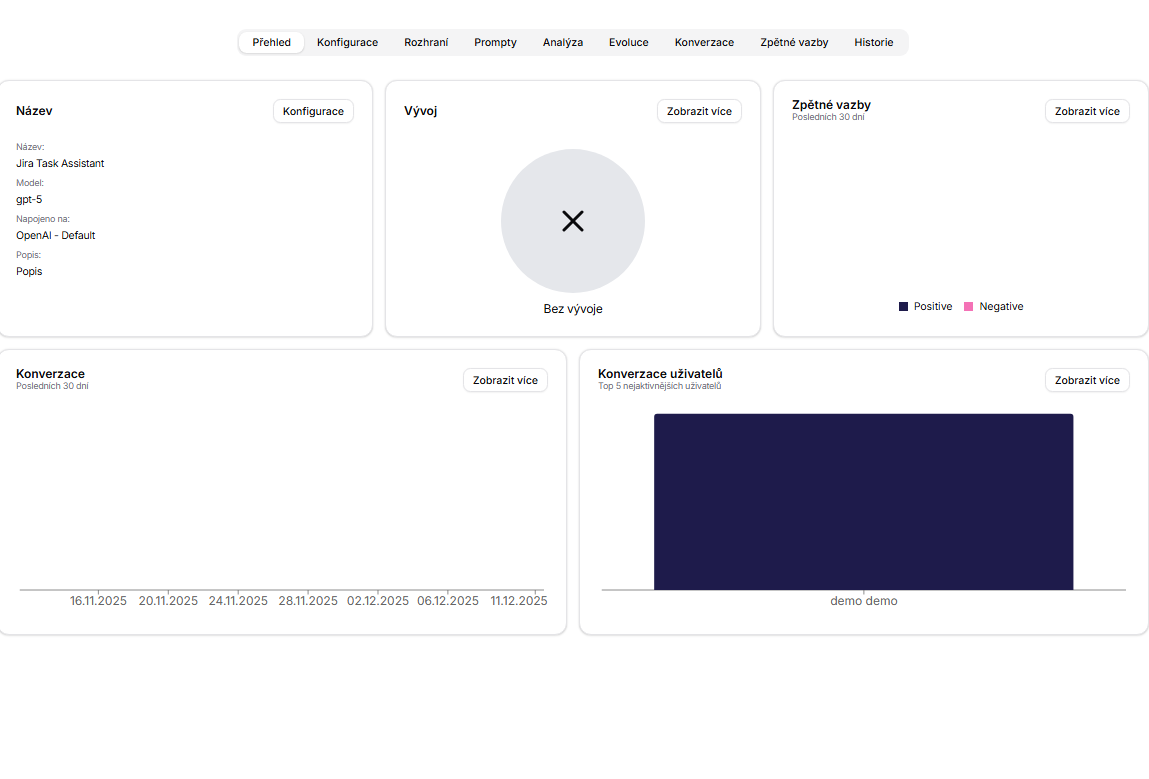
The Overview tab represents a central panel that summarizes key information about the agent on a single screen. Here, users can find basic metrics about how often the agent is used, what data it has connected, how much feedback it has received, and its current evolutionary state.
This overview allows for a quick assessment of how the agent is functioning, what feedback it is receiving, and who is using it most frequently, without the need to navigate to individual detailed tabs. It is an ideal starting point for an immediate assessment of the health and utilization of each agent.
- Cards: Name (model, connection, description), Development, Feedback, Conversations (last 30 days), and User Conversations (Top 5).
- Serves for a quick check of the agent's status; the "View More" links lead to details.
Configuration
The Configuration tab is used for detailed settings of the agent - that is, its technical configuration, default behavior, and integration with other platform features. This section allows for precise definition of how the agent should behave, what data it works with, what model it uses, and what tools are available.
Users set basic information about the agent here, including the name, description of instructions, system messages, and the model to be used (e.g., GPT-4o). Access to data is also defined here - either a global connection to all sources or limited access to selected datasets.
The configuration also includes a model layer, where parameters such as response creativity (temperature), repetition penalties, or maximum output length can be adjusted. These options allow for fine-tuning the agent's behavior according to specific purposes or expectations.
In this section, it is also possible to connect the agent to tools that it can actively use - for example, for connecting to a calendar, API, or other systems. The entire configuration is designed to enable the agent to be quickly launched, as well as modified or versioned at any time.
- Name: the name of the agent displayed in overviews, searches, and the agent list.
- Description: a brief description of the agent's purpose; helps with orientation in the team.
- AI Connection: choice of provider/connection, according to which available models will be made accessible.
- Model Name: specific model at the selected provider.
- Reasoning effort: how much time and performance the model should devote to internal logical reasoning before responding.
- Initial Message: introductory message displayed at the start of a new conversation.
- System Message: main system prompt defining the role, tone, and rules of the agent.
- Data connection: connection to data collections from the Data Collections section; determines what knowledge the agent can work with.
- Access: visibility and team settings; Organization = everyone in the organization, Shared = selected teams, Private = only you.
- Icon:
- Preview: preview of the agent's icon in the list.
- Change icon: selection of a custom icon.
- Recommended icons: quick presets of common icons.
- Icon color: color of the icon.
- Model configuration:
- Temperature: degree of creativity/variability; lower value = more consistent responses.
- Maximum Length: limit on the length of generated responses (shortens outputs and monitors costs).
- Presence Penalty: penalizes repetition of topics; encourages new information.
- Frequency Penalty: penalizes repetition of words/phrases; reduces redundancy.
- Shared Tools: tools shared within the organization that the agent can use.
- Private Tools: private tools available only to you.
The platform allows saving the currently created agent as a template, which can then be reused when creating other agents. This feature supports repeatability, consistency, and scalability of configurations across the organization.
After clicking the Save as Template button, a modal window appears where the user fills in:
- Name – the name of the template.
- Description – a brief description of its focus and use.
The saved template then appears in the overview when creating a new agent and can be modified or reused at any time.

Interface
The interface section allows you to set how the agent will be made available to end users. Here, it is defined how and where it should be possible to communicate with the agent, whether internally, via API, or publicly through integration channels and widgets.
- The Public Chat switch with a generated Chat URL (copy button).
- Web Plugin: embeddable script for embedding public chat on an external website.
- Settings: settings for feedback, file uploads, and a link to the privacy policy.
- The Chat widget with authentication switch and Google Client ID field for embedding with login.

Prompts
The Prompts section is used to control the logic and behavior of the agent through so-called system instructions. Here, the user defines how the agent should respond, what attitude it should take, communication style, or structure of responses.
Each prompt represents a specific instruction block that the model receives before processing the user's input. The agent uses it to orient itself on what role to play, which information to prioritize, and what responses to generate.
- A table of all prompts; the Create Prompt button for creating a new one.
- After creation, you can manage the prompt text and execution schedule.

Analysis
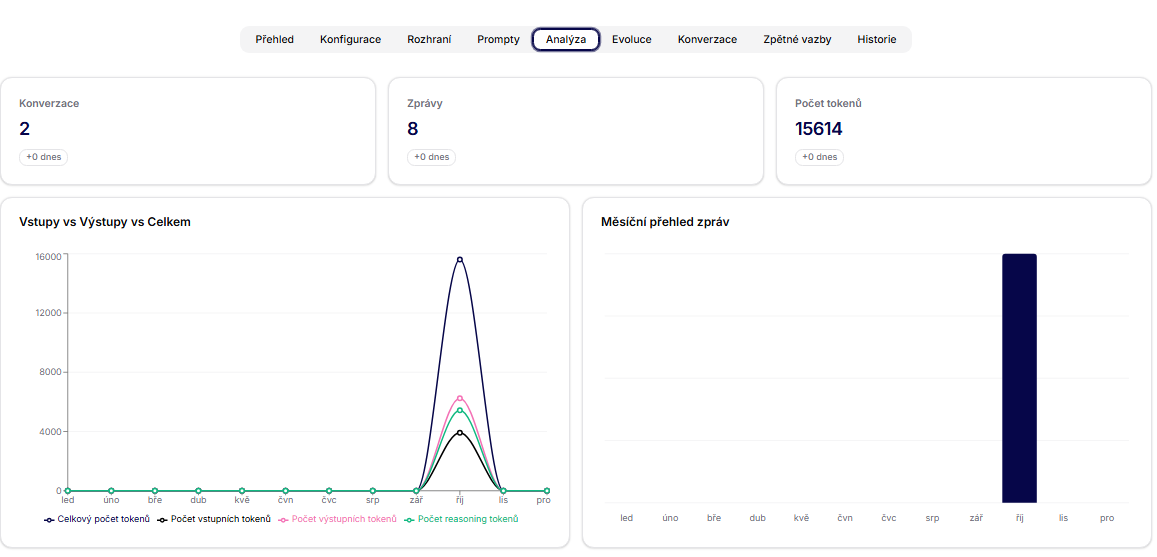
The Analysis section provides a detailed view of the technical and operational parameters of the agent. Users will find summary statistics and visualizations here that help understand how the agent is being used, what its load is, and how it performs over time.
Metrics tracked include the number of requests, the volume of tokens consumed, the ratio of input to output tokens, response processing speed, and other indicators. This information is available in the form of clear graphs and bar visualizations that allow for identifying trends, fluctuations, or potential anomalies.
Analyses are a crucial tool for administrators and product teams who want to not only operate agents but also optimize them. They help evaluate when the highest usage occurs, what the consumption-to-performance ratio is, and how quickly the agent responds in real conditions.
- A section for an overview of the agent's performance (volume and quality of interactions).
Evolution
The Evolution section allows for managing the development of the agent's system instructions (prompts) based on real behavior and feedback. Administrators can compare individual versions of prompts here, evaluate their impact, and apply changes in a targeted and controlled manner.
The core part consists of comparing the currently active prompt with a proposed modification. The user can see the previous and new wording of the instruction side by side and easily identify how the agent's logic is changing. In addition to textual comparison, the system collects specific use cases on which the change can be tested.
The evolution section also includes an overview of feedback that led to the change or that the new version of the prompt should respond to. This feedback includes ratings, comments, and the identity of the users who provided it.
Evolution is thus a tool for improving the agent's behavior based on data, not intuition. It enables continuous development, controlled testing, and documentation of all changes over time.
- An overview of user suggestions for prompt evolution (date, user, message, rating).
- Actions Develop (suggests modifications) and Apply Evolution (applies).

Conversations
The Conversations section serves as an overview of all past interactions between users and a specific agent. Users will find a list of conversations with information about the date, initiating user, topic, and total number of messages within the exchange.
This section provides administrators with the opportunity to delve into the specific content of the communication, analyze how the agent is used in practice, and verify how the queries were answered. The displayed information can be used for further evolution of the agent, fine-tuning prompts, or ensuring compliance with internal rules.
Each conversation includes the option for a detailed view. Users can thus trace the entire communication, including all steps and responses, which increases transparency and allows for retrospective checks when needed.
- A list of conversations with users: date, user, subject, number of messages; the eye icon opens the thread detail.

Feedback
The Feedback section serves as a centralized overview of feedback provided by users on the agent's responses. Each record includes the date, user identity, interaction outcome, and type of rating - for example, positive, negative, supplemented with a comment, or other specific ratings.
Thanks to this section, administrators can easily identify responses that were inaccurate, misleading, or particularly beneficial. All reactions are traceable, and it is possible to look back at the context in which the rating occurred.
This feature is crucial for the future evolution of the agent - it provides a data-driven basis for prompt adjustments, refinement of data context, or evaluation of training needs. Combined with the Evolution section, it forms part of the continuous improvement of the agent's outputs.
- Collected ratings and comments on the agent's responses.

History
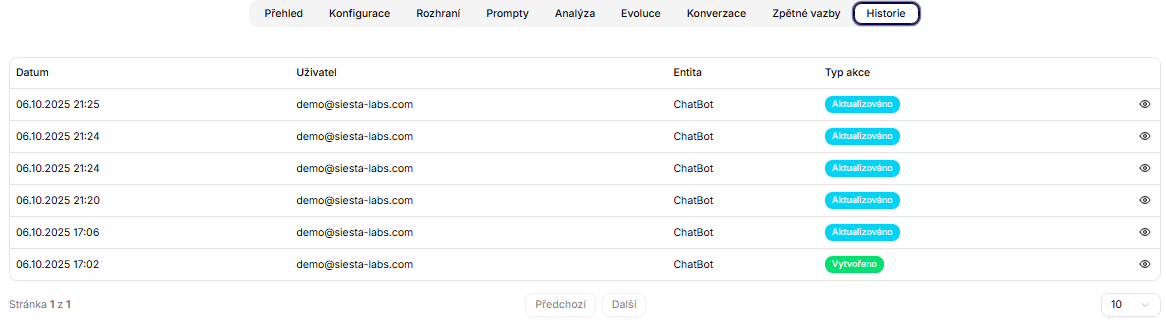
The History section serves to transparently track all significant changes made to the agent. Each record includes the date, author of the change, affected entity, and type of action performed.
This audit trail is important for operational oversight, security standards, and retroactive tracing of interventions in an environment where agents frequently undergo evolution or modifications.
- An audit log of actions on the agent (date, user, entity, type of action).
- Allows tracking of modifications to the model/prompt/data connections.