Record a Voice Note

Record a voice note in the Siesta AI Mobile App on iOS or Android, then open it in Recordings.

For the controls and the finished recording, see Mobile App and Recordings in the Platform documentation.

Before You Start​

  • Open the Siesta AI Mobile App and sign in.
  • Allow microphone access when the app asks for it.
  • Confirm that everyone who may be recorded has agreed and that the note is allowed in your organization.

Follow The Steps​

  1. Install The App And Start Recording

    Open Download Siesta AI and choose Mobile app for your phone. Install it, open it, and sign in. If you already have the app, open it and continue.

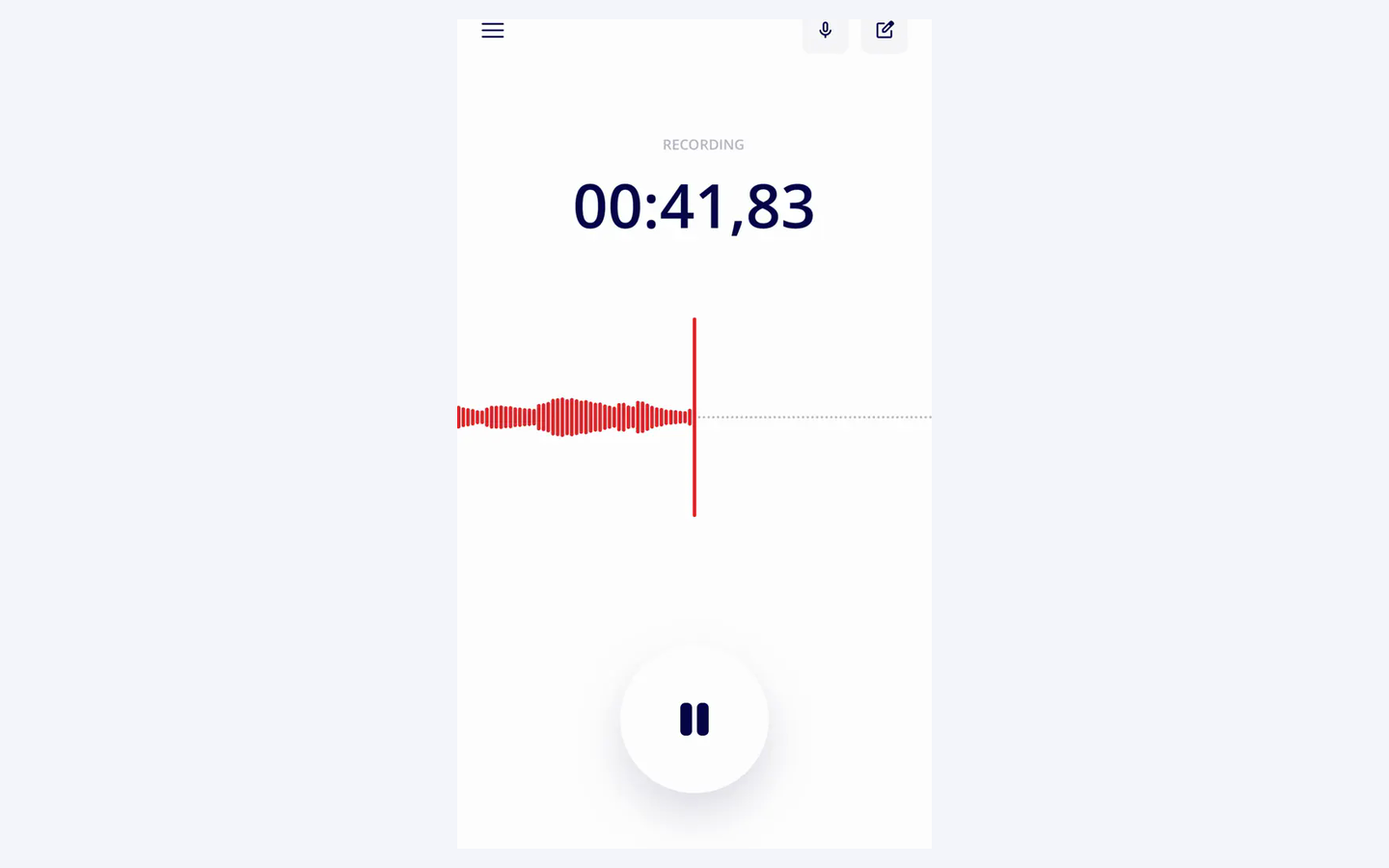
    Open the menu, tap NEW RECORDING, then tap the large red circle. Speak when the screen shows RECORDING and the timer starts moving.

    Siesta AI Mobile App recorder in the Recording state with an elapsed timer, red waveform, and pause button
    Recording, a running timer, and the red waveform confirm that the microphone is active.
    Platform guide: Mobile App audio recording
  2. Pause And Upload It

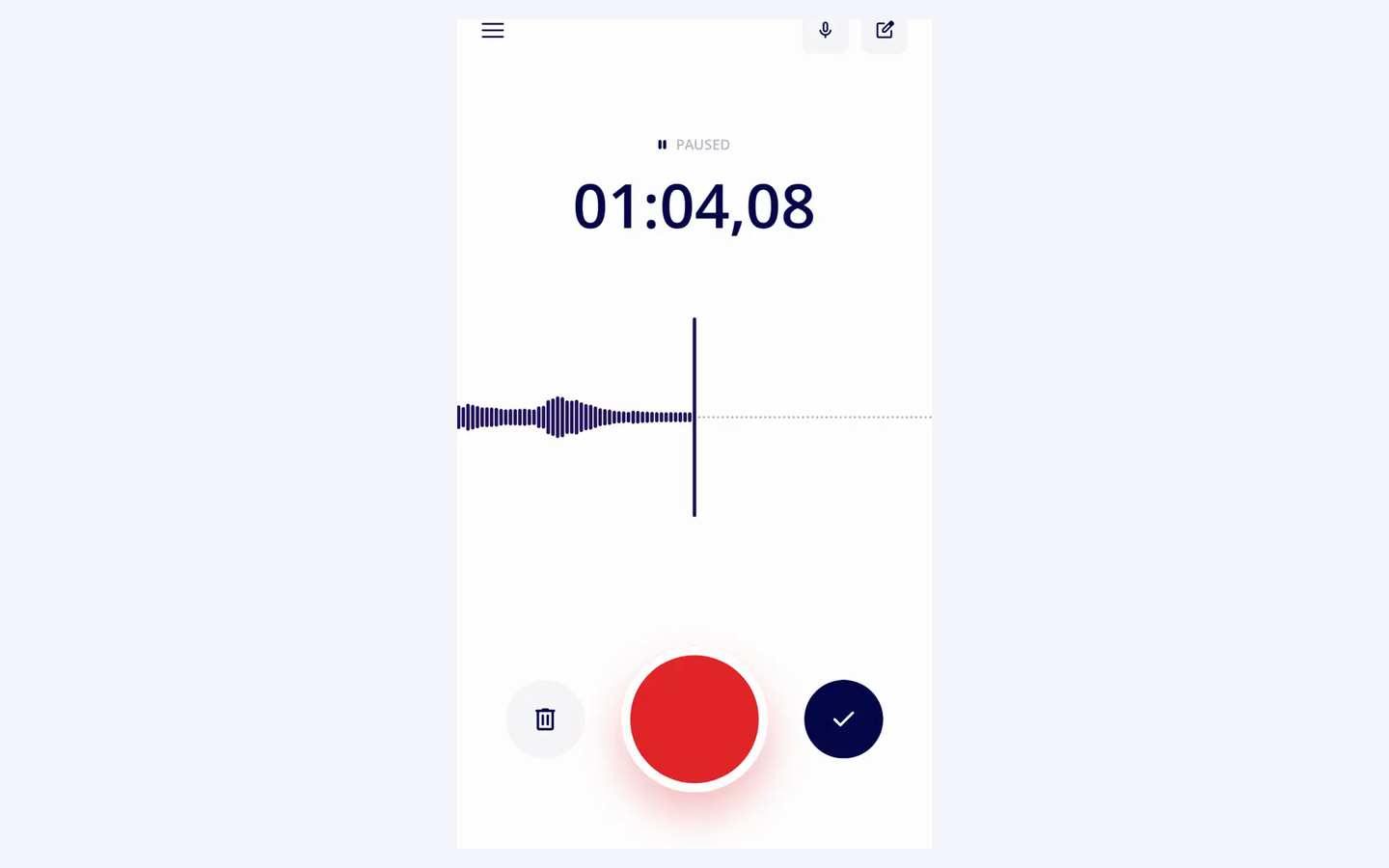
    Tap the white pause button. When the screen shows PAUSED, tap the checkmark on the right. Wait for the upload to finish and for the Uploaded confirmation.

    Siesta AI Mobile App recorder in the Paused state with delete, resume, and checkmark controls
    On the Paused screen, the checkmark on the right submits the recording.
    Platform guide: Mobile App recording controls
  3. Open It In Recordings

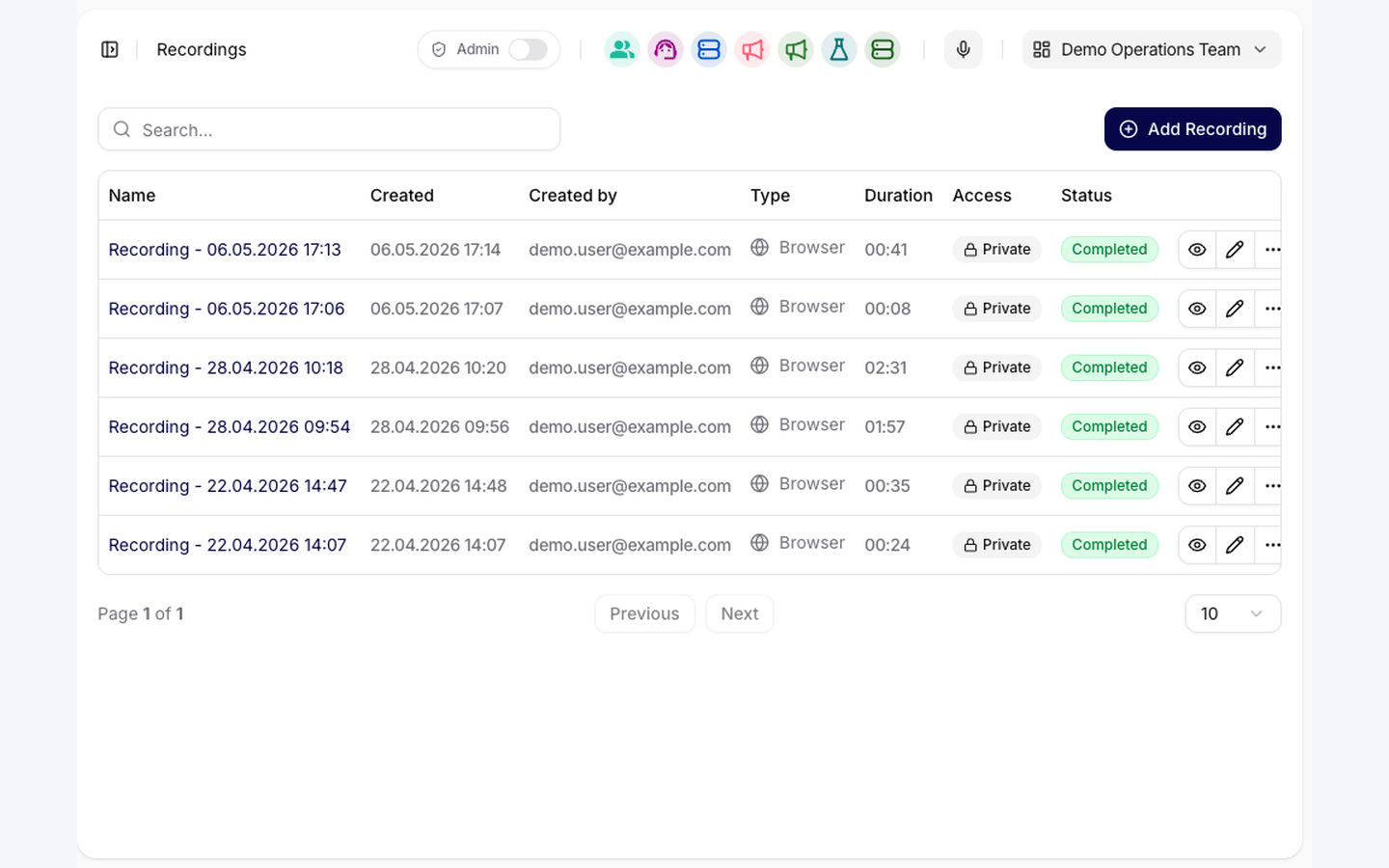
    Open Recordings in Siesta AI and wait for Completed. Click the recording name, or click the eye-shaped View control in its row, to open the recording and check its transcript.

    Siesta AI Recordings list with completed audio recordings and eye-shaped View controls
    Choose the recording name or the eye-shaped View control in its row.
    Platform guide: Recordings overview

Also On Windows And macOS​

Download the Siesta AI Desktop App. Choose the version for your computer, install it, open it, and sign in. If you already have the app, open it and continue.

At your computer, you can use the Siesta AI Desktop App instead. Open Audio on Windows or Recorder on macOS, start and stop the recording, enter a short name, then upload it. The result appears in the same Recordings area. See Windows App and macOS App.

Try It​

Record this short synthetic note:

Demo note. The onboarding checklist is ready for review on Friday.
The owner is still to be confirmed.

Check The Result​

The recording should appear in Recordings with a duration greater than zero. When its status is Completed, open it and confirm that the transcript matches what you said.

If It Does Not Work​

If the timer does not start, check microphone permission for the Mobile App. If an upload fails or you cancel it, return to the paused recording and tap the checkmark again. Next, turn the finished transcript into structured notes in Turn a Recording into Notes.