Draft a Short Message

Use selected page text to draft a short reply in the Browser Extension without letting the agent send it.

For the controls used here, see Chat, Attach Context and Files, and Browser Control in the Platform documentation.

Platform reference: Browser Extension.

Before You Start​

  • Install the Siesta AI Browser Extension in Chrome or Microsoft Edge and sign in.
  • Open the message you are replying to and select only the approved context the agent needs.
  • Remove secrets and personal data, and keep responsibility for reviewing and sending the final message.

Follow The Steps​

  1. Install The Extension

    Open Download Siesta AI and choose Browser extension for your browser. Install it, open its side panel, and sign in. If you already have the extension, open it and continue.

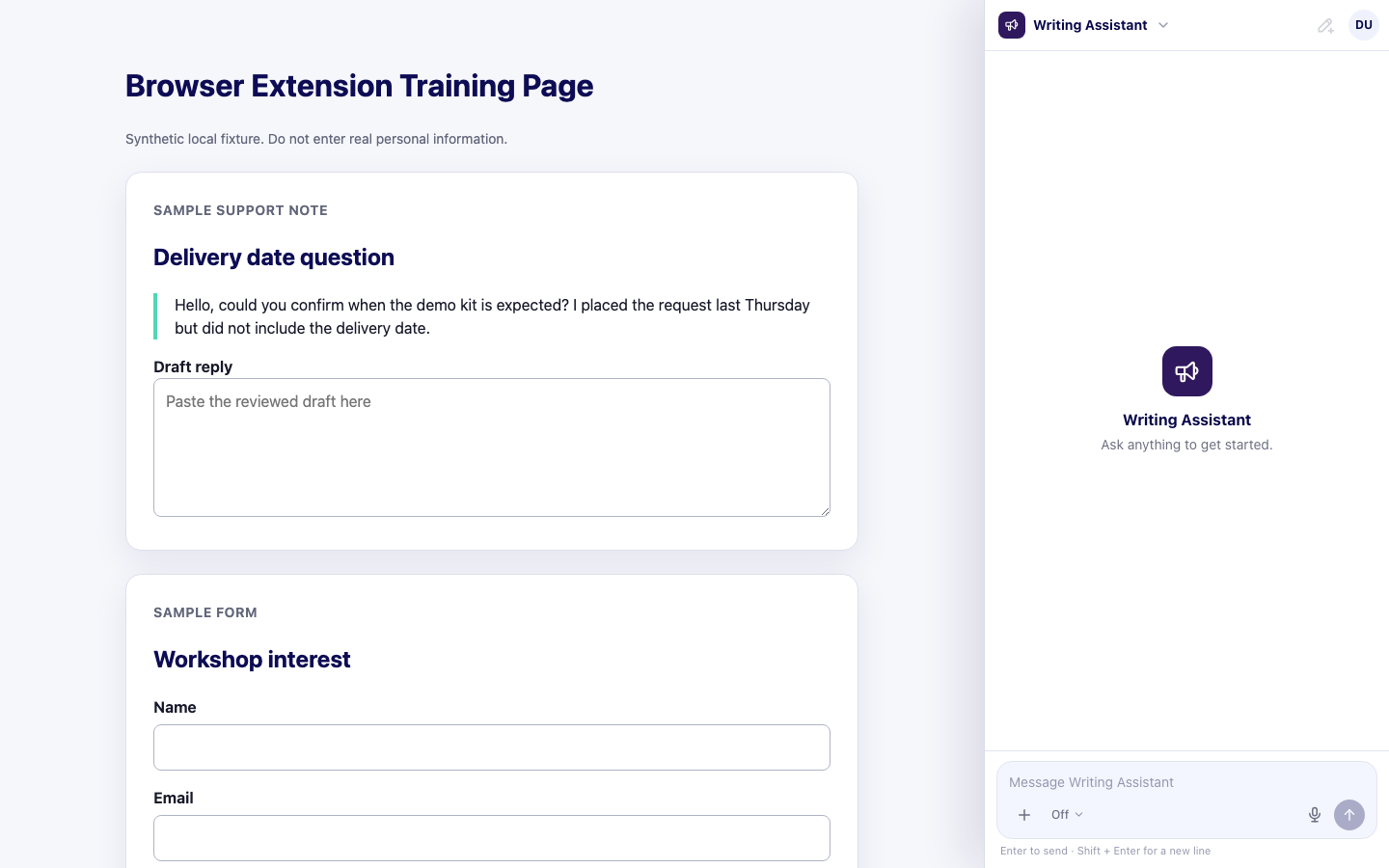
    Open the extension side panel and choose the agent for the draft. Set Browser Control to Off so the agent cannot click, type, navigate, or send on the page.

    Siesta AI Browser Extension beside a sample message with Browser Control set to Off
    Use Browser Control Off when the agent only needs attached context and must not act on the page.
    Platform guide: Browser Control
  2. Attach The Text And Request A Draft

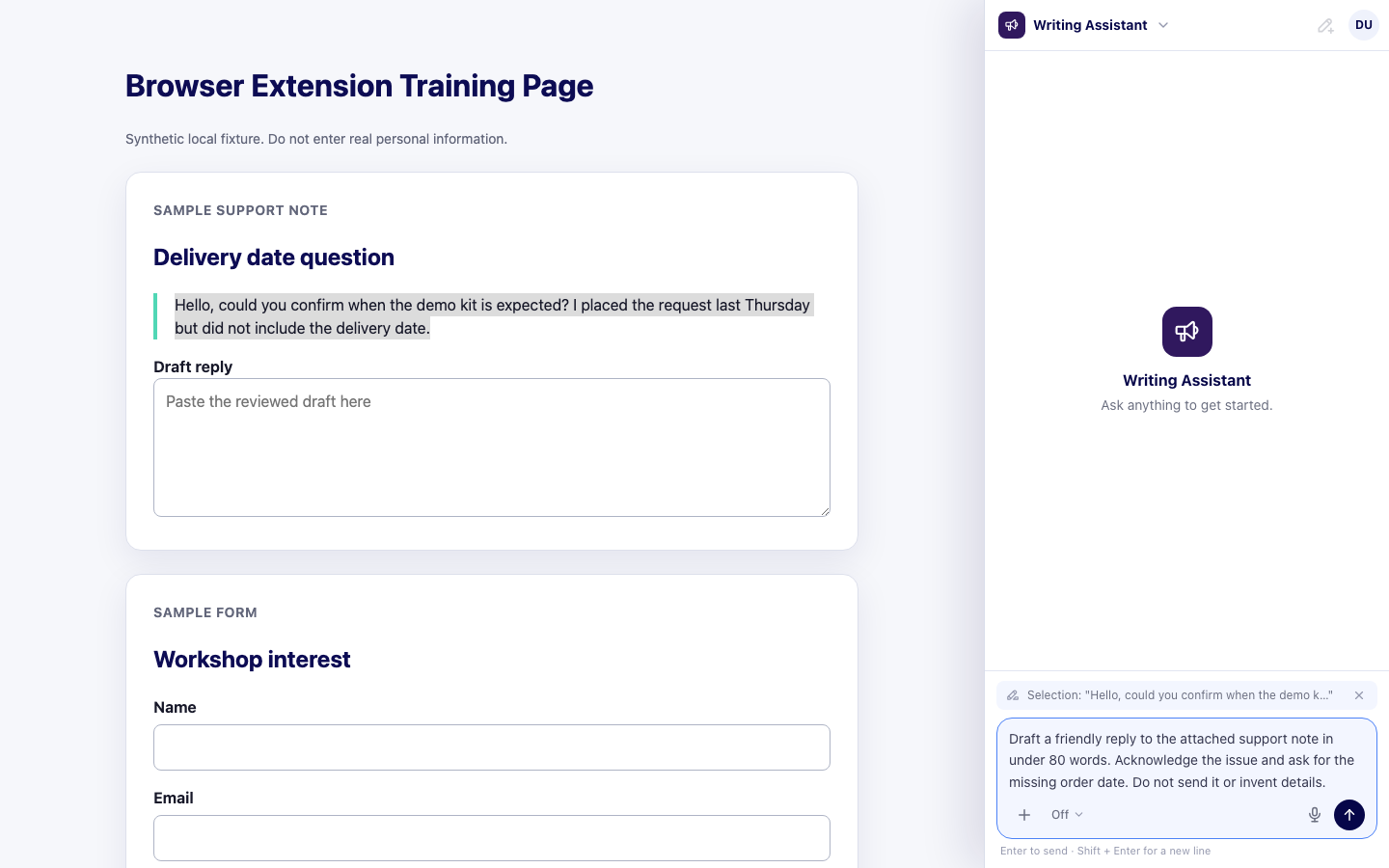
    Select the relevant message, right-click it, and choose Attach this text to Siesta. Check the attached text, type the tone and maximum length you want, say Do not send it, and select Send in the extension.

    Browser Extension composer requesting a short unsent reply to attached selected text
    Attach only the needed text, then state the tone, length, and instruction not to send.
    Platform guide: Attach context and files
  3. Copy, Paste, And Review

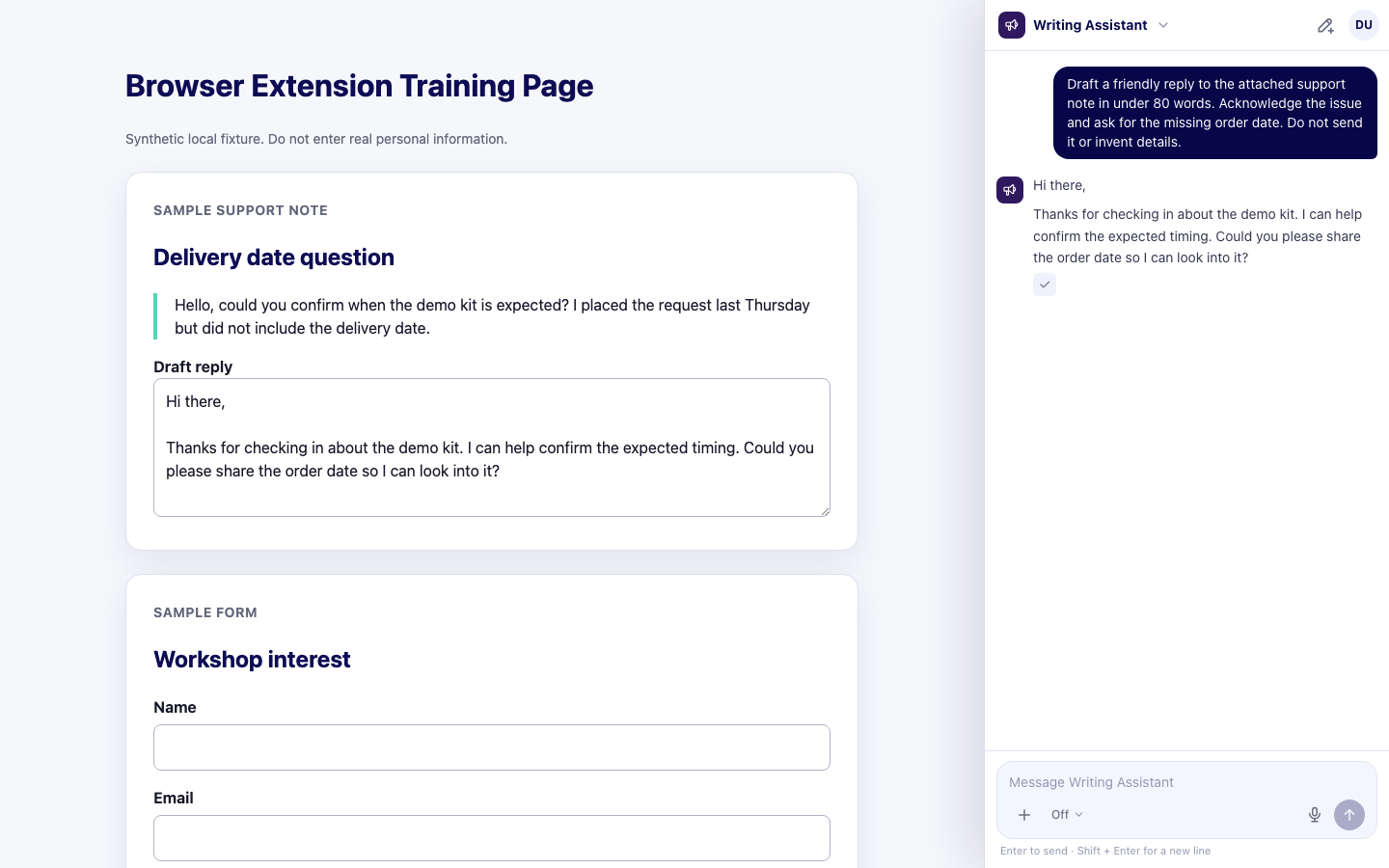
    Click the copy button below the answer, paste the draft into the reply field, and compare it with the original message. Correct names, facts, promises, links, and tone yourself before sending.

    A draft pasted into the sample reply field with the Browser Extension copy confirmation visible
    The check mark under the answer confirms Copy; paste the draft manually for review.
    Platform guide: Browser Extension chat

Try It​

Draft a friendly reply to the attached support note in under 80 words.
Acknowledge the issue and ask for the missing order date. Do not send it.
Do not invent names, dates, or a resolution.

Check The Result​

The draft should respond only to the attached note, stay under 80 words, ask for the order date, and remain unsent until you review and send it manually.

If It Does Not Work​

The most common problem is attaching too much page context or leaving Browser Control on. Start a new chat, turn control off, and attach only the relevant selection. Next, learn how to work with a document in Summarize a File.