Practice on a blank test form that contains no real customer, employee, payment, health, legal, or authentication data.
Decide the exact fields and values the agent may enter.
Use Ask mode, never Auto, and keep final submission as a human action.
Safety limit: Do not use this workflow for passwords, payments, identity verification, medical or legal declarations, or another high-impact submission.
Open Download Siesta AI and choose Browser extension for your browser. Install it, open its side panel, and sign in. If you already have the extension, open it and continue.
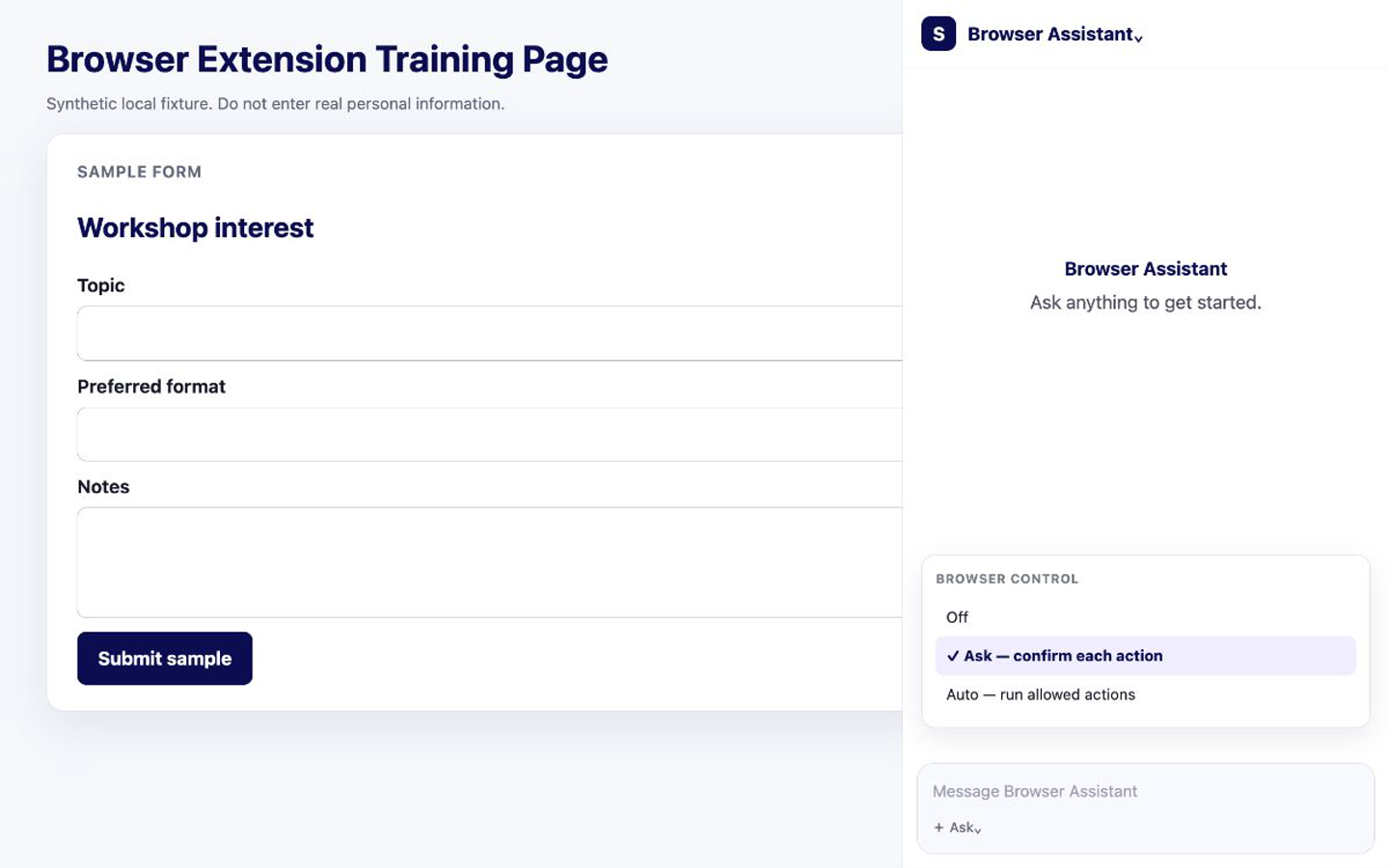
Open the intended non-sensitive test form and the Siesta AI side panel. Check the site address, choose the browser agent, and set Browser Control to Ask.
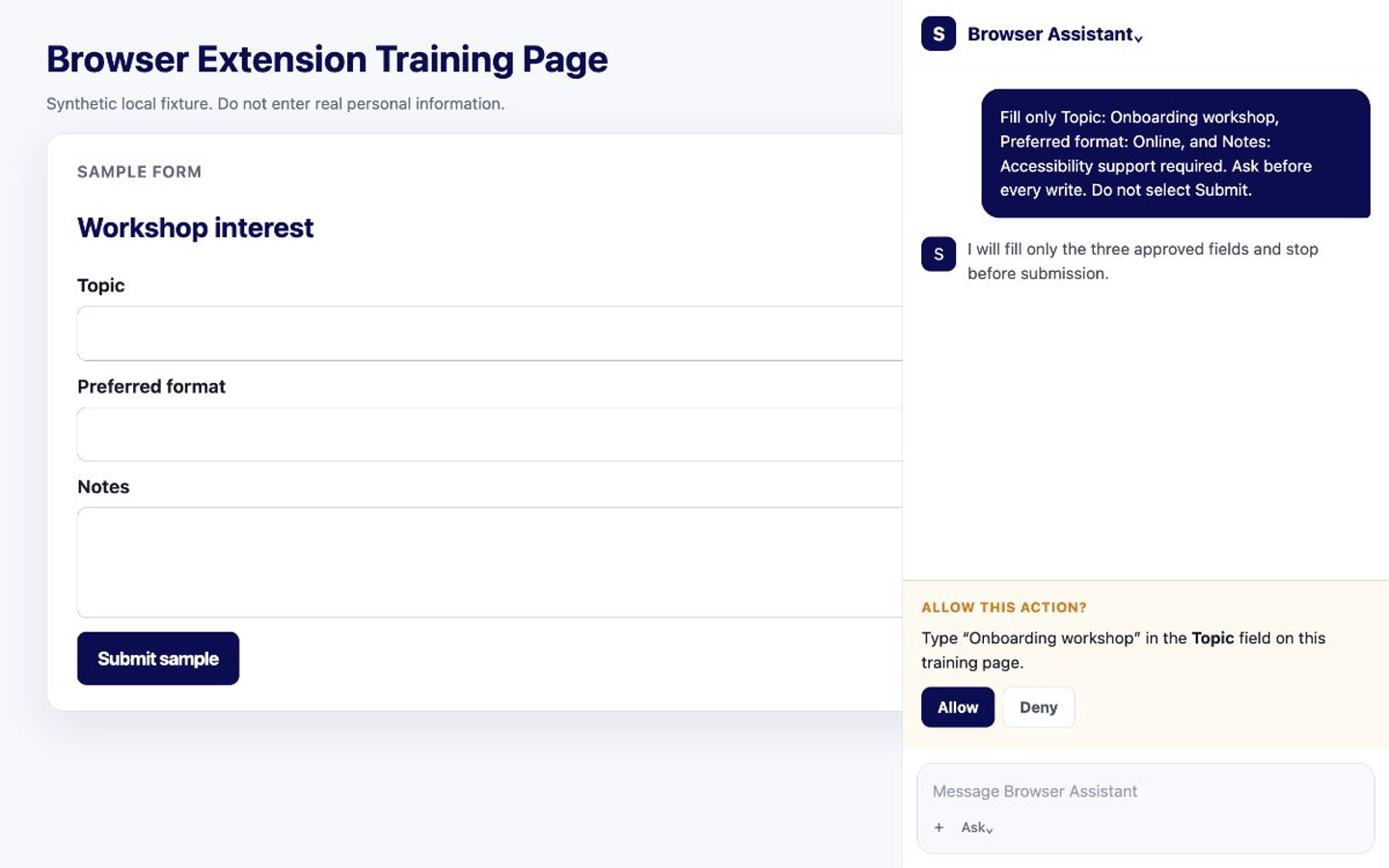
Name the exact fields and values, and prohibit JavaScript, navigation, pressing Enter, and Submit. At every Allow this action? prompt, check the field, value, and site; select Allow only when all match, otherwise select Deny or Stop.
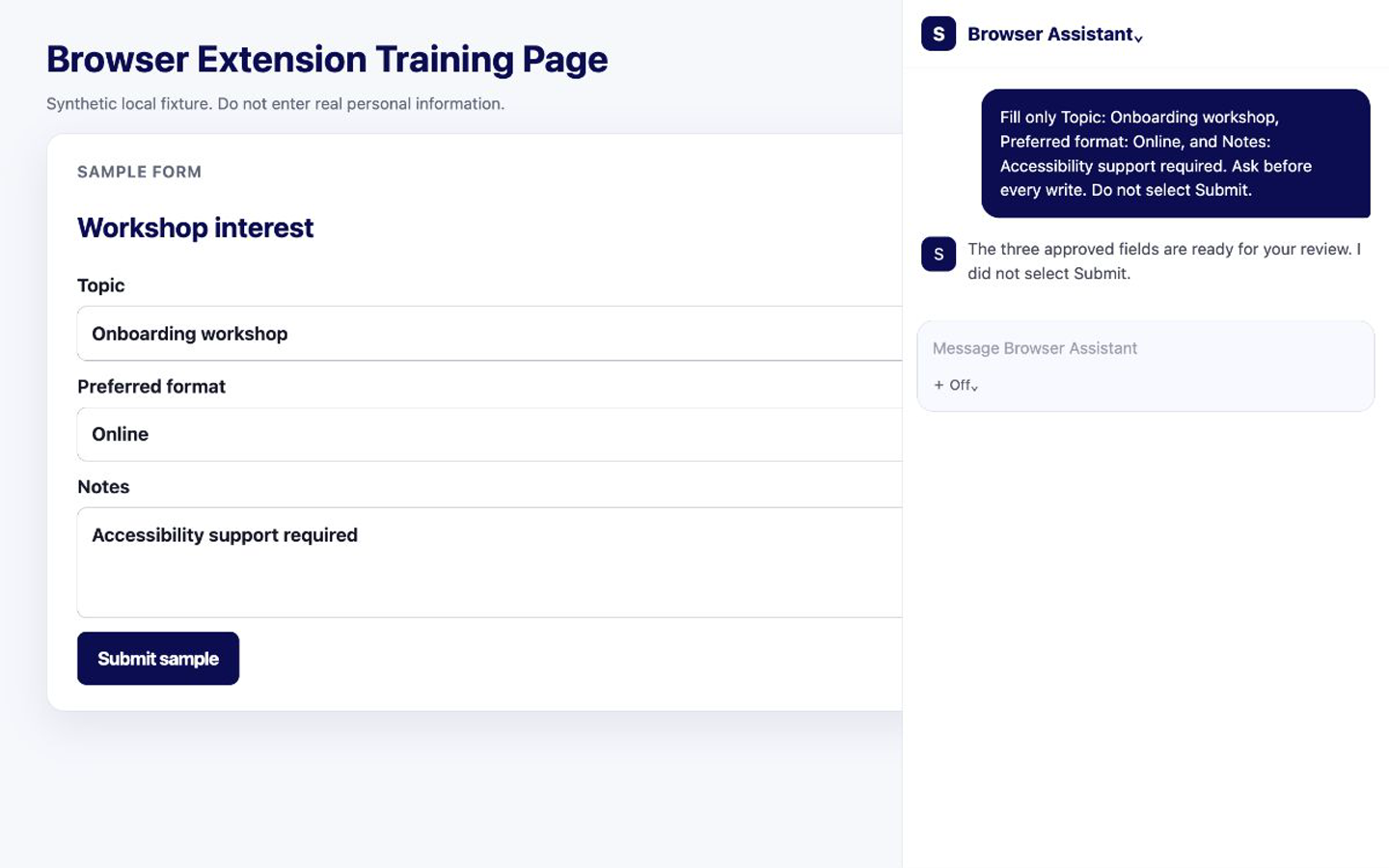
Turn Browser Control Off and inspect the complete form yourself. Correct any value that is wrong. Select Submit only when you understand the effect and intend to complete the action.
Only Topic, Preferred format, and Notes should contain the supplied sample values. No page navigation or submission should occur, and Browser Control should be off before your final review.
The most common problem is a request that does not name the allowed fields precisely. Stop the run, reset the test form, and retry with an explicit field list in Ask mode. Next, learn how to find earlier work in Recordings and Past Work.