Use Quick Actions in Siesta AI Desktop for Windows or macOS to fix grammar, improve your writing, or rewrite selected text directly in the application where you work.
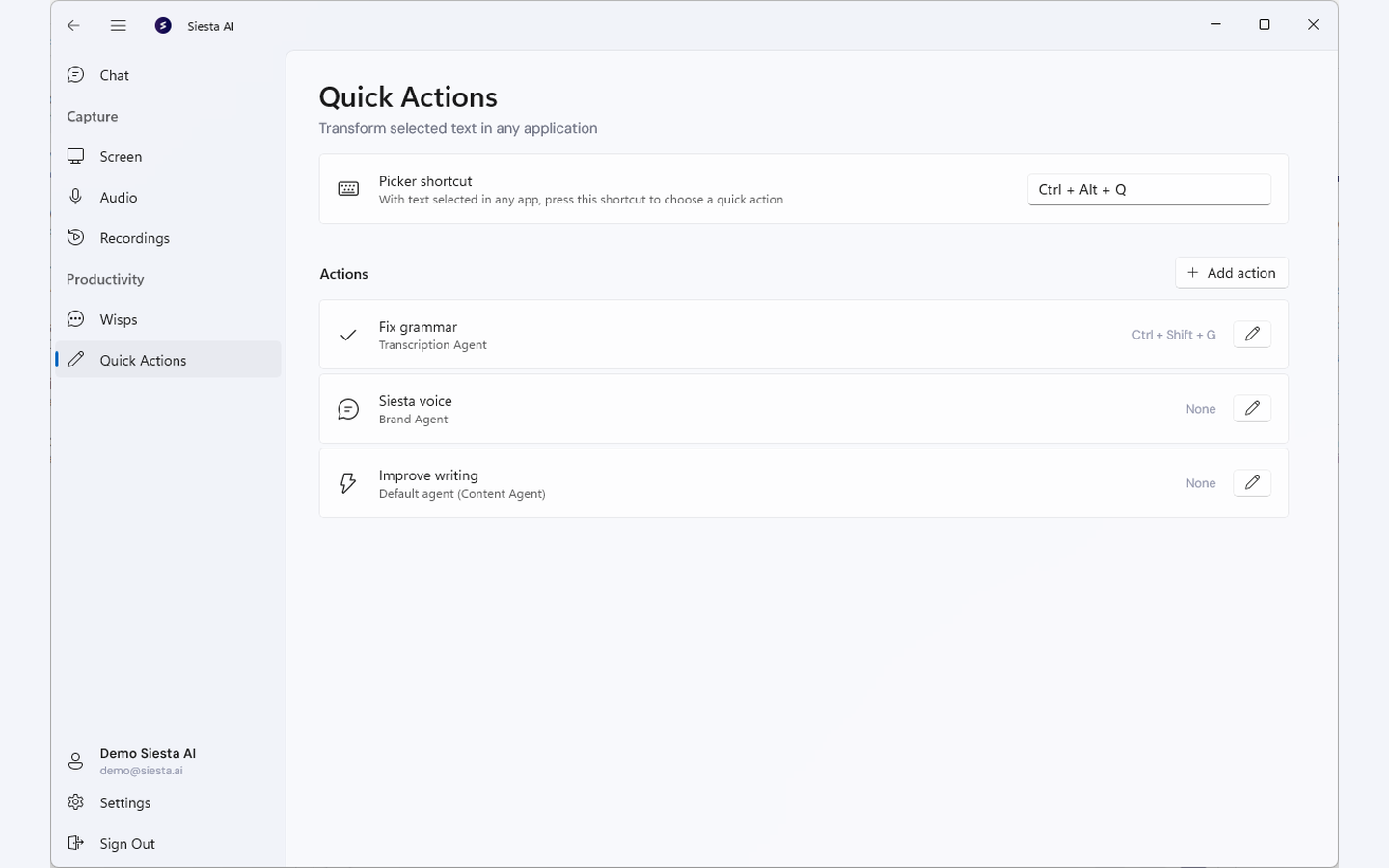
On Windows, open the Quick Actions picker with Ctrl+Alt+Q. On macOS, use Services > Transform with Siesta AI. See the Platform documentation for the Windows App and macOS App.
Open the Siesta AI Desktop App for Windows or macOS and sign in. Keep it running while you work in the other application.
Use an application where you can select plain text.
The built-in actions fix grammar, improve writing, or apply your brand voice. Use translation only when an approved custom action for the required language is available.
Download the Siesta AI Desktop App. Choose the version for your computer, install it, open it, and sign in. If you already have the app, open it and continue.
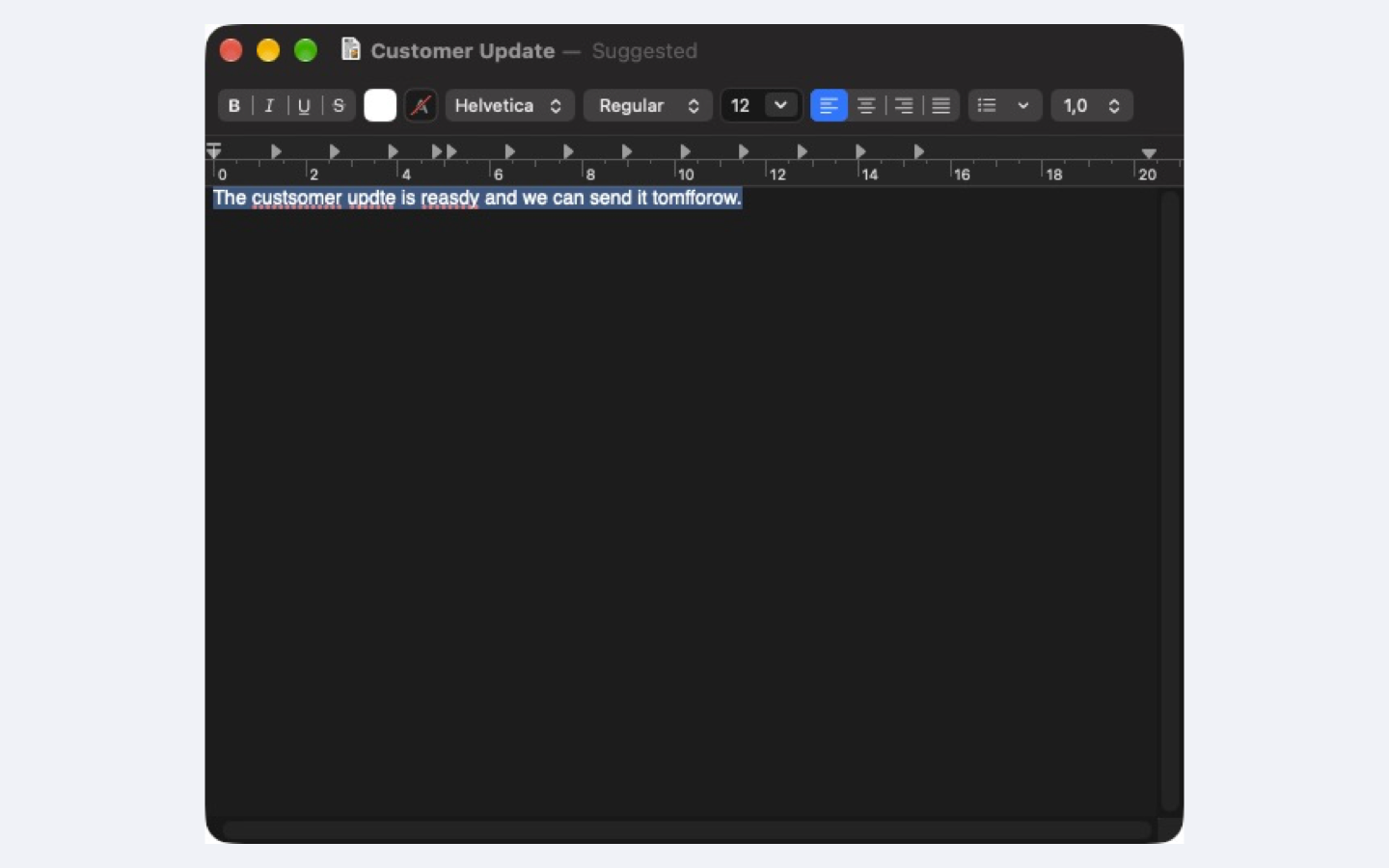
In the app where you are writing, select only the text you want to change. Leave the selection active.
On Windows, press Ctrl+Alt+Q and choose Fix grammar, Improve writing, Brand voice, or an approved custom action. On macOS, open the current application's menu, choose Services > Transform with Siesta AI, and then choose the action.
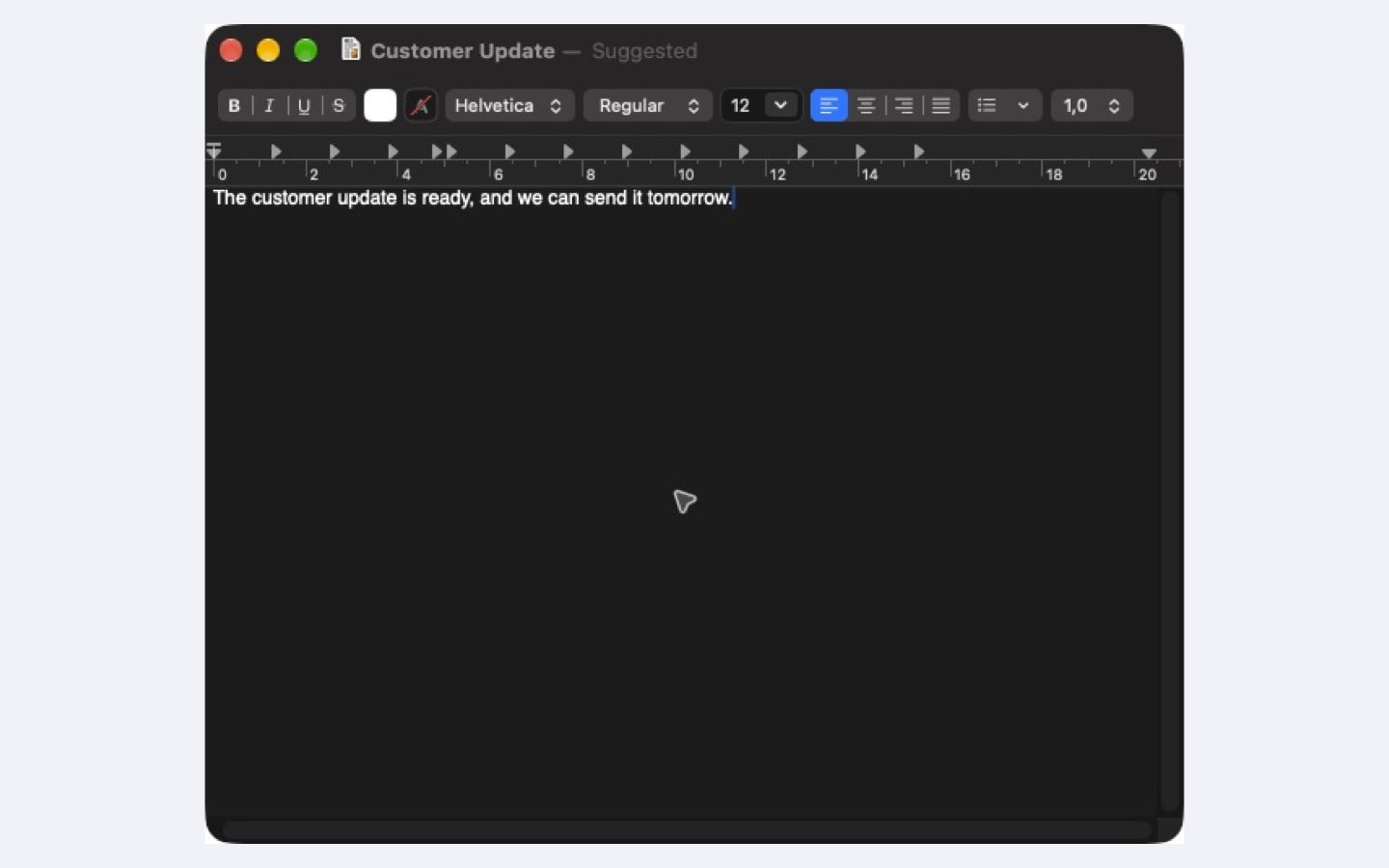
Check names, numbers, meaning, and tone. Depending on the action's result setting, Siesta AI replaces the selected text or copies the result to the clipboard for you to paste.
Review the transformed text in the destination application before you keep it.Platform guide: macOS App
Make sure Siesta AI is open and signed in. On Windows, open Quick Actions and confirm the picker shortcut; change it if another application already uses it. On macOS, if Transform with Siesta AI is missing, check System Settings > Keyboard > Keyboard Shortcuts > Services. Next, learn how to draft beside a web page in Draft a Short Message.