Workflows
Workflows allow you to compose integration flows from prepared actions (HubSpot, Jira, Google Workspace, and others), and the orchestration is then triggered by assistants or directly by users. This section is currently in beta mode.
Where to find them
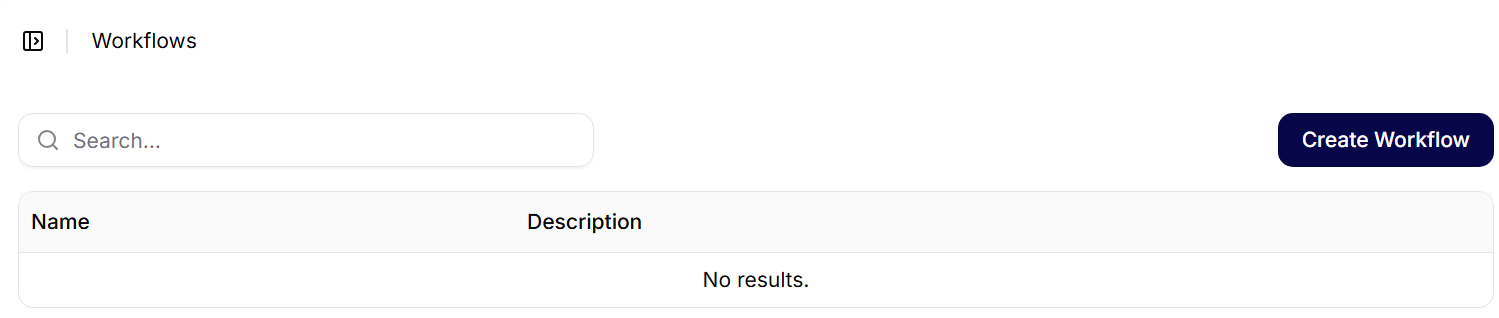
- In the left menu, click on Workflows (Beta).
- A list of existing workflows will appear, along with search, pagination, and the Create Workflow button. An empty list displays the text No results.
Creating a new workflow
- Click on Create Workflow.
- In the right panel, fill in the Name and Description – these are also used for searching.
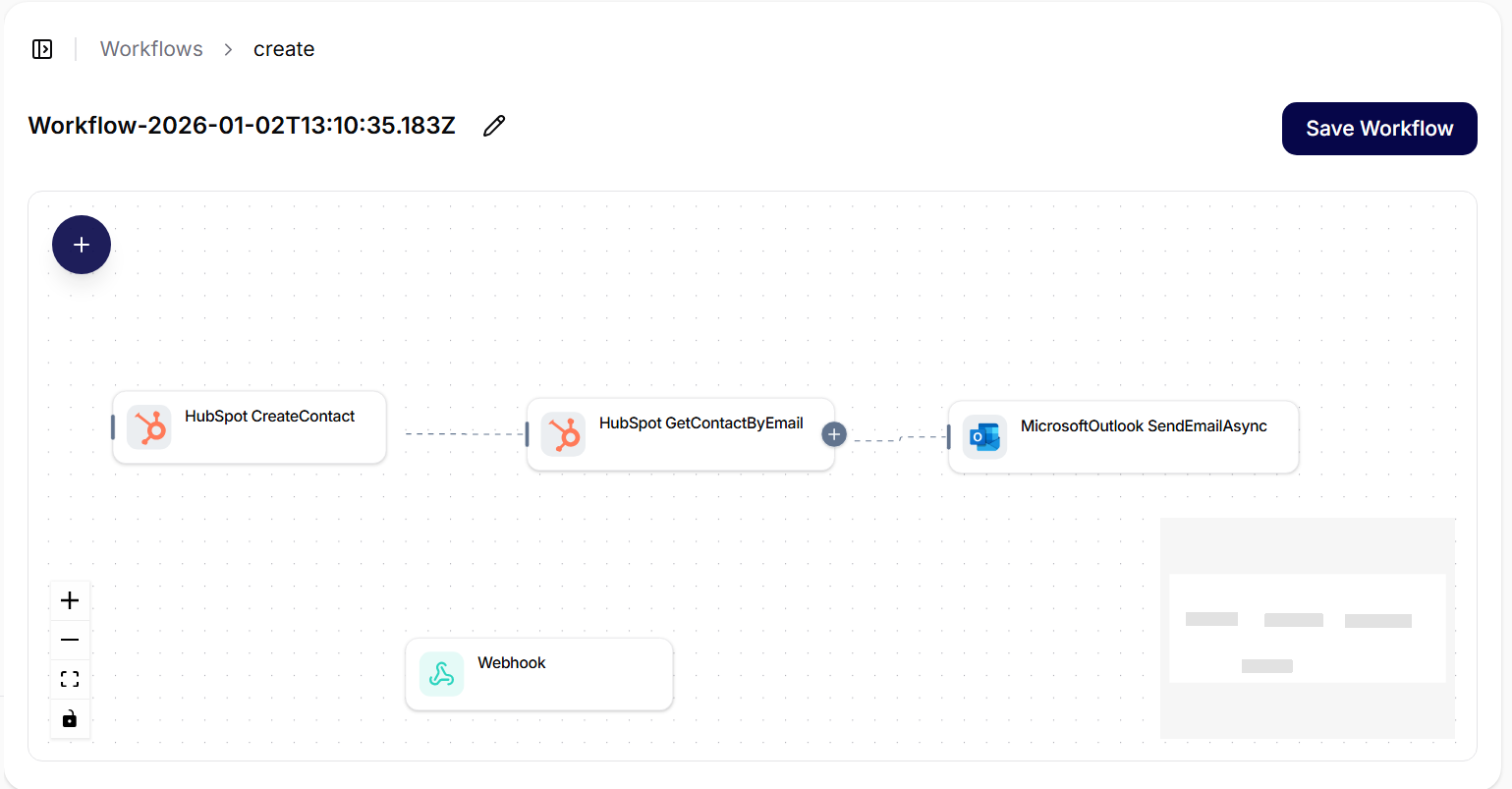
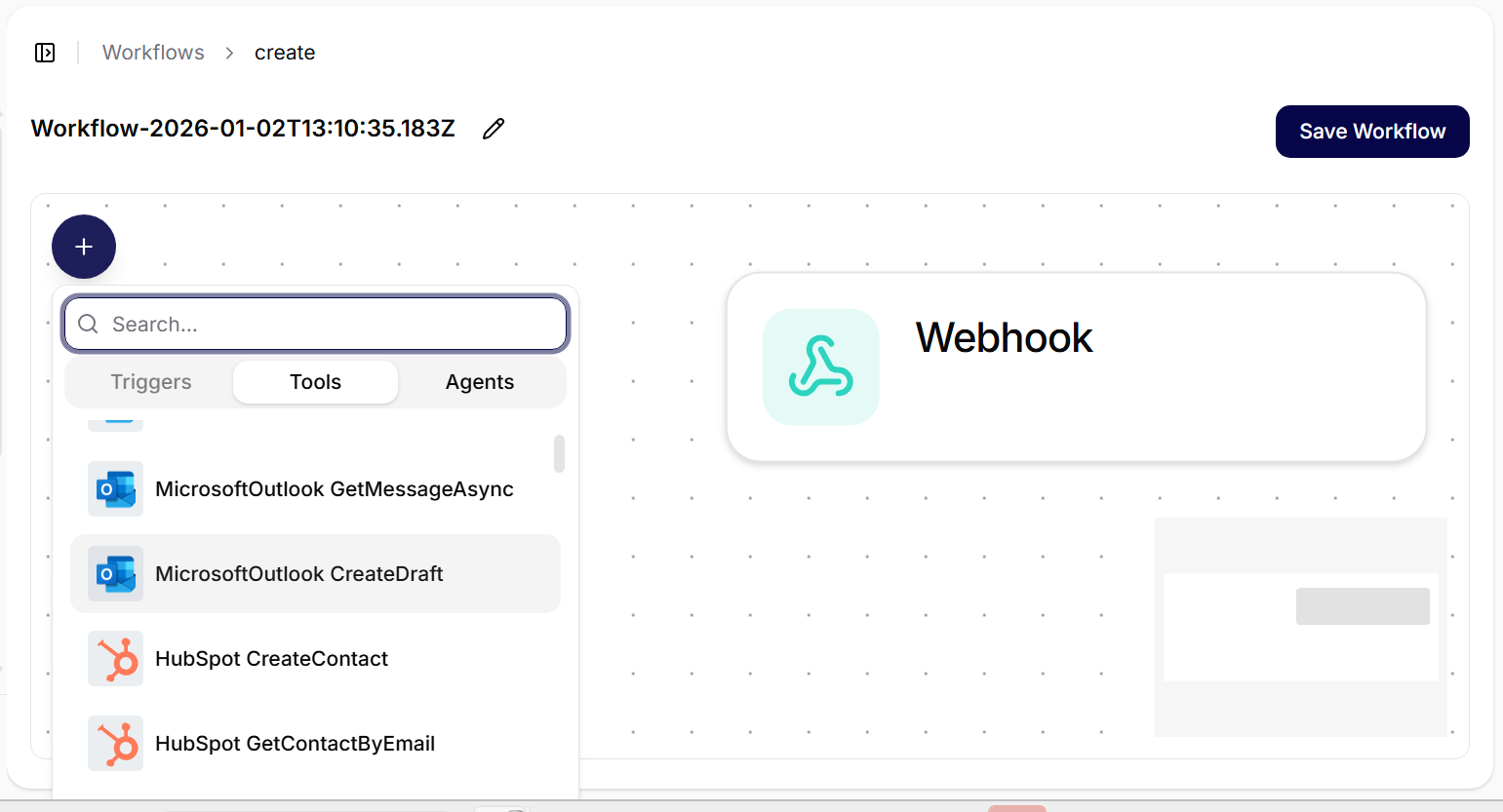
- Drag actions from the left panel Connections onto the canvas (e.g., HubSpot, Jira, Google Calendar, Google Drive).
- Connect the nodes by dragging lines – the output of the previous action is the input for the next.
- In the node settings, fill in the parameters (record IDs, emails, calendars, projects, etc.).
- Save by clicking on Save Workflow.
- Zoom controls are located at the bottom left, and the mini-map is at the bottom right.
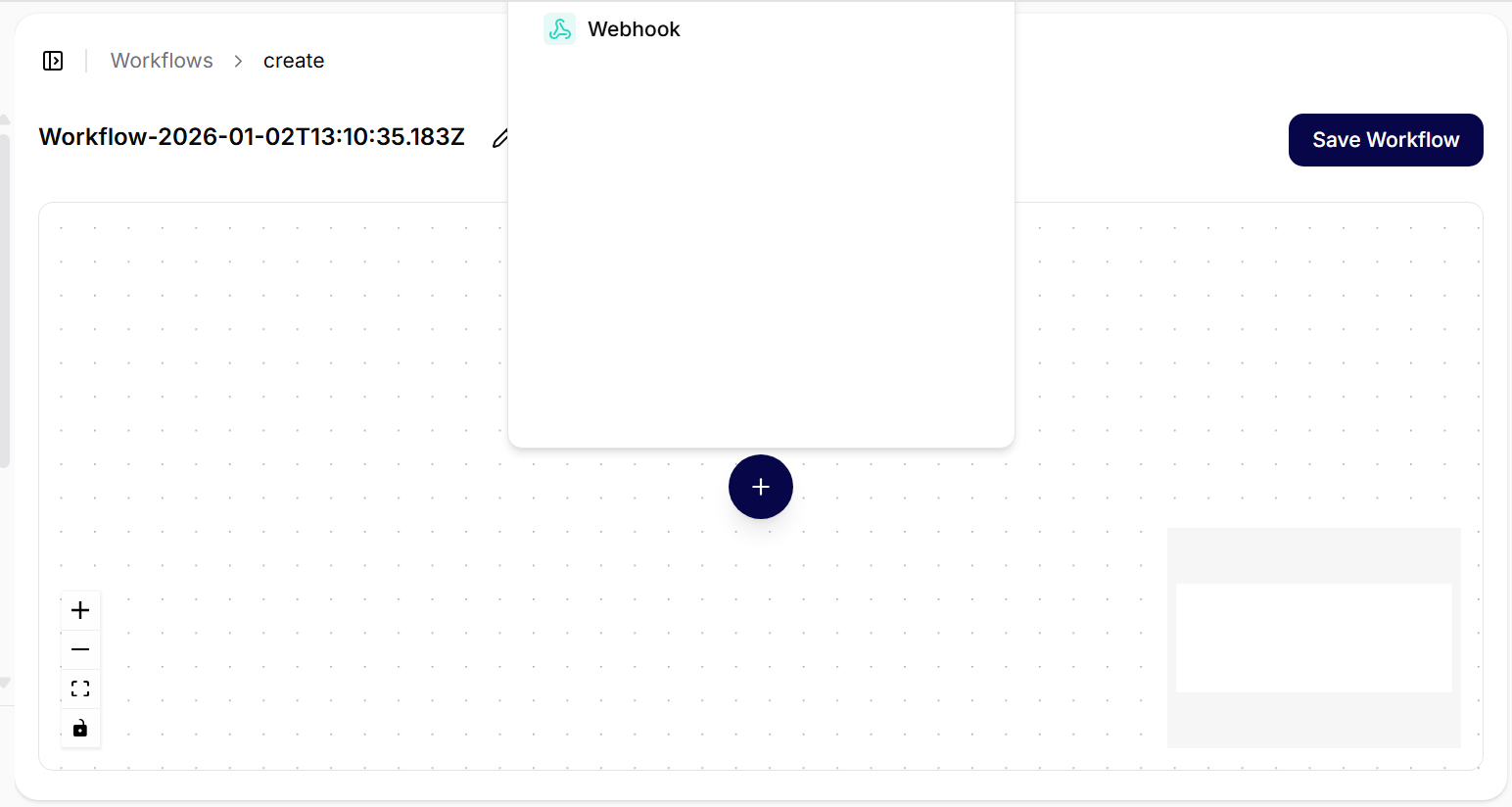
Empty canvas with the first trigger:
Adding a node from the catalog:
Typical actions and examples
- HubSpot: GetDealById, GetContactById – reading a deal/contact before passing it to other systems.
- Jira: GetUserAsync, AssignTicketAsync, CreateTicketAsync – enriching a contact or creating a ticket.
- Google Calendar: CreateEventAsync – scheduling a meeting after successful data enrichment.
- Google Drive: ListFilesAsync, ReadFileAsync – working with documents.
- LLM / Webhook: calling a model or webhook to supplement logic, validation, or notification. You can find the procedure for creating a webhook on the Webhooks page.
Best practices
- Input validation: verify IDs, emails, and required parameters before connecting additional nodes.
- API errors: account for errors from integration services (timeout, rate limit) and add a fallback.
- Naming: name nodes according to their function (e.g., “Find HubSpot Contact”, “Create Jira Ticket”).
- Security: work only with access rights that are necessary for the given workflow; keep sensitive values in a vault/secrets.
Editing and management
- In the list of workflows, search for the name/keyword and open the item.
- You can edit, save, and rerun the workflow – changes will take effect in new runs.
- Recommended: after significant changes, test the flow on non-production data (test deals/tickets/calendar).
Common scenarios
- Sync HubSpot → Jira → Calendar: obtaining a deal and contact, finding a user in Jira, creating a ticket and a meeting.
- Incident intake: creating a ticket, attaching files from Drive, and notifying via webhook/LLM.
- Onboarding: creating a user in internal systems, adding to groups, and scheduling an introductory meeting.
Sample workflow: