Login
Application Login
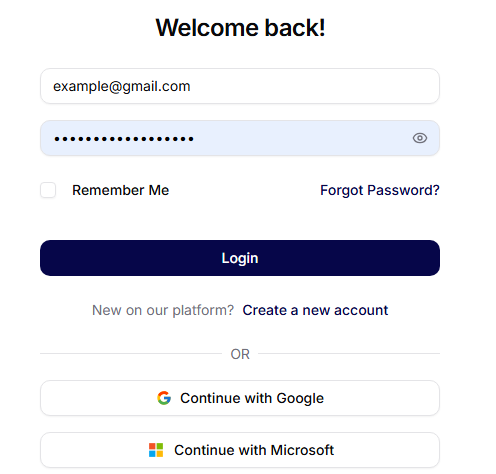
To log in to the platform, enter:
- Password (can be shown/hidden using the eye icon)
Then click the Login button, which will verify your details and log you into the system.
On the login screen, the following options are available:
Remember Me
By checking this box, you will remain logged in even after closing the browser.
Forgot Password?
The link will open a password recovery form if you do not remember your password.
Create a new account
If you do not have an account yet, proceed to registration and create access.
One-click login
- Continue with Google
- Continue with Microsoft
If the login fails, an error message will appear regarding invalid or missing details.
Forgot Password
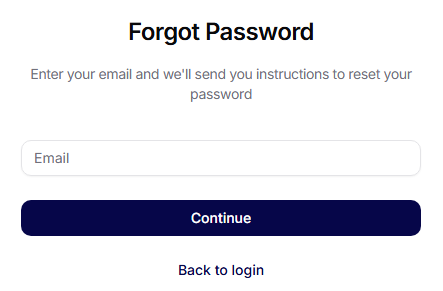
In case you forget your password, you can reset it. Enter the email associated with your account, and after submission, you will receive an email with a unique link to set a new password.
Registering a New Account
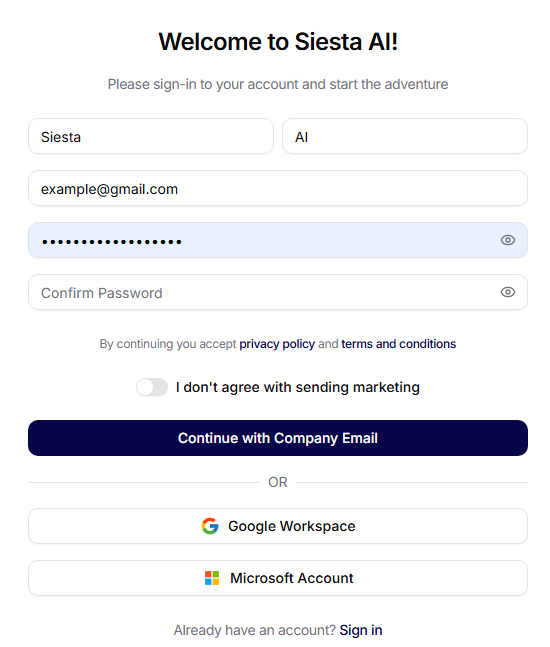
To create a new account, fill in:
- Name and Surname
- Password and Confirm Password
Confirm your agreement with the terms, optionally decline marketing, and click on Continue with Company Email. Alternatively, you can use login via Google or Microsoft.
Update Password
After opening the unique link from the email, fill in:
- New Password
- Confirm New Password
By clicking the update password button, you will save the new password.