Recordings
The Recordings module is used for recording, storing, managing, and automatically transcribing audio content in the Siesta AI application. Each recording is processed by AI upon insertion, and a text transcript is created, which can be further used in assistants, workflows, or analytics.
The section includes:
- Overview of all recordings in a table
- Recording detail with a player and transcript
- Dialog for adding a new recording
Overview of Recordings
The main screen displays a list of recordings in a table with the following columns:
- Title – The title of the recording entered by the user
- Created – Date and time of creation
- Type – Type of recording (e.g., mobile app, call)
- Duration – Total length of the audio recording
- Status – Current processing status:
- Queued – waiting for processing
- Processing – transcription in progress
- Completed – transcription is finished
- Actions – Additional operations (e.g., detail, delete)
Recordings can be searched using the search field. The Add Recording button is used to insert a new recording.

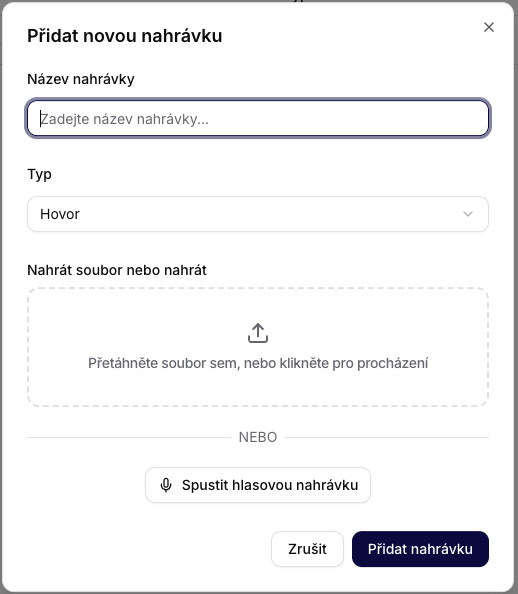
Adding a New Recording
After clicking on Add Recording, a dialog opens with the following fields:
Fields
- Recording Title – Required field for entering the title.
- Type – Dropdown list for specifying the type of recording (e.g., Call).
- Upload File or Record – Options:
- File Upload – Dragging a file or clicking to select from the computer
- Start Voice Recording – Recording audio directly from the microphone
Actions
- Cancel – Closes the dialog without saving
- Add Recording – Saves the recording and starts processing
Recording Detail
Each recording has its own detail page, which includes:
- Player
- Playback controls (Play / Pause)
- Playback progress slider
- Volume control
- Display of duration and current position
- Metadata
- Title
- Created (date and time)
- Duration
- Type
- Status
- Transcript – Text transcript of the audio recording generated by AI. Once processing is complete, the transcript is displayed on the right side of the screen.

Processing States
Each recording goes through the following steps:
- Uploaded – file has been received
- Queued – waiting for processing
- Processing – transcription in progress
- Completed – transcription is finished and available
Typical Use Cases
The Recordings section is suitable for:
- Recording meetings
- Capturing interactions from mobile applications
- Transcribing calls or conversations
- Creating data for AI assistants and workflows
- Archiving voice notes