Assistants
On this page, you will first see how to create a new assistant:
 Below you will find a description of the individual tabs of the assistant detail according to the current version of the application (Overview, Configuration, Interface, Prompts, Analysis, Evolution, Conversations, Feedback, History).
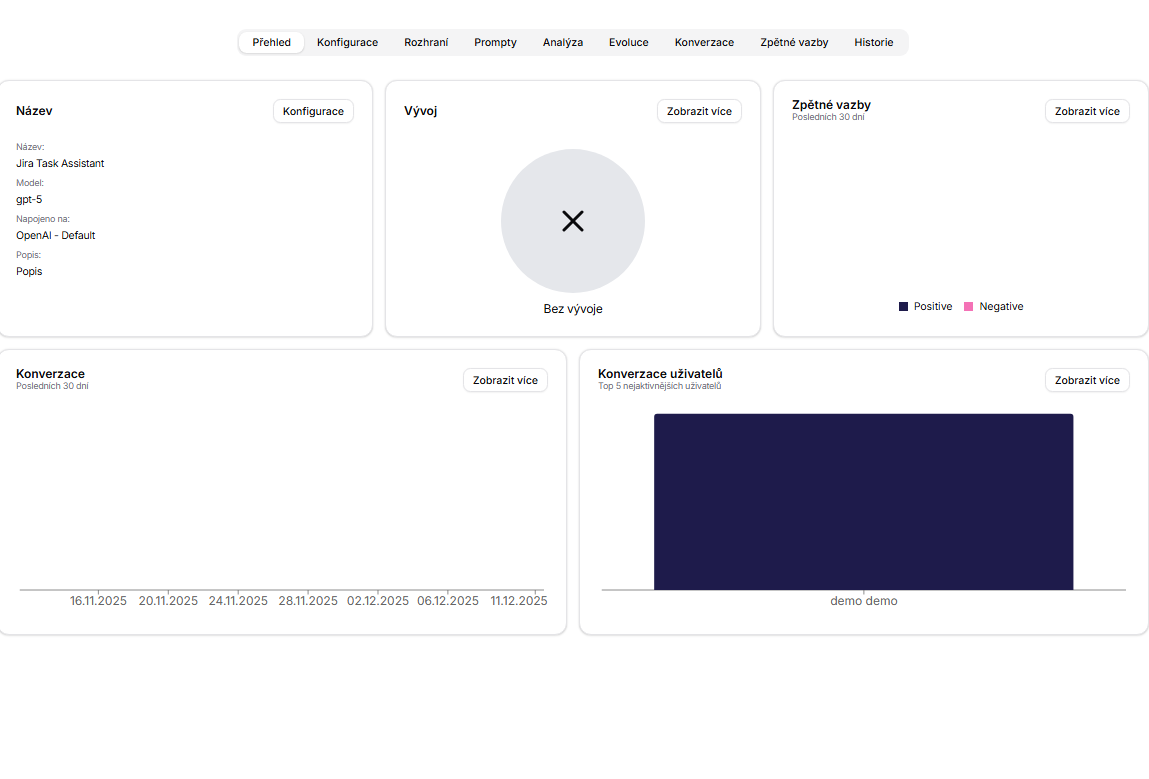
Overview
- Tabs: Name (model, connection, description), Development, Feedback, Conversations (last 30 days) and User Conversations (Top 5).
- Used for a quick check of the assistant's status; the "View More" links lead to the details.
- Screenshot:
Configuration
- Name: the name of the assistant displayed in overviews, searches, and the list of assistants.
- Description: a short description of the assistant's purpose; helps with orientation in the team.
- Chatbot Tool: choice of provider/connection (Assistant Connection), which determines the available models.
- Model Name: specific model from the selected provider.
- Data connection: connection to data collections from the Data Collections section; determines what knowledge the assistant can work with.
- Access: visibility and team settings; Organization = everyone in the organization, Shared = selected users/teams, Private = only you.
- Preview: preview of the assistant's icon in the list.
- Change icon: selection of a custom icon.
- Recommended icons: quick presets of common icons.
- Icon color: color of the icon.
- Temperature: degree of creativity/variability; lower value = more consistent responses.
- Maximum Length: limit on the length of generated responses (shortens outputs and monitors costs).
- Presence Penalty: penalizes repetition of topics; encourages new information.
- Frequency Penalty: penalizes repetition of words/phrases; reduces redundancy.
- Initial Message: introductory message displayed at the start of a new conversation.
- System Message: main system prompt defining the role, tone, and rules of the assistant.
- Shared Tools: tools shared within the organization that the assistant can use.
- Private Tools: private tools available only to you.
- Subassistants: connection of additional assistants for delegating specific tasks.
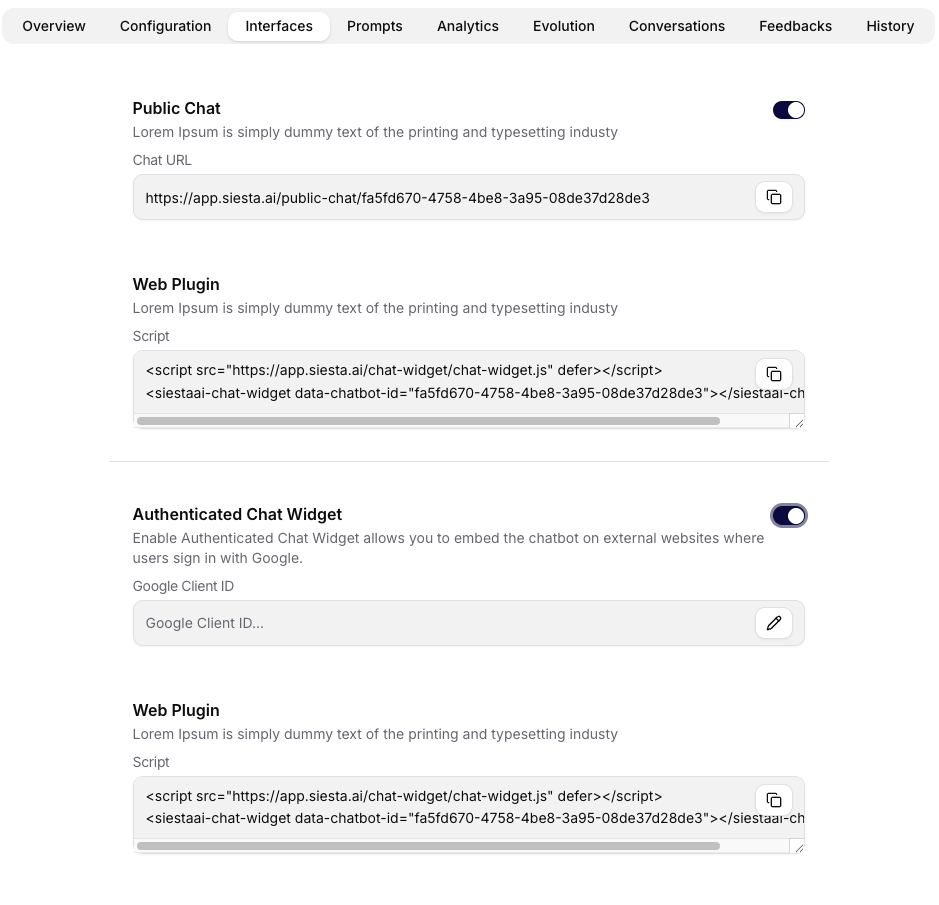
- Enable public chat: makes the assistant available outside the main application.
- Enable Authenticated Chat Widget: allows embedding a chat widget on an external website with Google login.
- Screenshot:

Interface
- Public chat toggle with generated Chat URL (copy button).
- Authenticated chat widget toggle and Google Client ID field for embedding with login.
- Screenshot:
Prompts
- Table of all prompts; Create Prompt button to create a new one.
- After creation, you can manage the prompt text and the launch schedule.
- Screenshot:

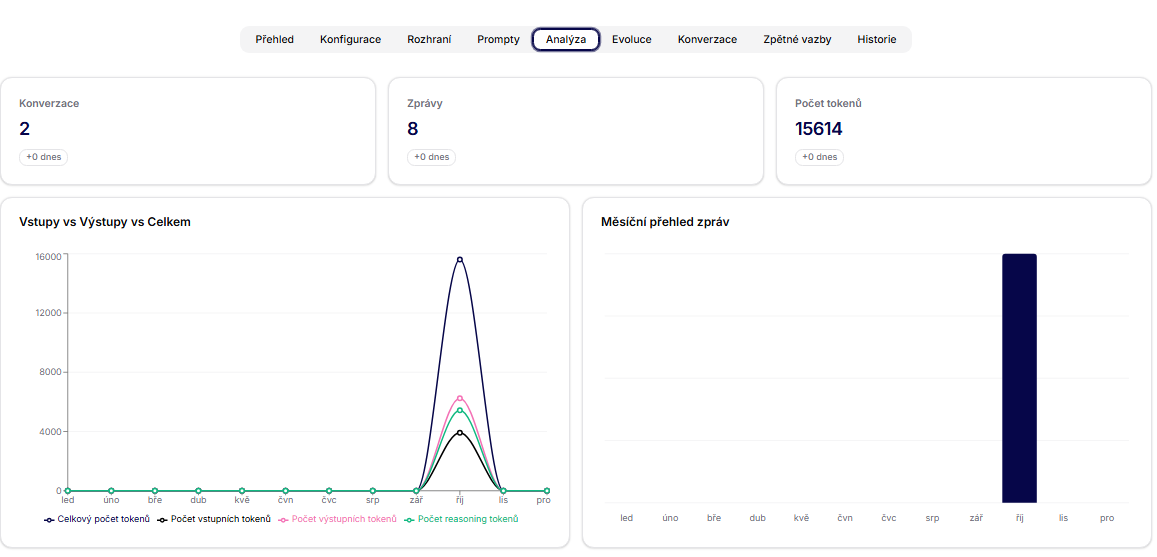
Analysis
- Section for an overview of the assistant's performance (volume and quality of interactions).
- Screenshot:
Evolution
- Overview of user suggestions for prompt evolution (date, user, message, rating).
- Develop action (suggests modifications) and Apply Evolution (applies changes).
- Screenshot:

Conversations
- List of conversations with users: date, user, subject, number of messages; eye icon opens the thread detail.
- Screenshot:

Feedback
- Collected ratings and comments on the assistant's responses.
- Screenshot:

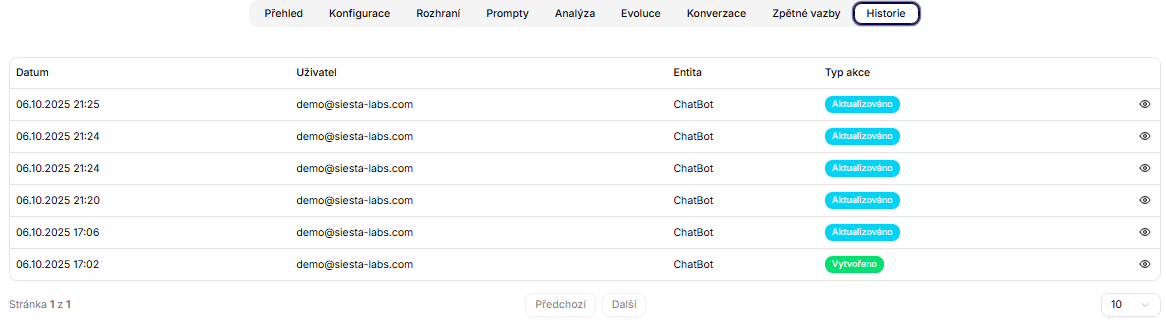
History
- Audit log of actions on the assistant (date, user, entity, action type).
- Allows tracking modifications to the model/prompt/data connections.
- Screenshot: