Data Collections
Overview
The Data Collections module serves to aggregate multiple data sources into a single logical unit. A data collection represents a central container of data that can subsequently be utilized in AI assistants, workflows, or analytical tools in Siesta AI.
Each collection:
- has its own name and description,
- contains one or more data sources,
- allows for the management and organization of data according to its purpose.
Overview of Data Collections
On the main screen of Data Collections, a list of all created collections is displayed in the form of a table.
Displayed columns:
- Name – the name of the data collection
- Description – a brief description of the collection's purpose
- Data Sources – the number of connected data sources
- Created – the date and time of creation
- Actions – additional options for working with the collection
At the top of the screen, the following is available:
- collection search,
- the Create Collection button.

Creating a New Data Collection
After clicking on Create Collection, a dialog for creating a new collection opens.
Required Fields
- Name – a unique name for the data collection (e.g., Neurology Research Results – Big Data Collection).
- Description – a brief description of the content and purpose of the collection.
Actions
- Cancel – closes the dialog without saving
- Create – creates a new data collection

Data Collection Detail
When a specific collection is opened, its detailed page is displayed.
Displayed information:
- collection name,
- creation date,
- overview of connected data sources.
The page includes a Add Data Source button.

Adding a Data Source to the Collection
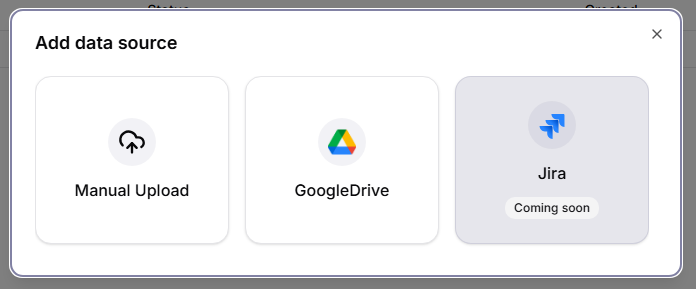
Clicking on Add Data Source opens a selection of data source types.
Available Options
- Manual Upload – manual file upload
- Google Drive (coming soon)
- SharePoint (coming soon)
- Azure Storage (coming soon)
- Jira (coming soon)
In the current version, manual file upload is available.
Data Source Configuration (Manual Upload)
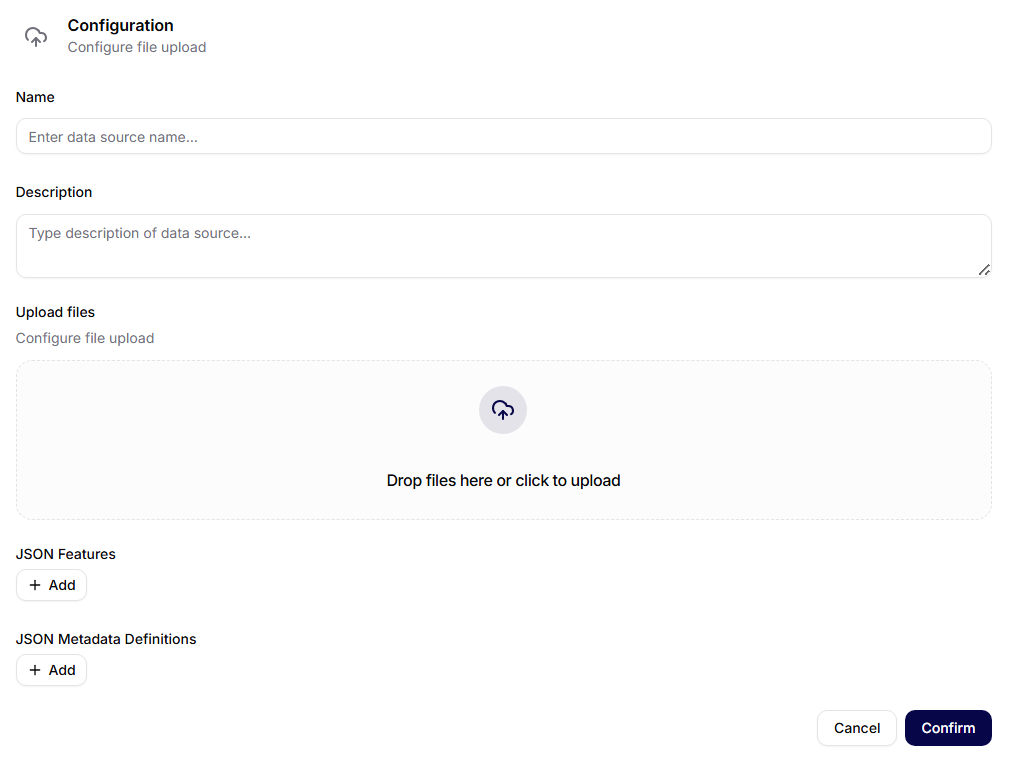
After selecting Manual Upload, a configuration form is displayed.
Configuration Fields
- Name – the name of the data source (e.g., Big Data).
- Description – an optional description of the content of the data source.
- Upload Files – the option to drag files into the designated area or click to select files from the computer.
- JSON Functions (optional) – used to define custom functions for working with data.
- JSON Metadata Definitions (optional) – allows adding structured metadata to the data source.
Actions
- Cancel – exits the configuration without saving
- Confirm – saves the data source and starts its processing
Data Source Status
Each data source has its own processing status:
- Processing – data is being analyzed and indexed
- Processed – the data source is ready for use
The status is visible in the data sources table in the collection detail.
Connecting Data Collections to the Assistant
Data collections are subsequently assigned to assistants in their settings. Details can be found in the section Assistant Configuration.
Typical Uses of Data Collections
Data collections are primarily used for:
- organizing a larger number of files,
- aggregating data by topic or project,
- creating a single source of truth for AI assistants,
- reusing the same data in different workflows,
- scaling data work without the need for duplication.
Summary
Data collections in Siesta AI enable clear data management and their effective use across the entire platform. Well-structured collections are the foundation for quality outputs from AI assistants and automated workflows.