Webhooks
The Webhooks tab is used to manage webhooks that allow Siesta AI to connect with external systems and applications. A webhook provides a unique URL address to which an external service can send HTTP requests, thereby triggering or influencing the behavior of the system.
Each webhook:
- has its own name,
- is tied to a specific API key,
- can be active or inactive,
- has a unique URL address.
Webhooks are often used as triggers for Workflows that can be initiated from external systems.
Overview of Webhooks
On the main screen of the Webhooks tab, a list of all created webhooks is displayed in a table.
Displayed columns:
- Name – the name of the webhook entered by the user
- URL – automatically generated URL address of the webhook
- Status – current status of the webhook (Active / Inactive)
- Actions – additional management options for the webhook (e.g., edit)
At the top of the page, you can find:
- webhook search,
- the Add Webhook button.

Creating a New Webhook
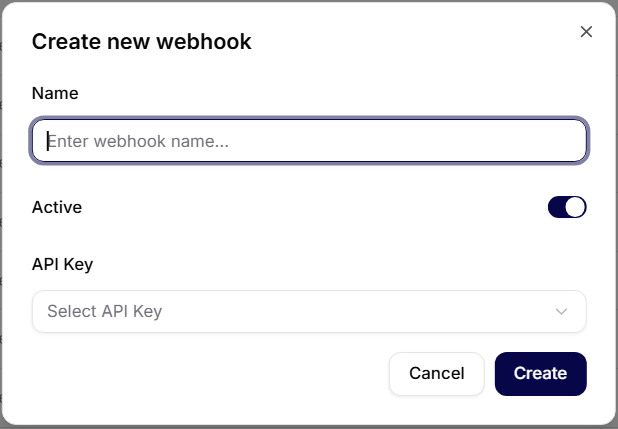
Clicking on Add Webhook opens a dialog for creating a new webhook.
Form Fields
- Name – a required field for entering the name of the webhook (e.g., Webhook)
- Active – a switch that allows you to activate the webhook upon creation or leave it inactive
- API Key – selection of the API key that will authorize the webhook (e.g., API key for my python script)
Actions
- Cancel – closes the dialog without creating the webhook
- Create – creates a new webhook and generates its URL
Webhook Details
After opening a specific webhook, its detailed page is displayed.
Displayed information:
- name of the webhook,
- status (active / inactive),
- URL of the webhook – a unique address that can be copied with one click.
From the webhook detail, you can:
- edit the webhook settings,
- change its active status,
- use the webhook URL in external applications or in Workflows.

Webhook Status
The status of the webhook determines whether it is ready to receive requests:
- Active – the webhook is turned on and available
- Inactive – the webhook is turned off and requests are not processed
The status is visible both in the overview of webhooks and in the webhook detail.
Typical Uses of Webhooks
Webhooks are primarily used for:
- integrating Siesta AI with external applications,
- triggering automated processes,
- connecting custom scripts (e.g., Python),
- transferring data between systems in real-time.
Summary
Webhooks in Siesta AI provide a simple and secure way to connect the platform with external systems. With clear management, linkage to API keys, and the ability to activate or deactivate, webhooks can be easily monitored and managed. If you use a webhook as a trigger, we recommend linking its use to Workflows.