Data
The Data section is used for connecting, managing, and reviewing all data sources that the platform works with. This data forms the knowledge base from which the AI draws when responding to user queries.
Overview of Data Sources
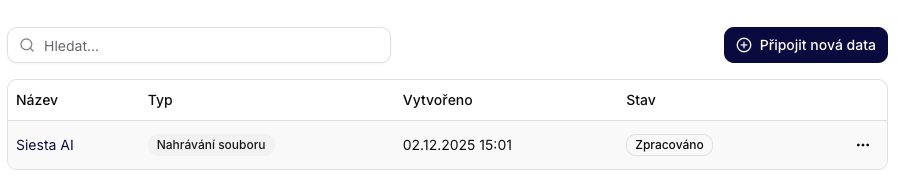
At the top, there is a search bar and a button Connect New Data. The main table contains:
- Name – the name of the connection or file
- Type – the type of source (e.g., file upload)
- Created – the date and time of creation
- Status – the current processing status
- Actions – additional options (e.g., details or deletion)
Adding New Data (File Upload)
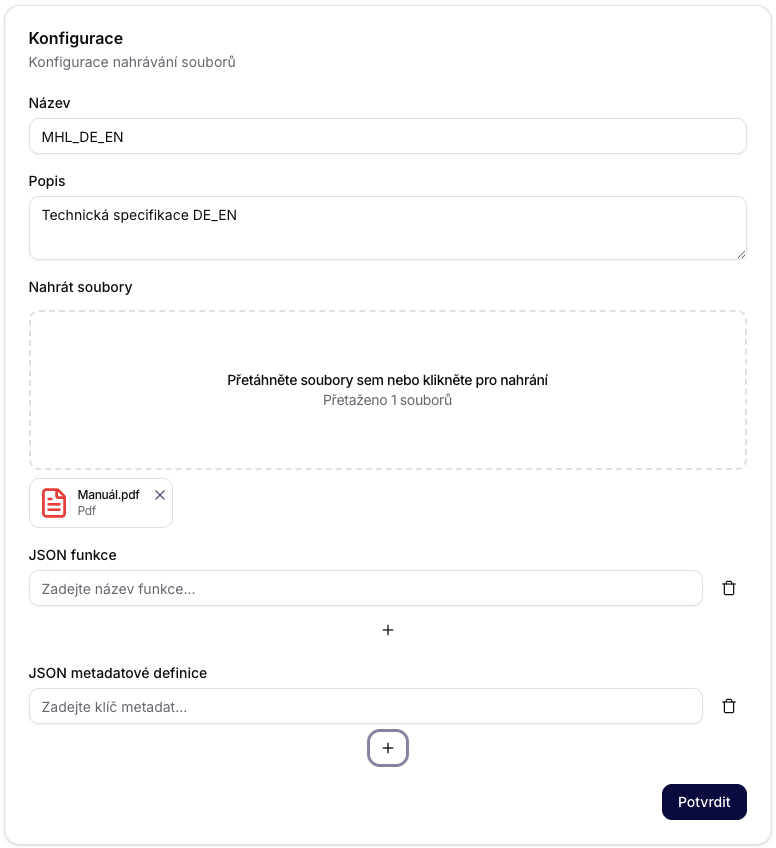
After clicking on Connect New Data, the file upload configuration will open, where you will fill in:
- Name – the name of the connection
- Description – a brief description of the content
- Upload Files – by dragging or clicking to select files
- JSON Functions – optionally mapping or transformations
- JSON Metadata Definitions – metadata keys for better structure
Confirming the Confirm button will save the data and start the processing.
Data Source Details
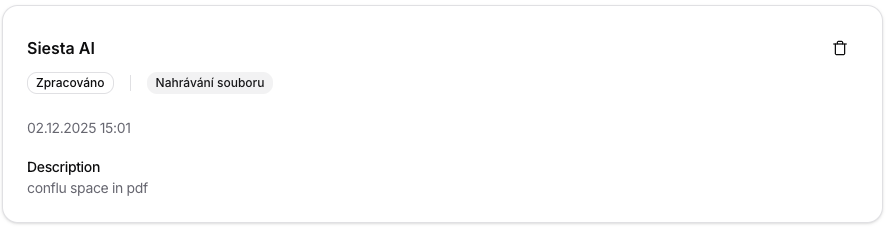
In the record detail, you will see the name, processing status, type, and description of the connection. The detail also serves for a quick check to see if the source is ready for use.
Deleting a Data Source
When deleting uploaded data, a confirmation dialog “Are you absolutely sure?” will appear – this action cannot be undone.

Connecting Data to the Assistant
When creating or configuring the assistant, you will select which data sources it should draw from. Details can be found in the section Assistant Configuration.
Features and Behavior
- Added data sources automatically appear in the main overview.
- Each record can be viewed or edited via actions in the table.
- In case of an upload error or invalid file format, the user is informed with an error message.