Templates
Templates in Siesta AI serve as reusable definitions of assistants. They allow you to save the configuration of an assistant (model, behavior, connected tools) and quickly create new instances from it.
Templates address three things:
- Standardization of work
- Sharing know-how (community vs. private)
- Rapid deployment of new assistants
Basic Concept
A template is not a running assistant. It is a blueprint and only defines how the assistant should be created.
From one template, you can create:
- 1 assistant
- 10 assistants
- 100 assistants
Saving an Assistant as a Template
Action: Save As Template
A template is created from an existing assistant configuration.
Procedure:
- The user clicks on Save As Template in the assistant settings.
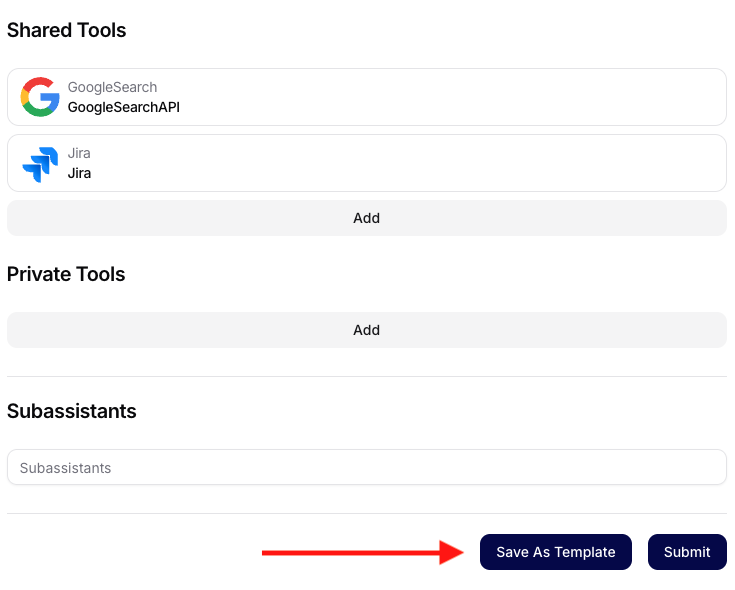
- A modal window opens where the user fills in:
- Name - template name
- Description - purpose description
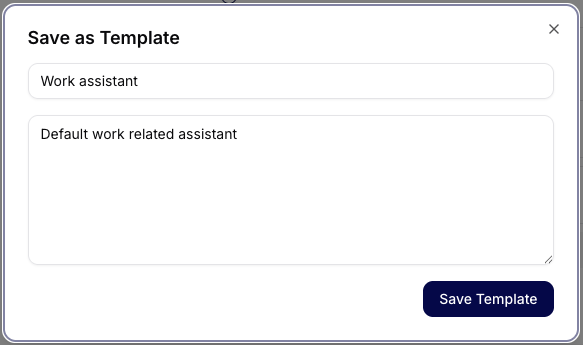
- Confirming will save the template.
What gets saved:
- Name and description
- Model (e.g., gpt-5)
- Behavior parameters (temperature, penalties, max length)
- Shared Tools (e.g., Jira, GoogleSearch, HubSpot)
- Private Tools (if any)
- Subassistants (if defined)
The template does not save runtime state or conversation history.
Shared Tools vs. Private Tools
Shared Tools
- Tools available at the workspace or organization level
- Automatically connected when creating an assistant after saving to the template
Private Tools
- Tools specific to the user or project
- The template remembers their reference, but the user must have permissions
- If permissions are missing, creating the assistant will fail
Creating an Assistant from a Template
Action: Create assistant
After selecting a template, a detailed overview of the configuration is displayed:
- Template ID
- Name and description
- Used model
- Behavior settings
- List of connected tools + status (Already connected)

Templates Page
Tabs
Community Templates
- Publicly available templates
- Created by the team or community
- Read-only (cannot be edited)
- Suitable as best practices or starting points
My Templates
- Templates created by the user
- Can be deleted, edited, and reused
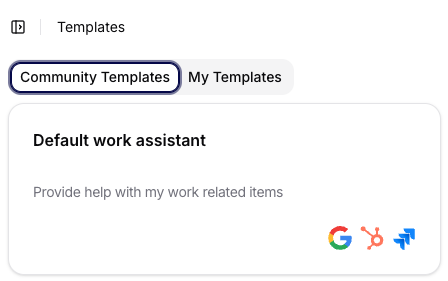
Visualization of Template Card
Each template is displayed as a card containing:
- Name
- Short description
- Icons of connected tools
The card allows for a quick visual check of what the template contains before use.
Typical Use Cases
- Work assistant: one template -> dozens of internal assistants with the same behavior
- Onboarding: new team member = quick creation of an assistant without manual configuration
- Best practice enforcement: template as the only allowed entry point
- Community sharing: verified configurations without sharing sensitive data
Summary
Templates in Siesta AI are a controlled way to scale assistants. They enable the sharing of know-how, maintaining standards, and speeding up work without compromising security.