Google Ads
Overview
The Google Ads Connector provides programmatic access to Google Ads accounts via the Google Ads API. It allows agents and applications to manage campaigns, obtain reports, set bidding strategies, targeting, ad creatives, assets, and conversions.
The connector is divided into functional groups of tools, enabling secure management of both read-only analytics and change operations.
Supported areas include:
- reporting and analytics via GAQL,
- account and MCC structure management,
- campaign, ad group, and keyword management,
- targeting, audiences, and negative keywords,
- ad creation and asset management,
- conversion management,
- batch operations for large numbers of changes.
How a user adds the Google Ads connector
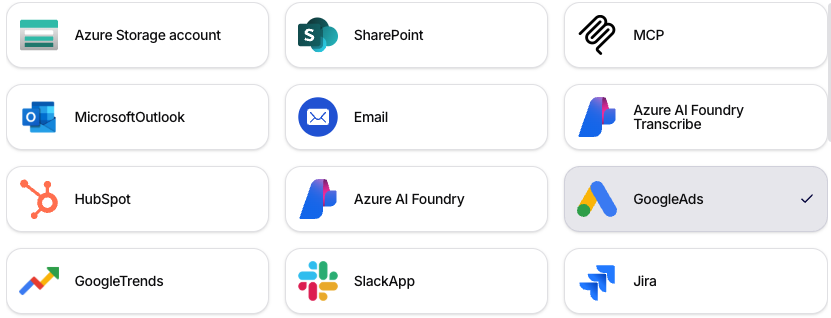
1. The user opens Add Connection and selects GoogleAds
- In the administration, go to the Connections / Connected Apps section.
- Click on Add Connection.
- Select the GoogleAds tile.
2. The user prepares the Customer ID
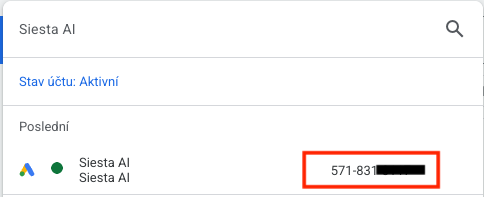
The Customer ID is the identifier of the Google Ads account that you will fill in the connector.
How to find it:
- Log in to Google Ads.
- In the account list or in the top bar, open the account you want to connect.
- Copy the Customer ID of the manager account (usually in the format
123-456-7890).
3. The user prepares the Developer Token
You can obtain the Developer Token in Google Ads, but first, you need to have a manager account (Manager Account, MCC).
First, create an MCC account: Create a manager account.
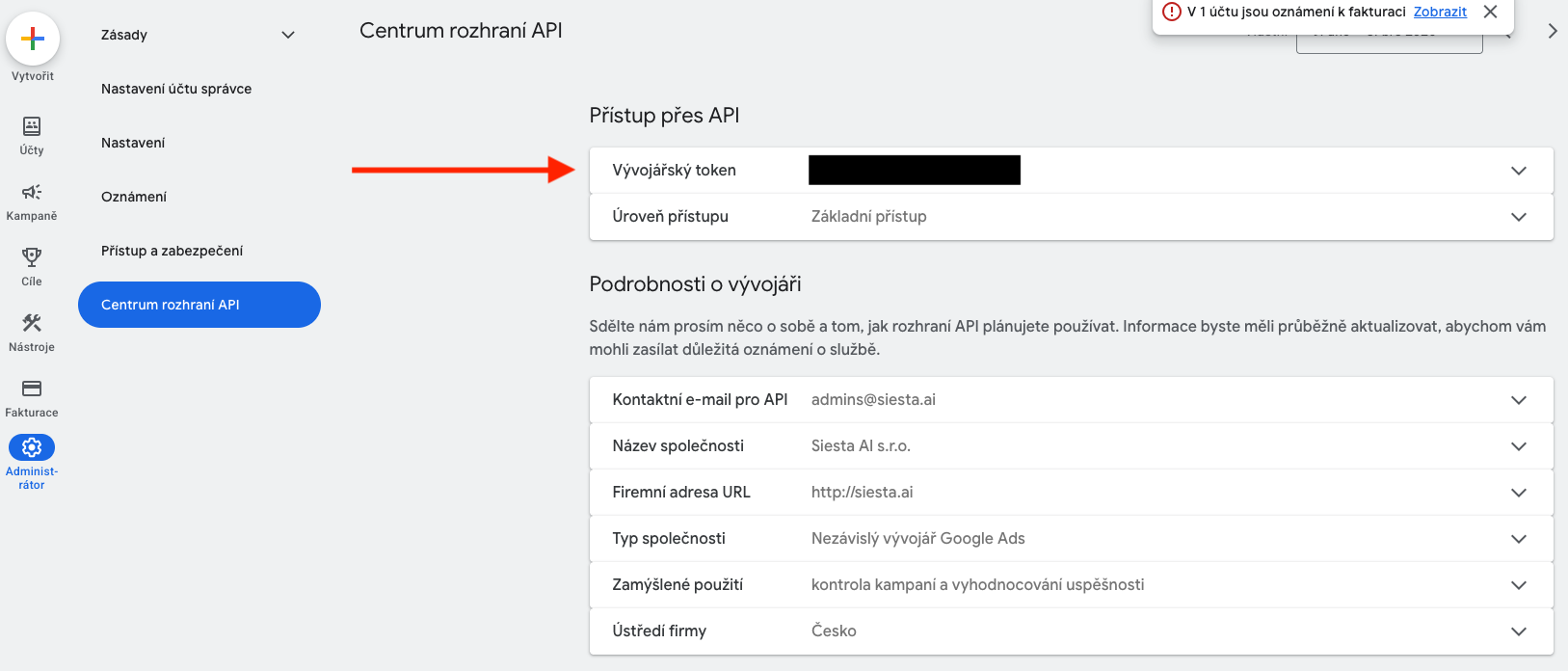
How to obtain the Developer Token:
- Log in to the Manager Account (MCC).
- Open the Admin section.
- Go to the API Center (in the CZ interface Centrum rozhraní API).
- Copy the Developer token value.
Video guide to the Developer Token:
Direct link to the video: YouTube.
4. The user fills in the connector details
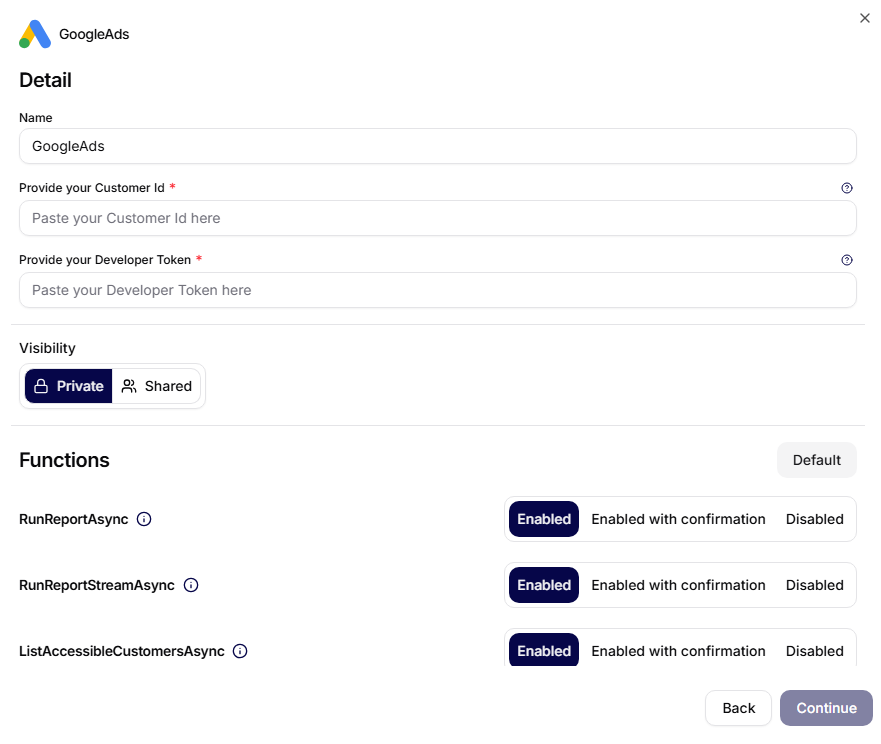
In the Detail form, fill in:
- Name: internal name of the connection (e.g.,
GoogleAds). - Provide your Customer Id: Customer ID of the account.
- Provide your Developer Token: Developer Token from the API Center.
5. The user saves the connector and sets function permissions
After creating the connection, set the call mode for each function:
- Enabled,
- Enabled with confirmation,
- Disabled.
Recommendation: keep changing operations (e.g., creating campaigns, changing bids, deleting) at least on Enabled with confirmation.
Functions
1. Reporting and Analytics
| Tool | Description |
|---|---|
RunReportAsync | Executes custom GAQL queries |
RunReportStreamAsync | Uses SearchStream for large reports |
GetCampaignPerformanceAsync | Returns campaign performance metrics for a given period |
ListPolicyDiagnosticsAsync | Returns diagnostics of advertising policies and ad approval status |
GAQL (Google Ads Query Language) is used for structured querying of Google Ads data. RunReportStreamAsync is suitable for larger volumes of data.
2. Account and Customer Management
| Tool | Description |
|---|---|
ListAccessibleCustomersAsync | Returns a list of all accounts accessible to the logged-in user |
ListManagedCustomersAsync | Returns a list of client accounts under MCC |
RunReportAcrossAccountsAsync | Executes a GAQL report across multiple accounts |
These tools are mainly used in the MCC environment, where an agency manages multiple accounts.
3. Campaign Management
| Tool | Description |
|---|---|
ListCampaignsAsync | Returns a list of campaigns excluding deleted ones |
CreateCampaignAsync | Creates a new campaign (default state PAUSED) |
CreatePerformanceMaxCampaignAsync | Creates a Performance Max campaign |
UpdateCampaignStatusAsync | Starts, pauses, or removes a campaign |
UpdateCampaignBudgetAsync | Updates the daily budget of the campaign |
New campaigns are in the PAUSED state to prevent unintended ad launches.
4. Bidding Strategy Management
| Tool | Description |
|---|---|
UpdateCampaignBiddingStrategyAsync | Changes the bidding strategy of the campaign |
Supported strategies:
MANUAL_CPC,Target CPA (tCPA),Target ROAS (tROAS),Maximize Conversions,Maximize Conversion Value.
5. Ad Group Management
| Tool | Description |
|---|---|
ListAdGroupsAsync | Returns a list of ad groups (can be filtered by campaign) |
CreateAdGroupAsync | Creates a new ad group in a campaign |
UpdateAdGroupStatusAsync | Starts, pauses, or removes an ad group |
UpdateAdGroupBidAsync | Updates the default CPC bid |
6. Keyword Management
| Tool | Description |
|---|---|
ListKeywordsAsync | Returns a list of keywords including match types and bids |
AddKeywordsAsync | Bulk adds keywords |
UpdateKeywordStatusAsync | Starts or pauses a keyword |
UpdateKeywordBidAsync | Updates the CPC bid |
RemoveKeywordAsync | Permanently removes a keyword |
Supported match types:
BROAD,PHRASE,EXACT.
7. Targeting and Negative Keywords
| Tool | Description |
|---|---|
AddCampaignNegativeKeywordsAsync | Adds negative keywords at the campaign level |
AddAdGroupNegativeKeywordsAsync | Adds negative keywords at the ad group level |
AddCampaignLocationTargetsAsync | Adds geographic targeting via location constant ID |
AddCampaignLanguageTargetsAsync | Adds language targeting |
AddCampaignDeviceTargetAsync | Adds or excludes device targeting |
AddCampaignAdScheduleTargetAsync | Sets the ad display schedule |
AddCampaignAudienceTargetsAsync | Adds audience or user list targeting |
UpdateCampaignCriterionStatusAsync | Updates the targeting status |
RemoveCampaignCriterionAsync | Removes targeting at the campaign level |
RemoveAdGroupCriterionAsync | Removes targeting at the ad group level |
8. Ad Management
| Tool | Description |
|---|---|
CreateResponsiveSearchAdAsync | Creates a Responsive Search Ad |
UpdateAdStatusAsync | Starts or pauses an ad |
Requirements for Responsive Search Ad:
- headlines:
3-15, - descriptions:
2-4.
9. Asset Group Management
| Tool | Description |
|---|---|
ListAssetGroupsAsync | Returns a list of asset groups |
CreateAssetGroupAsync | Creates a new asset group |
UpdateAssetGroupStatusAsync | Updates the status of the asset group |
This area is mainly used for Performance Max campaigns.
10. Ad Extensions (Assets)
| Tool | Description |
|---|---|
CreateSitelinkAssetAsync | Creates a sitelink extension |
CreateCalloutAssetAsync | Creates a callout extension |
CreateStructuredSnippetAssetAsync | Creates a structured snippet |
LinkAssetToCampaignAsync | Links an asset to a campaign |
UpdateCampaignAssetStatusAsync | Updates the status of the asset link |
11. Conversion Tracking
| Tool | Description |
|---|---|
CreateConversionActionAsync | Creates a conversion action (web or offline) |
UpdateConversionActionStatusAsync | Activates, hides, or removes a conversion action |
RemoveConversionActionAsync | Permanently removes a conversion action |
UploadOfflineClickConversionAsync | Uploads offline conversions using GCLID |
Offline conversions require:
GCLID,conversion action,- conversion time,
- conversion value (optional).
12. Batch Operations
| Tool | Description |
|---|---|
CreateBatchJobAsync | Creates a batch job |
AddKeywordOperationsToBatchJobAsync | Adds keyword operations to the queue |
RunBatchJobAsync | Executes the batch job |
ListBatchJobResultsAsync | Returns the results of the batch operation |
RemoveBatchJobAsync | Removes the batch job |
Typical use cases for batch operations:
- importing a large number of keywords,
- bulk bid adjustments,
- updating campaigns on a large scale.
Security and Best Practices
To reduce the risk of unintended costs or errors:
- create new campaigns in the
PAUSEDstate, - perform large changes via Batch Jobs,
- validate budgets, bidding strategies, and targeting before changes,
- keep deletion operations in Enabled with confirmation mode.
Typical Automation Scenarios
The Google Ads Connector can be used for:
- automatic generation of campaign performance reports,
- creation and ongoing optimization of campaigns,
- adjustments to bidding strategies based on performance data,
- detection of issues with advertising policies,
- expanding the list of keywords,
- uploading offline conversions,
- managing multiple accounts in the MCC environment.