 Jira
Jira
Overview
The Jira connection allows for a secure integration of the Siesta AI platform with Atlassian Jira via the official API. The integration provides controlled access to Jira projects and issues and enables:
- creating issues,
- searching and loading issues,
- updating existing issues,
- assigning issues to users,
- searching users before assignment,
- reviewing and updating fix versions on released work.
Designed for:
- incident and ops automation,
- engineering workflows orchestration,
- synchronization of external systems (CRM, monitoring, AI agents),
- auditable ticket-based processes.
Requirements
- An active Jira Cloud site.
- An Atlassian account that has access to the Jira projects the connection will work with.
- A generated API token in the Atlassian account (
id.atlassian.com→ Security → API tokens). - Administrator permissions to manage the connection in Siesta AI.
Supported Operations
| Operation area | What it covers |
|---|---|
| Ticket creation | Create a new issue in a selected project and issue type. |
| Ticket retrieval and search | Get one issue, list issues by project, list issues by user helper flows, and search with JQL. |
| Ticket updates | Update existing issues, including summary, description, and fix-version fields where available. |
| Assignee resolution | Search Atlassian users and load user details so the correct AccountId can be used for assignment. |
| Ticket assignment | Assign an issue to a resolved Atlassian account. |
| Project listing | List Jira projects available to the connected account. |
Configuration Parameters
Required Parameters
| Parameter | Description |
|---|---|
| Name | Internal designation of the connection |
| ApiKey | API token generated in the Atlassian account |
| Email or username of Atlassian account | Email (or username) of the account under which the token was created |
| URL | URL of the Jira/Atlassian instance (e.g., https://company.atlassian.net) |
Steps to Add the Jira Connection
1) Prepare Your Access Credentials
Before you start creating the connection in Siesta AI, prepare all the values you will enter into the form.
In your Atlassian account, open Security and the API Tokens section.
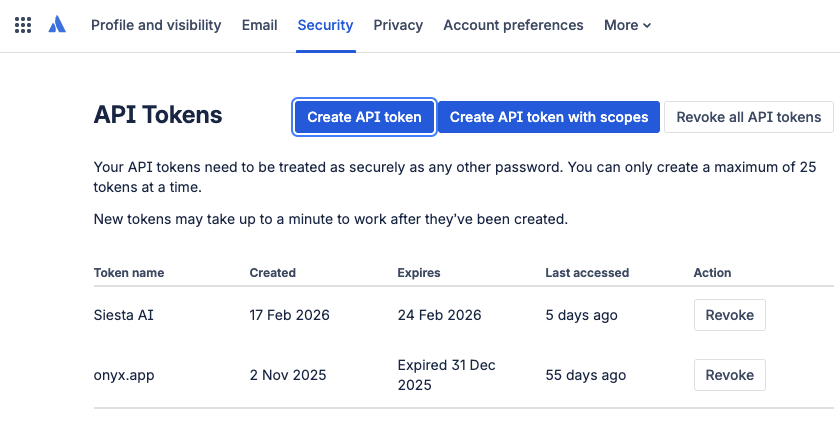
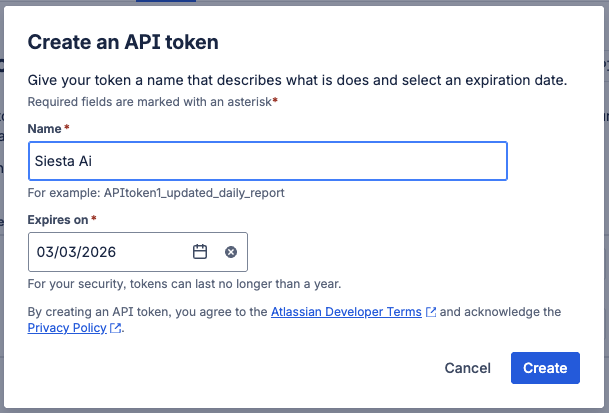
Click on Create API token (without scopes), enter the token name and expiration, and confirm the creation.
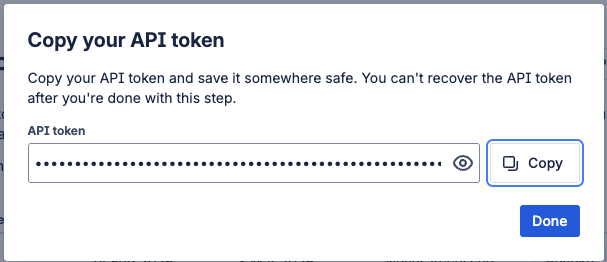
After creating the token, copy it once and store it securely.
Then prepare:
- Email or username of the Atlassian account under which the token was created
- URL of the Jira/Atlassian instance (e.g.,
https://company.atlassian.net)
2) Open Integration Management in Siesta AI
In the Siesta AI administration, go to Administration → Connected Apps.
3) Select Jira
In the Add Connection dialog, select Jira and proceed.
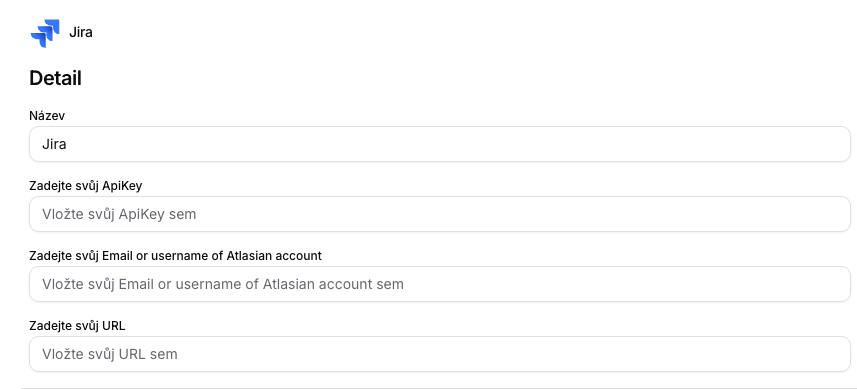
4) Fill Out the Jira Form
Fill in:
- Name
- ApiKey (token from Atlassian)
- Email / username of the Atlassian account under which the token was created
- URL (e.g.,
https://company.atlassian.net)
Confirm the creation of the integration.
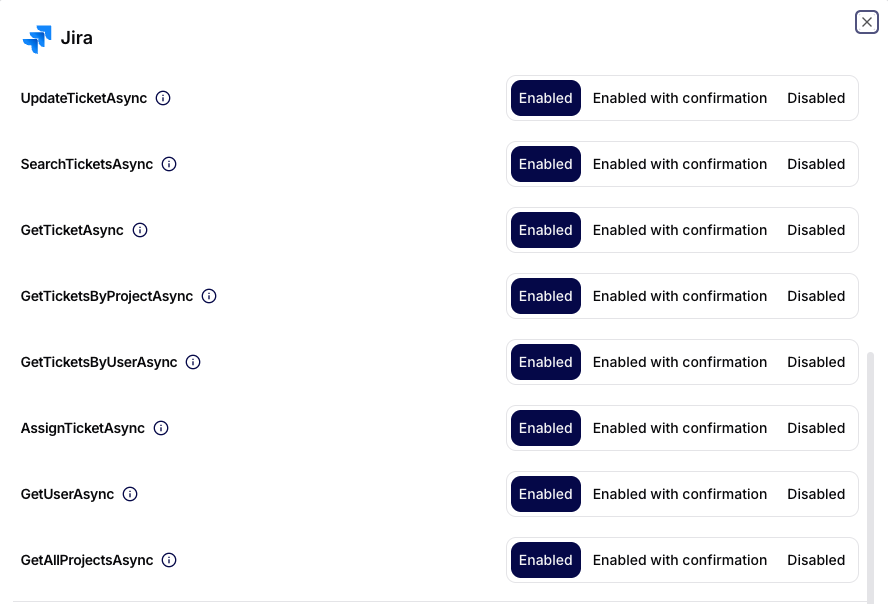
5) Set Operation Permissions
After creating the integration, open Permission Settings and set the allowed operations.
Recommendation: set write operations to Allowed with confirmation.
Important Note on API Token and Permissions
The API token is tied to a specific Atlassian account. The connection then inherits the permissions of this account in Jira (what the account cannot see or modify, the connection cannot either).
For this reason, it is recommended:
- that each user has their own token if the connection runs under their identity,
- or to use a dedicated service account for shared/production automation,
- to monitor the token's expiration and perform regular rotation.
Authentication and Security
- The connection uses the official Jira REST API.
- Authentication of the connection occurs via the Atlassian account and API token (entered in the
ApiKeyfield). - Permissions are managed directly at the Jira instance level.
- For working with assignees, the Jira API uses
AccountId(not email), so user-search or user-detail lookups should be used before assignment when the correct account ID is not already known.
If a user does not have the right to see an issue, the connection will not see it either.
Basic Terms
- IssueKey: Ticket ID (e.g.,
PROJ-123). - ProjectKey: Key of the Jira project (e.g.,
PROJ). - AccountId: Unique identifier of a user in the Atlassian ecosystem.
- JQL: Jira Query Language.
1. Ticket Creation
1.1 CreateTicketAsync
Description
Creates a new Jira issue in the specified project.
Input Parameters
| Parameter | Type | Required | Description |
|---|---|---|---|
| projectKey | String | Yes | Key of the Jira project. |
| issueType | String | Yes | Type of issue (Task, Bug, Story, ...). |
| summary | String | Yes | Short title of the issue. |
| description | String | No | Detailed description. |
| assigneeId | String | No | Atlassian Account ID of the user. |
Behavior
- IssueType must exist in the project.
- No fallback or type mapping is performed.
- Incorrect combination = fail.
2. Ticket Assignment
2.1 AssignTicketAsync
Description
Assigns an existing issue to a specific user.
Input Parameters
| Parameter | Type | Required |
|---|---|---|
| issueKey | String | Yes |
| assigneeAccountId | String | Yes |
Note Jira ignores emails. Account ID is the only reliable identifier.
3. Ticket Retrieval
3.1 GetTicketAsync
Description
Returns the details of an issue by issueKey.
Input Parameters
| Parameter | Type | Required |
|---|---|---|
| issueKey | String | Yes |
3.2 GetTicketsByProjectAsync
Description
Returns issues belonging to a specific project.
Input Parameters
| Parameter | Type | Required |
|---|---|---|
| projectKey | String | Yes |
| maxResults | Int | No |
3.3 GetTicketsByUserAsync
Description
Returns issues assigned to a specific user helper input.
Input Parameters
| Parameter | Type | Required |
|---|---|---|
| assigneeEmail | String | Yes |
| maxResults | Int | No |
Usage note
- Prefer
SearchUsersAsyncandGetUserAsyncwhen the workflow needs a reliable Atlassian identity for assignment or cross-checking. - Treat email-based helper flows as a convenience for search/listing, not as the source of truth for assignment.
4. Ticket Update
4.1 UpdateTicketAsync
Description
Updates the summary, description, labels, priority, and fix versions of an existing issue.
Input Parameters
| Parameter | Type | Required |
|---|---|---|
| issueKey | String | Yes |
| summary | String | No |
| description | String | No |
| fixVersions | String | No |
Behavior
- Only provided fields are updated.
- No validation of workflow status is performed.
5. Search and Query
5.1 SearchTicketsAsync
Description
Searches for issues using a JQL query.
Input Parameters
| Parameter | Type | Required |
|---|---|---|
| jql | String | Yes |
| maxResults | Int | No |
Example JQL
project = PROJ AND status = "To Do"
Incorrect JQL returns an immediate error.
6. Project and User Operations
6.1 GetAllProjectsAsync
Description
Returns a list of projects available to the current user.
Input Parameters
| Parameter | Type | Required |
|---|---|---|
| maxResults | Int | No |
6.2 GetUserAsync
Description
Returns information about a user by Account ID.
Input Parameters
| Parameter | Type | Required |
|---|---|---|
| accountId | String | Yes |
6.3 SearchUsersAsync
Description
Searches Atlassian users so the correct assignee can be selected before ticket creation or reassignment.
When to use it
- when the agent only knows part of a person name or email,
- when you need the correct Atlassian
AccountId, - before calling create or assign operations that require account-based identity.
Design Principles
- Account ID > email (GDPR and Atlassian reality).
- Explicit inputs without assumptions.
- Fail-fast behavior on erroneous requests.
- Respect for Jira workflow rules.
Summary
The Jira Connection provides direct, secure, and auditable access to Jira issues and projects. It is suitable for automated ticketing, incident agents, engineering productivity tooling, and enterprise workflows integration.
Technical Notes
- Implementation: The connection exposes Jira issue and project operations.
- Authentication/scopes: uses Atlassian site URL, username, and API token/basic auth. Jira project permissions determine issue visibility, assignment, creation, and editing rights.
- Functions: create issues, update issues, search with JQL, get issue details and changelog, list project/user issues, search users, assign issues, get user details, and list projects.
- Write behavior: issue creation, edits, fix-version changes, and assignment can trigger workflows or release notifications. Confirm project, issue type, assignee, and version fields before execution.