Azure AI Foundry
Azure AI Foundry is a platform in Azure for the development, deployment, and management of AI applications, agents, and models. Within Siesta AI, it serves as an enterprise backend for inference and agents with support for RBAC, regional restrictions, and audits.
Overview
Siesta AI from Azure AI Foundry:
- calls deployed models (chat, reasoning, transcribe),
- uses an OpenAI-compatible endpoint for inference,
- respects Azure RBAC and customer security policies.
Key Terms
- Foundry resource – Azure resource of type Azure AI Foundry in a subscription and resource group.
- Foundry project – a logical project within a Foundry resource (separating teams, applications, and environments).
- Project endpoint – API endpoint for project capabilities (agents, evaluations, inference via Foundry API).
- Model deployment – a specific deployment of a model (e.g.,
gpt-5.2,gpt-5.2-chat). - API key – a key for authenticating calls to the Foundry API.
Requirements
- An active Azure subscription.
- At least Contributor permissions on the target resource group.
- Registered resource provider Microsoft.Foundry.
- Access to ai.azure.com (Microsoft Entra ID).
Creating Azure AI Foundry
1) Foundry resource
- Sign in to Azure Portal.
- Create a new resource Azure AI Foundry.
- Choose Subscription, Resource Group, Region (e.g.,
westeurope), and resource name (e.g.,aif-sai-pro).
The Foundry resource serves as a container for all projects.
2) Foundry project
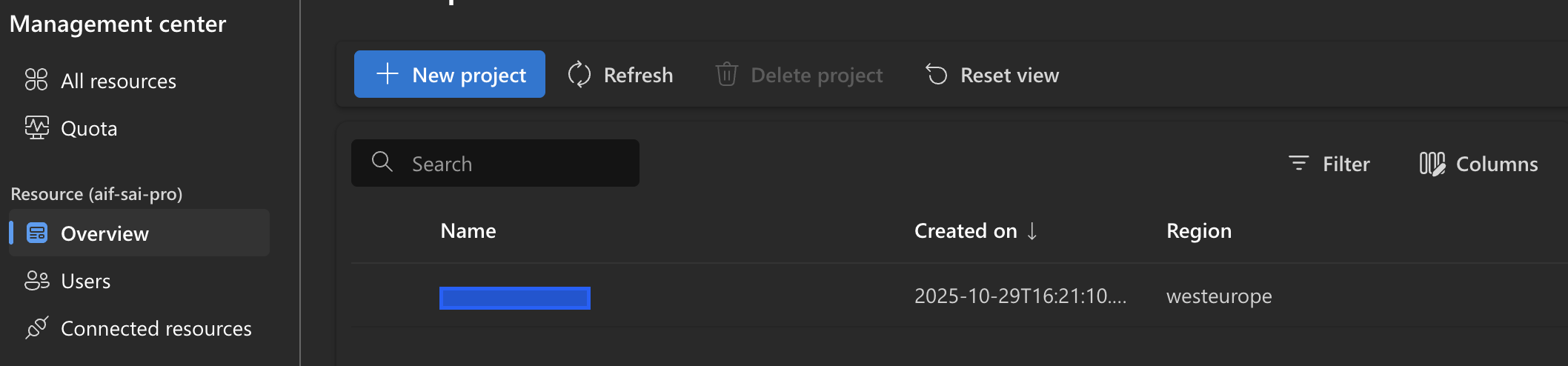
- Open ai.azure.com.
- On the left, select Management Center → Projects.
- Click on New project.
- Select an existing Foundry resource and enter the project name.
Model Deployments
Model deployments
In the project, go to Model catalog → Model deployments and deploy available models.
Examples of deployments:
gpt-5.2gpt-5.2-chatgpt-4o-mini-transcribeclaude-opus-4-5
Each deployment has a deployment name, model version, status, and retirement date.
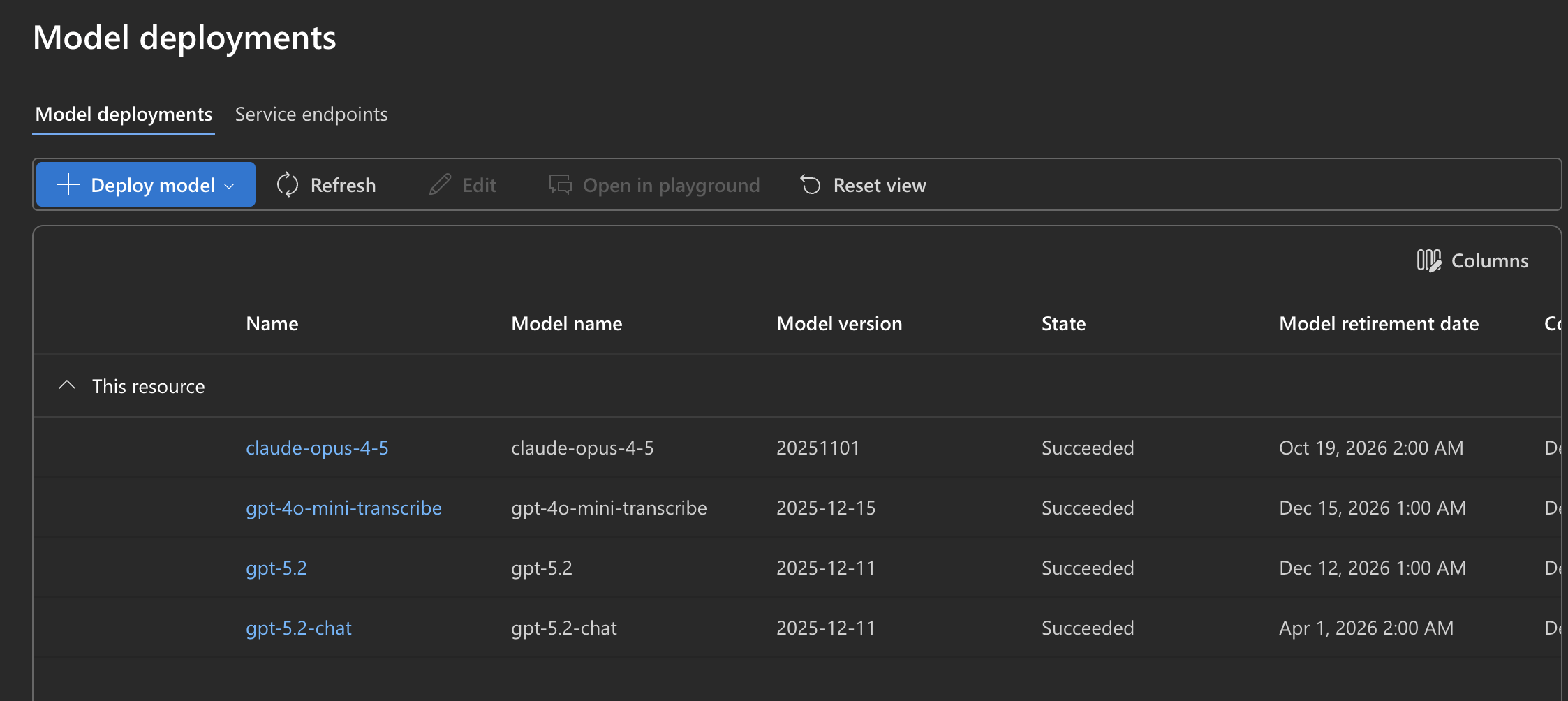
⚠️ Siesta AI works with the deployment name, not the model name.
Endpoints and API Keys
Project endpoint (Foundry API)
The project endpoint is used for project capabilities (agents, evaluations, and Foundry inference API). You can find it in the project details.
Endpoint format:
https://<foundry-resource-name>.services.ai.azure.com/api/projects/<project-id-or-name>
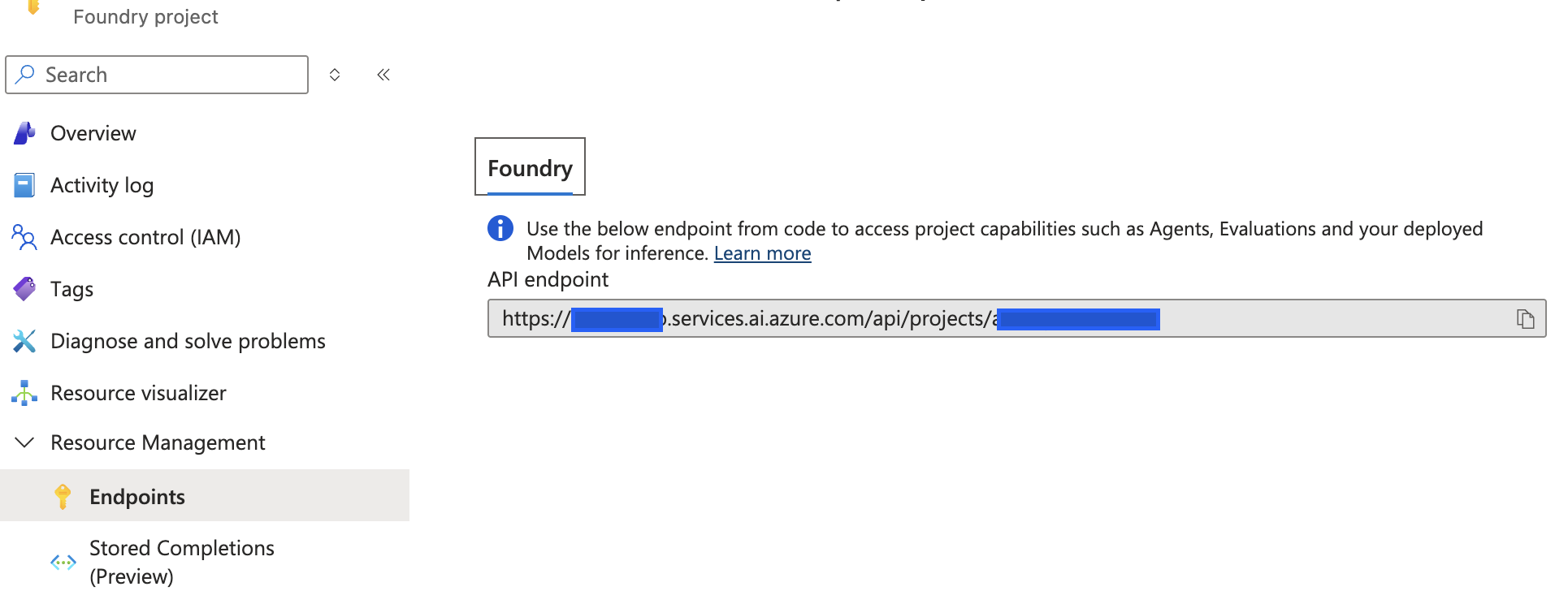
Endpoints and keys in the project
In ai.azure.com, open the project and the Endpoints and keys section:
- Microsoft Foundry project endpoint
- API Key for the project
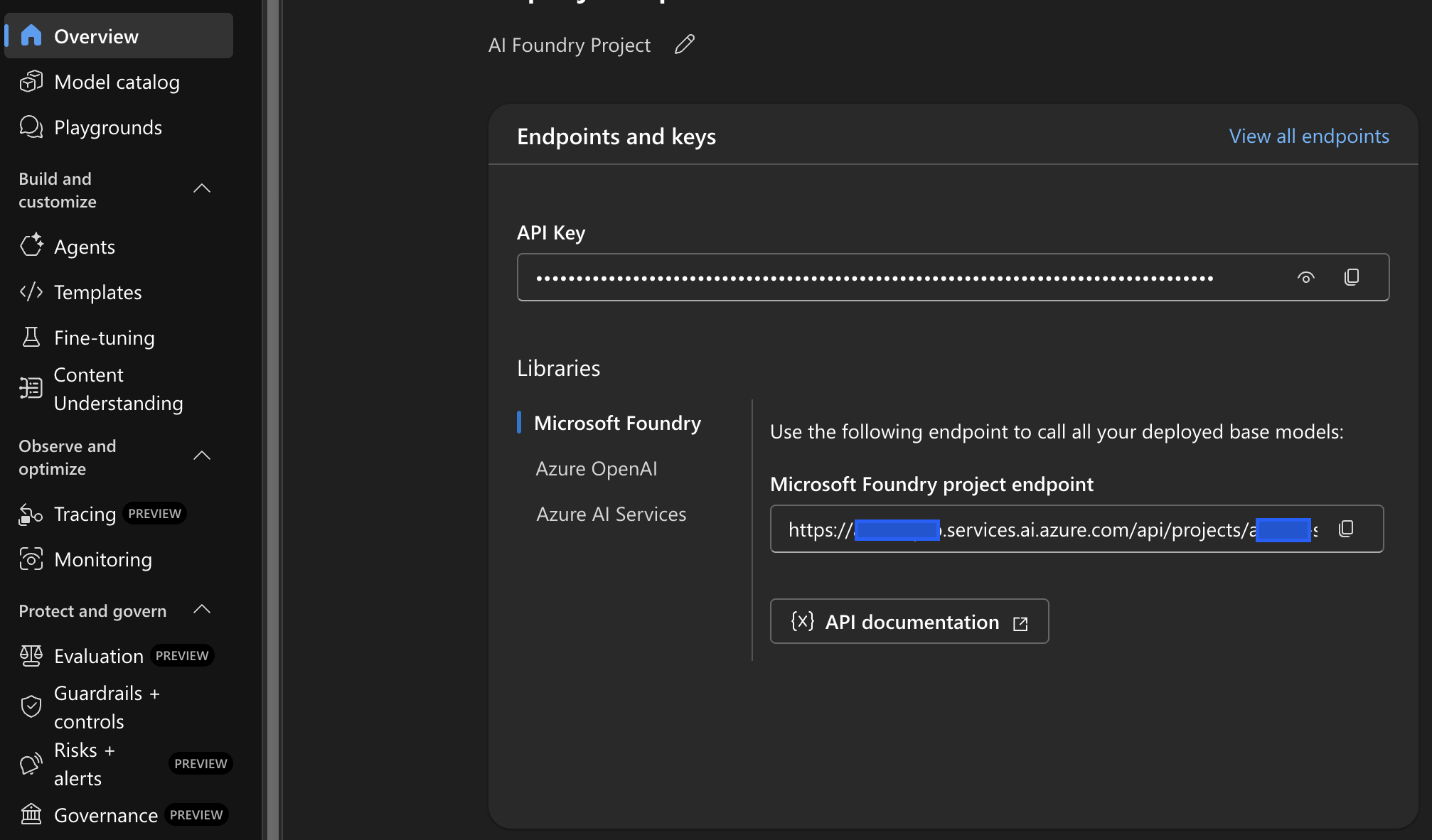
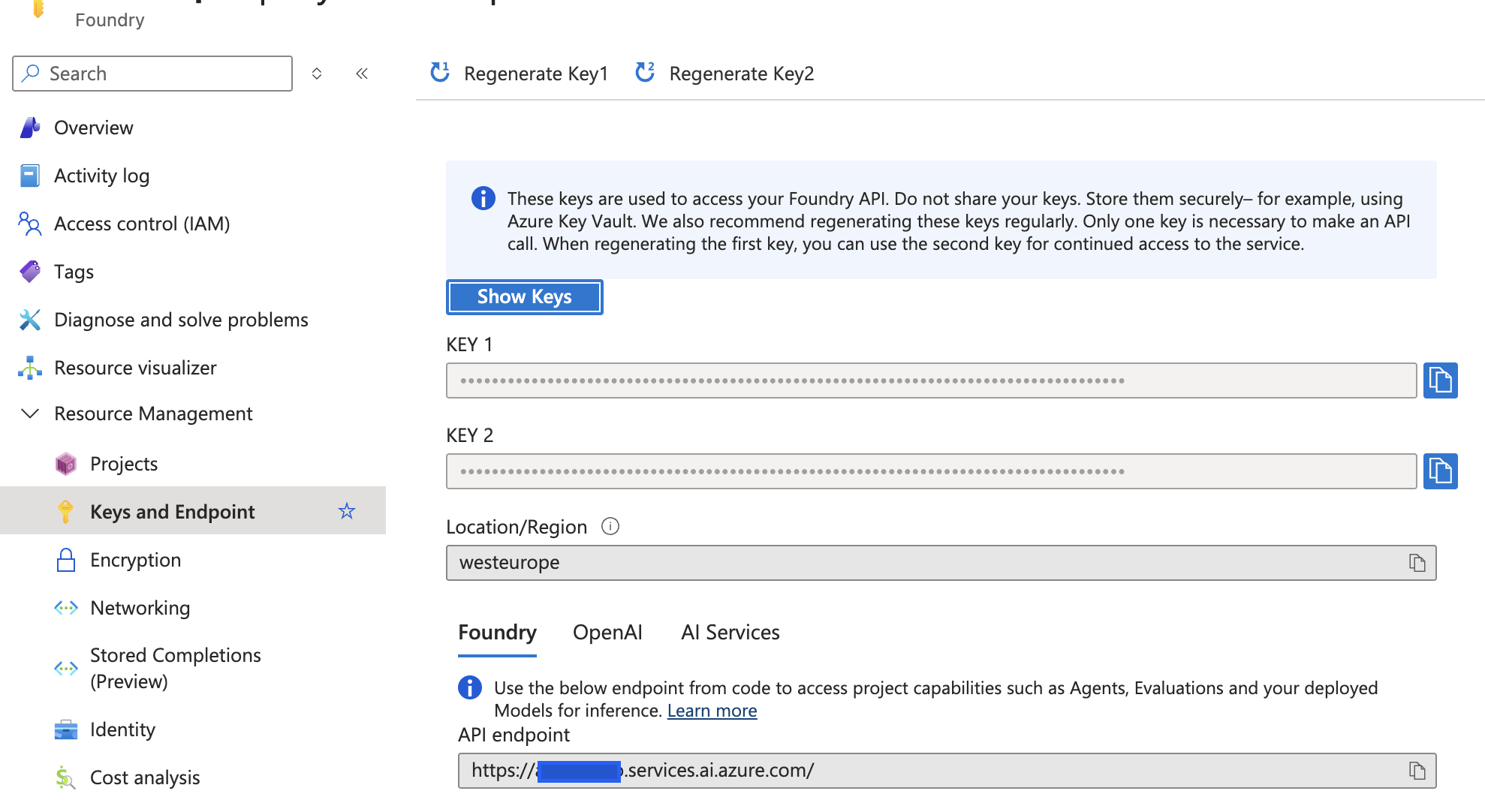
Keys and Endpoint (Azure Portal)
In Azure Portal on the Foundry resource:
- Keys and Endpoint → Foundry
- Key 1 / Key 2 for rotation
- Basic endpoint resource
Connecting Azure AI Foundry to Siesta AI
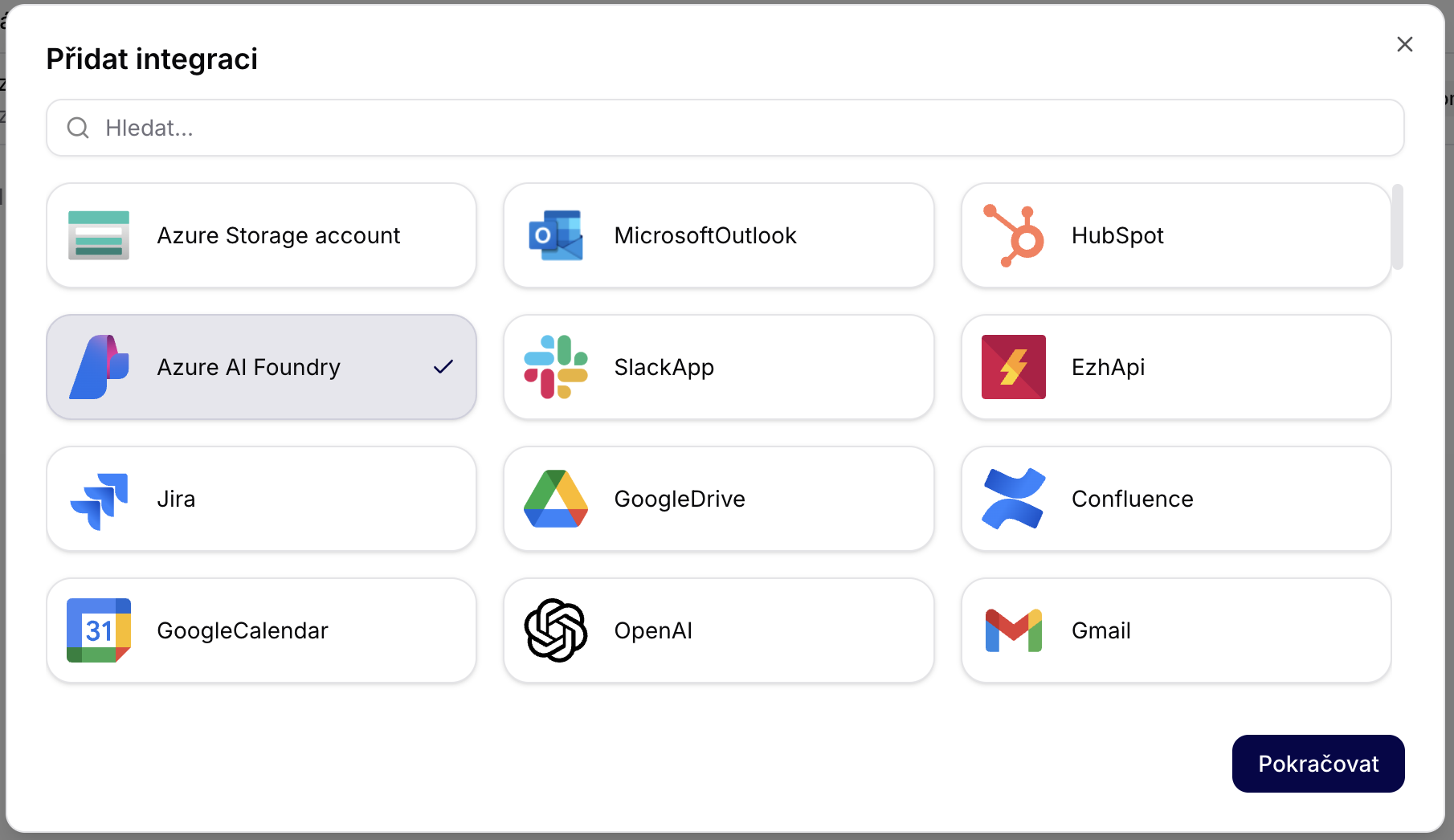
1) Adding integration
- Sign in to Siesta AI Admin.
- Open Integrations.
- Click on Add integration.
- Select Azure AI Foundry.
2) Filling in integration details
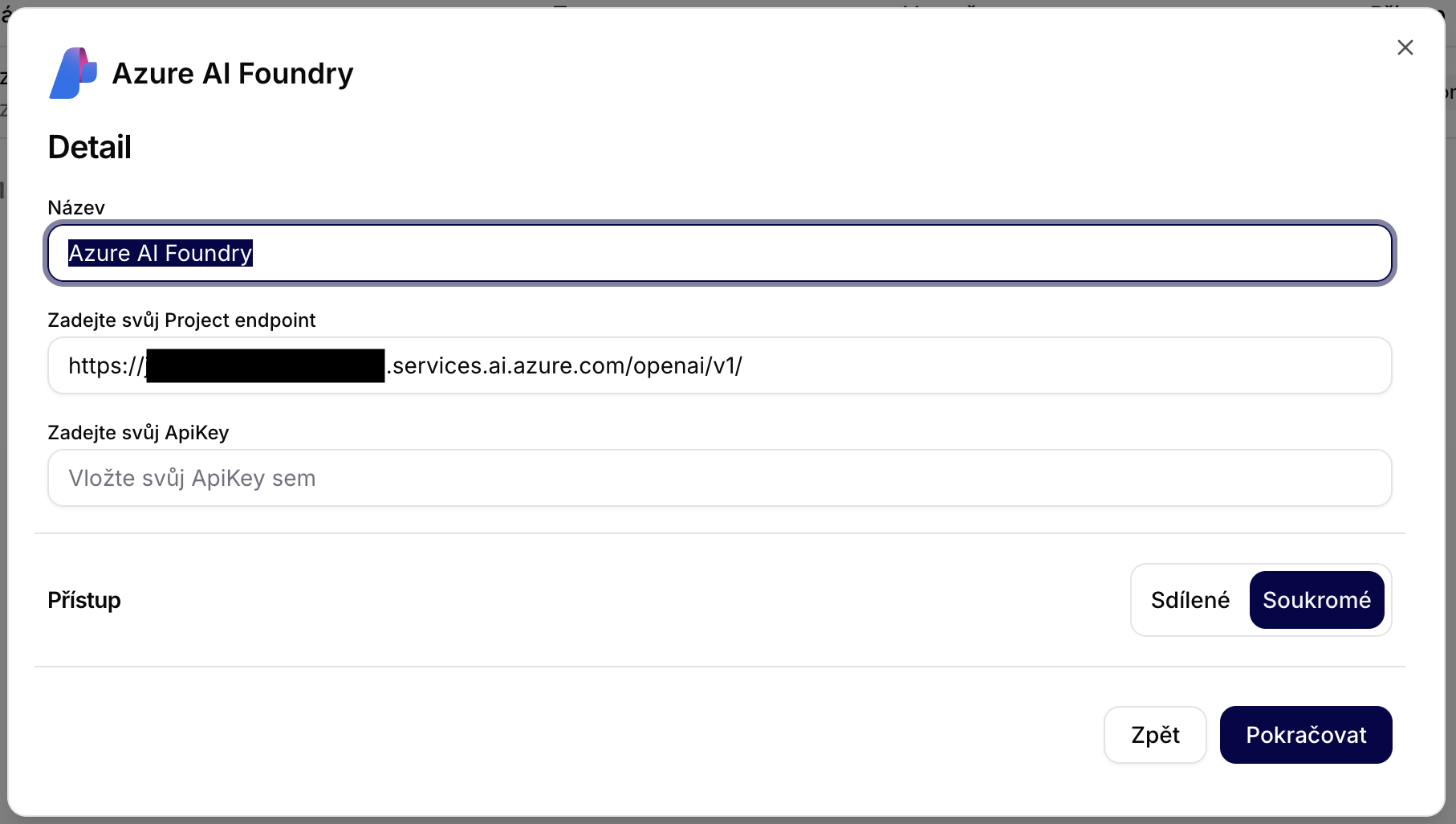
Fill in:
- Name: e.g.,
Azure AI Foundry – PROD - Project endpoint (OpenAI-compatible):
https://<foundry-resource-name>.services.ai.azure.com/openai/v1/ - ApiKey: use the API key of the project (from ai.azure.com) or the key from Azure Portal.
- Access: Private (recommended)
3) Verifying integration
After saving the integration:
- Siesta AI will perform a validation test.
- The endpoint and key will be stored encrypted.
- The integration is available for agents, workflows, and data collections.
Using Models in Siesta AI
- Open Agent / Template / Workflow.
- Select Model provider: Azure AI Foundry.
- Choose deployment name (e.g.,
gpt-5.2-chat). - Save the configuration.
Security & Governance
- Authentication via API key.
- RBAC managed at the Azure level.
- Option for Private Endpoint + VNET.
- Audit logs in Azure Activity Log.
- Monitoring via Foundry + Azure Monitor.
Recommended Architecture
- One Foundry resource per environment (DEV / STAGE / PROD).
- Multiple projects for teams or customers.
- Separate model deployments.
- Key rotation via Key Vault.
Increasing Quota
If you need to increase the Azure AI Foundry quota, use this document:
Useful Links
- Azure AI Foundry portal: https://ai.azure.com
- Documentation: https://learn.microsoft.com/azure/ai-studio/
- Model catalog: https://ai.azure.com/model-catalog
- Azure RBAC: https://learn.microsoft.com/azure/role-based-access-control/
Summary
Azure AI Foundry functions as an enterprise AI backbone, while Siesta AI builds agents, workflows, data collections, and integrations with SaaS systems on top of it. The integration is auditable and fully under the customer's control in Azure.