Jira Connector
Connecting Jira with Siesta AI
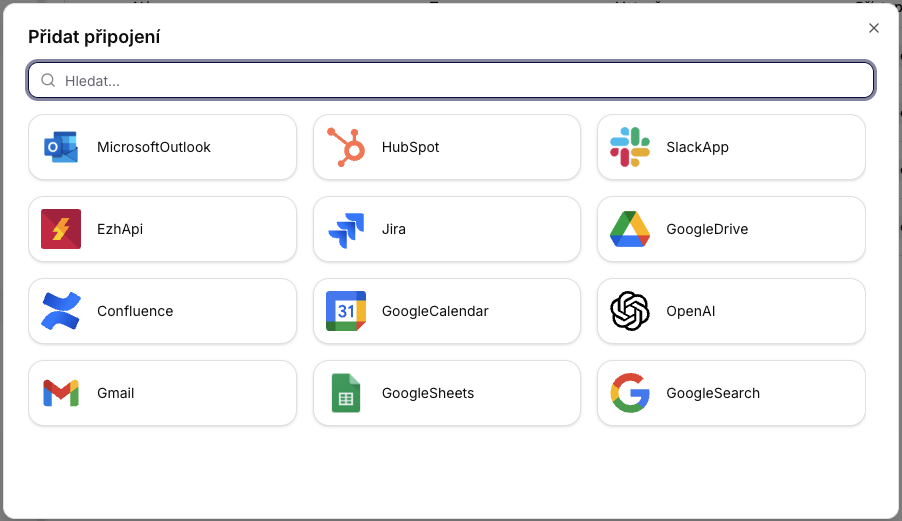
- In Connectors, select Add Connection and choose Jira.
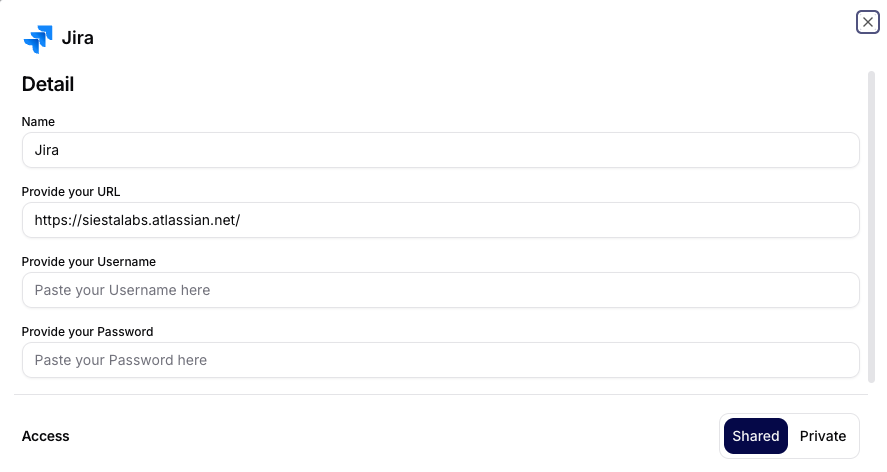
- Fill in URL, Username, and Password (API token) and set Shared or Private.
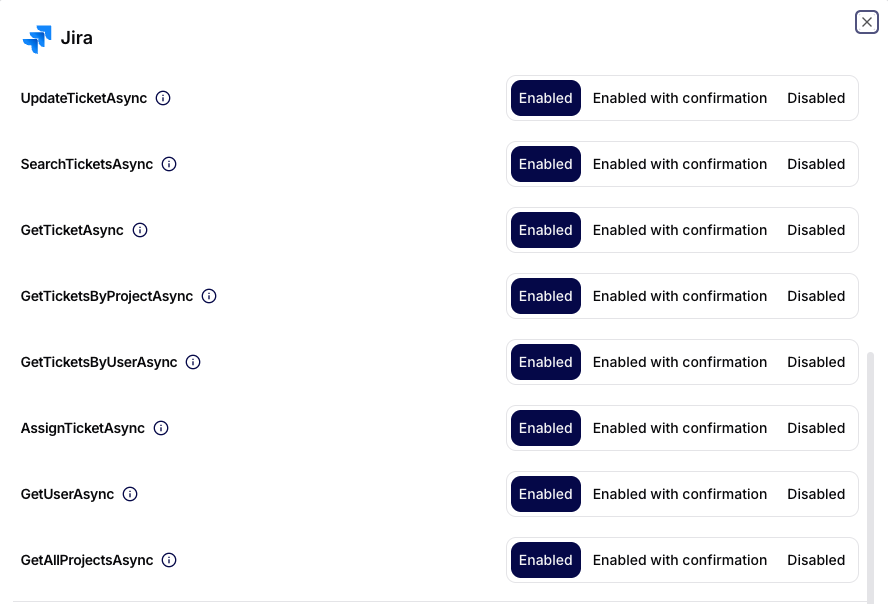
- Optionally adjust which operations are allowed.
Overview
This connector provides an API for working with Jira (Atlassian). It allows for creating, reading, searching, updating, and assigning Jira issues (tickets) across projects.
Designed for:
- Incident and ops automation
- Engineering workflow orchestration
- Synchronization with external systems (CRM, monitoring, AI agents)
- Auditable ticket-based processes
Authentication and Security
- The connector uses the official Jira REST API.
- Authentication is done via an Atlassian account (OAuth / API token).
- The user is identified by the Atlassian Account ID, not by email.
- Permissions are managed directly at the Jira instance level.
If a user does not have the right to see an issue, the connector will not see it either.
Basic Terms
- IssueKey: ID of the ticket (e.g.,
PROJ-123). - ProjectKey: key of the Jira project (e.g.,
PROJ). - AccountId: unique identifier of the user in the Atlassian ecosystem.
- JQL: Jira Query Language.
1. Ticket Creation
1.1 CreateTicketAsync
Description
Creates a new Jira issue in the specified project.
Input Parameters
| Parameter | Type | Required | Description |
|---|---|---|---|
| projectKey | String | Yes | Key of the Jira project. |
| issueType | String | Yes | Type of issue (Task, Bug, Story, ...). |
| summary | String | Yes | Short title of the issue. |
| description | String | No | Detailed description. |
| assigneeId | String | No | Atlassian Account ID of the user. |
Behavior
- IssueType must exist in the project.
- No fallback or type mapping is performed.
- Incorrect combination = fail.
2. Ticket Assignment
2.1 AssignTicketAsync
Description
Assigns an existing issue to a specific user.
Input Parameters
| Parameter | Type | Required |
|---|---|---|
| issueKey | String | Yes |
| assigneeAccountId | String | Yes |
Note Jira ignores emails. Account ID is the only reliable identifier.
3. Ticket Retrieval
3.1 GetTicketAsync
Description
Returns the details of an issue by issueKey.
Input Parameters
| Parameter | Type | Required |
|---|---|---|
| issueKey | String | Yes |
3.2 GetTicketsByProjectAsync
Description
Returns issues belonging to a specific project.
Input Parameters
| Parameter | Type | Required |
|---|---|---|
| projectKey | String | Yes |
| maxResults | Int | No |
3.3 GetTicketsByUserAsync
Description
Returns issues assigned to a specific user.
Input Parameters
| Parameter | Type | Required |
|---|---|---|
| assigneeEmail | String | Yes |
| maxResults | Int | No |
4. Ticket Update
4.1 UpdateTicketAsync
Description
Updates the summary and/or description of an existing issue.
Input Parameters
| Parameter | Type | Required |
|---|---|---|
| issueKey | String | Yes |
| summary | String | No |
| description | String | No |
Behavior
- Only provided fields are updated.
- No validation of workflow status is performed.
5. Search and Query
5.1 SearchTicketsAsync
Description
Searches for issues using a JQL query.
Input Parameters
| Parameter | Type | Required |
|---|---|---|
| jql | String | Yes |
| maxResults | Int | No |
Example JQL
project = PROJ AND status = "To Do"
Incorrect JQL returns an immediate error.
6. Project and User Operations
6.1 GetAllProjectsAsync
Description
Returns a list of projects available to the current user.
Input Parameters
| Parameter | Type | Required |
|---|---|---|
| maxResults | Int | No |
6.2 GetUserAsync
Description
Returns information about a user by Account ID.
Input Parameters
| Parameter | Type | Required |
|---|---|---|
| accountId | String | Yes |
Design Principles
- Account ID > email (GDPR and Atlassian reality).
- Explicit inputs without assumptions.
- Fail-fast behavior on erroneous requests.
- Respect for Jira workflow rules.
Summary
The Jira connector provides direct, secure, and auditable access to Jira issues and projects. It is suitable for automated ticketing, incident agents, engineering productivity tooling, and enterprise workflow integration.