Google Search Connector
Siesta AI - Google Search Connector allows you to programmatically perform web searches via the Google Custom Search JSON API. The connector is read-only and returns structured JSON with the results.
1. Setting up Google Search API (practical steps)
- Project in Google Cloud: use an existing project or create a new one.
- Enable Custom Search API: in the API Library, search for "Custom Search API" and click Enable.

- Create Programmable Search Engine: go to https://programmablesearchengine.google.com/, open the list of search engines, and click Add.
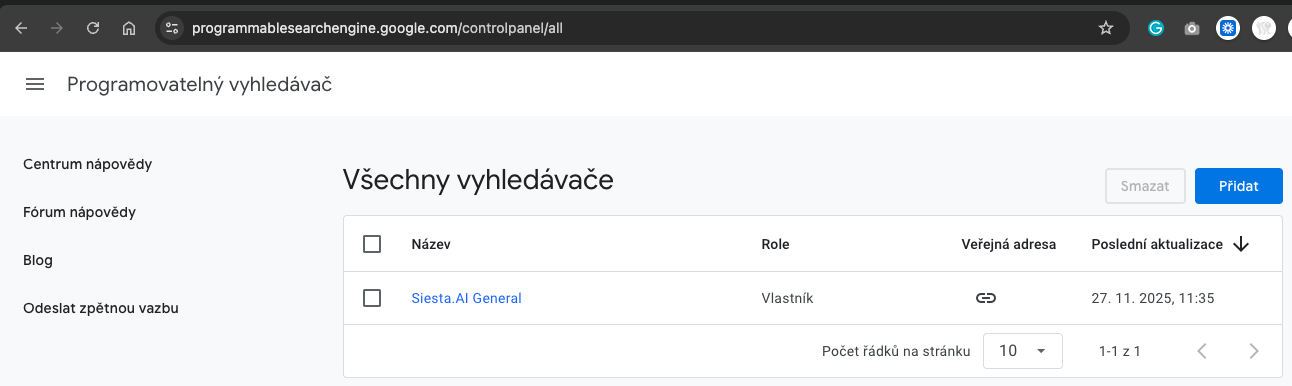
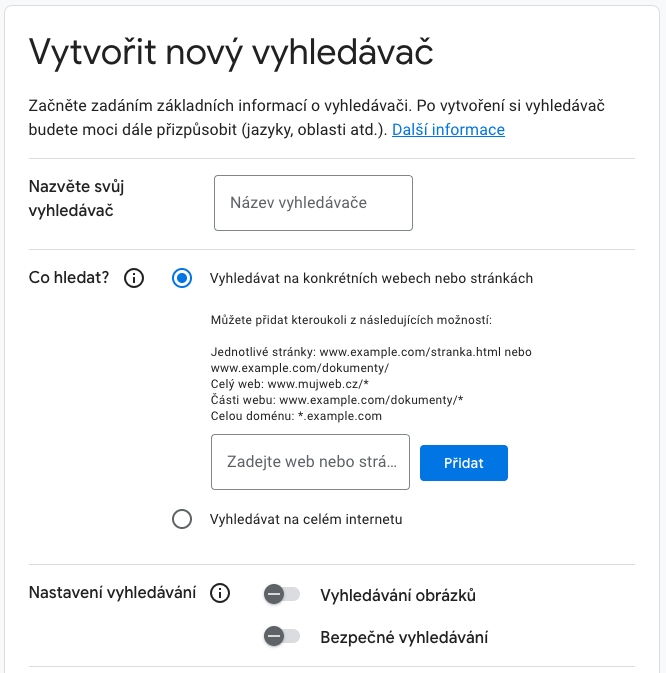
- Get Search Engine ID (
cx): in the search engine details, open the Basic section and copy the Search Engine ID.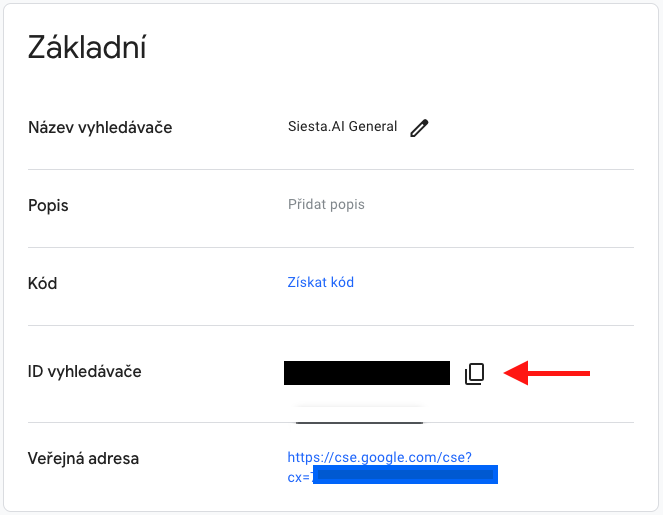
- Generate API Key: in Google Cloud Console -> APIs & Services -> Credentials -> Create credentials -> API key.

- Key restrictions (recommended):
- Application restrictions: as needed (None/Websites/IP).
- API restrictions: Restrict key -> Custom Search API.
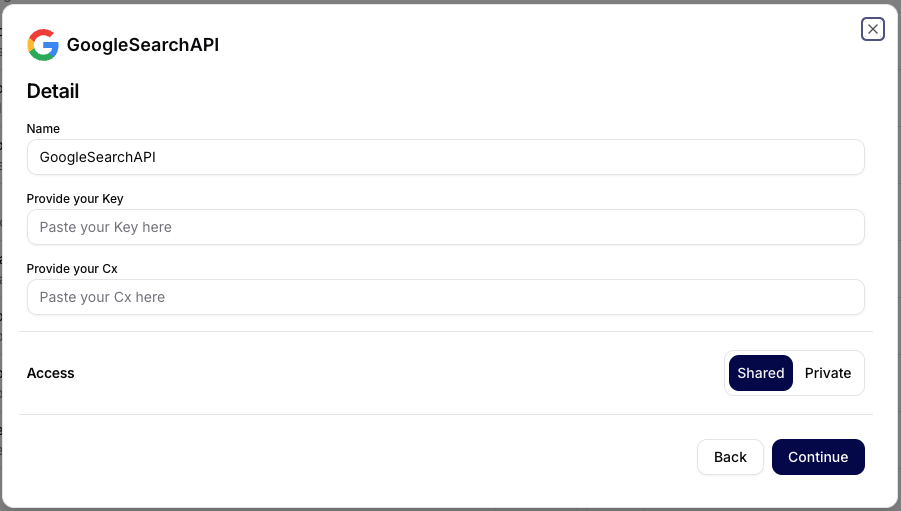
- Settings in Siesta AI:
- Connectors -> Add Connection -> GoogleSearch.
- Fill in
Key(API Key) andCx(Search Engine ID) and choose Shared/Private. - Save via Continue.
2. Purpose of the document
The goal is to enable programmatic access to web search results via the Google Custom Search JSON API.
3. Overview of the connector
- Connector Name: GoogleSearch
- Type: REST API - Google Custom Search JSON API
- Authentication: API Key (Google Cloud) + Search Engine ID (
cx) (OAuth is not required) - Scope: read/search only
- Output: JSON object with search results
- Note: There are no write operations; all calls are idempotent.
The Google Custom Search JSON API allows you to programmatically retrieve search results from Google via the Programmable Search Engine, which must be created and configured before use.
4. General principles
4.1 Configuration
- Search Engine ID (
cx): identifier for your custom search instance. - API Key: required parameter for authorized calls to Google API.
- Output: JSON contains search metadata and result set (title, snippet, URL, pagemap, etc.).
4.2 Query syntax
- The
queryparameter (aliasq) specifies the search term. - Advanced operators such as
site:,intitle:, etc. can be used (standard Google query syntax).
5. API operations
5.1 Search
Description: Performs a web search via the Google Custom Search JSON API.
HTTP: GET https://www.googleapis.com/customsearch/v1?key={API_KEY}&cx={SEARCH_ENGINE_ID}&q={query}
| Parameter | Type | Required | Description |
|---|---|---|---|
| query | String | Yes | Search term (e.g., "AI best practices"). |
Output
- List of results (title, URL, snippet)
- Metadata about the number of results
- Any additional blocks (
pagemap)
Behavior and limits
- Standard response ~10 results per page; additional pages via
start(beyond the scope of the connector).
Typical errors
- 400 Bad Request - invalid query
- 401 Unauthorized - invalid API Key
- 403 Quota Exceeded - daily quota exceeded
6. Security and governance
- Keep the API Key secure; prefer restrictions (domains/IP, limit to Custom Search API).
- Monitor quotas and log for billing control.
- Log at minimum:
querystring, call time, number of results, HTTP status.
7. Operational recommendations
- Set a rotation policy for the API Key (Rotate key in Google Cloud Console).
- Keep
cxand API Key in a secure secrets store; update the connector when changing the key.
8. Example usage
GET https://www.googleapis.com/customsearch/v1
  ?key=YOUR_API_KEY
  &cx=YOUR_SEARCH_ENGINE_ID
  &q=cloud+infrastructure+best+practices
Shortened JSON:
{
  "queries": { "request": [ { "query": "cloud infrastructure best practices" } ] },
  "items": [
    { "title": "...", "link": "...", "snippet": "..." }
  ]
}