Google Calendar Connector
Siesta AI - Google Calendar Connector allows you to create and read events in Google Calendar via the official Google Calendar API. The setup of the assistant and the method of delegated access is the same as with the Gmail connector, so the same screens and procedures (OAuth, access assignment, sharing) can be used.
Quick Connection
To create a connection, simply click on Add Connection, select Google Calendar, and the page will automatically redirect to Google login. After logging in, the account is linked.
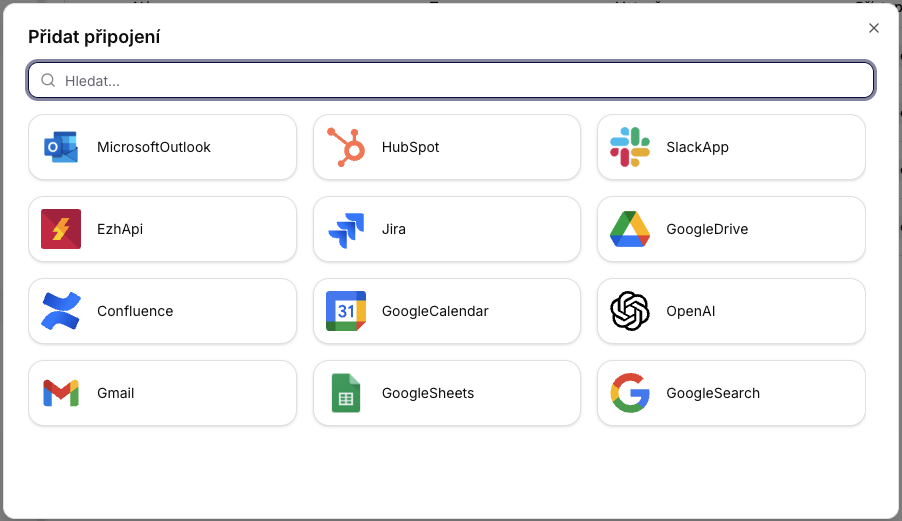

How to Connect (OAuth, like Gmail)
-
Add Connection -> select
GoogleCalendar.

-
Google OAuth Login (access to Calendar).
-
Confirm Integration Name (internal name).
-
Consent to Permissions (Calendar scopes analogous to Gmail).
Connector Overview
- Connector Name: GoogleCalendar
- Type: Google Calendar API (REST)
- Authentication: Google OAuth (delegated user access) - details according to internal configuration (beyond the scope of this document)
- Scope/Operations: CreateEventAsync, ListEventsAsync
General Principles
3.1 Time Formats
DateTime parameters use ISO 8601. Recommendation: use explicit time zone (Z for UTC or offset +01:00, +02:00).
Example: 2025-06-21T14:00:00Z
3.2 Default Calendar
If calendarId is not specified, the user's default calendar will be used: primary.
3.3 Recurring Events
Listing events supports the singleEvents option, which determines whether the recurrence is expanded into individual instances.
Detailed API Operations
4.1 CreateEventAsync
Description: Creates an event in the user's Google Calendar (under their Google/Gmail account).
| Parameter | Type | Required | Description |
|---|---|---|---|
| summary | String | Yes | Title / subject of the event |
| startTime | DateTime | Yes | Start of the event (ISO 8601) |
| endTime | DateTime | Yes | End of the event (ISO 8601) |
| description | String | No | Description of the event |
| location | String | No | Location of the event |
| sendNotifications | Bool | No | Whether to send notifications to participants/user |
Validation Notes
endTimemust be strictly afterstartTime.- Recommendation: use a consistent time zone for both times.
4.2 ListEventsAsync
Description: Returns a list of events from the user's calendar within the specified time range.
| Parameter | Type | Required | Description |
|---|---|---|---|
| calendarId | String | No | Calendar ID (default: primary) |
| timeMin | DateTime | No | Start time for listing (inclusive) |
| timeMax | DateTime | No | End time for listing (exclusive) |
| maxResults | Int | No | Maximum number of events (default: 250) |
| singleEvents | Bool | No | Expand recurrences into instances (default: true) |
Recommended Usage
- For stable results, always set
timeMinandtimeMax. - If processing recurring meetings in analytics, keep
singleEvents=true.
Security and Governance
- Operations run in the context of the user (delegated access via OAuth).
- The connector only works with calendar data within the granted permissions.
- Recommendation: audit and log at least
calendarId, time window (timeMin/timeMax) for listing, and parameterssummary/startTime/endTimefor created events.