MCP
Connect Siesta AI to any MCP-compatible AI client (Claude, Cursor, VS Code, Antigravity, and others). Once connected, the client can manage your agents, skills and workflows, send messages, and read conversations directly from your Siesta AI organization.
How to install
Add one of the connection definitions below to your AI client's MCP configuration. Replace [YOUR-API-KEY] and [YOUR-ORGANIZATION-KEY] with the values from your Siesta AI organization.
- HTTP
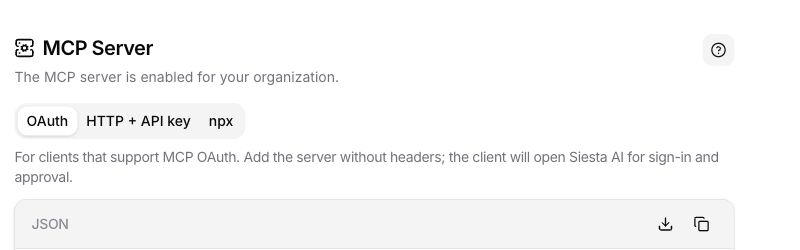
- OAuth
- npx (fallback)
Recommended. No external dependencies, though a few clients may not support it yet.
"siesta": {
  "type": "http",
  "url": "https://api.siesta.ai/mcp",
  "headers": {
    "X-Api-Key": "[YOUR-API-KEY]",
    "X-Org-Id": "[YOUR-ORGANIZATION-KEY]"
  }
}
Recommended for interactive MCP clients that support OAuth. The client opens Siesta AI for sign-in and consent, so the MCP definition contains no API key headers.
"siesta": {
  "type": "http",
  "url": "https://api.siesta.ai/mcp"
}
Needs Node.js. Use only as a fallback when the client cannot connect over HTTP.
"siesta": {
  "command": "npx",
  "args": [
    "-y", "mcp-remote", "https://api.siesta.ai/mcp",
    "--header", "X-Api-Key:[YOUR-API-KEY]",
    "--header", "X-Org-Id:[YOUR-ORGANIZATION-KEY]"
  ]
}
Every AI provider (Claude, Antigravity, and others) stores MCP servers differently and expects these definitions in its own JSON config. The fastest path is to copy the JSON above (with your API key and organization ID from Siesta AI), paste it into the client's chat, and ask the AI to install it. Then follow any instructions it gives, for example restarting the client to refresh the MCP tools.
OAuth installation
Use OAuth when the MCP client supports browser-based authorization and the connection should act as the signed-in Siesta AI user.
- In Siesta AI, open Profile > Apps & Extensions.
- Find MCP Server, select the OAuth tab, and copy the configuration. The OAuth definition contains the MCP server URL without API key headers.
- Add the definition to your MCP client and start the connection from that client.
- If you are not signed in, Siesta AI opens the login page. Sign in with the account that should authorize the client.
- On Review connection, verify the client name and host before continuing.
- Review the requested permissions, then select Allow access or Cancel.
- Siesta AI returns the authorization result to the MCP client. Continue in that client and confirm that the Siesta tools are available.
The consent screen can request these scopes:
| Scope | Meaning |
|---|---|
mcp | Lets the client access and use the Siesta AI tools and data exposed through MCP under the signed-in user's access. |
offline_access | Lets a compatible client stay connected when the user is not actively using it. This scope appears only when the client requests it. |
Only approve a request that you started from a client you recognize. Use Use another account when the displayed Siesta AI account is not the one that should own the connection.
If you select Cancel, the denial is returned to the client and no authorization is granted. If the request is invalid, expired, or interrupted, return to the MCP client and start the connection again. Do not copy authorization codes, request values, or browser callback URLs into client configuration.
This page connects an external AI client to Siesta AI as an MCP server. To connect a third-party MCP server as a tool inside Siesta AI, use the MCP Connection guide instead.
Tools
Once connected, the client can use the tools below. With API-key authentication they operate within the supplied organization; with OAuth they operate under the signed-in user's organization and effective access. The server's advertised tool list remains authoritative for the connected environment.
Agents
| Tool | Description |
|---|---|
list_agents | List the agents (chatbots) in your organization. Use it to find an agent's ID before messaging or editing it. |
get_agent | Read an agent's full configuration: system message, model, connection, skills, sub-agents and tools. |
create_agent | Create a new agent from a name and system message, optionally attaching a model, skills, sub-agents and tools. |
update_agent | Update an existing agent. Only the fields you pass change; list fields replace the whole set. |
Conversations
| Tool | Description |
|---|---|
send_message | Send a message to an agent and get its reply. Pass an agentId to start a new conversation or a conversationId to continue one. |
list_conversations | List existing conversations (newest first), with optional filtering by agent or title search and paging. |
get_conversation | Read the full message history of a conversation before resuming it. |
get_tool_call_result | Read the complete available result and arguments for one tool call in a conversation. |
get_conversation_reasoning | Read the reasoning summaries exposed for a conversation without requesting hidden chain-of-thought. |
get_sub_agent_conversation | Read the conversation created by one recorded sub-agent call. |
approve_tool_call | Approve one identified pending tool call and continue the conversation. This tool is marked destructive. |
reject_tool_call | Reject one identified pending tool call and prevent it from running. |
Skills
| Tool | Description |
|---|---|
list_skills | List the skills (named instructions plus bound tool functions) available in your organization. |
get_skill | Read a skill's full detail: its instructions and bound functions. |
create_skill | Create a new skill from a name, instructions and optional bound functions. |
update_skill | Update an existing skill. Only the fields you pass change; passing functions replaces the whole set. |
list_skill_functions | List the tool functions that can be bound to a skill, returning the IDs to use when creating or updating one. |
Workflows
| Tool | Description |
|---|---|
list_workflows | List the workflows in your organization. Use it to find a workflow's ID before reading or editing it. |
get_workflow | Read a workflow's full graph: nodes (with IDs, types and input mappings) and edges. |
create_workflow | Create a workflow from a full graph of nodes and edges in one call. |
update_workflow | Replace a workflow's graph with the full set of nodes and edges it should have. |
describe_node_types | Discover the workflow building blocks (node types, their inputs/outputs and selectable targets) before building a workflow. |
list_workflow_functions | Search the tool functions that can back a workflow tool node, filtered by provider or capability. |
run_workflow | Start a workflow run. This tool is marked destructive because its nodes can change external state. |
list_workflow_runs | List recent runs for a workflow. |
get_workflow_run | Read one run and its node outcomes. |
Discovery
| Tool | Description |
|---|---|
list_connections | List the connections (integrations) available as an agent's model provider or as a tool. |
list_models | List the LLM models available for an agent, optionally filtered by connection. |
list_system_tools | List the built-in system tools (for example web grounding and scraping) that can be enabled on an agent. |
list_data_source_collections | List Data collections that can be assigned to an agent. |
Graph tools
For Graph concepts, lifecycle, Explorer, Galaxy View, and Agent assignment, start with Graphs.
The Siesta AI MCP server exposes Graph knowledge through lowercase tool names. These are different from the internal Graph_* tools that Siesta AI attaches to an Agent with Graph assignments. External MCP clients should use the advertised lowercase tools and treat their current schemas and annotations as authoritative.
Graph access is evaluated for the identity represented by the connection. Graphs.View and the Graph's resource access policy are both required to read knowledge. Mutations additionally require Graphs.Edit and effective write access. list_graphs returns only accessible Graphs and includes canWrite for each result. Treat a not-found response for inaccessible knowledge as an access boundary; do not probe alternate identifiers.
Tool family
| Tool | Purpose | Character |
|---|---|---|
list_graphs | List accessible Graphs and whether each can be edited. | Read-only |
search_graph_nodes | Search one Graph by text, node types, date filters, paging, and sort order. | Read-only |
get_graph_schema | Read observed node types, relationship types, endpoints, and optionally property observations. | Read-only |
get_graph_node | Read one node and its current version. | Read-only |
get_graph_edge | Read one relationship and its current version. | Read-only |
get_graph_neighborhood | Read one page of direct incoming, outgoing, or bidirectional relationships around a node. | Read-only |
get_graph_subgraph | Read connected context up to three hops from a node in both directions. | Read-only |
create_graph_node, create_graph_edge | Create knowledge with a server-generated identifier after resolving existing entities or endpoints. | Write, non-idempotent |
update_graph_node, update_graph_edge | Replace complete knowledge using optimistic concurrency. | Write, destructive, idempotent |
delete_graph_node, delete_graph_edge | Delete knowledge using its current version. | Write, destructive, idempotent |
Call list_graphs to resolve a graphId and check canWrite. Before creating a node, call search_graph_nodes so an existing entity can be reused instead of duplicated. The search requires at least one query, node type, or creation/update date filter. Resolve both node IDs before creating a relationship.
Paging and bounded output
list_graphs defaults to 25 results and accepts 1–100. search_graph_nodes defaults to 20 and accepts 1–100; follow offset, returnedCount, totalCount, and moreAvailable to retrieve later pages. get_graph_neighborhood defaults to 50 relationships and accepts 1–100; follow every returned continuationToken when the complete one-hop neighborhood is required.
get_graph_subgraph returns compact context up to three hops from one node and always traverses both directions. It is bounded rather than paged. Use node search to resolve the starting node, neighborhood for exhaustive direct connections, and subgraph for focused multi-hop context.
Results can include outputTruncated, omittedItemCount, sourceTruncated, sourceTruncationReasons, or other paging metadata. Treat these fields as part of the result contract. Never infer that a visible response is complete when its metadata says otherwise; the limit reported by the connected environment is authoritative.
Detail levels
Graph read tools use bounded detail levels:
Summaryreturns topology, identity, and versions with the smallest output.Propertiesadds properties and can restrict them withpropertyKeys.Fulladds available evidence and returns all properties within the output bounds.
Start with Summary, then request Properties or Full only for relevant nodes and relationships. list_graphs uses its own Summary or Full detail choice, where Full adds bounded descriptions.
Safe write sequence
- List Graphs and confirm the target and
canWritevalue. - Search for every referenced entity before creating anything.
- Read an existing node or relationship with
Fulldetail and nopropertyKeysbefore replacing or deleting it. - Stop if that full read reports
outputTruncated; a complete safe replacement cannot be constructed from truncated content. - Send the complete replacement, preserve authorized structured evidence, and include the current
expectedVersion. - Verify the returned identifier and version before the next mutation.
Create operations are non-idempotent and generate a new identifier. Updates and deletes use optimistic concurrency and fail rather than silently overwrite a newer version. Extraction guidance is configuration, not evidence or authorization to write.
Security metadata and confirmation
Read-only, create, destructive, idempotent, and open-world annotations describe the intended effect of each tool. send_message, run_workflow, updates, deletions, and approve_tool_call are state-changing or can trigger downstream effects. A destructive annotation can prompt warnings in a compatible client, but it does not guarantee a client-side approval dialog.
Before a state-changing call, show the target and complete arguments to the user, apply the client's confirmation policy, and verify the resulting Siesta AI object or external effect. Use the MCP governance matrix for the recommended access mode. Do not describe this endpoint or a client as marketplace-approved unless the publication status has been verified separately.